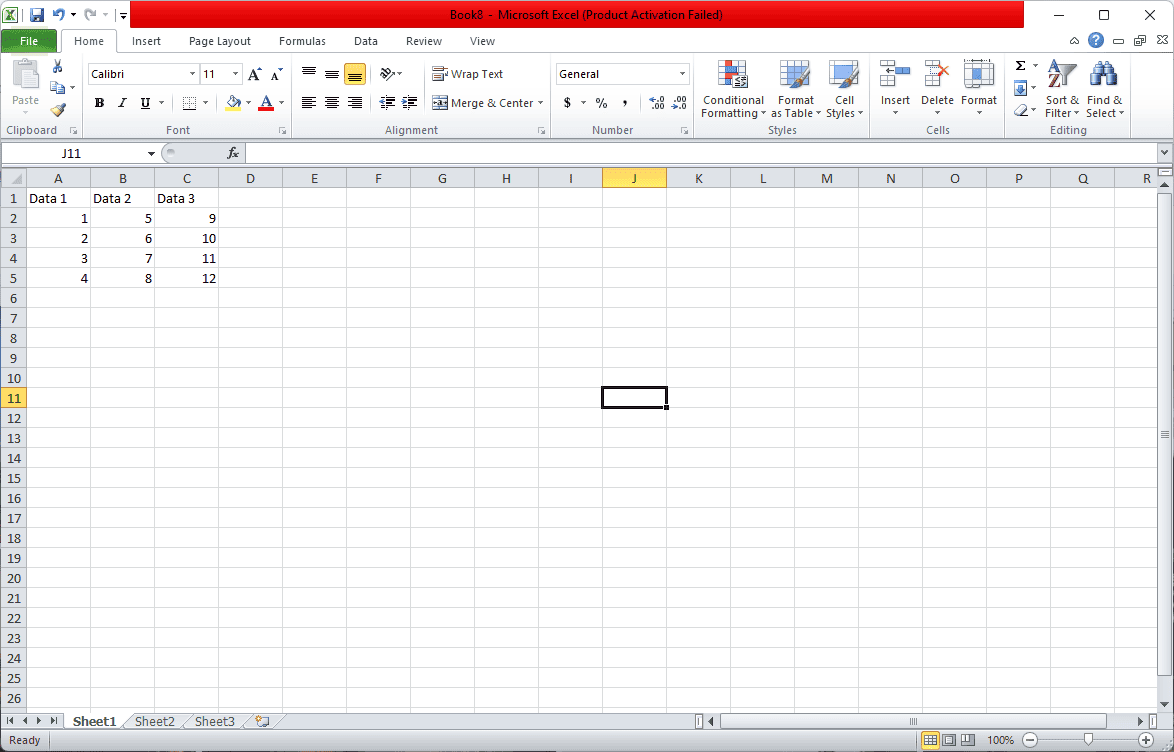
Excel drop-down lists offer a convenient way to control what a user can enter into a spreadsheet cell. They enhance data accuracy and make data entry more efficient. Let’s learn how to create them!
Excel Drop Down List Guide: How to Create and Use Drop Down Lists
Drop down lists in Excel are a powerful tool to make data entry easier, more consistent, and error-free. They allow users to select a value from a predefined list instead of typing it manually, which is especially useful for forms, surveys, and dashboards.
This guide will walk you through creating, customizing, and managing drop down lists in Excel step-by-step.
What is a Drop Down List in Excel?
A drop down list is a data validation feature that restricts the values a user can enter in a cell to a set of predefined options. When you click the cell, a list appears, and you can select an item from it.
How to Create a Drop Down List in Excel
Step 1: Prepare Your List Data
- Create a list of items you want to appear in your drop down list. This can be on the same sheet or a different sheet.
- For example, in column A (A1), enter:
AppleBananaCherryDateElderberry
Step 2: Select the Cell(s) for the Drop Down
- Click the cell or select the range where you want the drop down list to appear.
Step 3: Open Data Validation
- Go to the Data tab on the Ribbon.
- Click Data Validation in the Data Tools group.
Step 4: Configure Data Validation
- In the Settings tab, select List from the Allow dropdown.
- In the Source box, enter the range of your list items. For example:
=$A$1:$A$5 - Alternatively, you can type the list items directly separated by commas:
Apple,Banana,Cherry,Date,Elderberry - Make sure In-cell dropdown is checked.
- Click OK.
Step 5: Test the Drop Down List
- Click the cell(s) where you applied the validation.
- A drop down arrow should appear; click it to see and select from the list.
Advanced Drop Down List Tips
Using Named Ranges
- Define a named range for your list (Formulas > Define Name).
- Use the named range in the Source box, e.g.,
=FruitList. - This makes managing and referencing the list easier, especially if the list is on a different sheet.
Creating Dynamic Drop Down Lists
- Use Excel tables or dynamic formulas (like OFFSET or INDIRECT) to make your list automatically update when new items are added.
Dependent Drop Down Lists (Cascading)
- Create drop down lists where the options in one list depend on the selection in another. This requires using the INDIRECT function and named ranges.
Managing Drop Down Lists
- Edit: Select the cell(s), open Data Validation, and change the Source.
- Remove: Select the cell(s), open Data Validation, and click Clear All.
- Copy: Drag the fill handle or use copy-paste to apply the drop down list to other cells.
Common Issues and Fixes
- Drop down arrow not showing: Make sure In-cell dropdown is checked.
- List items not updating: Use dynamic ranges or tables for automatic updates.
- Error on invalid entry: Enable Show error alert in Data Validation settings.
- Source list on another sheet: Use named ranges, as direct references to other sheets are not allowed in Data Validation source.
Summary Table
| Step | Action | Notes |
|---|---|---|
| 1 | Prepare list data | List can be on same or different sheet |
| 2 | Select cell(s) | Where drop down will appear |
| 3 | Open Data Validation | Data > Data Validation |
| 4 | Choose List and set Source | Use range or comma-separated values |
| 5 | Test drop down | Click arrow to select |
Conclusion
Creating drop down lists in Excel is an easy way to improve data accuracy and user experience. Whether for simple selections or complex dependent lists, mastering this feature will make your spreadsheets more professional and efficient.
Sources:
- Microsoft Support: Create a drop-down list
- Trump Excel: How to Create a Drop Down List in Excel
- Excel Easy: Drop Down List Examples
⌨️ Creating a Basic Drop-Down List
Here’s how to make a simple drop-down list in your Excel worksheet:
- List Your Options: In a column or row, type all the options you want in your drop-down list.
- Select Your Cell: Click on the cell where you want the drop-down list to appear.
- Data Validation: Go to the “Data” tab and locate the “Data Validation” button (usually in the Data Tools group).
- Settings: In the Data Validation popup:
- Under the “Settings” tab, choose “List” from the “Allow” dropdown menu.
- In the “Source” box, either directly type your list items separated by commas, OR select the range of cells containing your list.
- Click “OK”! Now, your chosen cell has a drop-down arrow for users to select their desired option.
⚙️ Customizing Your Drop-Down List
- Input Messages: In the Data Validation popup, use the “Input Message” tab to guide users with a pop-up message when they select the cell.
- Error Alerts: The “Error Alert” tab lets you customize error messages for invalid entries.
💡 Advanced Features
| Feature | How to Use |
|---|---|
| Dynamic Lists | Use the =OFFSET or =INDIRECT formula to create drop-downs that automatically update based on other data in your sheet. |
| Dependent Lists | Create multiple drop-downs linked together. For instance, the second list could change its options depending on what’s selected in the first one. |
🌟 Why Use Drop-Down Lists?
- Data Consistency: Ensure entries are standardized and accurate.
- Error Reduction: Minimize typos and misspellings.
- Efficiency: Speed up data entry by providing clear choices.
- User-Friendliness: Make your spreadsheets easier to use.
Let’s make your Excel spreadsheets smarter with drop-down lists!
Understanding Excel Drop-Down Lists
Excel drop-down lists are a clever feature in Microsoft Excel that enhance the user experience by providing a simple way to select an item from a predetermined set of options. When using a spreadsheet, these lists help to maintain data integrity, ensuring that entries are consistent and standardized.
Creating an excel drop-down list is straightforward. Begin by selecting the cell where you want the list to appear. Head to the Data tab and click on Data Validation. Within the settings, you’ll choose “List” from the validation criteria. You then specify your options directly or reference them from cells in your Excel sheet.
Here’s a quick guide:
- Select the target cell.
- Click Data > Data Validation.
- In the Data Validation menu, click the Settings tab.
- Choose ‘List’ in the ‘Allow’ field.
- Enter the desired list items, separated by commas or reference a range of cells where your list items are.
The benefits of using excel drop-down lists in an Excel spreadsheet are many. For one, they prevent typos and inconsistencies by eliminating the chance of free-text errors. Also, they streamline data entry, making the process quicker and more efficient. This is particularly beneficial in scenarios where a sheet is shared among multiple users.
In essence, drop-down lists can be thought of as a tool to guide users through a seamless data input experience in a spreadsheet. They are invaluable in scenarios requiring form filling or data entry in Microsoft Excel, ensuring that the spreadsheet stays clean and error-free.
Creating a Basic Drop-Down List
Drop-down lists in Excel streamline data entry, allowing for a selection from predefined items. They ensure consistency and accuracy across your data sets.
Defining the Source Data
Before anything else, you need to decide what data will be in your drop-down list. This is your source data, and it’s often typed out in a separate Excel sheet or a range of cells. For instance, if you’re making a list of flavors, you’d list them like so:
Vanilla
Chocolate
Strawberry
Ensure these are the only options you want users to choose from, as they will be the valid entries for your drop-down list.
Accessing Data Validation Settings
To enable a drop-down list, you need the Data Validation tool. Here’s the quick way to get there:
- Click on the cell where you want your list.
- Navigate to the ‘Data’ tab.
- Click on ‘Data Validation’ in the ‘Data Tools’ group.
This opens up a new window where you’ll configure your list settings.
Configuring Drop-Down Settings
Now, let’s set up your drop-down:
- In the Data Validation dialogue box, go to the ‘Settings’ tab.
- For the ‘Allow’ field, select ‘List’.
- In the ‘Source’ box, input the range of cells where you typed your source data. You can also directly type in your options separated by commas.
Make sure to check the ‘In-cell dropdown’ option so that the list actually appears in the cell.
If you like, you can add an ‘Input Message’ that will guide users on what to do when they select the cell. This message will pop out every time someone clicks on the cell to add data.
Managing Data in Drop-Down Lists
Properly managing data in drop-down lists in Excel ensures efficient data entry and maintains the integrity of the information presented. Here’s how to add, remove, and edit items to keep lists up-to-date and accurate.
Adding Items to a List
To add items to an existing drop-down list, type the new entry at the end of the list in the source. If the drop-down is based on an Excel table, adding an item to the table will automatically refresh the associated drop-down menu. Alternatively, using the ‘Data Validation’ feature, you can include additional items by updating the list range or adding them directly to the ‘Source’ field separated by commas.
Removing Items from a List
To remove items, find the source of the list, which could be a range of cells or a separate table, and delete the unwanted entries. When removed from the table or list range, the drop-down menu will no longer show these items.
Editing Existing Lists
Editing a list involves either extending the range of data in ‘Data Validation’ or directly modifying the specified cells. Select the cell with the drop-down list, navigate to ‘Data Validation’ in the ‘Data’ tab, and update the ‘Source’ box to reflect your changes. Save the updates by clicking ‘OK,’ and the drop-down list will feature the edited content.
Advanced Drop-Down List Techniques
Excel offers some advanced features for drop-down lists that can greatly enhance usability and functionality. Let’s take a look at how these features can be applied to create dynamic and dependent lists, as well as how to incorporate formulas.
Creating Dynamic Drop-Down Lists
A dynamic drop-down list in Excel updates automatically when new items are added to the list range. By using the UNIQUE function, you can ensure that the list shows only unique items, avoiding any duplicates. Here’s a simple way to achieve this:
- Suppose you have a list of items in column A.
- You can create a dynamic list by entering the formula
=UNIQUE(A:A)in another cell or named range. - When you add new items to column A, the drop-down list will update without needing any manual adjustments.
Setting Up Dependent Drop-Down Lists
Dependent drop-down lists change based on the selection made in another list. Here’s how to set one up using the INDIRECT function:
- First, separate your data into primary and secondary lists. Name each secondary list range after a primary list item.
- In the Data Validation settings for the dependent list cell, enter the formula
=INDIRECT(A1)in the Source box (assuming A1 contains the primary list). - When a primary option is chosen, the dependent list will only show the relevant choices linked to that option.
Utilizing Formulas in Lists
Formulas can supercharge the functionality of your drop-down lists. For example, to create a list that shows items based on certain conditions, you can use functions like IF or FILTER. Here’s a basic outline using the FILTER function:
- You can create a list that only displays items from column A that meet a certain condition (e.g., prices higher than 100) by using the formula
=FILTER(A:A, B:B>100), assuming column B contains prices. - Utilizing such formulas within your named ranges can make your drop-down lists much more powerful, enabling you to only present valid choices to the user.
By mastering these advanced techniques, you’ll be able to make more robust and user-friendly Excel spreadsheets that react smartly to your data.
Customizing Drop-Down List Appearance
Crafting an effective drop-down list in Excel involves more than just populating it with options. The appearance of your drop-down list can significantly impact the usability of your spreadsheet.
Adjusting Column Width and Row Height
To ensure your drop-down list displays all the information clearly, you may need to adjust the column width or row height. This can be done by moving the cursor to the edge of the header cell until it changes to a column or row adjustment icon (a double-headed arrow). Then, click and drag to resize. For precision, right-click on the column or row label and select “Column Width” or “Row Height” to input exact measurements.
- Column Width: Right-click the column header > Select Column Width > Enter value.
- Row Height: Right-click the row header > Select Row Height > Enter value.
Applying Conditional Formatting
To make your drop-down list stand out or to illuminate the data it represents, apply conditional formatting. Start by selecting the cell or range containing your drop-down list. Then, go to the “Home” tab, find the “Styles” group, and click “Conditional Formatting.” Choose from predefined rules or create new ones to dynamically change the cell’s appearance based on its value.
- Predefined Rules: Choose options like “Data Bars,” “Color Scales,” or “Icon Sets.”
- New Rules: Select ‘New Rule’ for custom conditions, then set up formulas or criteria to format your cells.
By combining adjustments to the dimensions with smart conditional formatting, your drop-down list will not only be functional but also visually appealing and user-friendly. Remember that any extensive changes to the look of your spreadsheet should enhance clarity and not introduce distraction. Tenacity in fine-tuning these elements will pay off in both aesthetics and efficiency.
Improving Data Integrity
Effective use of Excel’s data validation tools is key to maintaining the quality of data by minimizing the entry of invalid data. These tools offer clear benefits when managing both small and large datasets, where manual validation can be impractical.
Restricting Entries to Valid Data
Data validation is a process that ensures only acceptable data is entered into a spreadsheet. By setting up data validation rules, you can define what constitutes valid data within a cell or range of cells, which might include a list of options or a specific data type. For example, you could restrict entries in a cell to a set of predefined items in a drop-down list. Here are the steps to implement this:
- Select the cell or cells where you want the drop-down to appear.
- Go to the Data tab, click on Data Validation, and then choose Data Validation again from the dropdown.
- In the dialog that appears, under the Settings tab, select List from the Allow box.
- In the Source box, enter the range of valid values or type them in, separated by commas.
This approach ensures that users can only select from the options you’ve provided, which significantly reduces the chance of errors.
Implementing Error Alerts
If a user tries to enter invalid data where data validation is applied, Excel can be set to show an error alert. These pop-up messages inform them of the mistake, guiding them to correct it. To implement error alerts:
- Follow the steps to set up data validation as described above.
- Stay in the Data Validation dialog and click on the Error Alert tab.
- Ensure the Show error alert after invalid data is entered checkbox is selected.
- Choose the style of the error message (Stop, Warning, Information), and enter the title and text of your error message.
Here’s what each style signifies:
- Stop: Completely blocks entry of invalid data.
- Warning: Permits the user to continue entering the invalid value after the warning.
- Information: Just informs the user of the invalid data but allows the entry to take place.
By tailoring the error messages, you ensure that users understand exactly what they need to fix, increasing the reliability of the data entered.
Interacting with Drop-Down Lists
Excel’s drop-down lists enhance data accuracy by providing users with a predefined set of options. This ensures that data is entered consistently throughout the worksheet.
Enabling and Disabling In-Cell Dropdown
In Excel, the in-cell dropdown feature is a handy tool for maintaining data integrity. To enable an in-cell dropdown, you would typically navigate to the Data Validation dialog box. Here’s a simple way to activate or deactivate the feature:
- Select the cell or entire column where you want the drop-down list.
- Go to the Data tab and click on ‘Data Validation’.
- In the dialog box that appears, choose the ‘Settings’ tab.
- To enable the dropdown, set the ‘Allow’ field to ‘List’ and ensure the ‘In-cell dropdown’ option is checked.
- To disable, simply uncheck the ‘In-cell dropdown’ box and click ‘OK’.
This process either displays or hides the dropdown arrow for the cell, allowing for an intuitive selection or input experience.
Navigating Through List Options
Once a drop-down list is active in a cell, interacting with it is straightforward:
- Click on the cell to reveal the dropdown arrow to the right.
- Click the arrow, and the list of options will be displayed.
- Navigate through the options either by scrolling with your mouse or using the up and down arrow keys.
- Make a selection by clicking on an option or pressing ‘Enter’ when the desired item is highlighted.
It’s important to note that while navigating, users can’t interact with other cells until they finalize their selection or cancel the process. This focused approach to data entry minimizes errors and ensures that only valid data is captured in the dropdown list’s cells.
Drop-Down List Operations
When managing drop-down lists in Excel, one often needs to replicate list settings or remove them entirely. Knowing how to efficiently copy and paste these settings, as well as clear drop-down lists from cells, saves time and prevents data mishaps.
Copying and Pasting List Settings
Copying a drop-down list from one cell to a range of cells can be done swiftly. The user should select the cell with the desired list, copy it using Ctrl + C, and then select the destination cells where this list should be applied, pasting with Ctrl + V. Note that this only works if the drop-down list was created using data validation settings without any cell references.
Clearing Drop-Down Lists from Cells
To remove a drop-down list from a specific cell, one must access the data validation settings. Within these settings, navigate to the cell or range where the list is to be cleared and click on Data Validation. Under the Settings tab, one will find a Clear All button which, upon clicking, will remove the drop-down list from the selected cells.
Securing Drop-Down Lists
Ensuring that drop-down lists in Excel are secure is vital for data integrity. This section guides you through locking cells and hiding the source data to protect your lists effectively.
Locking Cells and Protecting Sheets
Locking cells in a spreadsheet is a two-step process. First, you need to designate the cells you want to lock. By default, all cells are set to be locked, but this has no effect until you protect the worksheet. Therefore, after deciding which cells should be dropdown lists and locking them, you protect the sheet. Here’s how to do it:
- Select the cells you wish to become drop-down lists.
- Go to the Data tab and choose Data Validation.
- After setting up your drop-down list, right-click the cell and hit Format Cells.
- Move to the Protection tab, ensure the Locked option is checked, and press OK.
- Now, go to the Review tab and select Protect Sheet or Protect Workbook.
- Configure your protection settings and create a password if desired.
By doing these steps, others can’t modify the locked cells, keeping your drop-down lists safe.
Hiding Source Data for Lists
To keep the source data of your drop-down lists out of sight, you can hide the cells that contain that data. This doesn’t obstruct the functionality of your lists but maintains the neatness and security of your data. You might do this if the list is long or complex, or if you simply want to keep your spreadsheet tidy. Here’s a quick way to hide this information:
- Locate the cells with the data used in your drop-down list.
- Right-click on the row or column headers containing this data.
- Choose Hide from the context menu.
The data remains accessible to the drop-down list, but it’s no longer visible in the worksheet. Only people who know where to look will be able to find and unhide the source data. This method is particularly useful when sharing a spreadsheet without revealing all your underlying data.
Efficient Data Entry with Tables
When working with Excel, converting a range of data to a table and integrating drop-down lists can streamline the process and ensure accuracy.
Converting Range to Excel Table
Converting data from a regular range into an Excel table is straightforward. First, select the range you want to convert. Then, navigate to the ‘Insert’ tab and click on ‘Table’ or simply press Ctrl + T. This action transforms your range into an Excel table which comes with powerful features that facilitate easier data analysis and organization.
Incorporating Drop-Down Lists in Tables
After setting up your table, adding drop-down lists can make data entry faster and prevent errors. Click on the cell within the table where the drop-down should appear. Go to the ‘Data’ tab and select ‘Data Validation’. In the dialog box that opens, choose ‘List’ from the Allow options. Enter your desired values directly into the ‘Source’ box separated by commas, or refer to a range of cells where your list items are located. Confirm by clicking ‘OK’. This method ensures users can only select from the predefined list, maintaining consistency and accuracy within the table.
Custom Control Alternatives
When exploring drop-down list capabilities in Excel, one can find greater flexibility and customization using form controls such as Combo Boxes.
Using Combo Boxes
Combo Boxes, a form control tool, offer advanced customization for drop-down lists in Excel. They empower the user to modify the visual aspect of the list. For example, the number of visible items in the drop-down can be adjusted to ensure all options are seen at once, eliminating the need for a scroll bar. They are typically inserted via the Developer tab, where one finds the Combo Box tool under the ActiveX Controls. Once added, the Combo Box can be tailored to match the spreadsheet’s aesthetics and user interaction requirements.
Organizing List Data
When assembling a drop-down list in Excel, organizing data ensures efficiency and clarity. Structuring the list alphabetically is a common approach, allowing users to find items quickly. Imagine a fruit list; sorting it alphabetically would place ‘Apple’ at the top, followed by ‘Banana’, and so on.
Steps to organize a list in alphabetical order:
- Prepare your list in a column (e.g., Column B).
- Select the cell where you want the sorted list to begin (e.g., Cell E5).
- Enter the formula
=SORT(B5:B13)into the selected cell and press Enter.
By taking these steps, you create a sorted array from your list data. An organized drop-down list contributes to data consistency, guiding users through selection processes without confusion.
Additionally, converting your list items into an Excel table can further simplify management. Here’s a quick guide to convert a data range to a table:
- Click any cell within your list.
- Press Ctrl+T and confirm the prompt.
A well-structured list in Excel not only boosts the speed of data entry but also limits user input to predefined choices, reducing the likelihood of errors. It’s about knowing the tools at your disposal and using them to create a seamless user experience.
Excel Productivity Enhancements
Excel’s drop-down lists are a brilliant tool for maintaining data integrity and expediting data entry tasks. These lists can help both novice and advanced users operate more efficiently.
Leveraging Excel Tech Community Resources
The Excel Tech Community is rich with insights that can help users harness the power of Excel features, including drop-down lists. Users can find a wealth of information, from basic guidance to advanced tips, by browsing community discussions. They can learn from experts who share their knowledge freely, allowing anyone to enhance their Excel skills.
Exploring Subscription Benefits and Training
For subscribers of Office 365, now known as Microsoft 365, there are additional perks that amplify productivity. These benefits often include:
- Access to the latest updates: Subscribers receive the newest features as soon as they’re released.
- Premium training courses: Microsoft offers a variety of courses that cater to different skill levels, helping users to learn at their own pace.
Moreover, communities around the web host webinars and offer tutorials which can be especially helpful for sharpening Excel skills. Through both official and community-driven training resources, users can master the creation and management of drop-down lists, a skill that will streamline their workflow significantly.
Optimizing Workbook Performance
When working with Excel, especially Excel 365, keeping your workbook running smoothly is a must. The last thing anyone wants is a spreadsheet that crawls along at a snail’s pace. To ensure your workbook is performing optimally, start by focusing on the Update and Selection processes.
For starters, if your workbook contains drop-down lists that you need to add or remove items from, doing this for multiple cells can end up slowing things down. To handle this efficiently, Excel’s Ribbon can be your best tool. Here’s how you can use it to improve performance:
- Go to the Data tab in the Ribbon.
- Click on Data Validation to manage drop-down lists.
- Opt for setting up validation for a selection of cells to minimize individual cell updates.
Using Excel Tables is a clever way to manage your data effectively. It simplifies adding or removing items because tables adjust dynamically, and you won’t have to update each cell manually.
Another performance tip is to limit your use of complex formulas and instead utilize simple functions wherever possible. Complex formulas can slow down your workbook. If you have calculations that don’t need to be updated continually, set Excel to Manual Calculation Mode. This tells Excel to only update the calculations when you decide to, not every time a change is made. Here’s how:
- Press ALT + M + X to switch to manual calculation in Excel 365.
Lastly, keeping your data organized and confined to the necessary cells, rather than stretching across entire rows or columns, can drastically improve your workbook’s responsiveness. Pruning unnecessary data or formatting can also work wonders for performance.
By staying sharp and keeping these strategies in check, your workbook should remain quick and responsive.
Frequently Asked Questions
Creating and managing drop-down lists in Excel can streamline your data entry process and keep your data consistent. This section will answer some common questions to help you enhance your Excel spreadsheets.
How can one set up a drop-down list with the capability for multiple item selection in Excel?
Excel doesn’t support multiple selections in a standard drop-down list directly. However, you can use VBA code to create a combo box that allows for multi-selection. It requires a basic understanding of Excel’s Developer tools.
What are the steps to add color to items within an Excel drop-down list?
Colors can’t be assigned to individual items directly within a drop-down list in Excel. However, you can use Conditional Formatting to change the cell color based on the item selected from the list.
Could you explain how to use formulas within an Excel drop-down list?
You can use formulas in a drop-down list by setting one up through Data Validation. Utilize formulas like INDIRECT to populate the list based on other cell values, allowing for dynamic and context-sensitive drop-downs.
What is the procedure to alter an existing drop-down list in Excel?
To alter an existing drop-down list, navigate to the Data tab, click on ‘Data Validation’, and in the settings tab, you can change the source for the list items. If the list draws from a range, just update the range.
How can a drop-down list in Excel pull data from a different worksheet?
Link to another worksheet by specifying the worksheet and cell range in the Source field within the Data Validation settings. Use a named range for easier management if the external data changes frequently.
Is there a way to link a particular cell’s value to choices made from an Excel drop-down list?
Yes, you can link a cell to a drop-down list by using cell references or formulas. When an item is selected, the linked cell will reflect the chosen item’s value, making your data interconnected and more dynamic.