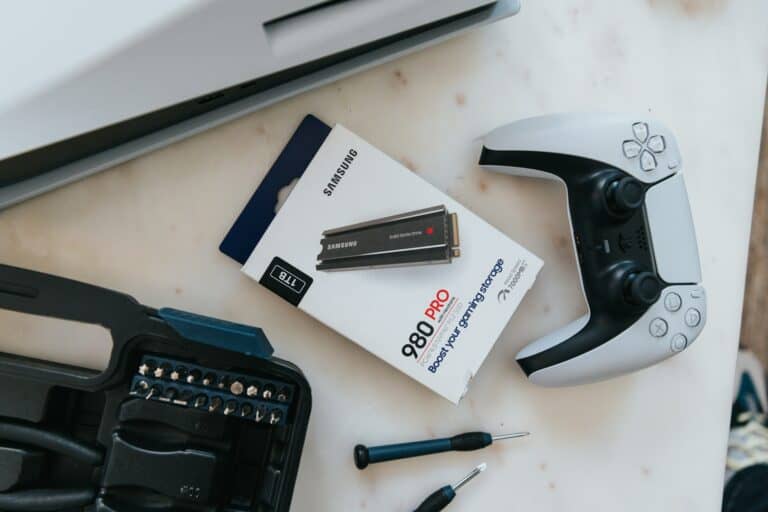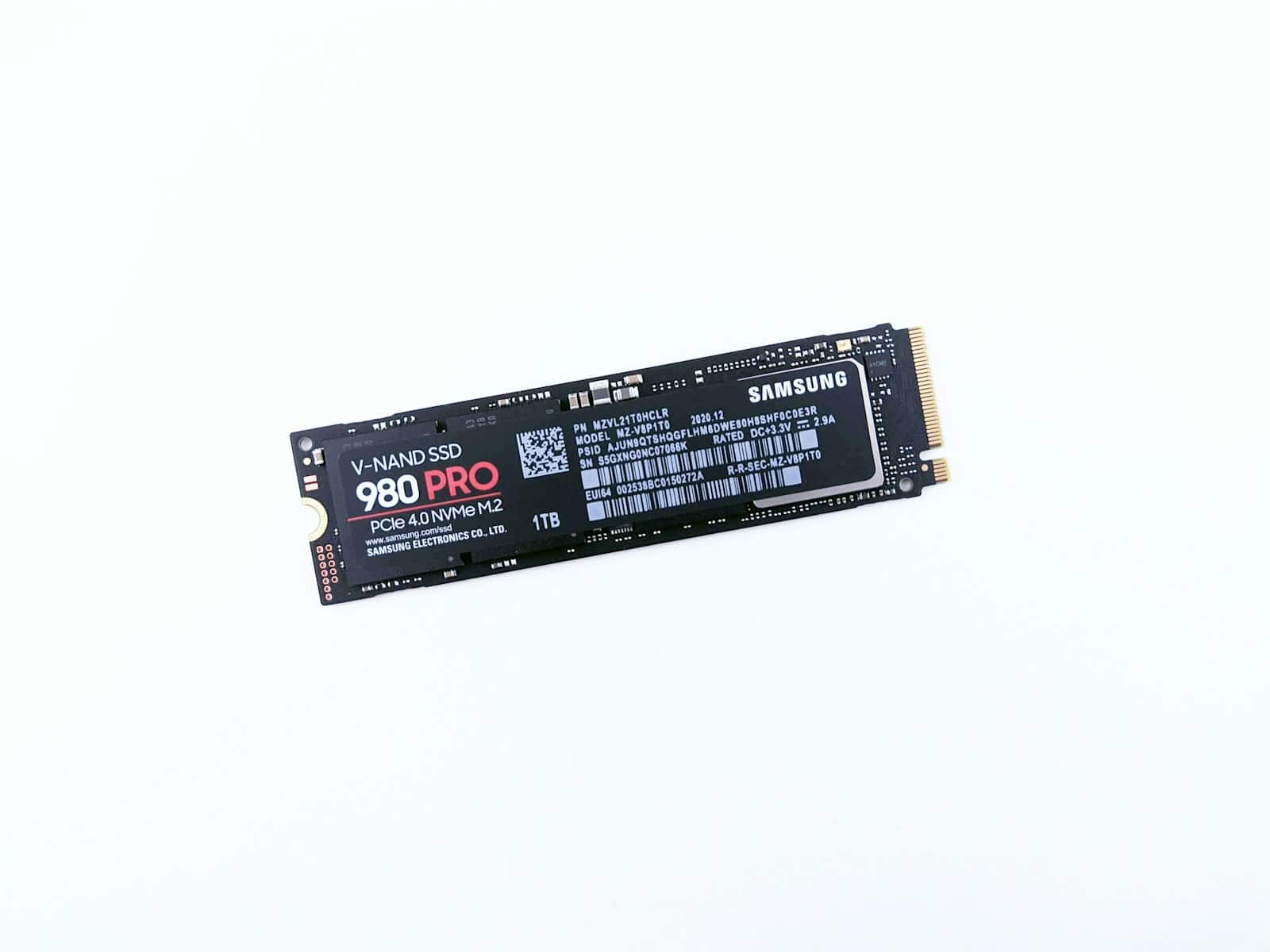
When you’re deciding between an SSD (Solid State Drive) and an HDD (Hard Disk Drive), it’s important to understand what each one offers. SSDs are known for being durable and providing quick access to data, making them popular for demanding tasks and mobile devices. On the other hand, HDDs are the traditional storage devices, known for their larger storage capacity and affordability.
The storage option you choose can significantly impact your computer’s performance. If you need high speed, like for complex software or gaming, SSDs might be the better choice despite being more expensive. On the other hand, if you need a lot of storage for files and applications but don’t require high speed, you might prefer the affordability of an HDD. To make the right choice, you need to balance cost, capacity, and performance based on your specific needs.
SSDs vs HDDs: Comparing Speed, Durability, and Cost
When choosing storage for your computer or device, the two main types you’ll encounter are Solid State Drives (SSDs) and Hard Disk Drives (HDDs). Understanding their differences in speed, durability, and cost can help you make an informed decision based on your needs.
1. Speed
SSD (Solid State Drive)
- Uses flash memory with no moving parts.
- Provides much faster data access and transfer speeds than HDDs.
- Typical read/write speeds range from 200 MB/s to over 3,500 MB/s (especially with NVMe SSDs).
- Results in quicker boot times, faster file transfers, and more responsive applications.
HDD (Hard Disk Drive)
- Uses spinning magnetic disks and a moving read/write head.
- Typical speeds range from 80 MB/s to 160 MB/s.
- Slower boot times and file access compared to SSDs due to mechanical movement.
- Performance can degrade over time due to wear and fragmentation.
2. Durability
SSD
- No moving parts, making SSDs more resistant to physical shock and vibration.
- Less prone to mechanical failure.
- Typically more reliable for portable devices like laptops.
- Limited write cycles, but modern SSDs have improved lifespan suitable for most users.
HDD
- Contains spinning disks and mechanical arms, making them more vulnerable to damage from drops or shocks.
- Mechanical parts can wear out over time, leading to potential failure.
- Better suited for stationary setups like desktop PCs or external backups where physical movement is minimal.
3. Cost
SSD
- More expensive per gigabyte than HDDs.
- Prices have been decreasing steadily but still cost about 3 to 5 times more per GB than HDDs.
- Ideal for users who prioritize speed and durability over storage capacity.
HDD
- Much cheaper per gigabyte.
- Available in larger capacities (up to 20TB and beyond) at affordable prices.
- Suitable for bulk storage needs like backups, media libraries, and archival.
Summary Table
| Feature | SSD | HDD |
|---|---|---|
| Speed | Very fast (200 MB/s to 3,500+ MB/s) | Slower (80 MB/s to 160 MB/s) |
| Durability | More durable, no moving parts | Less durable, mechanical parts |
| Cost | Higher cost per GB | Lower cost per GB |
| Noise | Silent operation | Audible spinning and clicking |
| Power Usage | Lower power consumption | Higher power consumption |
| Capacity | Typically smaller (up to 8TB common) | Larger capacities available (up to 20TB+) |
When to Choose SSD vs HDD
- Choose SSD if:
- You want faster system performance and boot times.
- You need a durable drive for a laptop or portable device.
- You prioritize responsiveness for gaming, video editing, or software development.
- Choose HDD if:
- You need large amounts of storage at a low cost.
- You use the drive mainly for backups or media storage.
- Budget constraints are a primary concern.
Conclusion
Both SSDs and HDDs have their place in modern computing. SSDs excel in speed and durability but come at a higher cost, while HDDs offer large, affordable storage but with slower performance and less durability. Many users combine both, using SSDs for their operating system and applications and HDDs for mass storage.
Sources:
- ssdbuddy.com: SSD vs Hard Drive Comparison
- caasify.com: SSD vs HDD Comparison 2025 Guide
- techtarget.com: SSD vs HDD Differences
SSD (Solid State Drive) vs HDD (Hard Disk Drive)
| Feature | SSD (Solid State Drive) | HDD (Hard Disk Drive) |
|---|---|---|
| Storage Technology | Uses interconnected flash memory chips to store data. No moving parts. | Uses spinning magnetic platters and a read/write head to store data. |
| Speed | Significantly faster read/write speeds than HDDs. | Slower read/write speeds due to mechanical components. |
| Durability | More durable and shock-resistant due to no moving parts. | Susceptible to damage from physical shock and drops. |
| Noise | Virtually silent operation. | Produces some noise due to spinning platters. |
| Power Consumption | Consume less power than HDDs. | Consume more power than SSDs. |
| Cost | Typically more expensive per gigabyte. | More affordable per gigabyte. |
| Capacity | Commonly available in smaller capacities (up to a few terabytes) | Offer larger capacities for storing massive amounts of data. |
Best Uses:
- SSD: Ideal for operating systems, frequently used applications, gaming, and tasks requiring fast data access.
- HDD: Excellent for bulk data storage, backups, and applications where cost is a primary concern and speed is less critical.
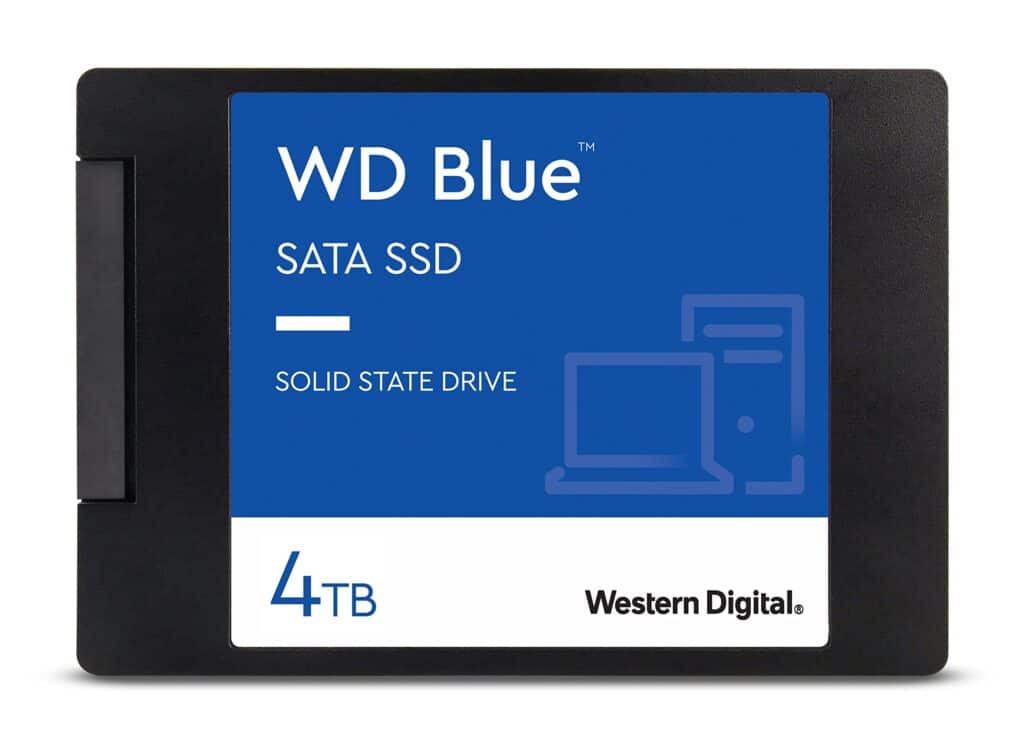
Key Takeaways
- SSDs excel in speed and durability, while HDDs offer more storage at a lower cost.
- The choice between SSD and HDD should be based on individual needs for speed, capacity, and budget.
- Understanding the distinct features of SSDs and HDDs aids in selecting the most suitable storage solution.
Understanding SSDs and HDDs
In this section, we compare two main types of storage: SSDs (solid-state drives) and HDDs (hard disk drives). We’ll look at how they work, their speed and performance, and the differences in cost and storage capacity.
Technology and Architecture
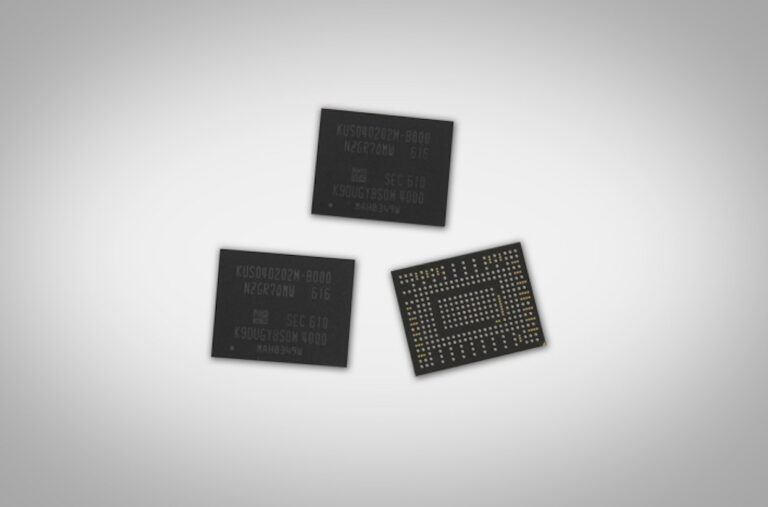
SSDs store data on flash memory cells which work without any moving parts. These memory cells are structured in blocks within the SSD. NAND is the type of flash memory standard most SSDs use. Unlike SSDs, HDDs store data on magnetic platters that rotate. A moving component known as a read/write head on an actuator arm accesses the data.
- SSD: No moving parts, uses NAND flash memory.
- HDD: Has moving parts, stores data on magnetic platters.
Performance and Speed
Performance and speed are critical for storage drives. SSDs shine in this respect as they can access data much faster than HDDs. They often contribute to a snappier and more responsive system. This is because SSDs access data in blocks rather than in sectors as HDDs do, which requires the actuator arm to move to the correct position on the platter to read or write data.
| Drive Type | SSD | HDD |
|---|---|---|
| Speed | High (Data accessed in blocks) | Slower (Data accessed in sectors) |
Capacity and Cost
When it comes to storage capacity, HDDs usually offer more gigabytes per dollar, making them attractive for large data storage needs. SSDs, being more expensive per gigabyte, are typically chosen for their speed rather than for mass storage.
- HDDs: More affordable, offer more storage for less money.
- SSDs: Higher cost, less storage space for the same price.
In simple terms, if you need a lot of storage and have a limited budget, an HDD might be the right choice. If you’re looking for speed and performance, an SSD is the way to go.
Choosing the Right Storage Option
When picking the right storage for your device, it is essential to consider factors such as the physical size, how you’ll use it, and the device’s expected life.
Form Factors and Compatibility
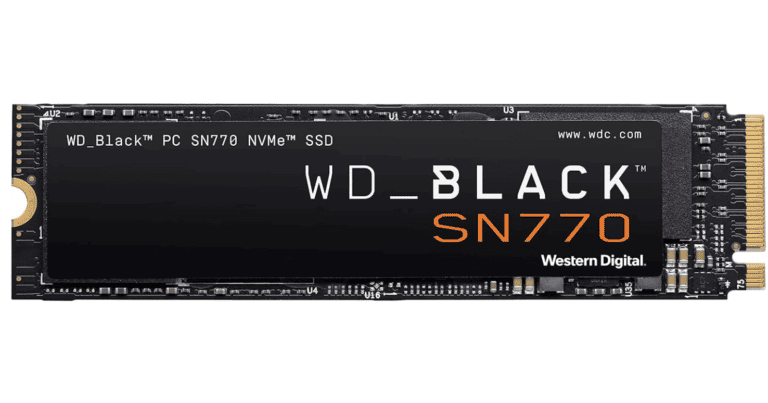
Modern storage comes in various shapes and sizes known as form factors. Solid-state drives (SSDs) often come in 2.5-inch, m.2, and PCIe versions. Hard disk drives (HDDs) usually are found in 3.5-inch and 2.5-inch sizes for desktops and laptops, respectively. A computer’s motherboard dictates the suitable form factor and interface; SATA and NVMe are common interfaces for SSDs, the latter being faster. Before buying, check your device’s compatibility with these standards.
Usage Scenarios and Workflow
Storage choice heavily depends on how you plan to use your device. SSDs, with their high speed, are preferable for tasks needing rapid data access such as gaming or video editing. For general computer use like browsing the web and office applications, a traditional HDD might suffice and be more cost-effective, especially for larger storage needs. Hybrid drives or SSHDs can offer a balance, combining HDD’s larger storage with SSD’s better performance.
Longevity and Durability
SSDs are known for their durability as they have no moving parts, reducing wear and tear compared to HDDs which use mechanical parts. This makes SSDs a reliable option with a higher lifespan, particularly important for mobile devices like laptops that move around a lot. HDDs are more cost-effective but also more vulnerable to physical damage, meaning they may not last as long. Assessing your budget and requirement for reliability will help narrow down the right storage option for you.
Frequently Asked Questions
When picking the right storage for a computer, people often have questions about the differences between Solid State Drives (SSDs) and Hard Disk Drives (HDDs). This section aims to address key questions focusing on speed, lifespan, pros and cons, gaming performance, and the use of SSDs and HDDs as external drives.
What is the difference in speed between SSDs and HDDs?
SSDs boast significantly higher read and write speeds than HDDs. They enable quicker file access and data transfer which can be markedly faster, sometimes up to multiple times quicker, compared to HDDs. This speed difference makes SSDs a favorite for tasks that benefit from fast performance.
How do HDD and SSD lifespans compare?
SSDs generally have a shorter lifespan than HDDs due to a limited number of write cycles. Despite this, modern SSDs include technologies to manage wear, thus extending their useful life. HDDs, on the other hand, have moving parts that can fail over time, particularly with rough use.
What are the pros and cons of SSDs versus HDDs?
SSDs offer better performance, with faster read/write speeds, less power consumption, and higher shock resistance than HDDs. However, they tend to be more expensive per gigabyte and hold less data. HDDs are more cost-effective for storing large amounts of data but are slower and more susceptible to physical damage.
What benefits does an SSD provide for gaming compared to an HDD?
An SSD may significantly reduce game load times and improve overall system responsiveness during gaming. Faster data access means games install, boot, and load faster compared to using an HDD. This can enhance the gaming experience by minimizing delays and in-game stuttering.
What are the primary differences when considering an SSD and HDD for an external hard drive?
An external SSD is lighter, more durable, and faster, making it ideal for transporting data and quick access on the go. External HDDs are slower but offer more storage capacity for a lower price, which may be important for large backups or expansive media collections.
What are the main disadvantages of using an SSD?
SSDs come at a higher cost per gigabyte than HDDs, which may make them less appealing for budget-conscious users needing high storage capacity. Also, data recovery can be more difficult on SSDs than HDDs in the event of drive failure.