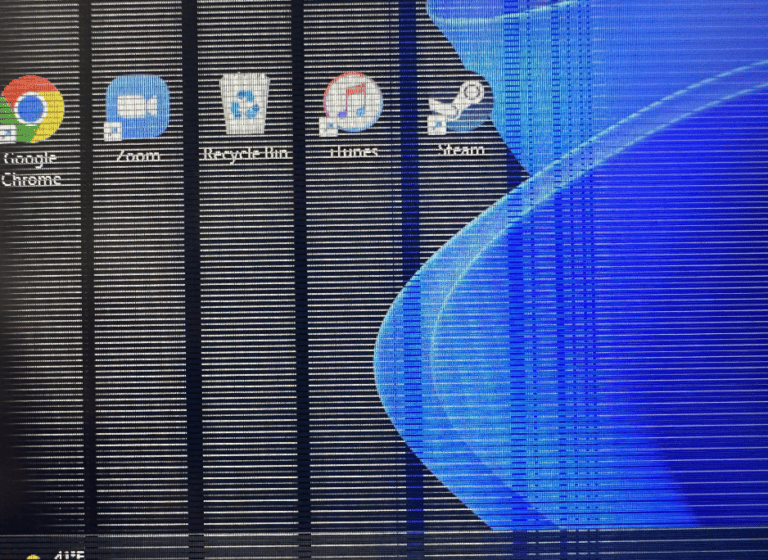
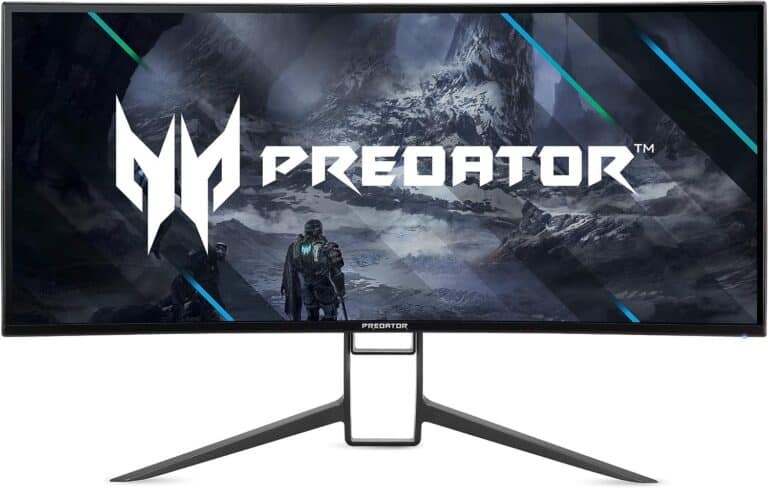
If your LCD monitor is flickering, there are potential causes that you can address to fix the issue. This can help restore your monitor to its normal, flicker-free state. Flickering or glitching lines on the screen can be distracting and strain your eyes. It may appear as horizontal or vertical lines flashing across the screen and affecting the display quality. The causes of screen flicker range from outdated graphics drivers to interference or hardware malfunctions. Addressing these factors systematically can likely help resolve the issue.
Flickering Lines On LCD Monitor: Causes and Solutions
Flickering lines on your LCD monitor can be incredibly frustrating, whether you’re working, gaming, or simply browsing the web. These horizontal or vertical lines that flash, flicker, or remain static on your screen can indicate various issues ranging from simple cable problems to serious hardware failure. This comprehensive guide will help you identify the causes of flickering lines on your LCD monitor and provide step-by-step solutions to fix them.
Understanding LCD Flickering Lines
Before attempting fixes, it’s important to understand what you’re dealing with and what might be causing the problem.
Types of Flickering Lines
Horizontal Lines:
- Run left to right across screen
- May be single or multiple lines
- Can be static or moving
- Often indicate panel or T-CON board issues
- May flicker or remain constant
Vertical Lines:
- Run top to bottom on screen
- Single or multiple columns
- Can be different colors (white, black, green, red)
- Often point to panel or connection problems
- May appear intermittently
Flickering Patterns:
- Constant flickering: Lines continuously flash on/off
- Intermittent flickering: Lines appear and disappear randomly
- Screen-wide flicker: Entire display flickers
- Isolated lines: Specific lines in one area
- Color-changing lines: Lines shift between colors
Common Symptoms
📱 What You Might See:
- Thin horizontal or vertical lines
- Thick bands across the screen
- Lines that move up or down
- Flickering that worsens with screen content
- Lines that disappear when monitor warms up
- Lines that appear only at certain refresh rates
- Multiple parallel lines
- Screen tearing with lines
Quick Diagnostic Checklist
Before diving into detailed solutions, run through this quick checklist to narrow down the problem.
5-Minute Quick Test
Test 1: Cable Wiggle Test
- Gently move the video cable at both ends
- Watch for changes in flickering
- If flickering changes: Cable issue likely
Test 2: Different Input Test
- Switch to different input port (HDMI → DisplayPort, etc.)
- Use different cable if available
- If problem disappears: Cable/port issue
Test 3: Different Device Test
- Connect monitor to different computer/laptop
- Or connect your computer to different monitor
- If problem follows computer: Computer issue
- If problem stays with monitor: Monitor issue
Test 4: Safe Mode Test (Windows)
- Restart PC in Safe Mode
- Check if lines still appear
- If lines disappear: Software/driver issue
- If lines persist: Hardware issue
Test 5: OSD Menu Test
- Open monitor’s on-screen display (OSD) menu
- Check if lines appear over menu
- If lines appear: Monitor hardware issue
- If menu is clear: Computer/cable issue
Results Interpretation
Cable/Connection Issues → Go to Section: Cable and Connection Solutions
- Flickering changes with cable movement
- Different cable fixes the problem
- Different port works better
Graphics Card Issues → Go to Section: Graphics Card Solutions
- Problem follows the computer
- Lines appear on different monitors
- Safe mode shows improvement
Monitor Hardware Issues → Go to Section: Monitor Hardware Solutions
- Problem stays with monitor on any computer
- Lines appear over OSD menu
- Physical damage visible
Software/Driver Issues → Go to Section: Software and Driver Solutions
- Safe mode eliminates problem
- Recent driver/software updates before issue
- Lines appear only in certain applications
Cable and Connection Solutions
Cable and connection problems are the most common causes of flickering lines and the easiest to fix. Flickering lines can indicate various issues from connection problems to hardware failure (source: 9meters).
Solution 1: Check and Reseat All Cables
Loose or poorly connected cables are responsible for many display issues.
Step-by-Step Cable Check:
- Turn Off Monitor and Computer
- Shut down computer completely
- Turn off monitor power
- Wait 30 seconds
- This clears any residual charge
- Check Monitor Power Cable
- Unplug power cable from monitor
- Inspect cable for damage:
- Fraying
- Kinks
- Bent prongs
- Burn marks
- Check power brick (if external):
- Look for damage
- Check connections are tight
- Firmly reconnect power cable
- Push until it clicks or seats completely
- Check Video Cable at Monitor
- Identify cable type (HDMI, DisplayPort, DVI, VGA)
- Unplug video cable from monitor
- Inspect connector for:
- Bent pins (especially VGA/DVI)
- Corrosion
- Debris in port
- Physical damage
- Clean connector with compressed air
- Reconnect firmly
- Tighten screws if VGA/DVI
- Check Video Cable at Computer
- Locate video output on computer:
- Usually at back of desktop
- Side of laptop
- Unplug cable
- Inspect computer’s video port:
- Look for bent pins
- Check for dust/debris
- Verify correct port (use GPU, not motherboard)
- Clean port with compressed air
- Reconnect cable firmly
- Secure with screws if applicable
- Locate video output on computer:
- Cable Routing Check
- Ensure cables aren’t:
- Tightly bent/kinked
- Pinched by furniture
- Twisted excessively
- Running parallel to power cables (interference)
- Leave some slack in cables
- Use cable management for clean routing
- Ensure cables aren’t:
- Power On and Test
- Turn on monitor first
- Then power on computer
- Check if flickering lines persist
Success Rate: Fixes 30-40% of flickering line issues
Solution 2: Replace the Video Cable
Even if cables look fine externally, internal damage can cause flickering.
When to Replace Cable:
- Cable is over 3 years old
- Visible wear or damage
- Reseating didn’t help
- Cable has been bent/stressed frequently
- Using cheap/low-quality cable
Choosing the Right Cable:
HDMI Cables:
- Standard: 1080p @ 60Hz
- High Speed: 4K @ 30Hz, 1080p @ 120Hz
- Premium High Speed: 4K @ 60Hz
- Ultra High Speed: 4K @ 120Hz, 8K @ 60Hz
- Recommendation: Get certified cables (Premium Certified, Ultra Certified)
- Length: Keep under 15 feet for best results
DisplayPort Cables:
- DisplayPort 1.2: 4K @ 60Hz
- DisplayPort 1.4: 4K @ 120Hz, 8K @ 60Hz
- DisplayPort 2.0: 8K @ 60Hz, 4K @ 144Hz
- Recommendation: VESA certified cables
- Length: Up to 6 feet for full bandwidth
DVI Cables:
- DVI-D (Digital): Best quality
- DVI-I (Integrated): Digital + analog
- DVI-A (Analog): Lowest quality
- Recommendation: Dual-link DVI-D for high resolutions
- Length: Maximum 15 feet
USB-C/Thunderbolt:
- Check cable supports video (not all USB-C cables do)
- Look for “DP Alt Mode” support
- Thunderbolt 3/4 cables work best
- Use cables rated for your resolution
Cable Purchase Tips:
- Buy from reputable brands: Cable Matters, StarTech, Monoprice, Amazon Basics
- Check reviews for flickering/dropout issues
- Avoid ultra-cheap cables from unknown brands
- Get certified cables when possible
- Choose shielded cables for better interference resistance
Testing New Cable:
- Connect new cable to monitor and computer
- Ensure proper seating at both ends
- Test for several hours
- Try different refresh rates
- Monitor for flickering return
Success Rate: Fixes 25-35% of remaining issues
Solution 3: Try Different Monitor Input
Most modern monitors have multiple input ports. A faulty port can cause flickering.
Common Input Options:
- HDMI (often 2-3 ports)
- DisplayPort (DP)
- DVI
- VGA (older monitors)
- USB-C with DisplayPort Alt Mode
Step-by-Step:
- Identify Available Ports
- Check back of monitor for all input options
- Check your graphics card for available outputs
- Match compatible connections
- Switch to Different Input
- Connect cable to different port on monitor
- If needed, use different cable type
- Use adapters only if necessary (direct connection better)
- Configure Monitor Input
- Press monitor’s input/source button
- Cycle through inputs
- Select newly connected input
- Wait for display to stabilize
- Test Thoroughly
- Use monitor for several hours
- Try different content (video, gaming, work)
- Monitor for flickering return
Port Priority Recommendations:
Best to Worst Quality:
- DisplayPort (best for high refresh rates, adaptive sync)
- HDMI 2.1 (great for 4K, HDR)
- HDMI 2.0 (good for most uses)
- USB-C with DP Alt Mode (convenient for laptops)
- DVI-D Dual Link (good for older high-res monitors)
- HDMI 1.4 (basic 1080p)
- DVI-I/DVI-A (acceptable)
- VGA (avoid if possible – analog, lower quality)
Success Rate: Fixes 15-20% of issues
Solution 4: Check for Electromagnetic Interference
External electromagnetic interference can cause screen flickering and lines.
Common Interference Sources:
- Speakers (especially unshielded)
- Mobile phones near monitor
- Fluorescent lights
- Power strips with insufficient shielding
- Other monitors too close
- Wireless routers
- Microwave ovens
- Fan motors
- Uninterruptible Power Supply (UPS)
Testing for Interference:
- Remove Nearby Electronics
- Move speakers away (at least 2 feet)
- Move phone away from monitor
- Turn off nearby devices one at a time
- Check if flickering stops
- Check Power Source
- Plug monitor into different outlet
- Use different power strip
- Try wall outlet directly (bypass power strip)
- Separate monitor and computer outlets if possible
- Cable Separation
- Keep video cables away from power cables
- Don’t bundle video and power cables together
- Maintain 6-inch separation minimum
- Cross cables at 90° angles if they must cross
- Lighting Check
- Turn off fluorescent lights
- Move monitor away from fluorescent fixtures
- Switch to LED or incandescent lighting
Solutions:
- Use shielded cables
- Get ferrite cores/beads for cables
- Reroute cables away from interference
- Use surge protector with EMI filtering
- Ground monitor properly
- Move monitor location
Success Rate: Fixes 10-15% of issues
Graphics Card and Computer Solutions
If cable solutions didn’t work, the problem may be with your computer’s graphics card or settings.
Solution 5: Update Graphics Drivers
Outdated or corrupted graphics drivers commonly cause display issues including flickering lines.
For Windows:
Method 1: Windows Update
- Press Windows key + I to open Settings
- Click Windows Update
- Click Check for updates
- Install any available driver updates
- Restart computer
- Test monitor
Method 2: Device Manager
- Right-click Start button
- Select Device Manager
- Expand Display adapters
- Right-click your graphics card
- Select Update driver
- Choose Search automatically for drivers
- Follow prompts
- Restart if prompted
Troubleshooting Flickering Lines on Your LCD Monitor
Loose or Damaged Cables
A loose or damaged cable is a common culprit for flickering lines. Check the connection on both ends of the video cable (VGA, DVI, HDMI, or DisplayPort) to ensure a secure fit. If you see any frayed wires or bent pins, the cable may be damaged and needs replacing.
Incorrect Refresh Rate
Your monitor’s refresh rate, measured in Hertz (Hz), is the number of times per second it refreshes the image. An incorrect refresh rate can cause flickering. To fix this, go to your computer’s display settings and adjust the refresh rate to match your monitor’s recommended setting.
Outdated or Faulty Graphics Drivers
Outdated or incompatible graphics drivers can lead to various display issues, including flickering lines. Update your drivers to the latest version from the manufacturer’s website. If you recently updated your drivers and started experiencing flickering, try rolling back to a previous version.
Electromagnetic Interference (EMI)
Electronic devices like speakers, fans, or fluorescent lights can emit electromagnetic interference, which can disrupt your monitor’s display. Try moving these devices away from your monitor or shielding them to reduce interference.
Faulty Monitor
If none of the above solutions work, the problem may lie with the monitor itself. The backlight or other internal components could be failing. In this case, you may need to have the monitor repaired or replaced.
Other Possible Causes
- Overheating: If your monitor gets too hot, it can cause the display to flicker. Ensure proper ventilation around the monitor and avoid blocking any vents.
- Power Fluctuations: Unstable power supply can lead to flickering. Use a surge protector or uninterruptible power supply (UPS) to regulate the power flow to your monitor.
- Loose Connections Inside the Monitor: Sometimes, loose connections within the monitor can cause issues. This usually requires professional repair.
Troubleshooting Table
| Problem | Possible Cause | Solution |
|---|---|---|
| Flickering Lines | Loose or damaged cable | Check connections, replace cable if necessary |
| Incorrect refresh rate | Adjust refresh rate in display settings | |
| Outdated or faulty graphics drivers | Update or roll back graphics drivers | |
| Electromagnetic interference (EMI) | Move interfering devices away or shield them | |
| Faulty monitor | Seek professional repair or replacement | |
| Overheating | Ensure proper ventilation | |
| Power fluctuations | Use a surge protector or UPS |
Fix Flickering Lines on Monitor
| Possible Cause | Troubleshooting Steps |
|---|---|
| Loose or damaged cables | * Inspect the video cable for any damage. * Ensure all cables (power and video) are securely plugged into the monitor and computer. Try a different cable of the same type or a different port (e.g., HDMI to DisplayPort). |
| Outdated drivers | Update your graphics card driver and monitor driver if available. You can usually find these drivers on the manufacturer’s website. |
| Incorrect refresh rate | Adjust the monitor’s refresh rate to match your graphics card’s capabilities. Consult your monitor’s manual or the graphics card settings for instructions on how to do this. |
| External interference | Move other electronic devices (e.g., routers, speakers) away from the monitor to see if the flickering stops. |
| Residual power | Turn off the monitor and computer, unplug them from the power outlet for 30 seconds, then plug them back in and restart both devices. |
| Video card issues | If none of the above solutions work, the flickering could be caused by a failing video card. In this case, you may need to replace the video card. |
| Monitor defect | If the flickering persists even when the monitor is disconnected from the computer, then the monitor itself may be malfunctioning. You may need to consult the monitor’s manufacturer for repair or replacement options. |
Troubleshooting this problem begins with identifying the root cause. A user might start by updating the monitor’s refresh rate, ensuring it is set to at least 60 Hz, which can resolve some flickering issues. Additionally, checking for secure cable connections can eliminate lines resulting from poor contact. When software conflicts arise, keeping the computer’s operating system and graphics drivers up to date can help in preventing compatibility issues that may lead to screen flicker.
Key Takeaways
- Flickering lines on a monitor may arise from various sources, including hardware malfunctions and software conflicts.
- Effective troubleshooting should start with simple checks like monitor refresh rate adjustments and secure cable connections.
- Regularly updating the system’s graphics drivers and operating system can prevent many display inconsistencies.
Identifying the Causes
Before we start fixing the issue of flickering lines on a monitor, it’s important to pinpoint what’s causing the problem. There are two main categories of causes – internal and external.
Internal Factors
Graphics Card: A failing or outdated graphics card can create disturbances in the display output, manifesting as flickering / glitching lines.
- To fix, update your graphics card drivers through the Device Manager on Windows.
Refresh Rate: An incorrect refresh rate setting can result in screen flicker.
- Windows users can adjust their monitor’s refresh rate in the display settings to match the recommended level, commonly at least 60 Hz.
Operating System Issues: Sometimes the operating system, if not up to date, can have conflicts that result in screen issues.
- Running a Windows update can resolve this.
Overheating: Electronics within the computer overheating can lead to flickering. Make certain the computer is well-ventilated and not kept on soft surfaces that trap heat.
External Factors
Cable Connections: Loose or damaged cables, including HDMI, DisplayPort, and DVI, can cause screen flicker.
- Check the connections to ensure they are secure and replace any faulty cables.
Physical Damage: Monitors can develop flickering lines if they’ve undergone physical damage.
- Carefully inspect the monitor for any signs of damage.
Electromagnetic Interference: Close proximity to other electronic devices or magnets can cause flickering.
- Move any potential sources of interference away from the monitor.
By systematically checking each of these factors, you can identify the root cause of flickering lines on a monitor. Once the cause is determined, you can proceed with the appropriate troubleshooting steps.
Troubleshooting and Solutions
When horizontal lines or flickering occur on a computer monitor, a systematic approach to troubleshooting can often resolve the issue. This section offers a step-by-step guide to identifying and fixing these common monitor problems.
Basic Troubleshooting
First, check the cables that connect your monitor to your computer. A loose or damaged cable can cause many display issues. Ensure that the VGA, HDMI, or DVI cable is firmly connected and not damaged. If the cable has retention screws, tighten them. For a flickering screen, try turning the monitor off and then on again. Restart the computer as well to see if the problem clears up.
Advanced Solutions
If basic steps don’t solve the problem, move on to more technical adjustments. These include:
- Display Adapters: Open the device manager, right-click on the display adapter, and select ‘Uninstall device’. Then restart the computer to reinstall the adapter automatically.
- Update Display Drivers: Manufacturers like NVIDIA and AMD update drivers regularly. Check their websites for the latest version compatible with your system.
- Refresh Rate Settings: Adjust the refresh rate of your monitor. Go to ‘Display settings’ and find ‘Advanced display settings’ to set the rate to at least 60 Hz.
- Resolution: Sometimes, the wrong resolution can cause display issues. Verify that your resolution settings match the monitor’s native resolution.
Repair and Professional Help
If troubleshooting doesn’t solve the issue, the monitor may have a hardware problem. Check if your monitor is still under warranty; you may be eligible for a repair or replacement. For more complex issues like internal component failure, seeking professional help is the best course of action. Remember, self-repair can void warranties and potentially cause more harm than good.
Frequently Asked Questions
These questions tackle common issues users encounter with monitor flickering lines and offer solutions to address them.
What causes horizontal lines to appear on a computer monitor?
Horizontal lines on a computer monitor can be due to various reasons. They often stem from hardware problems like faulty cables or display issues. Other times, these lines can be a symptom of an outdated graphics driver.
How can I fix flickering on my monitor when it’s set to 144hz?
To fix flickering on a monitor set to 144Hz, users should check and ensure their graphics card supports the high refresh rate and that the correct cable type, such as DisplayPort or HDMI 1.4 and above, is used.
What should I do if I see random flickering horizontal lines on my laptop screen?
For random flickering horizontal lines on a laptop screen, it may help to restart the device and check for overheating issues. Sometimes, simply using the laptop on a hard surface for better ventilation can resolve the issue.
Is there a way to stop my external monitor from flickering?
Stopping an external monitor from flickering can usually be achieved by checking the monitor and video cables for damage and securing their connections. Users may also need to adjust the refresh rate settings or update the graphics driver.
What steps can I take to resolve flickering horizontal lines on my Windows 10 monitor?
Users can resolve flickering horizontal lines on a Windows 10 monitor by ensuring their display driver is up to date. They should also look at the Task Manager to see if the flickering occurs there, which could indicate a software conflict.
Why might my monitor suddenly start flickering and how can I troubleshoot it?
A monitor may suddenly start flickering because of numerous factors including a disruption in the electrical supply, aging hardware, or compatibility issues with the operating system. Troubleshooting involves checking connections, updating software, and possibly consulting a technician if hardware failure is suspected.