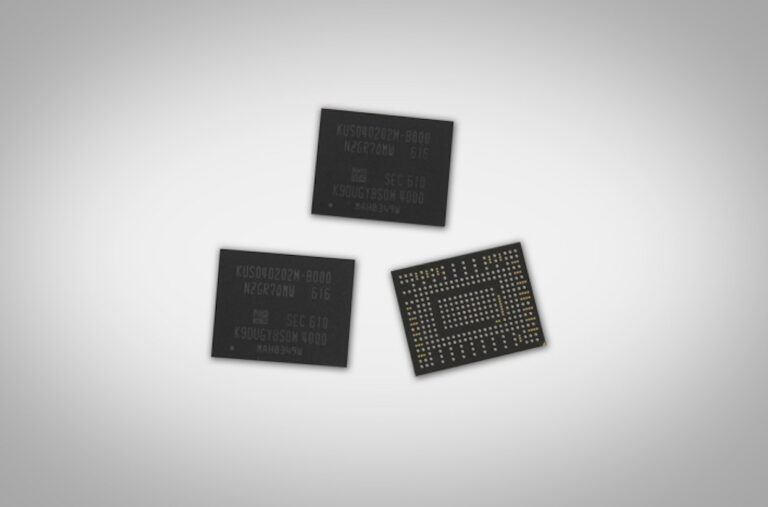
Solid-state drives (SSDs) have become an essential part of computing because they provide faster speeds and better reliability than traditional hard disk drives (HDDs). Unlike HDDs, which have moving parts, SSDs store data on interconnected flash memory chips. This non-volatile memory retains data without power, allowing for quicker data access and boot times. This article explores the different types of SSDs available, their unique characteristics, and how to choose the right one for your needs.
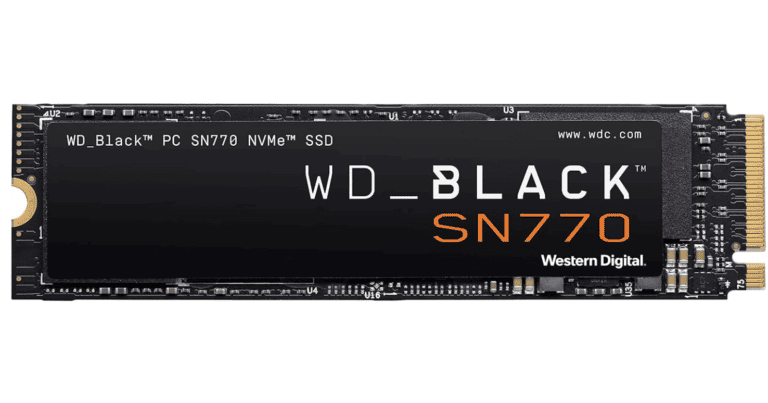
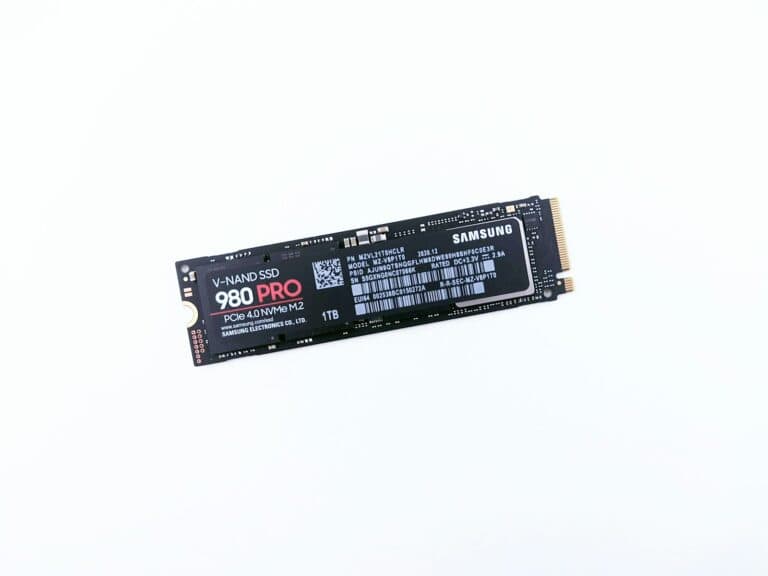
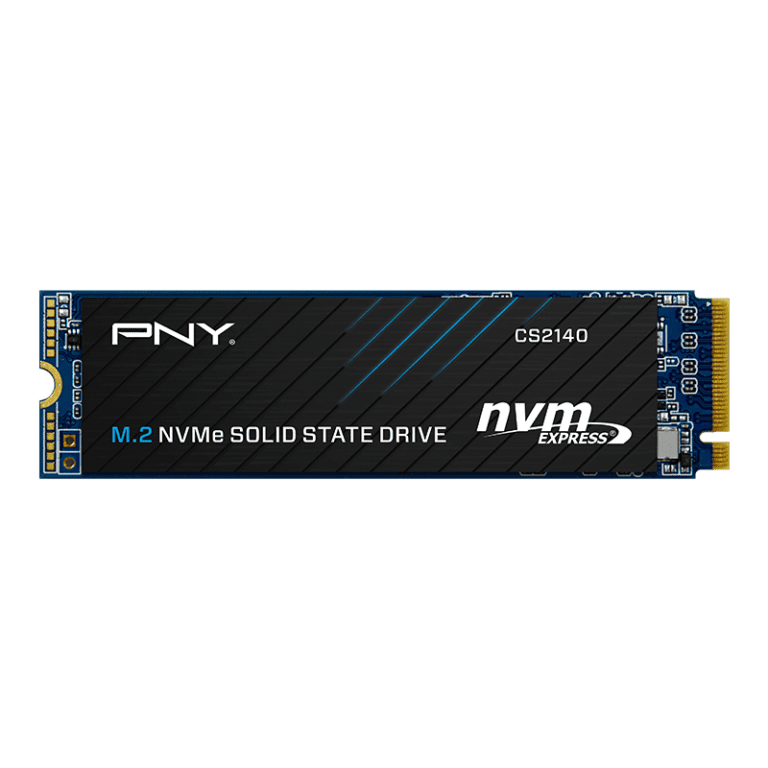
Understanding these nuances will empower you to make an informed decision and maximize your computer’s storage potential. There are different types of SSDs on the market, such as those that connect via the Serial ATA (SATA) interface, which is similar to traditional laptop hard drives. However, for higher performance, M.2 SSDs with NVMe (Non-Volatile Memory Express) protocol offer a substantial enhancement in data transfer speeds. M.2 can host both SATA and NVMe drives, with NVMe providing superior speed due to a more direct path to the CPU.
Understanding Different Solid State Drives
Solid-state drives (SSDs) have revolutionized computer storage by offering significantly faster performance than traditional hard disk drives (HDDs). However, with various types available, choosing the right SSD can be confusing. This guide will help you understand the different SSD types and their key characteristics.
Main SSD Categories
1. SATA SSDs
SATA (Serial ATA) SSDs use the same interface that was originally designed for hard drives in the early 2000s. While they’re much faster than HDDs, SATA SSDs are limited by the interface’s maximum speed of around 600 MB/s.
Best for:
- Budget builds
- Upgrading older computers
- Basic computing tasks
- Systems without M.2 slots
2. NVMe SSDs
NVMe (Non-Volatile Memory Express) is a communication protocol designed specifically for SSDs. NVMe drives connect via PCIe (PCI Express) lanes, offering dramatically faster speeds—often 3,000-7,000 MB/s or more.
Best for:
- Gaming PCs
- Content creation and video editing
- High-performance workstations
- Modern laptops and desktops
3. M.2 SSDs
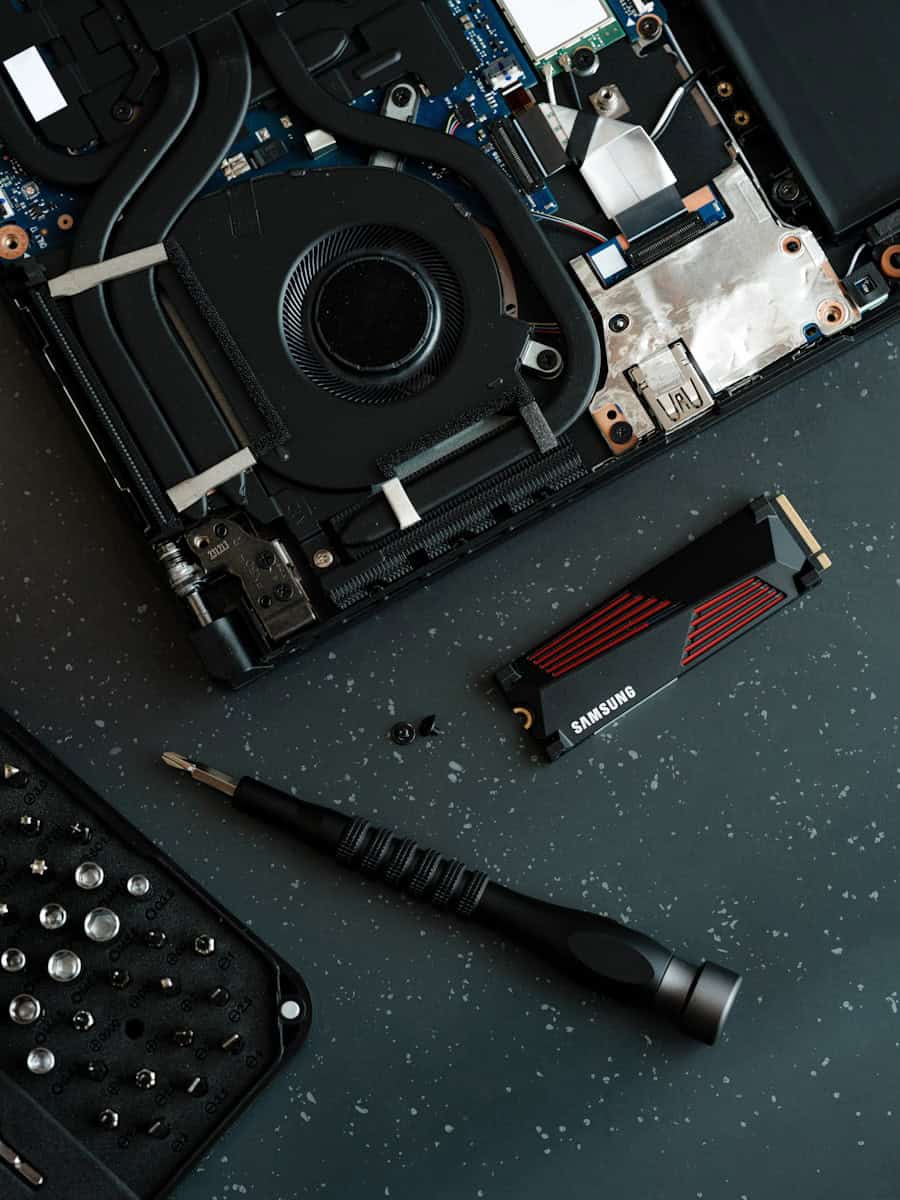
M.2 is a form factor (physical size and connector type), not a performance specification. M.2 drives can use either SATA or NVMe protocols, which is an important distinction (source: Crucial).
Key points:
- M.2 SATA drives: Limited to ~600 MB/s
- M.2 NVMe drives: Up to 7,000+ MB/s
- Compact size, ideal for laptops and small form factor PCs
4. U.2 SSDs
U.2 drives are enterprise-grade SSDs that use the NVMe protocol but come in a 2.5-inch form factor. They’re less common in consumer systems but popular in data centers and workstations.
Best for:
- Enterprise servers
- High-end workstations
- Data centers requiring hot-swappable drives
SSD Comparison Table
| Type | Interface | Form Factor | Max Speed | Typical Use | Price Range |
|---|---|---|---|---|---|
| SATA SSD | SATA III | 2.5-inch | ~550 MB/s | Budget/older systems | $ |
| M.2 SATA | SATA III | M.2 | ~550 MB/s | Compact builds | $ |
| M.2 NVMe (PCIe 3.0) | PCIe 3.0 | M.2 | ~3,500 MB/s | Gaming/mainstream | $$ |
| M.2 NVMe (PCIe 4.0) | PCIe 4.0 | M.2 | ~7,000 MB/s | High-performance | $$$ |
| M.2 NVMe (PCIe 5.0) | PCIe 5.0 | M.2 | ~14,000 MB/s | Cutting-edge | $$$$ |
| U.2 NVMe | PCIe | 2.5-inch | 3,000-7,000 MB/s | Enterprise/workstation | $$$ |
Key Factors to Consider
1. Compatibility
Check your motherboard specifications to see what types of drives it supports. Not all M.2 slots support NVMe—some only support SATA (source: PCWorld).
2. Performance Needs
- Basic tasks (web browsing, documents): SATA SSD is sufficient
- Gaming: NVMe PCIe 3.0 or 4.0
- Professional work (video editing, 3D rendering): NVMe PCIe 4.0 or 5.0
3. Capacity
SSDs are available in various capacities from 128GB to 4TB or more. Consider:
- Operating system: 256GB minimum
- Gaming: 500GB-1TB recommended
- Content creation: 1TB or more
4. Endurance & Warranty
Look for the TBW (Terabytes Written) rating, which indicates how much data can be written to the drive before it wears out. Higher-end drives typically offer better endurance and longer warranties.
Bottom Line
The evolution from SATA to NVMe represents a significant leap in storage performance, as SATA was designed during the HDD era and has limitations for modern SSDs (source: TechReviewer). For most users building or upgrading a modern system, an M.2 NVMe SSD offers the best combination of performance, size, and value. However, SATA SSDs remain a solid choice for budget builds or upgrading older systems that lack M.2 slots.
When shopping, remember: M.2 is the shape, NVMe/SATA is the speed. Always verify your system’s compatibility before purchasing!
Solid-State Drive Technology: A Comprehensive Overview
SATA III SSDs
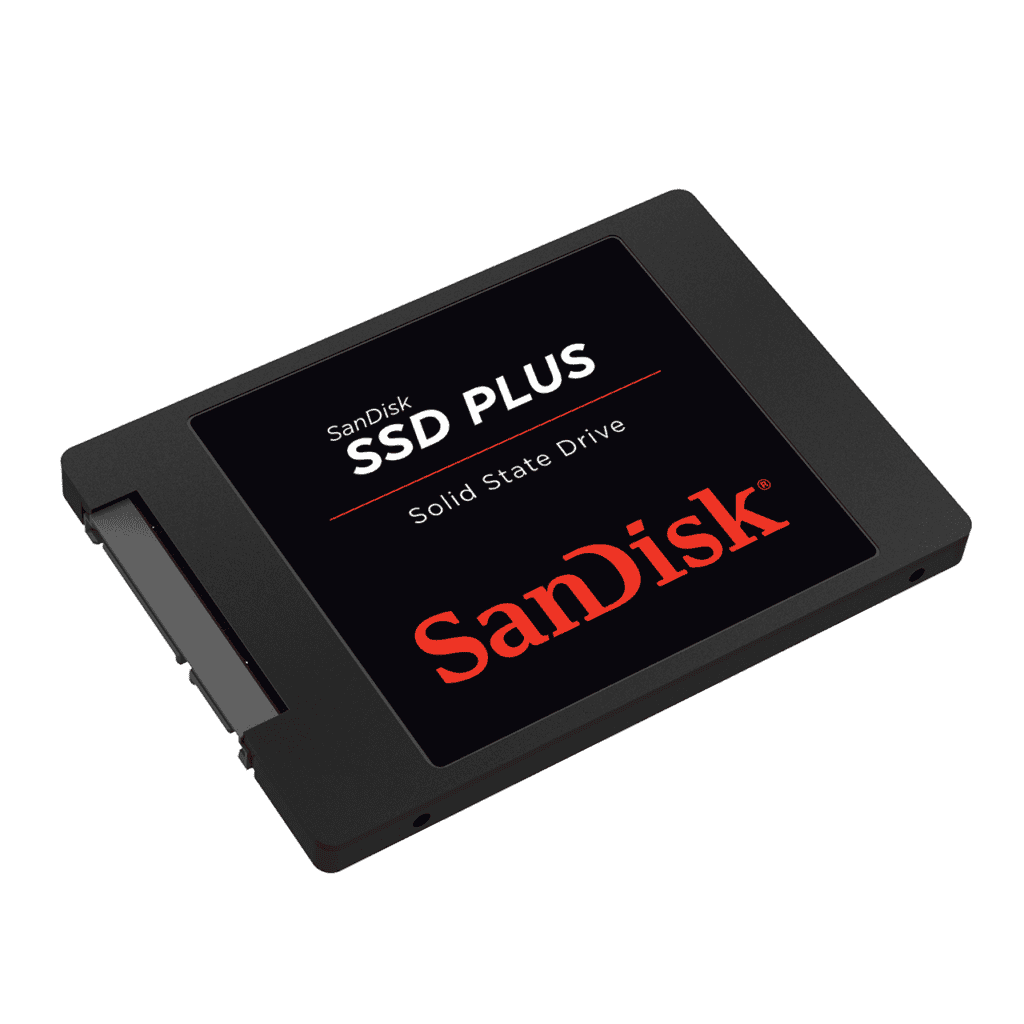
SATA III SSDs are the most common type, using the same interface as traditional hard drives. They offer a significant speed boost over HDDs, making them great for everyday tasks and casual gaming. While they are the most affordable, they are also the slowest among SSD types.
NVMe SSDs (PCIe Gen3 and Gen4)
NVMe SSDs use the PCIe interface, offering much faster speeds than SATA III SSDs. They come in two main types: PCIe Gen3 and Gen4. Gen4 is the latest and fastest, ideal for high-performance tasks like video editing and demanding gaming. However, they are more expensive than SATA III SSDs.

M.2 SSDs
M.2 SSDs are a form factor, not a specific type. They can be either SATA III or NVMe, and their small size makes them perfect for laptops and compact desktops. NVMe M.2 SSDs are the fastest option available, while SATA III M.2 SSDs offer a good balance of speed and price.
Important Considerations
- Capacity: Choose a capacity that suits your needs. Larger capacities offer more storage space but are more expensive.
- Performance: NVMe SSDs are the fastest, followed by SATA III SSDs. Consider your workload and budget when choosing.
- Form Factor: M.2 SSDs are ideal for compact devices, while 2.5-inch SATA III SSDs are suitable for desktops.
- Price: SSD prices vary depending on type, capacity, and brand. Research and compare prices before purchasing.
Comparison Table
| SSD Type | Interface | Speed | Pros | Cons |
|---|---|---|---|---|
| SATA III SSD | SATA III | Up to 600MB/s | Affordable, widely compatible | Slower than NVMe SSDs |
| NVMe SSD (PCIe Gen3) | PCIe Gen3 | Up to 3500MB/s | Faster than SATA III SSDs | More expensive than SATA III SSDs |
| NVMe SSD (PCIe Gen4) | PCIe Gen4 | Up to 7000MB/s | Fastest SSD type available | Most expensive SSD type |
Please note: The speeds mentioned are approximate and can vary depending on the specific model and manufacturer.
Key Takeaways
- SSDs use non-volatile flash memory, offering faster performance than traditional HDDs.
- Understanding SSD interfaces and form factors is crucial when selecting storage solutions.
- NVMe M.2 SSDs deliver higher data transfer speeds compared to SATA SSDs.
Understanding SSD Types and Performance
Solid-state drives (SSDs) have revolutionized data storage with their lack of moving parts, swift file transfer speeds, and diverse form factors. They offer significant performance upgrades over traditional hard disk drives (HDDs).
Form Factors and Interface Technology
Different SSDs are designed to fit specific needs, with form factors such as 2.5-inch drives, M.2, and U.2. The technology they use to connect to a computer, like SATA and NVMe, determines their potential speed. M.2 NVMe SSDs, for instance, leverage PCIe lanes to surpass the performance of 2.5-inch SATA SSDs.
Capabilities, Use Cases, and Advancements
SSDs range from consumer-grade models focused on general computing to high-end versions for servers and gaming PCs. Advancements in interface technology, like PCIe 4.0, have drastically improved data transfer rates and overall system responsiveness. These improvements make SSDs more appealing for demanding tasks such as video editing and gaming.
Memory Types and Durability
The type of NAND flash memory—TLC, SLC, MLC, or QLC—impacts an SSD’s durability and performance. SLC is known for its high endurance but comes at a higher cost. TLC and QLC are more cost-effective and are commonly used in consumer SSDs, offering a balanced compromise between price, capacity, and durability.
Compatibility and Integration Considerations
When upgrading with an SSD, compatibility is crucial. The existing motherboard dictates whether an M.2 or SATA interface can be used. For example, an Intel Z590 motherboard supports PCIe Gen3 x4 M.2 drives, ensuring seamless integration. Understanding a computer’s capabilities is vital for a successful upgrade.
Cost and Consumer Needs
SSDs present a vast price range, fitting different budgets. Consumers must find a balance between cost, performance, capacity, and longevity. SSDs are now more accessible than ever, with falling prices per gigabyte allowing consumers to invest in better performance and higher durability.
Market Trends and Future Technology
The demand for faster data access and better performance continues to drive the SSD market. Innovations like PCIe 5.0 are anticipated, which will offer higher bandwidth and speed. As SSD technology improves, it’s expected to become the standard for all storage drives, replacing HDDs in most applications.
Each subsection touched on specific aspects of SSD types and performance, ranging from form factors to future market trends. Understanding these nuances can help users make informed decisions when selecting or upgrading their storage devices.