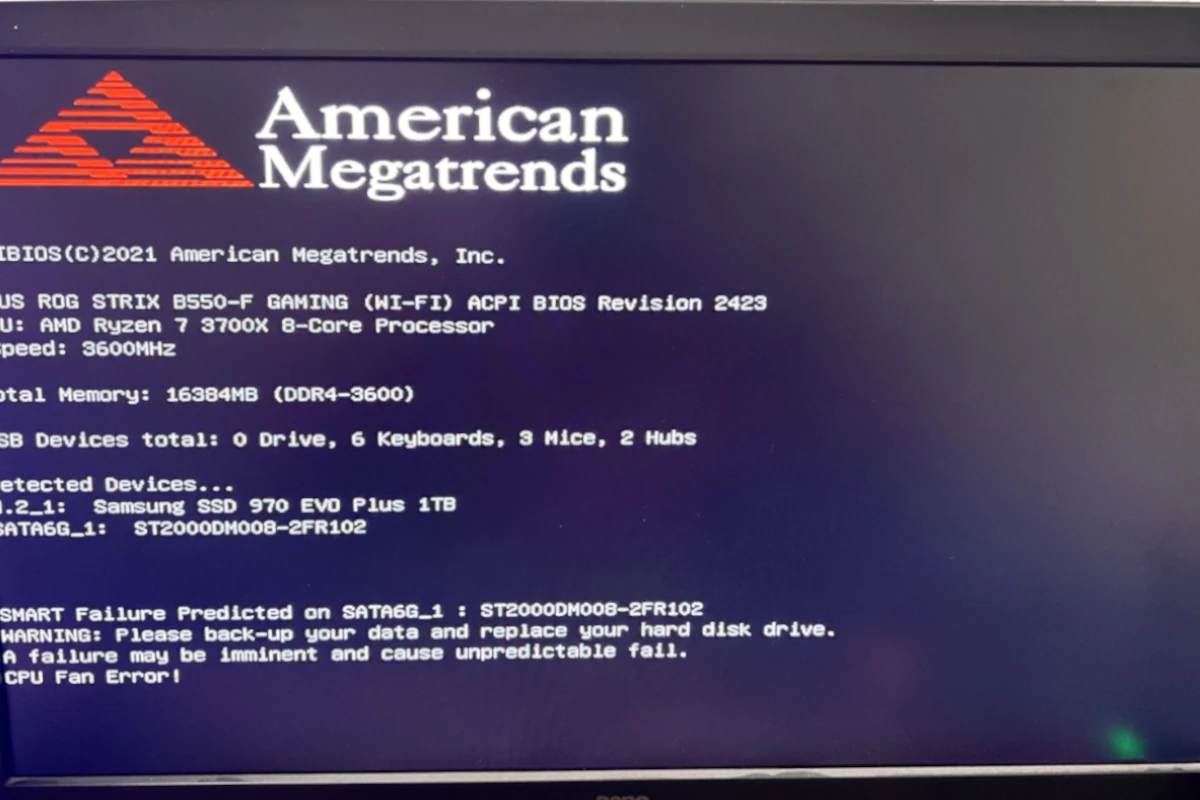
When your computer shows a “SMART failure predicted on hard disk” alert, it means the hard drive is in trouble. This warning is important because it tells you that the drive might fail soon, putting your data at risk and causing problems with your computer. It’s crucial to back up important files as soon as possible. SMART, which stands for Self-Monitoring, Analysis, and Reporting Technology, is a system in hard drives that detects and reports indicators of drive reliability. When it predicts a failure, it means there could be a problem in the future, not that it has already happened.
This alert gives you time to protect your data and plan what to do next. By recognizing and addressing SMART failures early, you can decrease the risk of data loss and make your hard disk last longer. To keep your data safe, use monitoring tools, make regular backups, and maintain your system. Taking care of your hard disk will help you avoid the hassle and cost of trying to recover lost data. Remember, staying aware and taking action can help make sure your computer’s hard disk works reliably for a long time.
Tips to Prevent ‘SMART Failure’ on Your Hard Disk
SMART (Self-Monitoring, Analysis, and Reporting Technology) is a built-in monitoring system in modern hard drives that detects signs of potential failure. When you see a “SMART Failure Predicted” warning, it means your hard drive has detected issues that could lead to imminent failure (source: The Windows Club). Here’s how to prevent SMART failures and protect your data:
1. Maintain Regular Backups
The most critical preventive measure is backing up your data regularly. Even with the best maintenance, hard drives can fail unexpectedly. Use external drives, cloud storage, or network-attached storage (NAS) to keep copies of important files.
2. Keep Your System Cool
Heat is one of the primary enemies of hard drives. Ensure your computer has:
- Adequate ventilation and airflow
- Clean fans and air vents (dust accumulation blocks airflow)
- Proper ambient temperature (avoid placing computers in hot environments)
- Consider additional cooling if you have multiple drives
3. Avoid Physical Shocks and Vibration
Hard drives contain delicate mechanical components. To protect them:
- Don’t move your computer while it’s running (especially desktops)
- Use padded cases for laptops during transport
- Place desktop computers on stable surfaces
- Avoid dropping or bumping your devices
4. Perform Regular Disk Maintenance
Keep your drives healthy with routine maintenance:
- Defragment regularly (for traditional HDDs only, not SSDs) to organize data and reduce wear (source: The Geek Page)
- Run periodic disk error checks using built-in tools
- Keep your operating system and drivers updated
- Remove unnecessary files to avoid filling the drive to capacity
5. Monitor SMART Status Proactively
Don’t wait for a failure warning:
- Use SMART monitoring software to check drive health regularly
- Look for warning signs like increasing bad sectors or read/write errors
- Pay attention to unusual noises (clicking, grinding, or whirring sounds)
- Monitor drive performance for slowdowns
6. Use a Surge Protector or UPS
Power fluctuations can damage hard drives:
- Always use a quality surge protector
- Consider an Uninterruptible Power Supply (UPS) for critical systems
- Avoid sudden power-offs; always shut down properly
7. Don’t Ignore Warning Signs
According to experts, SMART warnings can sometimes give you weeks or months of advance notice, as they often detect early signs of wear. However, they can also indicate serious problems like frequent read/write errors (source: IT Pro Today). When you see warnings:
- Back up data immediately
- Begin planning for drive replacement
- Don’t assume you have unlimited time
8. Replace Aging Drives Proactively
Hard drives have finite lifespans:
- Traditional HDDs typically last 3-5 years under normal use
- Monitor drive age and consider replacement before failure occurs
- Replace drives showing any SMART warnings as soon as possible
9. Ensure Proper Installation
- Securely mount drives to prevent vibration
- Use proper mounting screws and brackets
- Ensure cables are firmly connected
- Avoid bending SATA or power cables excessively
10. Consider SSD Alternatives
For critical systems, consider upgrading to solid-state drives (SSDs):
- No moving parts means less mechanical failure risk
- Better resistance to physical shock
- Improved performance
- Note: SSDs have their own wear patterns, so backups remain essential
What to Do If You Get a SMART Warning
If you receive a SMART failure prediction (source: Stellar):
- Back up your data immediately – this is your top priority
- Stop using the drive for non-essential tasks
- Use data recovery software if needed
- Replace the drive as soon as possible
- Don’t try to disable SMART warnings without addressing the underlying issue
Remember: Prevention is always better than recovery. While these tips can extend your hard drive’s life, no drive lasts forever. Regular backups are your ultimate protection against data loss.
SMART Failure Predicted On Hard Disk Error
| Topic | Description |
|---|---|
| What does it mean? | S.M.A.R.T. (Self-Monitoring, Analysis and Reporting Technology) is a system built into hard drives that monitors their health. A “SMART failure predicted” warning indicates the drive is likely to fail soon. |
| Causes | * Bad sectors (damaged areas on the disk)* |
| Implications | * Imminent data loss: Your files are at high risk* |
| Solutions | * BACKUP DATA IMMEDIATELY: Prioritize transferring all important files to another drive or cloud storage.* |
Important Notes:
- Not Always Immediate Failure: Sometimes a drive with a SMART warning may continue working for a while, but the risk is extremely high.
- Preventative Measures: Regularly monitor your drives’ SMART status using tools like CrystalDiskInfo to catch potential problems early.
Key Takeaways
- Act Immediately on SMART Warnings: When a “SMART failure predicted on hard disk” alert appears, it’s crucial to back up important data immediately to prevent loss. This early warning serves as a vital gesture to protect one’s digital assets before actual failure occurs.
- Understand and Monitor for Common Signs: Recognizing symptoms such as slow performance, clicking, or grinding noises from the hard disk can indicate impending failure. These signs should prompt users to take action to salvage data and consider drive replacement.
- Utilize SMART Monitoring Tools: Employing SMART monitoring tools assists in keeping tabs on hard disk health, offering an in-depth analysis of its condition. These tools provide easy-to-understand indicators of potential problems, enabling users to act before it’s too late.
- Seek Professional Help When Necessary: If SMART alerts or monitoring tools indicate serious issues, consulting with a technology professional can provide a path to data recovery and advice on proactive measures, ensuring data protection and system integrity.
- Implement Precautionary Measures: Regular data backups, cooling measures, using monitoring software, maintaining cleanliness, and managing workload can significantly prevent SMART failures. These practices contribute to the longevity and reliability of hard disks, mitigating risks of sudden data loss and system instability.
- Proactive Planning Saves Time and Money: Understanding the importance of a SMART failure prediction allows for thoughtful planning in selecting a replacement drive without hurried decisions, potentially saving money and avoiding data recovery costs while ensuring the continued smooth operation of the computer system.
Importance of Predicting Smart Failure on Hard Disk
When a computer says a “SMART failure predicted on hard disk,” it’s giving a heads-up that the hard drive might soon stop working. This warning is vital because hard drives store everything on a computer. That means all the photos, documents, and programs could be at risk.
SMART stands for Self-Monitoring, Analysis, and Reporting Technology. It’s a system built into hard drives to check for signs of problems. If something looks wrong, SMART alerts users before the hard drive fails. This warning is key to preventing data loss.
Backing up data is one step people should take right after seeing this warning. It means copying files to another place, like an external hard drive or cloud storage. This way, if the hard drive does fail, the important stuff isn’t lost.
Another reason predicting failure is important is it helps with planning. Finding out a hard drive could fail lets users search for a replacement before it’s too late. They can choose the right one without rushing because their computer is still working.
Also, predicting a failure can save money. If the hard drive stops working suddenly, it might cost a lot to try and get the files back. It’s cheaper to back up files and replace the hard drive after seeing the SMART warning.
Lastly, this prediction helps keep computers running smoothly. A failing hard drive can make a computer slow or crash. Knowing in advance lets people fix the problem, so their computer works well again.
A SMART failure warning is a helpful alert that shouldn’t be ignored. It helps protect data, save money, and keep computers running properly. Acting quickly after seeing this warning is the best way to avoid bigger problems later.
Common Signs of Smart Failure
When a computer’s hard disk starts to fail, it may show certain warning signs. Understanding these signs can help users act quickly to save their data and replace the drive before it’s too late.
Slow Performance
One of the most noticeable signs of a failing hard disk is slow performance. If files take longer to open or programs run sluggishly, it could be a sign of trouble. This slowdown happens because the disk struggles to read and write data as efficiently as it used to. Users might also experience frequent freezes or the dreaded blue screen of death as the system becomes increasingly unstable. It’s important not to ignore these performance issues, as they often precede more serious failure.
Clicking or Grinding Noises
Another key indicator of hard disk failure is unusual sounds, specifically clicking or grinding noises. Healthy hard drives are relatively quiet during operation, so these sounds can be alarming. They usually mean the read/write head is not working right, often bumping into internal components of the drive. This physical damage can lead to data loss. If the hard drive starts making these sounds, it’s crucial to back up data immediately and consider replacing the drive.
Remember, these signs indicate a drive in distress. Ignoring them could lead to complete data loss. Regular backups and paying attention to your computer’s performance can prevent a bad situation from getting worse.
How to Check Smart Failure
When it comes to keeping your computer’s hard disk in good shape, knowing how to check for SMART failures is key. SMART, which stands for Self-Monitoring, Analysis, and Reporting Technology, helps you spot problems before they lead to data loss. Let’s explore how you can keep tabs on your hard disk’s health.
Using SMART Monitoring Tools
To get started, you’ll need a SMART monitoring tool. These tools read the data from your hard disk to give you an idea of its health. They can alert you to issues like bad sectors, overheating, or other failures. Most computers come with basic SMART monitoring capabilities, but there are also many free and paid tools available online for a more detailed analysis.
After downloading and installing a monitoring tool, run it to check the status of your hard disk. The tool scans the drive and reports any potential problems. It might seem complicated, but these tools are designed to be user-friendly. They often use simple traffic light systems – green for good, yellow for caution, and red for warning – to make understanding their reports easy.
Seeking Professional Help
Sometimes, the reports from SMART monitoring tools might be hard to understand or show serious problems. If that’s the case, it might be time to seek professional help. Tech experts and computer repair shops have the know-how and tools to diagnose and fix hard disk issues more accurately.
Bringing your computer to a professional can save you time and ensure your data is protected. They can offer solutions like cloning your drive if it’s failing or recovering lost data. Remember, acting quickly on SMART warnings can mean the difference between a simple fix and losing important files.
Professionals can also advise you on the best steps to take to prevent future issues, like regular backups or upgrading your hard disk to a more reliable model.
Precautionary Measures to Prevent Smart Failure
Keeping a computer’s hard disk healthy is key to avoiding sudden data loss. There are steps users can take to help prevent SMART (Self-Monitoring, Analysis, and Reporting Technology) failures, which indicate problems with a hard disk.
First, regular backups are essential. This means saving copies of files to a different drive or cloud storage. If the main drive fails, the data is still safe elsewhere. It’s a simple move that can save a lot of trouble later.
Next, keep the computer cool. Hard disks don’t like heat. Using a cooling pad for laptops or ensuring good airflow in a PC case helps. Overheating can lead to hard disk damage over time.
Monitoring software can also spot troubles before they get worse. Programs exist that read SMART data from hard disks. They can alert users to issues like high temperatures or too many bad sectors. Catching these signs early gives people a chance to act before a full failure.
Keeping the system clean and dust-free contributes to overall health. Dust buildup inside a computer can lead to overheating. Regular cleaning maintains good airflow and keeps temperatures down.
Finally, limiting the disk’s workload can extend its life. This means not overloading the drive with too many tasks at once. Giving the hard disk light duties can keep it running smoothly for longer.
By following these steps, users can reduce the risk of SMART failures. These actions help maintain a healthy hard disk, preventing unexpected data loss and costly repairs.
Frequently Asked Questions
Can a hard drive fail without warning?
Yes, a hard drive can fail without any prior warning. This unpredictability makes it critical to regularly backup important data on various media such as second hard drives, thumb drives, or external hard drives, ensuring the safety of your data.
Should I enable hard disk SMART?
Enabling hard disk SMART (Self-Monitoring, Analysis, and Reporting Technology) is recommended as it provides early warnings for impending drive failures. Disabling it removes these proactive alerts, increasing the risk of complete data loss without any notice.
How to fix warning a problem with the hard drive has been detected?
To address a detected hard drive issue, consider the following solutions: Use the system file checker, run the Chkdsk utility, check for bad sectors using DiskGenius Free Edition, or seek help from a professional repair center or contact hard disk support.
How to fix hard drive from BIOS?
To fix a hard drive from BIOS: Connect a bootable USB drive, restart your PC and press F2 to enter BIOS. Set the USB as the boot disk, wait for the Windows installation media to load, and select “Repair your computer” from the new window that appears.
Can hard disk error be repaired?
Repairability of a hard disk error depends on its nature. Mechanical failures such as broken components are often difficult or impossible to repair. Logical errors or data corruption might be fixable using specialized software or through professional data recovery services.