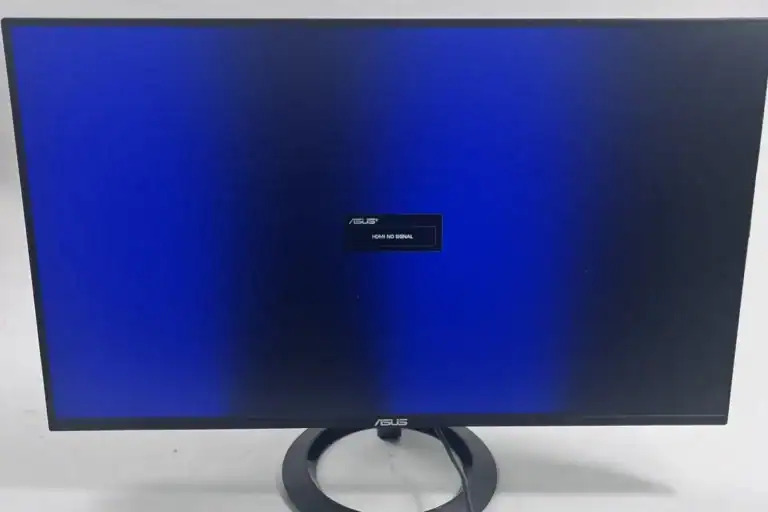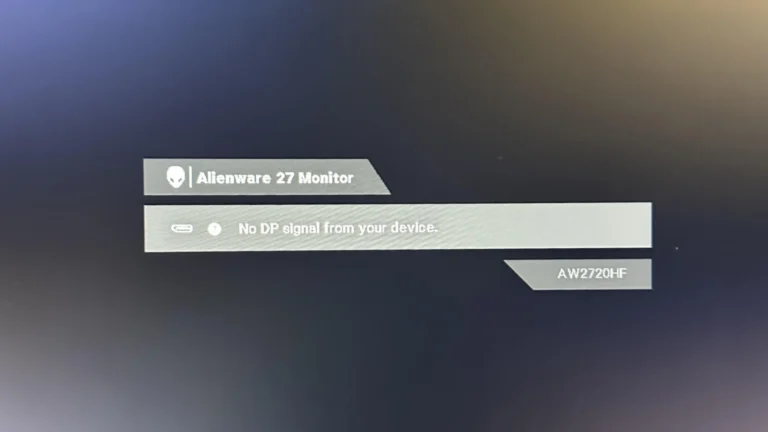
Seeing the error message “Your PC can’t project to another screen. Try reinstalling the driver or using another video card” can be frustrating, especially when you’re trying to connect a second monitor, TV, or projector. This issue is common on Windows PCs and is usually related to graphics drivers, display settings, or hardware compatibility.
This guide explains why the error happens and how to fix it step by step.
What Causes This Error?
The message typically appears when Windows can’t communicate properly with your graphics hardware. Common causes include:
- Corrupted or outdated graphics drivers
- Incorrect display settings
- Conflicts between integrated and dedicated GPUs
- Faulty display cables or adapters
- Windows update issues
- Unsupported display resolution or refresh rate
Quick Checks Before Advanced Fixes
Before diving into driver reinstallations, try these quick steps:
- Press Windows + P and select Duplicate or Extend
- Restart your PC
- Reconnect the display cable securely
- Try a different HDMI, DisplayPort, or VGA cable
- Test a different monitor or TV
- Plug the display directly into the graphics card (not the motherboard, if using a dedicated GPU)
If the problem persists, move on to the solutions below.
Solution 1: Reinstall the Graphics Driver (Recommended)
Reinstalling the display driver resolves most projection issues.
Steps to Reinstall the Driver
- Right‑click the Start menu
- Select Device Manager
- Expand Display adapters
- Right‑click your graphics card
- Choose Uninstall device
- Check Delete the driver software for this device
- Restart your PC
After reboot:
- Windows will reinstall a basic driver automatically
- Or download the latest driver directly from:
- NVIDIA
- AMD
- Intel
Installing the latest official driver often fixes projection errors immediately.
Solution 2: Update the Graphics Driver
If you don’t want to fully reinstall:
- Open Device Manager
- Right‑click your graphics card
- Select Update driver
- Choose Search automatically for drivers
For best results, always use the manufacturer’s website instead of third‑party tools.
Solution 3: Switch or Disable the Secondary GPU
Systems with both integrated and dedicated graphics can cause conflicts.
Try This
- Open Device Manager
- Under Display adapters, right‑click one GPU
- Select Disable device
- Restart your PC and test projection
If it works, re‑enable the GPU and adjust settings in BIOS or graphics control software.
Solution 4: Change Display Resolution and Refresh Rate
Unsupported settings can prevent projection.
- Right‑click on the desktop
- Select Display settings
- Scroll to Advanced display
- Lower the resolution and refresh rate
- Try projecting again
Solution 5: Run Windows Update
Some projection issues are caused by incomplete system updates.
- Open Settings
- Go to Windows Update
- Install all available updates
- Restart your PC
Optional driver updates can also help.
Solution 6: Check BIOS and Hardware Connections
If software fixes don’t work:
- Ensure your GPU is properly seated
- Update your BIOS if an update is available
- Try another video output port on the GPU
- Test with a different graphics card if possible
This helps determine whether the issue is hardware‑related.
Solution 7: Use Display Troubleshooter
Windows includes basic troubleshooting tools.
- Go to Settings → System → Display
- Scroll down and select Troubleshoot
While limited, it can automatically fix simple issues.
When to Consider Using Another Video Card
If:
- Projection fails on all monitors and cables
- Drivers reinstall correctly but errors persist
- The GPU isn’t detected reliably
Then the graphics card may be faulty. Testing with another video card can confirm whether hardware replacement is necessary.
Final Thoughts
The error “Your PC can’t project to another screen” is usually caused by driver or configuration issues rather than serious hardware failure. In most cases, reinstalling or updating the graphics driver solves the problem quickly.
If that doesn’t work, checking display settings, GPU conflicts, and hardware connections will help pinpoint the cause.