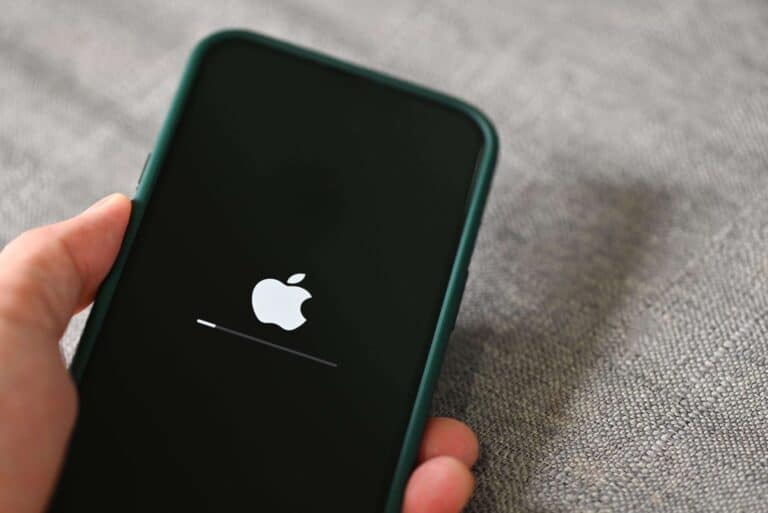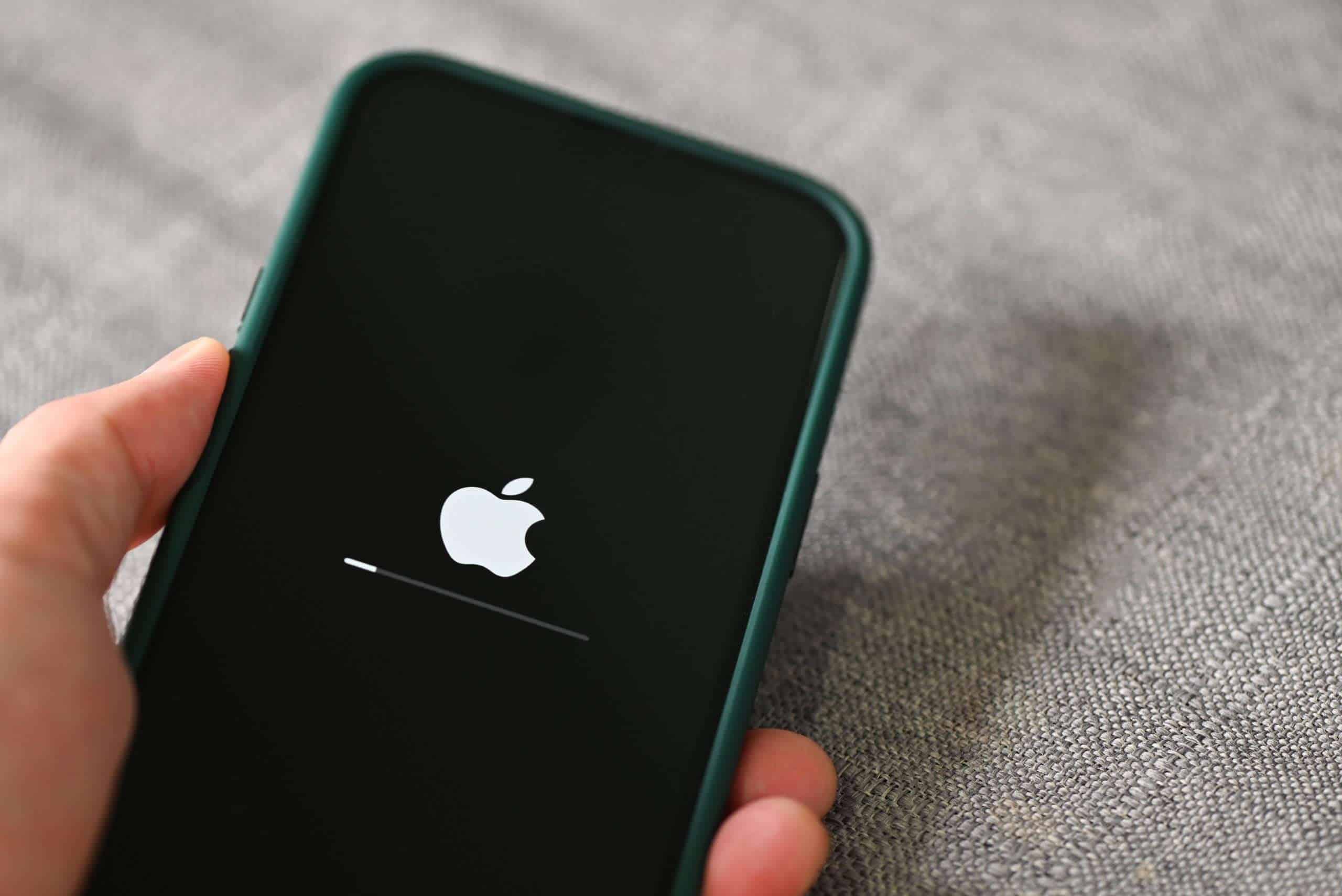
Resetting an iPhone 13 can be a necessary step when encountering issues such as unresponsiveness or software errors. A hard reset, also known as a force restart, does not erase the data on the phone, but can be an effective way to resolve problems that a soft reset cannot fix. It is a simple process that involves pressing a specific combination of buttons to restart the device.
Another reset option for more persistent issues is the factory reset, which restores the iPhone to its original state by erasing all content and settings. This approach is typically used as a last resort, as it completely wipes the device, requiring backup and restoration of data. Mastering these reset options allows users to tackle a range of problems and return their iPhone 13 to proper functionality.
How To Hard Reset or Factory Reset An iPhone 13
It’s important to understand that a hard reset and a factory reset are two different processes. Here’s how to perform both on your iPhone 13.
What’s The Difference?
- Hard Reset (Forced Restart): Restarts your phone when it’s frozen or unresponsive. Does NOT delete any data.
- Factory Reset: Erases all data, apps, and settings, restoring your iPhone to its original state.
Method 1: Hard Reset (Forced Restart)
Use this when your iPhone 13 is frozen, unresponsive, or won’t shut down normally (source: How-To Geek).
Steps:
- Press and quickly release the Volume Up button
- Press and quickly release the Volume Down button
- Press and hold the Side button (power button) until you see the Apple logo appear
- Release the Side button – your iPhone will restart
The entire process takes about 10 seconds. Your data will remain intact (source: MacRumors).
Method 2: Factory Reset (Erase All Content)
⚠️ Warning: This will permanently delete all your data. Back up your iPhone first!
Option A: Factory Reset Through Settings
Steps:
- Open Settings on your iPhone 13
- Tap General
- Scroll down and tap Transfer or Reset iPhone
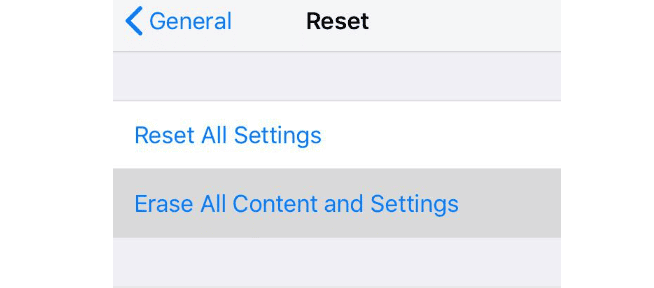
- Tap Erase All Content and Settings
- Enter your passcode if prompted
- Enter your Apple ID password to disable Find My iPhone
- Tap Erase iPhone to confirm
- Wait for the process to complete – your iPhone will restart with factory settings
This is the recommended method when you have access to your working iPhone (source: The Tech Gorilla).
Option B: Factory Reset Using iTunes/Finder (For Disabled/Locked iPhones)
Use this method if you’ve forgotten your passcode or your iPhone is disabled (source: YouTube).
Steps:
- Connect your iPhone 13 to your computer using a USB cable
- Put your iPhone into Recovery Mode:
- Press and quickly release Volume Up
- Press and quickly release Volume Down
- Press and hold the Side button until you see the recovery mode screen
- Open iTunes (PC) or Finder (Mac)
- Select your iPhone when it appears
- Click Restore iPhone
- Confirm and wait for the restoration process to complete
Option C: Factory Reset Using iCloud (Remote Erase)
If your iPhone is lost or you can’t access it physically:
Steps:
- Go to iCloud.com on any device
- Sign in with your Apple ID
- Click Find My iPhone
- Select your iPhone 13 from the devices list
- Click Erase iPhone
- Confirm the action
Your iPhone will be erased the next time it connects to the internet (source: The Tech Gorilla).
Before Factory Resetting
✅ Back up your data to iCloud or your computer
✅ Sign out of iCloud (optional, but recommended)
✅ Remove your SIM card if selling or giving away the device
✅ Make sure you know your Apple ID password
After Factory Resetting
Your iPhone 13 will restart and display the “Hello” setup screen, just like when you first unboxed it. You can then set it up as new or restore from a backup (source: Support Your Tech).
Restore Your iPhone 13 to Original Settings
There are times when you might need to reset your iPhone 13 completely. Perhaps you want to sell your phone, or you’re having serious software issues that can’t be resolved with regular troubleshooting. Here’s how to perform both hard and factory resets on your device:
Hard Reset (Forced Restart)
A hard reset might resolve minor performance problems. It’s a good first step if your iPhone has become unresponsive. Use these steps:
- Quick Press: Volume Up Press and release the volume up button quickly.
- Quick Press: Volume Down Press and release the volume down button quickly.
- Hold: Side Button Press and hold the side button. Keep holding, even when the power-off slider appears. Release the side button when you see the Apple logo.
Factory Reset
A factory reset will erase all data from your iPhone. Before you proceed, ensure you have a backup of your important information. Here’s how to do it:
- Open Settings: Go to the “Settings” app on your iPhone.
- Choose General: Tap the “General” option in the Settings menu.
- Transfer or Reset iPhone: Scroll to the bottom and select “Transfer or Reset iPhone”.
- Erase Content and Settings: Tap “Erase All Content and Settings”.
- Follow Prompts: Your iPhone will guide you through the reset process.
Important Notes
- Backup: A factory reset wipes all your data. Back up your photos, contacts, and other important files before proceeding.
- Find My iPhone: If “Find My iPhone” is enabled, you’ll need your Apple ID and password to reset your device.
Here’s a table outlining the differences between the two reset types:
| Reset Type | Function | When to Use |
|---|---|---|
| Hard Reset | Forces a reboot | iPhone becomes unresponsive or has minor glitches |
| Factory Reset | Erases all data and restores factory settings | Selling or giving away the device, or resolving significant software problems |
Key Takeaways
- A hard reset on an iPhone 13 is accomplished through a button sequence and does not delete data.
- A factory reset is used for comprehensive troubleshooting and erases all content.
- Understanding different reset methods ensures proper device maintenance and problem-solving.
Mastering Your iPhone 13 Reset Options
In addressing common issues like an unresponsive device or preparing for a resale, resetting your iPhone 13 is essential. This section guides you through different reset methods and their proper execution.
Understanding Soft Reset, Force Restart, and Hard Reset
Soft Reset is the simplest way to refresh your iPhone 13 without losing data. It is useful when the device is sluggish. To soft reset, simply turn the device off and on.
A Force Restart is the next level of reset that can help if your iPhone 13 is frozen or unresponsive. This does not erase data but is more forceful than a soft reset. To force restart, quickly press and release the Volume Up button, then quickly press and release the Volume Down button, and finally, hold the Side button until the Apple logo appears.
Hard Reset refers to the option of Erase All Content and Settings which completely wipes your iPhone 13, removing all data, photos, contacts, and apps. This is generally employed when troubleshooting efforts fail or before transferring ownership of the device.
Preparing for a Hard Reset
Before performing a hard reset, ensure that you back up all important data. You can backup using iCloud, iTunes, or Finder. Go to Settings, tap on your name, and then tap iCloud. Under iCloud Backup, select Back Up Now. Remember to note down your Apple ID and passcode which will be required after the reset.
Executing a Hard Reset
To carry out a hard reset on your iPhone 13:
- Go to Settings.
- Scroll down and tap on General.
- Select Reset at the bottom.
- Choose Erase All Content and Settings.
If prompted, enter your passcode and Apple ID password, then confirm your choice to erase.
After the Reset: Initial Setup and Data Restoration
Once the hard reset is complete, your iPhone 13 will restart displaying an initial setup screen. Follow the on-screen instructions to start fresh or restore data from a backup. Connect to Wi-Fi, sign in with your Apple ID, and decide whether to restore from an iCloud backup or transfer data from another device.
Remember to reconnect any paired Bluetooth devices and reconfigure settings such as Wi-Fi connections, notifications, and privacy preferences to suit your needs.