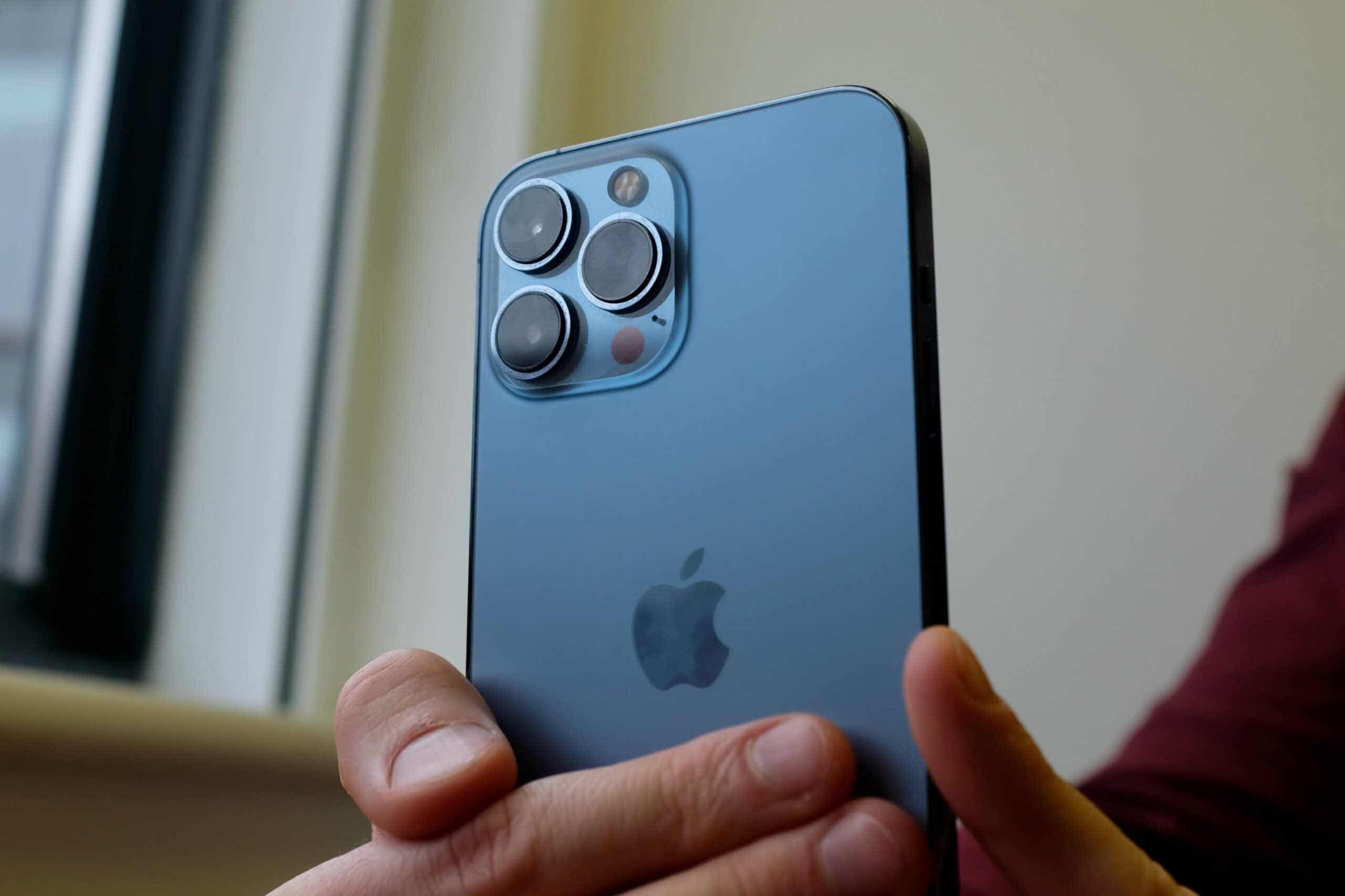
Capturing steady video on an iPhone is now easier with the latest advancements in video stabilization technology. Whether you’re recording special moments or shooting on the go, the iPhone’s Enhanced Stabilization feature keeps your videos clear and steady. Having a stable shot significantly improves the quality of your videos, whether they’re for family vacations or professional use. In today’s world, where video content is important, having smooth and stable footage is crucial. To use Enhanced Stabilization, simply go to Settings, tap on Camera, navigate to Record Video, and switch on Enhanced Stabilization.
This feature automatically reduces shake and motion, providing a smoother viewing experience, whether you’re walking, running, or holding your phone. For those seeking professional-grade results, there are many options available beyond the iPhone’s built-in stabilization, like external gimbals such as the DJI Osmo Mobile 6 that offer three-axis stabilization for even smoother footage. These tools are especially useful for capturing dynamic shots without unwanted movements. Explore how these devices can enhance your video-taking experience.
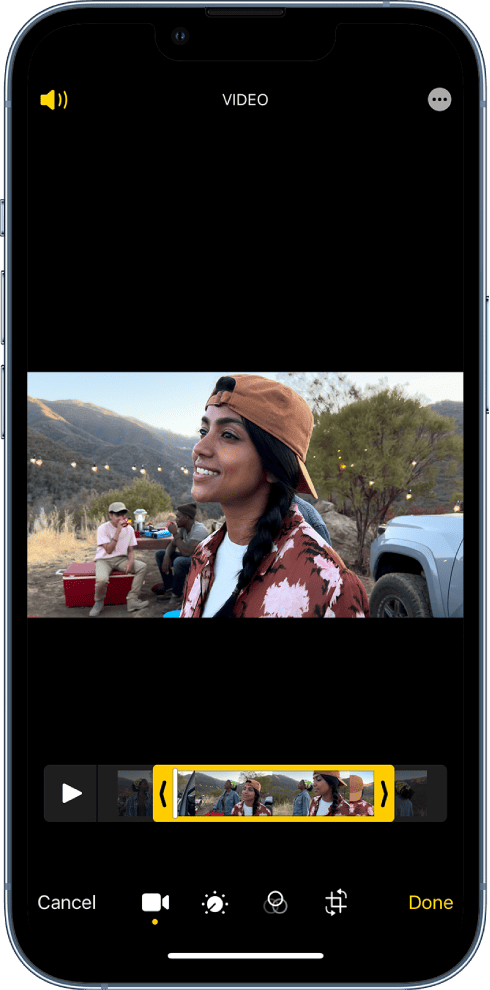
iPhone Video Stabilizer: Enhancing Your Filmmaking Experience
The iPhone has revolutionized mobile filmmaking, putting professional-quality video capabilities in your pocket. However, even the steadiest hands can produce shaky footage. Fortunately, iPhone video stabilization technology has evolved dramatically, offering multiple solutions to achieve smooth, cinematic results. Here’s your comprehensive guide to stabilizing iPhone videos in 2025.
Understanding iPhone’s Built-In Stabilization
Optical Image Stabilization (OIS)
Modern iPhones come equipped with optical image stabilization, which uses hardware to compensate for camera shake. This technology physically moves the camera lens to counteract hand movements, providing smooth footage right out of the camera.
Enhanced Stabilization Mode
Beyond standard OIS, iPhones now offer Enhanced Stabilization—a form of electronic image stabilization that works similarly to Action Mode but for more general use (source: Tom’s Guide). This feature uses software algorithms to smooth out footage even further.
How to enable Enhanced Stabilization:
- Open the Camera app
- Switch to Video mode
- Look for the stabilization icon (typically in the top corner)
- Toggle it on before recording
Action Mode
For extreme motion scenarios—like running, biking, or action sports—Action Mode provides the most aggressive stabilization, though it does crop your footage slightly to allow for digital correction.
Top AI Video Stabilizer Apps for iPhone
AI-powered stabilization apps offer fantastic, budget-friendly solutions for achieving smooth footage without professional equipment or expertise (source: Perfect Corp).
1. PowerDirector
PowerDirector is a user-friendly option that’s perfect for beginners who want professional results (source: Tool Hunt).
How to use PowerDirector:
- Open PowerDirector on your device
- Import your video file
- Select the stabilization feature
- Adjust the stabilization strength to your preference
- Preview and export your smooth footage
The app offers adjustable stabilization settings, so you can control how much correction is applied without making your video look unnatural (source: Filmora).
2. CapCut
CapCut offers powerful AI-driven stabilization with an intuitive interface:
- Free to use with premium features available
- Automatic shake detection
- Adjustable stabilization intensity
- Additional editing tools for color grading and effects
3. InShot
InShot combines stabilization with comprehensive editing features:
- Simple one-tap stabilization
- Trim and cut tools
- Music and text overlay options
- Export in various resolutions including 4K
4. Adobe Premiere Rush
For those seeking professional-grade results:
- Advanced stabilization algorithms
- Cloud syncing across devices
- Integration with Adobe Creative Cloud
- Multi-track editing capabilities
Physical Stabilization Solutions
While software solutions are powerful, combining them with physical stabilization creates the best results:
Gimbals
Handheld gimbals like the DJI Osmo Mobile or Zhiyun Smooth provide mechanical stabilization:
- Three-axis stabilization for ultra-smooth footage
- Follow modes for dynamic shots
- Time-lapse and panorama features
- Battery-powered with extended runtime
Tripods and Monopods
For static or controlled movement shots:
- Compact travel tripods with flexible legs
- Monopods for mobile stability
- Desktop tripods for vlogging and interviews
Pro Tips for Stable iPhone Footage
1. Proper Hand Positioning
- Hold your iPhone with both hands
- Tuck your elbows into your body for stability
- Move your entire body rather than just your arms
- Walk heel-to-toe to minimize vertical bounce
2. Use Your Environment
- Lean against walls or stable surfaces
- Rest your phone on railings or ledges
- Sit down when possible to reduce movement
3. Shoot in Higher Frame Rates
Recording in 60fps instead of 24fps or 30fps gives you more flexibility:
- Smoother playback
- Better results when slowing down footage
- More frames for stabilization software to analyze
4. Plan Your Shots
Avoid excessive shaky footage from the start:
- Storyboard your scenes
- Practice your camera movements
- Use shorter clips rather than long continuous shots
- Keep movements slow and deliberate
Post-Production Stabilization Workflow
For the best results, follow this workflow:
- Import your footage into your chosen stabilization app
- Analyze the clip to identify the shakiest sections
- Apply stabilization gradually—start with lower settings and increase as needed
- Check for warping at edges (over-stabilization can cause distortion)
- Crop if necessary to remove unstable edges
- Export in high quality to preserve video fidelity
Common Mistakes to Avoid
Don’t make these stabilization errors that can compromise your footage (source: Geeky Gadgets):
- Over-stabilizing: Too much correction creates an unnatural “floating” effect
- Ignoring lighting: Stabilization works best with well-lit footage
- Excessive zoom: Digital zoom amplifies shake—move closer instead
- Forgetting to lock exposure: Auto-exposure changes can make stabilization harder
Achieving Professional Results
To create smooth, professional-quality videos with your iPhone (source: Top Seven Reviews):
- Combine techniques: Use both hardware (gimbal) and software stabilization
- Shoot extra footage: Give yourself editing options
- Master basic cinematography: Understand framing, composition, and movement
- Practice consistently: Stabilization skills improve with experience
- Study professional work: Analyze how filmmakers achieve smooth shots
Conclusion
iPhone video stabilization has come a long way, making professional-looking footage accessible to everyone. Whether you’re using built-in features like Enhanced Stabilization and Action Mode, leveraging AI-powered apps like PowerDirector, or investing in physical gimbals, the tools are available to transform shaky clips into smooth, cinematic content.
The key is understanding which stabilization method works best for your specific shooting scenario and combining multiple techniques when necessary. With practice and the right tools, your iPhone can produce footage that rivals professional camera setups—all without breaking the bank or requiring advanced technical skills.
Enhance Your Videos with iPhone Video Stabilizers
Built-in Stabilization: Smooth Moves Right Out of the Box
Your iPhone already comes with built-in video stabilization, doing a decent job of smoothing out minor shakes and bumps. Newer models, like the iPhone 14 and 15, even have an “Enhanced Stabilization” setting that uses the ultrawide lens for even smoother footage.
Third-Party Apps: Take Your Stabilization Up a Notch
If you need more control or want pro-level results, plenty of third-party apps are available in the App Store. These apps use advanced algorithms to analyze and correct shaky footage, often offering additional features like filters, editing tools, and slow-motion effects.
Gimbal Stabilizers: Hardware for Ultimate Smoothness
For the smoothest possible footage, consider a gimbal stabilizer. These handheld devices use motors to counteract your movements, resulting in incredibly smooth and cinematic shots. They are pricier than apps, but they offer unmatched stabilization quality and additional features like time-lapses and object tracking.
DIY Stabilization: Tips and Tricks for Steadier Shots
Even without extra gear, you can improve your video stability with a few simple techniques. Use both hands to hold your phone, tuck your elbows into your body, and use smooth, deliberate movements. Lean against a wall or other stable surface for added support. Consider shooting at a higher frame rate (like 60fps) as this can make footage easier to stabilize in post-production.
Comparison Table: iPhone Video Stabilization Options
| Option | Cost | Effectiveness | Ease of Use | Additional Features |
|---|---|---|---|---|
| Built-in Stabilization | Free | Good for minor shakes | Very easy | Limited |
| Third-Party Apps | Varies (free to $20+) | Good to excellent | Easy to moderate | Filters, editing tools, slow-motion |
| Gimbal Stabilizers | $100+ | Excellent | Moderate | Time-lapses, object tracking, etc. |
| DIY Techniques | Free | Varies depending on skill | Requires practice | None |
iPhone video stabilization is no longer a luxury but a necessity for creating high-quality videos. Whether you’re using the built-in features, third-party apps, gimbal stabilizers, or a combination of these, you have plenty of options to ensure your footage is smooth, polished, and professional-looking.
Key Takeaways
- Using Enhanced Stabilization on an iPhone helps create smoother videos.
- Enabling this feature is straightforward through the Camera settings.
- External gimbals provide added stabilization for professional-quality shots.
Understanding Video Stabilization on iPhones
Video stabilization on iPhones helps to keep your footage smooth and shake-free. This section explores the key aspects of how this technology works, and the features built into iPhones, as well as external tools you can use to achieve better stability.
Principles of Video Stabilization
Video stabilization reduces shakes and vibrations during recording. It makes footage appear smoother and more professional. This is achieved through sensors that detect movement and then adjust the camera’s position to counteract it.
Three-axis stabilization is common, allowing stabilization along the X, Y, and Z axes. This technology prevents blurring from pans, tilts, and rolls.
Built-in iPhone Stabilization Features
iPhones come with built-in image stabilization to help capture steadier videos. The iPhone 13 and iPhone 14 models, for example, have advanced stabilization options.
Optical Image Stabilization (OIS) uses physical lens movement to counteract shakes. The camera app offers Action Mode to capture smooth video even during intense movement. These features make it easier to get stable shots without extra equipment.
External Stabilizer Options
To achieve even greater stability, external stabilizers can be used. A gimbal or phone gimbal provides more control over camera movement. A popular option is the DJI Osmo Mobile 6.
Using a gimbal reduces the need for cropping the footage and maintains image quality while keeping it stable. These devices track subjects and offer convenient features like long battery life and lightweight design for handheld use.
Comparing Stabilization Solutions
When deciding between built-in stabilization and external options, consider price, ease of use, and portability. Built-in stabilization is convenient and always available. It is perfect for casual users and quick shoots.
External stabilizers provide precise control and are ideal for professional use. They handle complex shots with more stability and are great for cinematic video.
In conclusion, whether you rely on built-in iPhone features or external stabilizers, both offer unique benefits to enhance your video recording experience.
Frequently Asked Questions
This section addresses common inquiries about video stabilization on the iPhone, offering helpful tips and specific features.
What are the best software solutions for video stabilization on the iPhone?
Some top apps for video stabilization include YouCam Video and Adobe Premiere Rush. These apps offer tools to help stabilize footage efficiently.
How can one enable video stabilization on an iPhone 13?
To enable video stabilization on an iPhone 13:
- Open the Settings app.
- Tap Camera.
- Select Record Video.
- Toggle on Enhanced Stabilization.
Are there any free apps available for stabilizing videos on iPhones?
Several free apps can stabilize iPhone videos. Popular options include Google Photos and the free version of YouCam Video. These apps provide basic stabilization features at no cost.
How do I stabilize a shaky video after recording it on my iPhone?
To stabilize a shaky video:
- Open your video editing app, like YouCam Video.
- Select the Stabilize feature.
- Choose the video.
- Adjust the stabilization level.
- Save the stabilized video.
Is it possible to stabilize video using iMovie on an iPhone?
Yes, you can stabilize video using iMovie on your iPhone. Import your video into iMovie, then select the stabilization option. Make necessary adjustments and save the edited video.
What video stabilization features are available on the latest iPhone models?
Recent iPhone models, including the iPhone 14 and iPhone 14 Pro Max, have built-in Enhanced Stabilization. This feature helps reduce shake and makes handheld videos smooth and steady.