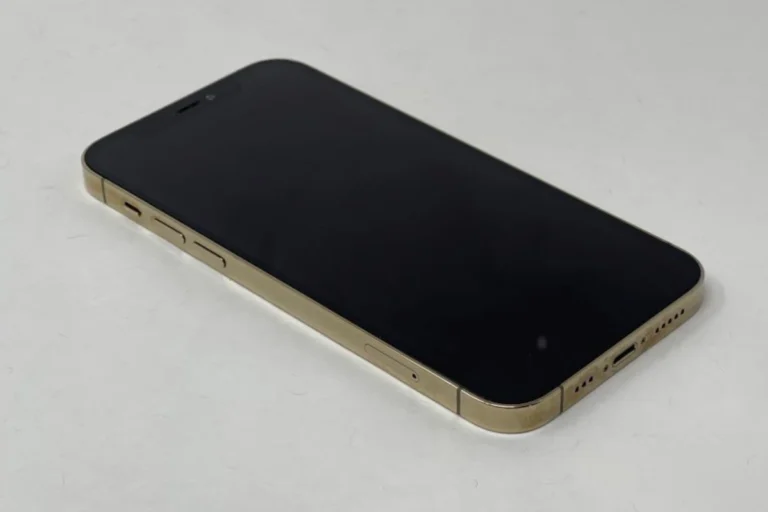
When an iPhone 15 refuses to turn on, it can feel like the device has completely stopped working. The screen stays black, no buttons respond, and it may seem like nothing helps. Most of the time, the issue comes down to a drained battery, a frozen system, or a simple restart problem that can be fixed at home.
By checking the charging cable, cleaning the port, or forcing a restart, many people can bring their phone back to life without needing service. If those steps don’t solve it, recovery mode or DFU mode may help reset the software. Only when those methods fail does it usually point to a hardware issue that requires professional repair.
Troubleshooting doesn’t need to be complicated. With a clear set of steps, anyone can figure out whether the phone needs a quick fix or expert help. Learning the right process saves time and prevents unnecessary stress.
Troubleshooting Your iPhone 15 When It Just Won’t Turn On
Few things are more frustrating than an iPhone that refuses to turn on—especially when you rely on it every day. If your iPhone 15 appears completely dead, don’t panic. In many cases, the issue can be fixed with a few simple steps. This guide walks you through the most effective troubleshooting methods, from quick checks to when it’s time to contact Apple Support.
1. Be Patient and Check the Battery
Sometimes the simplest explanation is the correct one.
- Plug your iPhone into a charger using an Apple‑certified cable and adapter.
- Let it charge for at least 20–30 minutes before trying anything else.
- If the battery was deeply drained, the screen may stay black for several minutes before showing the charging icon.
Tip: Try a different cable, adapter, or power outlet to rule out charging accessories as the problem.
2. Force Restart Your iPhone 15
If your iPhone is powered on but frozen or unresponsive, a force restart can help.
How to force restart an iPhone 15:
- Quickly press and release the Volume Up button.
- Quickly press and release the Volume Down button.
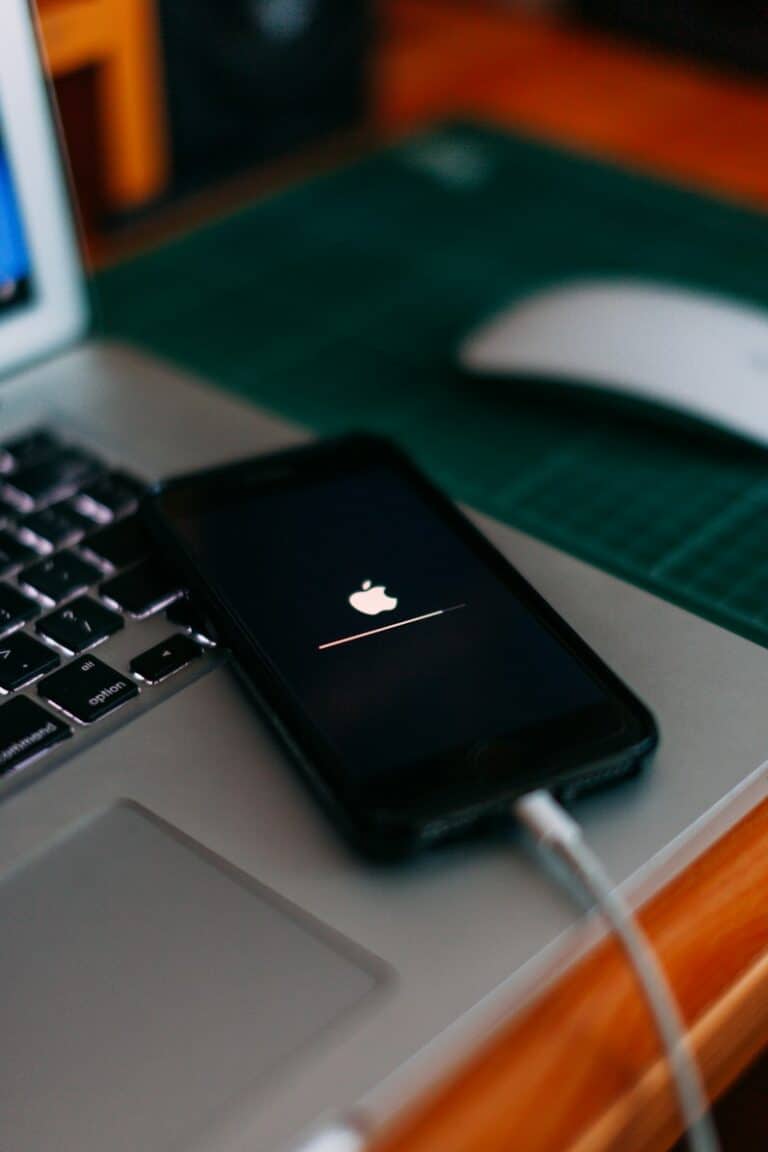
- Press and hold the Side button until the Apple logo appears, then release.
This won’t erase any data and often resolves temporary system glitches.
3. Check for Signs of Life
Even if the screen is black, your iPhone may still be on.
- Listen for sounds when you receive calls or notifications.
- Plug the phone into a charger and see if it vibrates or warms slightly.
- Try calling your number from another phone.
If you notice any of these signs, the issue could be a display problem rather than a power issue.
4. Inspect for Physical or Liquid Damage
Hardware damage can prevent your iPhone from turning on.
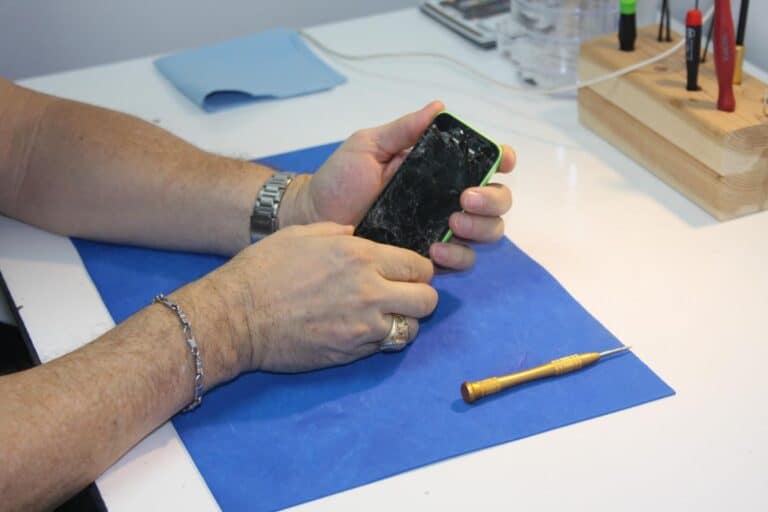
- Look for cracks, bent edges, or loose buttons.
- Think about recent exposure to water, rain, or high humidity.
- Check the charging port for debris, lint, or corrosion.
If your iPhone was exposed to liquid, do not attempt to charge it immediately—this can cause further damage.
5. Connect to a Computer (Recovery Mode)
If your iPhone still won’t turn on, connecting it to a computer may help.
What you’ll need:
- A Mac or Windows PC
- A USB‑C cable
- The latest version of macOS or iTunes
Steps:
- Connect your iPhone to the computer.
- Perform the force restart steps, but keep holding the Side button until you see the Recovery Mode screen.
- If prompted, choose Update to reinstall iOS without erasing your data.
If Update fails, Recovery Mode may suggest a restore, which will erase data, so use this as a last resort.
6. Consider Software or Update Issues
If your iPhone stopped turning on after:
- An iOS update
- Installing a new app
- Restoring from a backup
…it may be experiencing a software conflict. Recovery Mode or professional assistance is usually required in these cases.
7. When to Contact Apple Support
If none of the above steps work, it’s likely a hardware issue such as:
- A failed battery
- Logic board damage
- Display failure
- Charging port malfunction
At this point, it’s best to:
- Visit an Apple Store or Apple Authorized Service Provider
- Contact Apple Support for diagnostics and repair options
If your iPhone 15 is under warranty or AppleCare+, repairs may be free or significantly discounted.
Final Thoughts
An iPhone that won’t turn on doesn’t always mean it’s permanently broken. In many cases, a drained battery, software glitch, or frozen system is to blame. By working through these steps methodically, you can often bring your iPhone 15 back to life—or at least know when it’s time to seek professional help.
Key Takeaways
- A black screen often has a simple cause
- Basic steps can fix most startup issues
- Service is only needed if common fixes fail
Frequently Asked Questions
When an iPhone 15 will not power on, the issue can stem from the battery, the screen, or the software. Some problems can be fixed at home with button commands or charging steps, while others may point to hardware failure that needs service.
What steps can I take if my iPhone 15 won’t turn on after being fully charged?
Check the charging cable and adapter to make sure they work. Try a different outlet or charger. If the phone still does not respond, perform a force restart by pressing and quickly releasing the volume up button, then the volume down button, and then holding the side button until the Apple logo appears.
How do I troubleshoot an iPhone 15 that is frozen and won’t respond to touch or reset commands?
Use a force restart. Press and quickly release the volume up button, press and quickly release the volume down button, then hold the side button until the screen turns off and the Apple logo shows. If the device stays frozen, connect it to a computer and try updating or restoring it with iTunes or Finder.
What should I do if my iPhone 15’s screen stays black, but the phone appears to be working?
Check if the phone makes sounds, vibrates, or lights up when charging. If so, the screen may be damaged. Try a force restart first. If the display does not return, the device may need screen repair or professional service.
Why won’t my iPhone 15 turn on or charge, and how can I fix it?
Inspect the charging port for dust or debris and clean it carefully. Use a certified Lightning cable and adapter. Leave the phone connected to power for at least 30 minutes, then try turning it on again. If it still will not charge, the battery or charging hardware may need replacement.
How can I resolve an issue where my iPhone 15 screen is unresponsive and I can’t click on anything?
Force restart the device to clear temporary software crashes. If the screen remains unresponsive after restarting, check for software updates once the phone restarts. If the touch screen still does not respond, the issue may be with the display hardware.
What are the possible reasons for an iPhone 15 not turning on, and how can I diagnose them?
The most common causes include a drained battery, a faulty charger, a frozen system, or a hardware failure. Start by charging with a known working cable and adapter, then attempt a force restart. If neither works, connect the phone to a computer to see if it is detected. If not, contact Apple Support for further diagnosis.