Understanding how a computer starts up is important for using modern computers. The process relies on two firmware interfaces: BIOS and UEFI. BIOS, or Basic Input/Output System, has been the standard firmware interface for computers since the 1970s. It performs initial hardware checks and prepares the computer to start. However, as technology evolved, BIOS had limitations in terms of hardware compatibility and boot security. UEFI, or Unified Extensible Firmware Interface, was developed as a replacement for BIOS.
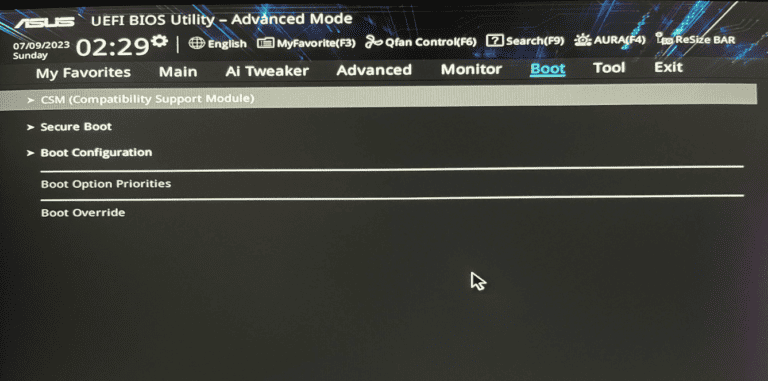
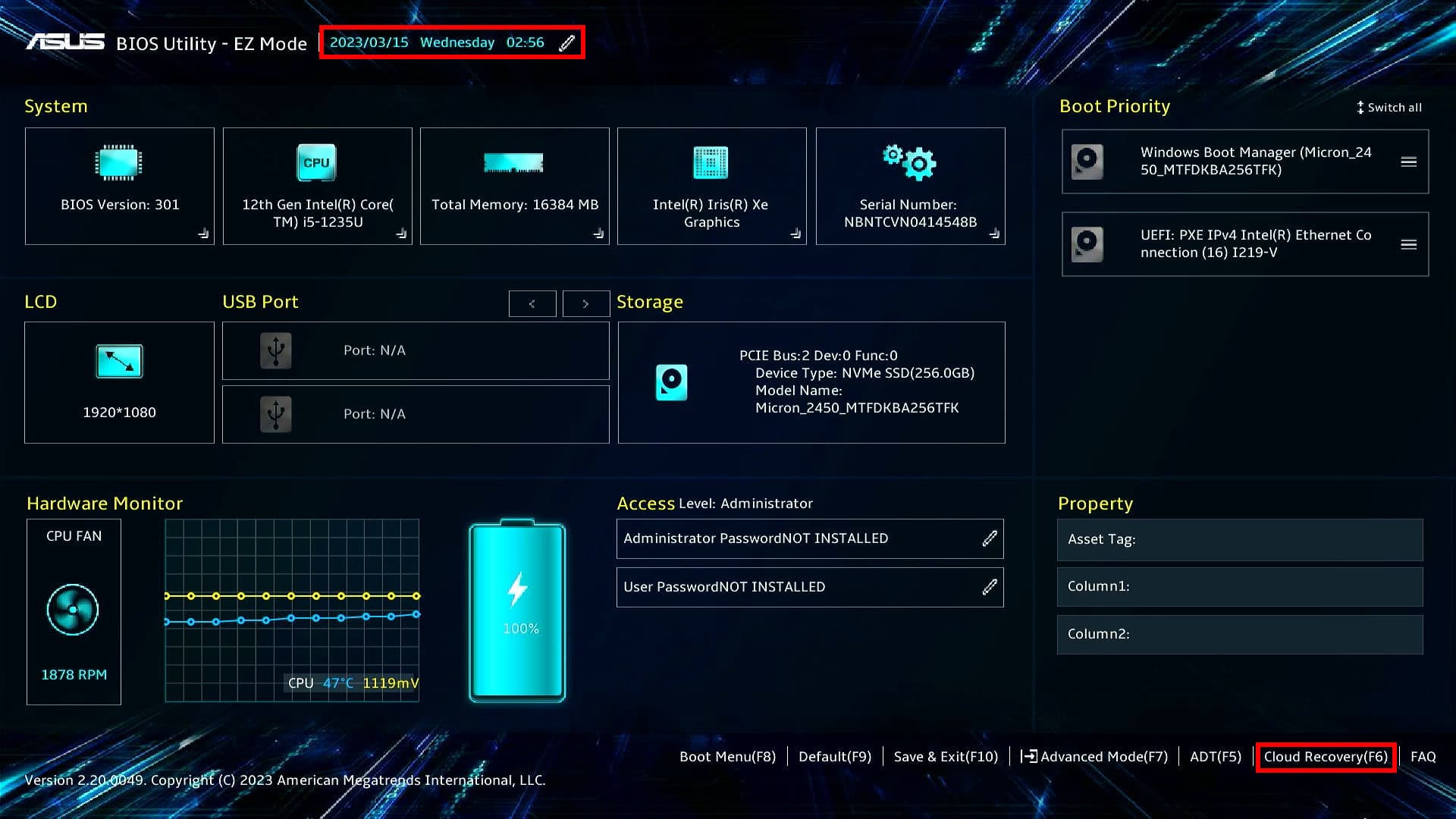
It addresses many of the limitations of BIOS by supporting larger storage capacities, faster boot times, and a more secure boot process through features like Secure Boot. Additionally, UEFI has a graphical interface, making it user-friendly for configuring and managing firmware settings, a significant improvement from BIOS. Transitioning from BIOS to UEFI can be complex but is important for taking full advantage of modern computer hardware. Understanding the differences between UEFI and Legacy BIOS is crucial for improving computer performance and security. While Legacy BIOS served its purpose for many years, UEFI offers numerous advantages that enhance the overall computing experience.
Understanding UEFI and Legacy BIOS: A Beginner’s Guide
When you power on your computer, firmware initializes the hardware and starts the operating system. Two main types of firmware interfaces control this process: UEFI (Unified Extensible Firmware Interface) and Legacy BIOS (Basic Input/Output System). Understanding their differences is essential for PC building, troubleshooting, and optimizing system performance.
What is Legacy BIOS?
- Legacy BIOS is the traditional firmware interface used since the early days of PCs.
- It initializes hardware during boot and hands control over to the operating system.
- BIOS operates in 16-bit mode with limited capabilities and has a fixed interface.
- It uses the Master Boot Record (MBR) partitioning scheme, which supports drives up to 2TB and up to 4 primary partitions.
- BIOS boots in Legacy Mode, which is compatible with older hardware and operating systems.
What is UEFI?
- UEFI (Unified Extensible Firmware Interface) is a modern replacement for Legacy BIOS.
- It provides a more flexible, faster, and secure booting process.
- UEFI can run in 32-bit or 64-bit mode and supports a graphical user interface.
- It uses the GUID Partition Table (GPT), which supports drives larger than 2TB and allows for many more partitions.
- UEFI supports Secure Boot, which helps prevent unauthorized or malicious software from loading during boot.
- It offers faster startup times and better hardware initialization.
Key Differences Between UEFI and Legacy BIOS
| Feature | Legacy BIOS | UEFI |
|---|---|---|
| Firmware Age | Older, traditional | Modern, extensible |
| Boot Mode | Legacy Mode | UEFI Mode |
| Partitioning Scheme | MBR (max 2TB, 4 partitions) | GPT (supports >2TB, many partitions) |
| Boot Speed | Slower | Faster |
| Security Features | Limited | Secure Boot supported |
| Interface | Text-based | Graphical and mouse support |
| Compatibility | Compatible with older OS/hardware | Requires UEFI-compatible OS/hardware |
When to Use UEFI or Legacy BIOS?
- UEFI is recommended for modern systems, especially if you use Windows 8 or later, Linux distributions with UEFI support, or have large hard drives (>2TB).
- Legacy BIOS mode can be used for compatibility with older operating systems or hardware that does not support UEFI.
- Many motherboards allow switching between UEFI and Legacy modes in firmware settings.
How to Check Which Mode Your PC Uses
- On Windows, run
msinfo32and look for the “BIOS Mode” entry. - On Linux, check the presence of
/sys/firmware/efidirectory; if it exists, you are booted in UEFI mode.
Summary
- UEFI is the modern replacement for Legacy BIOS, offering better performance, security, and support for newer hardware.
- Legacy BIOS remains useful for compatibility with older systems.
- Choosing UEFI is generally the best practice for new builds unless specific legacy support is needed.
If you want a detailed walkthrough on how to switch between UEFI and Legacy modes or how to configure Secure Boot, just ask!
Sources:
- TheTechyLife: Should I Boot from UEFI or Legacy?
- TheLinuxCode: Difference Between UEFI and Legacy
- SoftHandTech: Understanding UEFI and Legacy
Key Differences Between UEFI and Legacy BIOS
UEFI (Unified Extensible Firmware Interface) and Legacy BIOS (Basic Input/Output System) are two types of firmware that initialize hardware components and load the operating system during the boot process. While both serve a similar purpose, they have distinct differences in terms of features, capabilities, and overall performance.
What is UEFI?
UEFI is a modern firmware interface that offers several advantages over Legacy BIOS. It boasts faster boot and wake times, supports larger storage drives (over 2 terabytes), and features a more user-friendly graphical interface. UEFI also includes security features like Secure Boot, which helps prevent the loading of unauthorized operating systems or drivers.
What is Legacy BIOS?
Legacy BIOS is an older firmware interface that has been around for decades. It uses a text-based interface, supports smaller storage drives, and may have slower boot times compared to UEFI. Legacy BIOS lacks the advanced features found in UEFI, such as Secure Boot and a graphical user interface.
Key Differences
To better understand the differences between UEFI and Legacy BIOS, let’s compare their key features in a table:
| Feature | UEFI | Legacy BIOS |
|---|---|---|
| Boot Time | Faster | Slower |
| Storage Drive Support | Larger (over 2TB) | Smaller (up to 2TB) |
| User Interface | Graphical | Text-based |
| Security Features | Secure Boot | None |
| Boot Mode | UEFI or CSM (Compatibility Support Module) | Legacy |
Compatibility and Transition
Most modern computers come with UEFI firmware pre-installed. However, many still offer a Compatibility Support Module (CSM), which allows them to boot in Legacy BIOS mode to support older operating systems and hardware. As technology advances, UEFI is becoming the standard, and Legacy BIOS is gradually being phased out.
Making the Switch
If your computer supports UEFI and you want to take advantage of its benefits, you can switch from Legacy BIOS to UEFI mode. This usually involves changing settings in your computer’s BIOS/UEFI setup utility and potentially converting your storage drive from MBR (Master Boot Record) to GPT (GUID Partition Table) format.
Note: Switching from Legacy BIOS to UEFI may require reinstalling your operating system. Before making any changes, back up your data and consult your computer’s documentation or manufacturer’s support for specific instructions.
Key Takeaways
- BIOS and UEFI are fundamental firmware interfaces that manage the boot process in computers.
- UEFI presents advantages over BIOS, including support for larger storage and enhanced security features.
- The transition to UEFI from BIOS is crucial for compatibility with contemporary computing hardware.
Understanding UEFI and BIOS in Modern Computing
Today’s computing landscape demands that users grasp the intricacies of system firmware, particularly UEFI and BIOS. These critical components ensure hardware and operating systems communicate effectively.
Evolution from Legacy BIOS to UEFI
The Legacy BIOS, a long-standing standard for booting systems, has gradually been superseded by UEFI (Unified Extensible Firmware Interface). UEFI offers more robust functionality and supports the latest hardware technologies.
Compatibility and System Support
UEFI introduces backward compatibility through the Compatibility Support Module (CSM), enabling it to support older operating systems. However, using UEFI-native features may require disabling CSM. Legacy BIOS struggles with new hardware support due to inherent limitations, such as the inability to boot from large drives (>2.2TB).
Security and Performance Enhancements
UEFI provides significant security benefits, like Secure Boot, which prevents malware by ensuring only digitally signed software boots. Performance enhancements include faster boot times and more efficient power management.
Navigating the UEFI Firmware Interface
Unlike the text-based Legacy BIOS, UEFI features a graphical user interface (GUI) that improves user interaction. It allows easier access to advanced system settings, often entered through keys like F2 or Del during system startup.
Challenges and Considerations for Users
Users must ensure their hardware and software are UEFI-compatible. Some may face challenges with dual-boot configurations or when attempting to use older hardware components that lack UEFI support.
Future of Firmware in Computing
UEFI’s adoption signifies a shift towards more secure and feature-rich firmware solutions. Its role in computing will likely continue to expand as storage devices grow in size and systems demand more complex startup procedures.
Transition Strategies and Best Practices
When transitioning from Legacy BIOS to UEFI, users should update system firmware, enable UEFI mode in the motherboard settings, and use GPT (GUID Partition Table) formatted drives for full functionality.
Understanding the Boot Process in Detail
The UEFI boot process involves initializing hardware components and then locating the EFI System Partition (ESP) to begin loading the operating system. This differs from Legacy BIOS which uses the Master Boot Record (MBR) to start the boot process.