If your iPhone 6 is experiencing a software problem that regular troubleshooting can’t fix, you may need to use recovery mode to update or restore its iOS. Recovery mode is a failsafe in iTunes on Apple devices that lets users restore their device to its default settings when the phone is having issues. Whether it’s a malfunctioning iOS update, an ongoing issue, or the need to restore your device for troubleshooting, recovery mode can be a useful tool. Is your iPhone 6 stuck, frozen, or refusing to update?
Recovery Mode can help. It’s a special mode that lets you fix your device when standard troubleshooting doesn’t work. This guide will show you how to enter Recovery Mode, what it does, and how to troubleshoot common issues. Putting an iPhone 6 in recovery mode involves a series of button presses and specific timing. The process is straightforward but must be done correctly to avoid further issues. It may sound daunting for some users, but with a clear explanation, anyone can follow the steps to successfully enter recovery mode. It’s an important skill for iPhone owners, potentially saving a trip to an Apple Store or service provider.
How to Put iPhone 6 in Recovery Mode: Complete Guide
Recovery mode is a troubleshooting state that allows you to restore your iPhone 6 when it’s experiencing serious software issues. Whether your iPhone is stuck on the Apple logo, won’t update, or has other persistent problems, recovery mode can help you fix it. This comprehensive guide covers everything you need to know about putting your iPhone 6 into recovery mode and what to do once you’re there.
What Is Recovery Mode?
Recovery mode is a special diagnostic state that allows your iPhone 6 to communicate with iTunes or Finder on a computer for restoration purposes (source: iFixit).
When to Use Recovery Mode:
- iPhone is stuck on Apple logo and won’t boot
- iPhone is stuck during iOS update
- iPhone won’t restore normally
- “Connect to iTunes” screen appears
- Screen is frozen or unresponsive
- iPhone is disabled due to forgotten passcode
- Preparing to sell or give away iPhone
- Troubleshooting persistent software issues
What Recovery Mode Does:
- Allows you to update or restore iOS
- Wipes software issues without necessarily erasing data (if you choose Update)
- Provides a pathway to fix corruption problems
- Enables fresh installation of iOS
Before You Start: Important Preparations
1. Backup Your Data
⚠️ Warning: Using recovery mode may erase your data, especially if you choose “Restore” instead of “Update.”
Backup Methods:
- iCloud: Settings > [Your Name] > iCloud > iCloud Backup > Back Up Now
- Computer: Connect iPhone to Mac/PC and backup via Finder (macOS Catalina+) or iTunes (older macOS/Windows)
2. Gather What You Need
- ✅ iPhone 6 or iPhone 6 Plus
- ✅ Original Apple Lightning cable (or high-quality certified cable)
- ✅ Computer (Mac or PC)
- ✅ Latest version of macOS/iTunes installed
- ✅ Stable internet connection
3. Install/Update iTunes or Finder
- Mac with macOS Catalina (10.15) or later: Use Finder (iTunes is discontinued)
- Mac with macOS Mojave (10.14) or earlier: Download latest iTunes
- Windows PC: Download latest iTunes from Apple’s website
How to Put iPhone 6 in Recovery Mode: Step-by-Step
Method 1: Standard Recovery Mode Process
Step 1: Connect iPhone 6 to Computer
- Open iTunes (Windows/older Mac) or Finder (newer Mac).
- Connect your iPhone 6 to your computer using a Lightning cable.
- You don’t need to turn off your iPhone first.
Step 2: Enter Recovery Mode
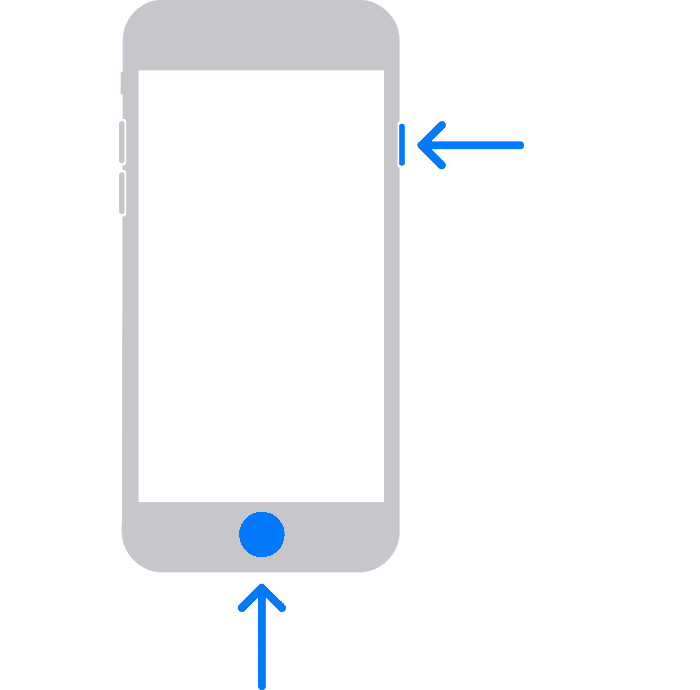
- Press and hold both the Home button (circular button at bottom) and the Power button (on top or right side) simultaneously (source: iFixit).
- Continue holding both buttons even when you see the “slide to power off” slider.
- Keep holding until you see the Recovery Mode screen: a computer icon with a Lightning cable pointing to it (source: HardReset.info).
- This typically takes 10-15 seconds from when the screen goes black.
Visual Confirmation:
- The screen will display a large iTunes icon or a computer icon
- Below it, you’ll see a Lightning cable
- The screen background is black
- This is the Recovery Mode screen
Step 3: iTunes/Finder Will Detect Your iPhone
- You’ll see a message: “There is a problem with the iPhone that requires it to be updated or restored”
- Two options will be available: Update or Restore
Method 2: If iPhone Is Already Stuck or Frozen
If your iPhone 6 is frozen, stuck on Apple logo, or not responding:
- Force Restart First (to rule out simple freezing):
- Hold Home + Power buttons until Apple logo appears
- Wait to see if iPhone boots normally
- If Force Restart Doesn’t Work, Enter Recovery Mode:
- Connect to computer
- Follow the same process: Hold Home + Power buttons together
- Continue until Recovery Mode screen appears
- Don’t stop when Apple logo shows—keep holding
What to Do Once in Recovery Mode
Option 1: Update (Preserves Your Data)
This option attempts to fix software issues without erasing your data (source: Apple Support):
- When the prompt appears, click Update.
- iTunes/Finder will download the latest iOS compatible with iPhone 6.
- The download may take 15-60 minutes depending on internet speed.
- Your iPhone will automatically install the update.
- Important: If the download takes more than 15 minutes, your iPhone may exit recovery mode and you’ll need to repeat the process (source: iFixit).
When to Choose Update:
- First attempt at fixing the problem
- You want to preserve your data
- The issue is likely software-related
- You have no recent backup
Option 2: Restore (Erases Your Data)
This option completely erases your iPhone and installs fresh iOS (source: Apple Support):
- When the prompt appears, click Restore.
- Confirm that you want to restore and erase your iPhone.
- iTunes/Finder will download iOS (if not already cached).
- Your iPhone 6 will be completely wiped and restored to factory settings.
- After restoration, you can restore from a backup during setup.
When to Choose Restore:
- Update option failed to fix the problem
- You’re selling or giving away your iPhone
- You have a recent backup and want a fresh start
- Persistent software corruption issues
- Preparing for trade-in
How to Exit Recovery Mode
Method 1: Complete the Update/Restore Process
The easiest way to exit recovery mode is to complete the update or restore:
- Let the iTunes/Finder process finish
- Your iPhone will automatically restart normally
- Follow on-screen setup instructions
Method 2: Force Restart to Exit
If you entered recovery mode by accident or want to exit without restoring:
- Disconnect from computer (unplug Lightning cable).
- Press and hold Home + Power buttons together.
- Keep holding until the Apple logo appears (source: HardReset.info).
- Release buttons and let iPhone boot normally.
- This may take 10-20 seconds.
Note: This only works if your iPhone’s software isn’t corrupted. If it keeps returning to recovery mode, you’ll need to update or restore.
Method 3: Use Third-Party Tools
If force restart doesn’t work, specialized software can exit recovery mode:
- Tenorshare ReiBoot: Free recovery mode exit
- Dr.Fone – System Repair: Exit recovery mode option
- iMyFone Fixppo: One-click exit recovery mode
iPhone 6 Recovery Mode Quick Reference
| Action | Button Combination | Duration | Result |
|---|---|---|---|
| Enter Recovery Mode | Home + Power (together) | Hold 10-15 seconds | Recovery screen appears |
| Exit Recovery Mode | Home + Power (together) | Hold until Apple logo | iPhone reboots normally |
| Force Restart | Home + Power (together) | Hold until Apple logo | iPhone restarts |
Troubleshooting Common Issues
Issue 1: Recovery Mode Screen Doesn’t Appear
Solutions:
- Make sure you’re holding both buttons long enough (at least 10-15 seconds)
- Don’t release when you see “slide to power off”—keep holding
- Continue past the Apple logo until recovery screen shows
- Try a different Lightning cable
- Try a different USB port on your computer
- Restart your computer and try again
Issue 2: Computer Doesn’t Recognize iPhone
Solutions:
- Update iTunes to the latest version
- Try a different USB port (use USB 3.0 if available)
- Restart your computer
- Try a different cable
- On Windows, check Device Manager for driver issues
- Disable security software temporarily
- Try a different computer if available
Issue 3: iPhone Exits Recovery Mode During Download
If your download takes longer than 15 minutes (source: iFixit):
Solutions:
- Put iPhone back into recovery mode and try again
- Use a faster internet connection
- Download the IPSW file manually first:
- Go to ipsw.me
- Download iOS firmware for iPhone 6
- In iTunes, hold Option (Mac) or Shift (Windows) and click Restore
- Select the downloaded IPSW file
Issue 4: iPhone Stuck in Recovery Mode Loop
If iPhone keeps returning to recovery mode after restart:
Solutions:
- Complete the restore process (don’t exit)
- Try DFU mode instead (deeper restoration)
- Check for hardware issues (battery, logic board)
- Use third-party recovery tools
- Contact Apple Support or visit Apple Store
Issue 5: Error Messages During Restore
Common iTunes/Finder error codes:
| Error Code | Meaning | Solution |
|---|---|---|
| Error 9 | USB or connection issue | Try different cable/port/computer |
| Error 14 | Hardware issue | Contact Apple Support |
| Error 4013/4014 | USB connection problem | Use different cable, update iTunes |
| Error 3194 | Can’t verify update | Check hosts file, use latest iTunes |
| Error 21 | Hardware failure | Contact Apple Support |
iPhone 6 vs. Other iPhone Models: Recovery Mode Differences
| iPhone Model | Button Combination | Notes |
|---|---|---|
| iPhone 6/6 Plus/6s/6s Plus/SE (1st gen) | Home + Power together | Hold until recovery screen |
| iPhone 7/7 Plus | Volume Down + Power together | Different from iPhone 6 |
| iPhone 8/X/11/12/13/14/15 | Volume Up (tap), Volume Down (tap), then hold Side button | Three-button sequence |
Important: Make sure you’re using the correct method for your specific iPhone model. The iPhone 6 uses the older Home + Power button method (source: iFixit).
Recovery Mode vs. DFU Mode
Recovery Mode:
- Software can still run
- Apple logo and iTunes icon visible
- Used for standard updates and restores
- Less invasive option
DFU Mode (Device Firmware Update):
- Deeper restoration level
- Screen remains completely black
- Used when recovery mode fails
- More comprehensive but more complex
When to Use DFU Mode Instead:
- Recovery mode restore failed
- iPhone won’t enter recovery mode
- Severe software corruption
- Downgrading iOS (jailbroken devices)
After Exiting Recovery Mode: Next Steps
If Update Was Successful:
- Your iPhone should boot normally with your data intact
- Check that all apps and settings are working
- Create a fresh backup
- Update apps if needed
If Restore Was Performed:
- Complete initial setup process
- Choose to restore from backup or set up as new iPhone
- Restore from iCloud: Sign in and select backup
- Restore from computer: Connect and select backup in iTunes/Finder
- Wait for all data and apps to download
Rescuing Your iPhone 6: The Recovery Mode Guide
Why Recovery Mode?
Recovery Mode is a lifeline for your iPhone 6 when it’s misbehaving. It allows you to restore your device to its factory settings or update to the latest iOS version. This is especially useful if your iPhone is stuck on the Apple logo, won’t turn on, or is experiencing other software glitches.
Preparing for Recovery Mode
- Back Up Your Data: If possible, back up your iPhone to iCloud or a computer before entering Recovery Mode.
- Gather Your Tools: You’ll need your iPhone 6, a Lightning cable, and a computer with the latest version of iTunes or Finder (for macOS Catalina and later).
- Turn Off Your iPhone: Press and hold the power button until the “slide to power off” slider appears. Slide to power off.
Entering Recovery Mode: Step-by-Step
- Connect: Plug the Lightning cable into your computer, but not into your iPhone yet.
- Press and Hold: Press and hold the Home button on your iPhone. While still holding the Home button, connect the other end of the Lightning cable to your iPhone.
- Keep Holding: Continue holding the Home button until you see the “Connect to iTunes” screen on your iPhone. This indicates that you’ve successfully entered Recovery Mode.
- Restore or Update: iTunes (or Finder) will prompt you to either restore your iPhone to factory settings or update to the latest iOS version.
Troubleshooting Tips
- If you can’t enter Recovery Mode: Try using a different Lightning cable or USB port. You can also try restarting your computer.
- If your iPhone doesn’t connect to iTunes: Make sure you have the latest version of iTunes or Finder installed.
- If you get an error message: Consult Apple’s support documentation or seek assistance from an Apple Authorized Service Provider.
What Happens in Recovery Mode?
| Action | Outcome |
|---|---|
| Restore | Erases all content and settings on your iPhone and installs the latest iOS version. Use this option if you have a backup of your data. |
| Update | Installs the latest iOS version without erasing your data. Use this option if your iPhone is experiencing software issues. |
Key Takeaways
- Recovery mode is a useful tool for fixing software issues on an iPhone 6.
- Accurate timing and button presses are essential to enter recovery mode.
- The process is simple and can save users from needing professional help.
Preparing Your Device for Recovery Mode
Entering Recovery Mode on an iPhone 6 can be essential for fixing software issues. This process involves several key preparations, including checking device compatibility, safeguarding your data, and ensuring your computer’s software is up to date.
Checking iOS Device Compatibility
Recovery Mode is available on all iOS devices, including the iPhone 6. It’s critical to verify that your iPhone 6 is functioning and has a charged battery before attempting to enter Recovery Mode. This step prevents the device from turning off during the process, which could complicate the situation further.
Backing Up Your iPhone Data
Before initiating Recovery Mode, create a backup of your iPhone 6 to protect your personal data. This can be done in two ways:
- iCloud: Connect your iPhone to Wi-Fi and go to Settings > [your name] > iCloud > iCloud Backup > Back Up Now.
- iTunes on a PC or Finder on a Mac:
- Connect your iPhone to your computer using a USB cable.
- Select your iPhone 6 when it appears on the screen.
- On a Mac with macOS Catalina or newer, use Finder. On a Mac with macOS Mojave or older, or on a Windows PC, use iTunes.
- Click ‘Back Up Now’ and wait for the process to finish.
Updating iTunes or Finder on Your Computer
For a smooth recovery process, ensure that iTunes on your Windows PC or Finder on your Mac is updated to the latest version. Here’s how you can update:
- On a Mac:
- For macOS Catalina or newer, Finder is automatically updated with your system software. Check for system updates by clicking the Apple icon > System Preferences > Software Update.
- For macOS Mojave or earlier, open iTunes and select iTunes > Check for Updates from the menu bar.
- On a Windows PC:
- Open iTunes and from the menu bar, select Help > Check for Updates.
- Follow the on-screen instructions to install any available updates.
Taking these steps ensures that your iPhone 6 and computer are ready for the Recovery Mode process, providing a solid foundation for troubleshooting any software issues with the support of Apple’s tools and services.
Entering and Using Recovery Mode
When your iPhone 6 is unresponsive or encountering serious software issues, Recovery Mode can be a helpful tool. This facility on your iPhone lets you restore your device or update its iOS through a computer.
Initiating Recovery Mode on iPhone 6
To initiate Recovery Mode on your iPhone 6, first, ensure your device is turned off. Then, press and hold the Home button while you connect the device to your computer using a USB cable. Continue holding the Home button until the “Connect to iTunes” screen appears. If you see the Apple logo, you’ve held the button for too long; start the process over again.
Restoring or Updating via iTunes/Finder
Once your iPhone displays the “Connect to iTunes” screen, open iTunes on your computer if it doesn’t launch automatically. Users with macOS Catalina or later should open Finder. Your computer will detect a device in Recovery Mode, and you’ll be presented with the option to Restore or Update your iPhone. Choose Update to reinstall iOS without erasing your data. If that doesn’t solve the issue, then you may need to select Restore, which erases all content on the iPhone and installs the latest iOS version.
Resolving Potential Issues During Recovery
If the process does not progress and the iPhone remains stuck on the “Connect to iTunes” screen, you may have to retry entering Recovery Mode or try DFU (Device Firmware Update) Mode as a last resort, which is a more comprehensive reset. Ensure you have an iPhone backup before attempting these steps, as they can lead to data loss. If an error message appears during the update or restore process, or a progress bar on your iPhone doesn’t move for a long time, disconnect your device from the computer, then reconnect it and repeat the update or restore process.
Frequently Asked Questions
When faced with certain software issues, your iPhone 6 may need to enter recovery mode. This mode is a failsafe allowing iTunes or Finder (for macOS Catalina and later) to restore your phone to its original settings.
How do I activate recovery mode on my iPhone 6 with iTunes?
To initiate recovery mode with iTunes, first, ensure your iTunes is up to date. Connect your iPhone 6 to your computer using a USB cable. Then, press and hold both the Home button and the Top (or Side) button simultaneously. Keep holding them even after the Apple logo appears. Release the buttons when the recovery mode screen shows up.
What is the process for entering recovery mode on an iPhone 6 when it is disabled?
If your iPhone 6 is disabled, the process to enter recovery mode is similar to a normal initiation. Connect your device to a computer with iTunes installed, then press and hold the Home and Top (or Side) buttons together. Wait for the recovery mode screen to display before releasing the buttons.
Is it possible to access recovery mode on an iPhone 6 Plus without using a computer?
Accessing recovery mode on an iPhone 6 Plus strictly requires using a computer, as the necessary software to perform a restore or update is only available through iTunes or Finder.
Can I initiate recovery mode on an iPhone 6 if the home button is not working?
If the Home button on your iPhone 6 is not functioning, you’ll need an alternative method, such as contacting Apple Support or taking your device to an Apple Store for professional assistance, as the Home button is pivotal for the standard recovery mode process.
What steps should be taken to put an iPhone into recovery mode if I can’t unlock it?
If you can’t unlock your iPhone 6, connect it to your computer with a USB cable. Press and hold both the Home button and the Top (Side) button. Continue holding these buttons down until the recovery mode screen comes up, then launch iTunes or Finder and follow the on-screen instructions to restore your device.
How do I switch my iPhone 6 to recovery mode without the need for any external devices?
Unfortunately, switching an iPhone 6 to recovery mode requires the use of a computer with iTunes or Finder. The recovery process can’t be initiated directly on the device without external assistance.