Is your iPhone 13 giving you trouble by not turning on? Many users encounter this issue across all models, including iPhone 13 Pro, iPhone 13 mini, and iPhone 13 Pro Max. This comprehensive guide will help you troubleshoot and fix the problem yourself.
Start by checking if your iPhone is charged. Plug it into a power source using a compatible charger and wait a few minutes. If the iPhone still doesn’t respond, the issue might be more complex and may require a force restart or checking for software or hardware issues.
Sometimes, software glitches can cause an iPhone to freeze or become unresponsive. Follow simple troubleshooting steps like force restarting the device or updating its software. For more persistent problems, consider contacting Apple Support or visiting an authorized service provider for a thorough check-up.
iPhone 13 Won’t Turn On: Troubleshooting Guide
If your iPhone 13 won’t turn on, shows a black screen, or seems completely unresponsive, don’t panic. In many cases, the issue can be fixed at home. This guide walks you through the most effective troubleshooting steps—from quick checks to advanced solutions.
Step 1: Check the Battery and Charging
A completely drained battery is the most common cause.
What to Do:
- Plug your iPhone into a wall charger (not a computer)
- Use an Apple‑certified Lightning cable
- Let it charge for at least 30 minutes
- Look for the battery or charging icon
If Nothing Appears:
- Try a different cable or power adapter
- Clean the Lightning port (remove lint or debris gently)
- Try a different wall outlet
Step 2: Force Restart the iPhone 13
A force restart can fix software crashes that prevent the phone from powering on.
How to Force Restart:
- Quickly press and release Volume Up
- Quickly press and release Volume Down
- Press and hold the Side button
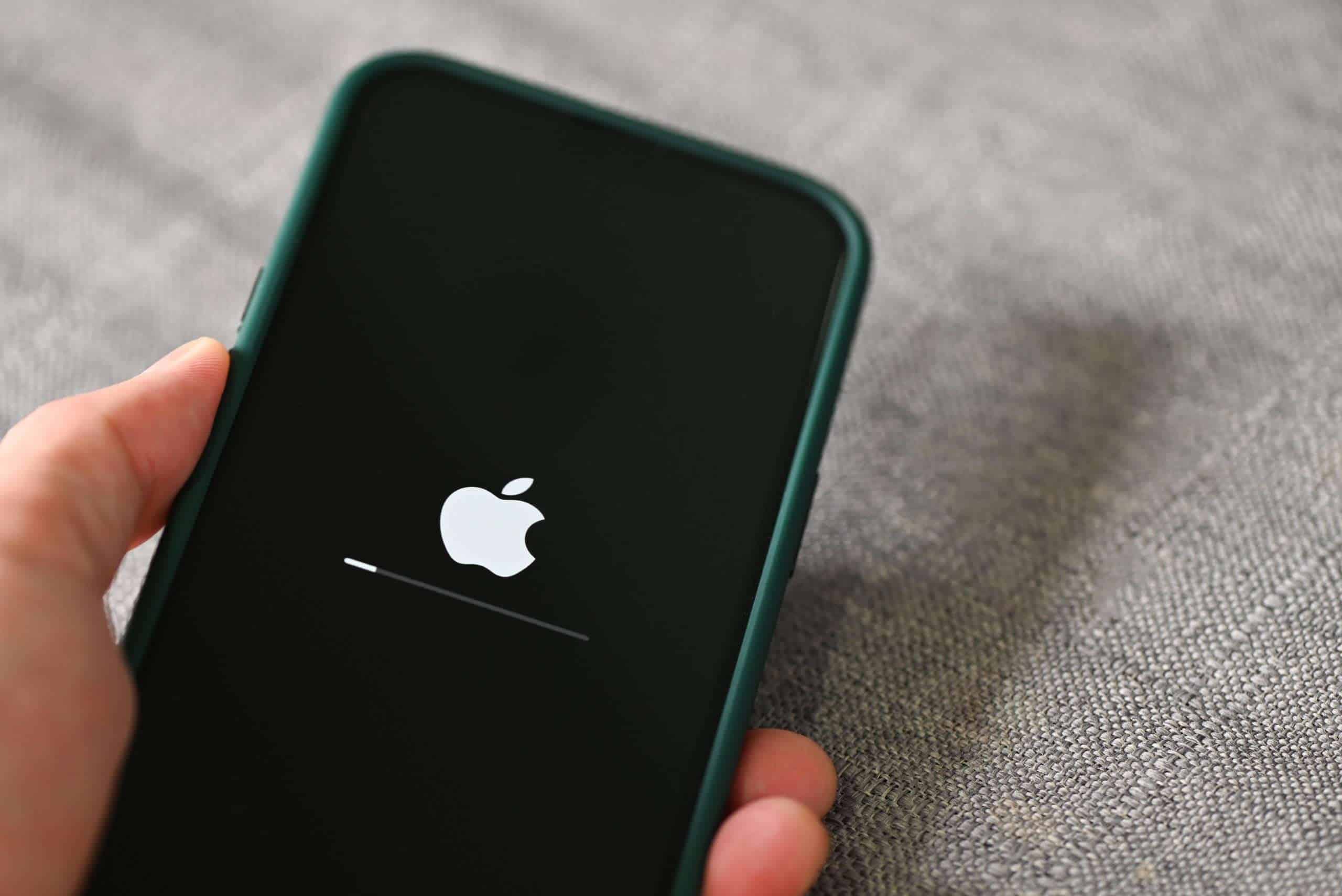
- Release when you see the Apple logo
✅ This does not erase data.
Step 3: Check the Screen (It May Be On)
Sometimes the iPhone is on, but the display isn’t working.
Signs This Might Be the Case:
- You hear sounds or feel vibrations
- Siri responds when you say “Hey Siri”
- The phone warms up while charging
What You Can Try:
- Call your iPhone from another device
- Shine a flashlight on the screen to check for a faint image
- Connect to a computer to see if it’s recognized
If the screen is the issue, you’ll likely need a repair.
Step 4: Connect to a Computer (Recovery Mode)
If the phone still won’t turn on, try Recovery Mode.
What You Need:
- A Mac or Windows PC
- Finder (macOS Catalina or later) or iTunes
- USB‑to‑Lightning cable
Steps:
- Connect the iPhone to the computer
- Perform the force restart steps
- Keep holding the Side button until you see the Recovery Mode screen
- When prompted, choose Update
✅ Update attempts to fix iOS without erasing data
Step 5: Restore Using Recovery Mode (Data Will Be Erased)
If Update fails, you may need to restore the device.
Important:
- This erases all data on the iPhone
- You can restore data later from an iCloud or computer backup
Steps:
- Repeat Recovery Mode steps
- Choose Restore
- Wait for the process to complete
- Set up the iPhone and restore your backup
Step 6: Check for Hardware Damage
Your iPhone 13 may not turn on due to physical issues.
Common Causes:
- Dropping the phone
- Water or liquid exposure
- Swollen or failed battery
- Charging port damage
Signs of Hardware Problems:
- Phone overheats
- No response to charging or button presses
- Visible damage or moisture
Step 7: Try DFU Mode (Advanced)
DFU (Device Firmware Update) mode is a deeper restore method.
⚠️ Only try this if you’re comfortable with advanced troubleshooting.
- Connect iPhone to computer
- Enter DFU mode (precise timing required)
- Restore firmware via Finder or iTunes
This will erase the device and reinstall iOS completely.
When to Contact Apple Support
Contact Apple or visit an Apple Store if:
- The iPhone still won’t turn on after restoring
- There’s liquid damage
- The phone overheats or smells
- DFU mode fails
Apple may run diagnostics and determine if a repair or replacement is needed.
How to Prevent This in the Future
- Keep iOS updated
- Avoid exposing the phone to extreme heat or moisture
- Use Apple‑certified charging accessories
- Enable automatic iCloud backups
- Replace aging batteries when performance declines
Troubleshooting Your iPhone 13
If your iPhone 13 refuses to turn on, don’t panic just yet. There are several troubleshooting steps you can try before seeking professional help.
1. Force Restart Your iPhone 13
Sometimes, a simple force restart can resolve minor software glitches that prevent your phone from turning on.
- Quickly press and release the Volume Up button.
- Quickly press and release the Volume Down button.
- Press and hold the Side button until the Apple logo appears.
2. Charge Your iPhone 13
A dead battery is a common culprit when an iPhone won’t turn on. Plug your iPhone 13 into a wall charger using the original Apple cable and let it charge for at least 30 minutes. If the battery is completely drained, it may take longer to show signs of charging.
3. Check Your Charging Cable and Adapter
A faulty charging cable or adapter can prevent your iPhone 13 from charging properly. Try using a different cable and adapter to see if that resolves the issue.
4. Clean Your iPhone’s Charging Port
Dust, debris, or lint in the charging port can interfere with the connection. Use a toothpick or a soft-bristled brush to gently clean out the port.
5. Check for Water Damage
If your iPhone 13 has been exposed to water, it may have suffered water damage. Look for the Liquid Contact Indicator (LCI) inside the SIM card tray. If the LCI is red or pink, it indicates water damage, and you should contact Apple Support for assistance.
6. Update or Restore Your iPhone 13
If none of the above steps work, you can try updating or restoring your iPhone 13 using a computer with iTunes or Finder (depending on your operating system).
- Connect your iPhone 13 to your computer.
- Open iTunes or Finder and locate your iPhone.
- Click the “Restore iPhone” button and follow the on-screen instructions.
Note: Restoring your iPhone will erase all data, so make sure you have a recent backup before proceeding.
7. Contact Apple Support
If you’ve tried all the troubleshooting steps and your iPhone 13 still won’t turn on, it’s time to contact Apple Support or visit an Apple Store for further assistance. They can diagnose the problem and offer repair or replacement options.
Additional Tips
- Try a different power source: If your iPhone isn’t charging, try plugging it into a different wall outlet or using a computer’s USB port.
- Check for software updates: Make sure your iPhone 13 is running the latest version of iOS.
- Inspect the screen for cracks or damage: If your iPhone’s screen is damaged, it may not display anything even if the phone is on.
Troubleshooting Table
| Issue | Possible Solution |
|---|---|
| iPhone won’t turn on | Force restart, charge for 30 minutes, check cable/adapter, clean charging port, check LCI |
| iPhone won’t charge | Check cable/adapter, clean charging port, try different power source |
| iPhone screen is black | Force restart, charge for 30 minutes, check for screen damage |
| iPhone is stuck on Apple logo | Force restart, update/restore using iTunes/Finder |
Key Takeaways
- Ensure your iPhone 13 is properly charged before troubleshooting.
- Try force restarting the device if it does not turn on.
- For persistent issues, seek professional help or contact Apple Support.
Analyzing and Resolving Power Issues
If your iPhone 13 won’t turn on, several factors could be at play, including battery health, physical damage, or software glitches. Below are steps to diagnose and troubleshoot these power issues.
Assessing Battery and Charging Functionality
First, ensure that your iPhone 13 is charged. Connect the iPhone to a power adapter using a reliable Lightning cable. Check the charging port for any debris like lint or dust. Clean it if necessary.
If the iPhone shows no signs of charging, try a different power adapter and cable to rule out issues with those hardware components. When you connect your iPhone, look for the charging icon on the screen.
If the battery is low, it can take a few minutes before the charging icon appears. If there’s still no response, the battery may need professional service. Always use Apple-certified accessories to avoid further damage.
Inspecting for Physical and Water Damage
Physical damage can prevent the iPhone 13 from turning on. Examine the device for any signs of physical harm, such as cracks or dents. Additionally, inspect for potential water damage. Check the SIM tray for a red color on the liquid contact indicator, which signifies exposure to moisture.
If physical or water damage is identified, the hardware may need repairs. Visiting an Apple store or authorized service provider is advisable. They can do a thorough checkup and provide the necessary service. Avoid using damaged devices as this can lead to further complications.
Performing a Force Restart
Sometimes a software glitch prevents the iPhone 13 from powering on. Force restarting the device can often resolve these issues. Follow these steps to perform a force restart:
- Quickly press and release the Volume Up button.
- Quickly press and release the Volume Down button.
- Press and hold the Side button until the Apple logo appears.
Keep holding the Side button even if the screen goes black. This process should reset the device without losing your data. If the Apple logo appears, the phone should restart normally. Force restarting can fix many minor software problems.
By thoroughly analyzing these areas, you can usually identify why your iPhone 13 won’t turn on and take appropriate steps to fix it.
Frequently Asked Questions
This section addresses common issues with the iPhone 13 not turning on, including troubleshooting steps and potential causes. Use these answers to find solutions to your iPhone problems.
How can I troubleshoot my iPhone 13 when it won’t turn on after charging overnight?
If your iPhone 13 won’t turn on after charging overnight, start by checking the charger and cable. Make sure they are not damaged.
Try using a different charging cable and adapter. If it still doesn’t turn on, perform a force restart by pressing and releasing the volume up button, then the volume down button, and then holding the side button until the Apple logo appears.
What steps should I take if my iPhone 13 Pro Max shows a black screen and won’t charge or turn on?
If your iPhone 13 Pro Max shows a black screen and won’t turn on, connect it to a power source and let it charge for an hour.
After an hour, attempt a force restart by pressing and quickly releasing the volume up button, pressing and quickly releasing the volume down button, and finally holding the side button until the Apple logo appears.
What should I do if my iPhone 13 overheated and now refuses to turn on?
If your iPhone 13 overheated and won’t turn on, let it cool down first. Do not use it or charge it while it is hot.
Once it is cool, try turning it on. If it still doesn’t turn on, perform a force restart. If the problem persists, consult Apple Support as it may need a professional inspection.
In instances where an iPhone 13 won’t turn off, what troubleshooting methods are recommended?
If your iPhone 13 won’t turn off, try performing a force restart. Press and quickly release the volume up button, press and quickly release the volume down button, and then hold the side button until the Apple logo appears.
If the problem continues, check for any software updates or reset the device settings.
What are the potential causes for an iPhone 13 suddenly dying and not turning back on even when plugged in?
An iPhone 13 may suddenly die and not turn back on due to battery issues, software glitches, or hardware problems.
Check if the charging cable and adapter are working. Try a different charging setup. If it doesn’t turn on, perform a force restart. If it remains unresponsive, you might need to contact Apple Support.
How do I address the black screen of death on my iPhone 13?
To address the black screen of death on an iPhone 13, perform a force restart by pressing and releasing the volume up button, pressing and releasing the volume down button, then holding the side button until the Apple logo appears.
If this does not solve the issue, connect your iPhone to a computer and put it into Recovery Mode. If the problem still exists, seek help from Apple Support.