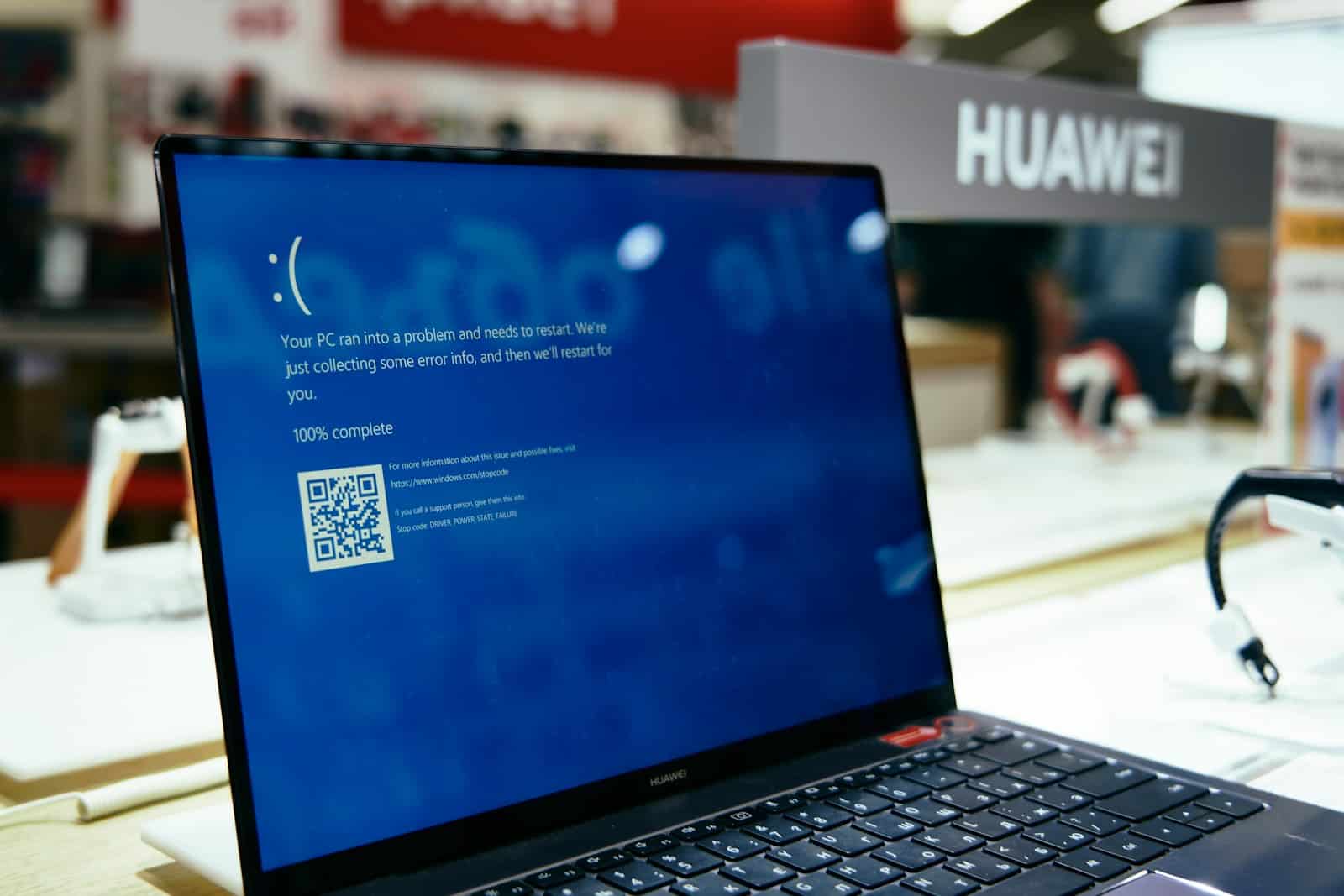
Laptop screen issues can range from minor annoyances to complete display failures that make your device unusable. Whether you’re dealing with a blank screen, flickering display, strange colors, or physical damage, this comprehensive troubleshooting guide will help you diagnose and fix the most common laptop screen problems.
Initial Checks: Start Here First
Before diving into technical fixes, try these quick checks:
- Ensure the laptop is powered on and the battery is charged
- Adjust brightness using the keyboard shortcut (usually Fn + Brightness keys)
- Check if the laptop is in sleep mode and wake it up
- Look for indicator lights that show power is on
- Listen for fan noise or hard drive activity indicating the laptop is running
Common Laptop Screen Problems and Solutions
1. Blank or Black Screen
A blank screen is one of the most common and frustrating laptop issues.
Possible Causes:
- Laptop in sleep or hibernate mode
- Display brightness turned all the way down
- Loose or damaged display cable
- Failed graphics card or display
- RAM or motherboard issues
Solutions:
Check Power and Wake the Laptop:
- Press any key or move the mouse
- Press the power button briefly (don’t hold it)
- Try the Fn + brightness up keys
Perform a Hard Reset:
- Shut down the laptop completely
- Disconnect the power adapter
- Remove the battery (if removable)
- Press and hold the power button for 30-60 seconds
- Reconnect everything and turn on the laptop
Test with an External Monitor: Connect your laptop to an external monitor or TV using HDMI, VGA, or DisplayPort (source: Dell):
- If the external display works, your laptop screen or display cable may be faulty
- If the external display doesn’t work, the issue is likely with the graphics card or motherboard
- Use Fn + F4, F5, or F8 (varies by manufacturer) to toggle between displays
Check RAM:
- Turn off the laptop and remove the battery
- Remove and reseat the RAM modules
- Try booting with one RAM stick at a time
- Replace faulty RAM if necessary
2. Flickering Screen
Screen flickering can make your laptop difficult or impossible to use (source: Dell).
Possible Causes:
- Outdated or corrupted display drivers
- Incompatible applications
- Incorrect refresh rate settings
- Hardware issues with the display cable
- Failing backlight or LCD panel
Solutions:
Update Display Drivers:
- Right-click the Start button and select Device Manager (Windows)
- Expand “Display adapters”
- Right-click your graphics card and select “Update driver”
- Choose “Search automatically for drivers”
- Restart your laptop after updating
Adjust Refresh Rate:
- Right-click on the desktop and select Display settings
- Scroll down and click “Advanced display settings”
- Select “Display adapter properties”
- Click the “Monitor” tab
- Try different refresh rate options (usually 60Hz works best)
Disable Problematic Apps: Some applications, particularly those that modify the taskbar or notification area, can cause flickering:
- Boot in Safe Mode
- If flickering stops, uninstall recently added applications
- Disable startup programs one by one to identify the culprit
Change Brightness Settings: Flickering at certain brightness levels may indicate a backlight issue. Adjust brightness up or down to see if flickering stops at specific levels.
3. Color Issues and Discoloration
Color problems include wrong colors, washed-out images, yellow or blue tints, or inverted colors (source: Dell).
Possible Causes:
- Color filter enabled
- Incorrect color profile
- Night Light or blue light filter active
- Loose display cable
- Failing LCD panel
- Graphics driver issues
Solutions:
Disable Color Filters: Windows:
- Go to Settings > Accessibility > Color filters
- Turn off color filters if enabled
Mac:
- Go to System Preferences > Accessibility > Display
- Disable color filters
Turn Off Night Light/Night Shift: Windows:
- Settings > System > Display
- Turn off “Night light”
Mac:
- System Preferences > Displays > Night Shift
- Disable or adjust settings
Reset Color Profile: Windows:
- Search for “color management” in Start menu
- Click on the “Advanced” tab
- Click “Reset to system defaults”
Update Graphics Drivers: Follow the same steps as in the flickering section above.
Check Cable Connection: If comfortable opening your laptop, ensure the display cable connecting the screen to the motherboard is properly seated.
4. Dead Pixels and Stuck Pixels
Dead pixels appear as permanent black spots, while stuck pixels show as colored dots (source: ConscioUsHacker).
Possible Causes:
- Manufacturing defects
- Physical damage
- Age-related LCD degradation
Solutions:
Software Tools for Stuck Pixels: Stuck pixels (not dead pixels) can sometimes be fixed:
- Use JScreenFix (free online tool)
- Try UDPixel or PixelHealer software
- These tools rapidly cycle colors to “unstick” pixels
- Run for 30 minutes to several hours
Gentle Pressure Method:
- Turn off the laptop
- Use a damp, soft cloth
- Apply very gentle pressure to the stuck pixel area
- Turn on the laptop while applying pressure
- Release pressure after a few seconds
Warranty Claim: Many manufacturers have policies regarding acceptable numbers of dead pixels. Check if your laptop qualifies for a free screen replacement under warranty.
5. Vertical or Horizontal Lines
Lines across the screen can be static or flickering (source: DecorTweaks).
Possible Causes:
- Physical damage to the screen
- Loose LCD cable connection (source: ComputerCity)
- Faulty LCD panel (source: ComputerCity)
- Graphics driver issues
- Damaged graphics card
Solutions:
Update Graphics Drivers: Outdated or corrupted drivers can cause display lines. Update as described in previous sections.
Check with External Monitor: Connect to an external display to determine if the issue is with the laptop screen or graphics card.
Reseat Display Cable: If you’re technically comfortable:
- Power off and unplug the laptop
- Remove the battery
- Open the laptop casing (consult your model’s service manual)
- Locate and carefully reseat the LCD cable connection
- Reassemble and test
Apply Gentle Pressure: Sometimes gently pressing on the screen bezel near the lines can temporarily fix loose connections, helping identify the problem.
Professional Repair: Persistent lines usually require screen replacement or professional repair (source: EasyTechSolver).
6. Cracked or Physically Damaged Screen
Physical damage is usually obvious—cracks, shattered glass, or visible impact points.
Possible Causes:
- Drops or impacts (source: ConscioUsHacker)
- Pressure damage (closing laptop on objects)
- Manufacturing defects
Solutions:
Assess the Damage:
- Small cracks may be temporarily usable
- Large cracks or shattered screens need immediate replacement
- Continue using only if touch and display function properly
DIY Screen Replacement: If you’re comfortable with technical work, you can replace the screen yourself (source: ConscioUsHacker):
- Purchase the correct replacement screen for your laptop model
- Find a detailed guide or video for your specific laptop
- Gather necessary tools (small screwdrivers, plastic pry tools)
- Follow the guide carefully
- Test before fully reassembling
Professional Replacement:
- Contact the manufacturer if under warranty
- Visit an authorized service center
- Use reputable third-party repair shops for out-of-warranty devices
- Costs typically range from $100-$400 depending on laptop model
Temporary Solutions:
- Use an external monitor while deciding on repair
- Apply clear tape to prevent crack spreading (temporary only)
- Use a screen protector to prevent glass shedding
7. Dim or Dark Screen (Backlight Issues)
You can barely see the screen content, or it appears very dark even at maximum brightness.
Possible Causes:
- Backlight failure
- Inverter board issues (older laptops)
- Brightness settings
- Power management settings
- Failed LCD or LED array
Solutions:
Adjust Brightness:
- Use Fn + brightness up keys
- Check Settings > System > Display > Brightness
- Disable auto-brightness
Shine a Flashlight: Shine a bright light at the screen. If you can see faint images, the backlight has failed but the LCD still works.
Check Power Settings:
- Go to Control Panel > Power Options
- Select “Change plan settings”
- Click “Change advanced power settings”
- Expand “Display” and adjust brightness settings
- Ensure settings aren’t reducing brightness to save power
Update or Reinstall Graphics Drivers: Sometimes driver corruption causes backlight issues.
Hardware Repair: Backlight or inverter replacement requires technical expertise and should be done by professionals.
8. Touchscreen Not Working (For Touch-Enabled Laptops)
If your laptop has a touchscreen that’s not responding:
Solutions:
Restart the Laptop: A simple restart often fixes temporary touchscreen glitches.
Calibrate the Touchscreen: Windows:
- Search for “Calibrate the screen” in Start menu
- Follow the on-screen instructions
- Tap targets accurately during calibration
Update Touchscreen Drivers:
- Open Device Manager
- Expand “Human Interface Devices”
- Find HID-compliant touch screen
- Right-click and update driver
Disable and Re-enable:
- In Device Manager, find the touch screen device
- Right-click and select “Disable device”
- Wait 10 seconds
- Right-click again and select “Enable device”
Check for Physical Damage: Cracks or pressure damage can disable touch functionality even if the display still works.
9. Screen Resolution Issues
Display appears stretched, blurry, or doesn’t fit the screen properly.
Solutions:
Set Correct Resolution: Windows:
- Right-click desktop and select Display settings
- Scroll to “Display resolution”
- Select the recommended resolution (usually highest available)
Mac:
- System Preferences > Displays
- Select “Scaled”
- Choose the recommended resolution
Update Graphics Drivers: Incorrect or outdated drivers can cause resolution problems.
Check Scaling Settings: Windows:
- Settings > System > Display
- Adjust “Scale and layout” to 100% or 125%
Mac:
- System Preferences > Displays
- Adjust scaling as needed
10. Screen Won’t Turn On After Sleep
Laptop runs but screen stays black after waking from sleep.
Solutions:
Force Restart: Hold the power button for 10 seconds to force shutdown, then restart.