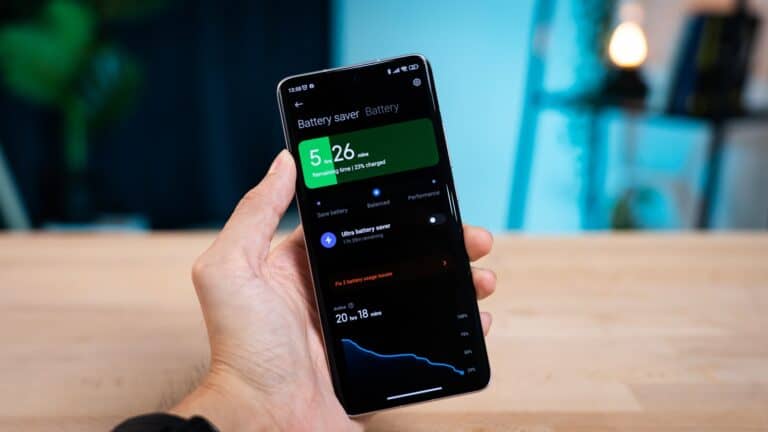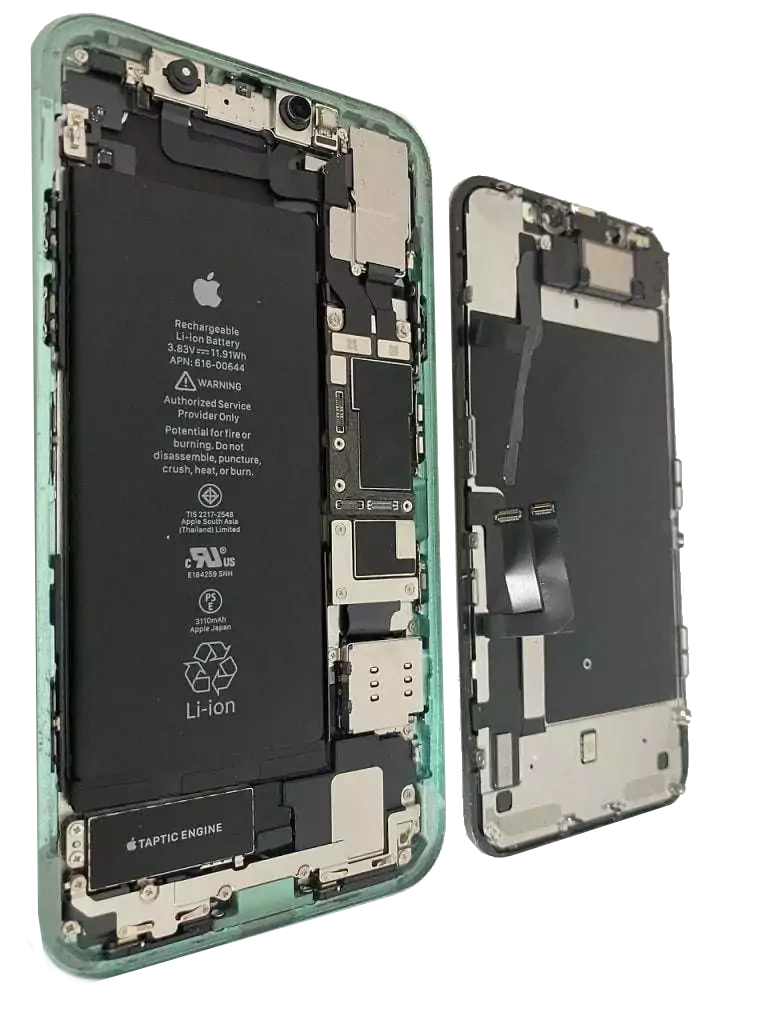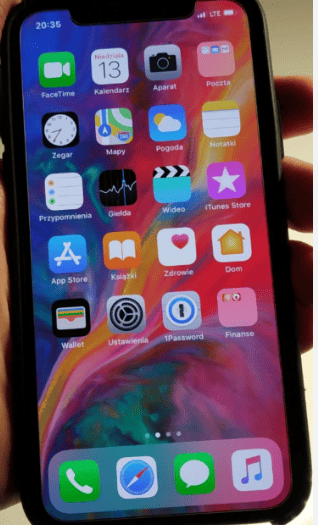
The iPhone XR’s battery is crucial for keeping the device running all day. Over time, the battery will degrade, resulting in shorter battery life. If you’re an iPhone XR user experiencing these issues, replacing the battery can be a cost-effective way to extend the device’s lifespan and maintain its functionality. This guide will provide you with the necessary steps to successfully replace your iPhone XR battery.
Understanding the replacement process is essential for a smooth and safe battery change. Keep in mind that a charged lithium-ion battery can be dangerous if punctured. Therefore, it’s important to take precautions like discharging the iPhone XR battery below 25% and powering off the device before starting the replacement. Using precise tools and following safety guidelines are crucial to successfully replace the battery without damaging the device or risking personal injury.
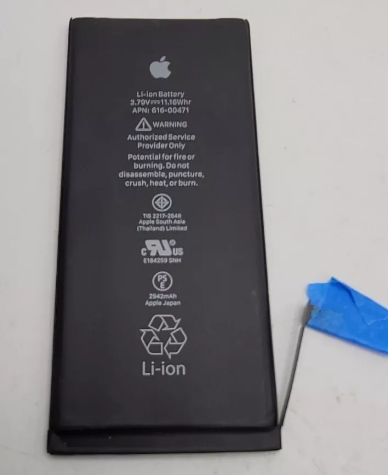
iPhone XR Battery Replacement Guide
Replacing the battery in an iPhone XR can restore performance, extend battery life, and prevent unexpected shutdowns. While Apple recommends professional service, a careful DIY replacement is possible if you have the right tools and follow each step closely.
⚠️ Disclaimer: This guide is for educational purposes. Opening your iPhone may void warranties and can cause damage if done incorrectly. Proceed at your own risk.
When Should You Replace the iPhone XR Battery?
You may need a battery replacement if you notice:
- Battery health below 80% (Settings → Battery → Battery Health)
- Rapid battery drain
- Phone shutting down unexpectedly
- Slow performance due to battery throttling
- Battery swelling (replace immediately)
Tools and Parts You’ll Need
Required Tools
- Pentalobe screwdriver (P2 – 0.8 mm)
- Tri-point (Y000) screwdriver
- Phillips #000 screwdriver
- Plastic spudger
- Tweezers
- Suction cup
- Plastic opening picks
- Heat source (heat pad or hair dryer)
Replacement Part
- iPhone XR-compatible replacement battery
- Pre-installed adhesive strips (recommended)
Before You Begin
- Back up your iPhone using iCloud or Finder/iTunes.
- Power off the device completely.
- Discharge the battery below 25% to reduce risk.
- Remove the SIM card tray.
Step-by-Step iPhone XR Battery Replacement
Step 1: Remove the Display Screws
- Use the Pentalobe screwdriver to remove the two screws next to the Lightning port.
Step 2: Loosen the Display Assembly
- Heat the bottom edge of the phone for 1–2 minutes to soften adhesive.
- Attach a suction cup near the bottom edge.
- Gently pull up to create a small gap.
- Insert an opening pick and carefully slide it along the edges to loosen adhesive.
⚠️ Open the phone from the left side like a book. The display cables are on the right.
Step 3: Open and Support the Display
- Open the display to about 90 degrees.
- Prop it up using a box or tool to avoid stressing the cables.
Step 4: Disconnect the Battery
- Remove the metal bracket covering the battery connector using a Y000 screwdriver.
- Use a spudger to disconnect the battery connector.
✅ Always disconnect the battery first to avoid short circuits.
Step 5: Disconnect the Display Cables
- Remove the display connector bracket.
- Carefully disconnect the display and digitizer cables.
- Remove the display assembly and set it aside.
Step 6: Remove the Taptic Engine and Speaker
- Unscrew and remove the Taptic Engine
- Remove the loudspeaker
- Set screws aside carefully (note their locations)
Step 7: Remove the Battery Adhesive Strips
- Locate the battery adhesive tabs at the bottom.
- Slowly pull each tab at a low angle.
- If a tab breaks, apply heat and gently pry the battery loose.
⚠️ Never puncture or bend the battery.
Step 8: Remove the Old Battery
- Carefully lift the battery out of the phone.
Step 9: Install the New Battery
- Place new adhesive strips into the phone.
- Set the replacement battery in position.
- Press gently to secure it.
Step 10: Reconnect Components
- Reinstall the speaker and Taptic Engine.
- Reconnect the display cables.
- Reconnect the battery connector last.
- Replace all connector brackets.
Step 11: Test Before Sealing
- Power on the phone.
- Confirm:
- Touchscreen works
- Display brightness and Face ID function
- Battery is detected and charging
✅ If everything works, power off the phone again.
Step 12: Seal the Phone
- Remove old adhesive and apply new display adhesive.
- Close the display carefully.
- Press along the edges to secure.
- Reinstall the two Pentalobe screws.
After Replacement Tips
- Charge the phone to 100%, then let it drain to below 10% once.
- Avoid heavy usage for the first few hours.
- Monitor battery health and charging behavior.
Common Mistakes to Avoid
- Forgetting to disconnect the battery first
- Mixing up screw sizes (can damage the logic board)
- Forcing the display open from the wrong side
- Puncturing the battery during removal
Should You Replace It Yourself?
DIY battery replacement can save money, but professional repair offers:
- Genuine Apple batteries
- Warranty protection
- No risk of internal damage
If you’re unsure, consider an Apple Authorized Service Provider.
Final Thoughts
Replacing the iPhone XR battery can significantly improve performance and extend the life of your device. With patience, proper tools, and careful attention to detail, a successful replacement is achievable—but always weigh the risks before starting.
A healthy battery can make your iPhone XR feel almost new again.
DIY Battery Swap: A Step-by-Step Guide for the iPhone XR
Tools and Materials
Before diving in, gather the following items:
- New iPhone XR Battery: Ensure it’s from a reputable source.
- iPhone Repair Kit: This usually includes the necessary screwdrivers, spudgers, and suction cups.
- Heat Gun or Hair Dryer: To soften the adhesive.
- Isopropyl Alcohol: To clean surfaces.
- Adhesive Strips: For securing the new battery.
- Tweezers: For delicate tasks.
| Item | Notes |
|---|---|
| New iPhone XR Battery | From a reputable source for quality assurance |
| iPhone Repair Kit | Most kits include essential tools |
| Heat Gun or Hair Dryer | Soften adhesive for easier removal |
| Isopropyl Alcohol | Cleaning surfaces and removing residue |
| Adhesive Strips | Securing the new battery safely |
| Tweezers | Handling small parts and connections |
Detailed Instructions
- Power Down: Turn off your iPhone XR completely.
- Remove Screws: Unscrew the two pentalobe screws at the bottom of the phone.
- Loosen Adhesive: Gently heat the edges of the screen to soften the adhesive. Use a suction cup and a spudger to carefully pry the screen open.
- Disconnect Battery: Carefully disconnect the battery connector to prevent accidental shorts.
- Remove Old Battery: Peel off the adhesive strips holding the old battery in place. Gently lift the battery out.
- Install New Battery: Place the adhesive strips on the new battery and insert it into the phone. Reconnect the battery connector.
- Reassemble: Carefully close the screen, ensuring it aligns properly. Tighten the screws.
Important Tips
- Discharge your battery below 25% before starting.
- Work in a clean, well-lit area.
- Take your time and be patient.
- If unsure, consult a professional.
After Replacement
Once you’ve replaced the battery, calibrate it by:
- Fully charging it to 100%.
- Continue charging for another two hours.
- Use your phone until it shuts down due to low battery.
- Recharge it to 100% uninterrupted.
Key Takeaways
- Replacing the iPhone XR battery extends the device’s usability and restores original performance.
- Safety precautions and the proper tools are vital for a successful iPhone XR battery replacement.
- Guided instructions facilitate a smooth DIY battery replacement process.
Understanding iPhone XR Battery Replacement
When an iPhone XR shows signs of reduced battery health, battery replacement ensures the phone performs optimally. Genuine Apple parts and adherence to Apple’s service policies yield the best outcomes.
Identifying Battery Issues
Battery issues in an iPhone XR can manifest as unexpected shutdowns, longer charge times, or a significant decrease in battery life. Using the Battery Health feature in the device’s Settings can confirm if a battery service is necessary.
Benefits of Genuine Apple Parts
Only genuine Apple-branded batteries should be used for replacements to maintain performance and safety. Batteries replaced by an Apple Authorized Service Provider (AASP) or at an Apple Store are ensured to comply with Apple’s rigorous standards.
Apple’s Service Policies and Consumer Law
The cost of battery service may be covered by the Apple Limited Warranty, AppleCare+, or consumer law if the battery has a manufacturing defect. Otherwise, out-of-warranty battery service fees will apply, which are significantly reduced if the consumer is protected by AppleCare+. Always check the warranty status and service policies before proceeding.