The flashlight on your iPhone is a simple but powerful tool that can come in handy in low-light situations, emergencies, or even for quick tasks like finding dropped items. Apple makes it easy to access and control, whether you’re using a newer iPhone or an older model. Here’s a complete guide on how to turn on and use the flashlight on an iPhone.
How to Turn On the Flashlight Using Control Center
The fastest way to turn on the flashlight is through the Control Center.
On iPhone with Face ID (iPhone X and later)
- Swipe down from the top-right corner of the screen.
- Tap the flashlight icon.
- The flashlight turns on immediately.
- Tap the icon again to turn it off.
On iPhone with a Home Button (iPhone SE, iPhone 8, and earlier)
- Swipe up from the bottom of the screen.
- Tap the flashlight icon.
- Tap it again to turn the flashlight off.
How to Use the Flashlight from the Lock Screen
You don’t need to unlock your iPhone to use the flashlight.
- Wake your iPhone by tapping the screen or pressing the Side button.
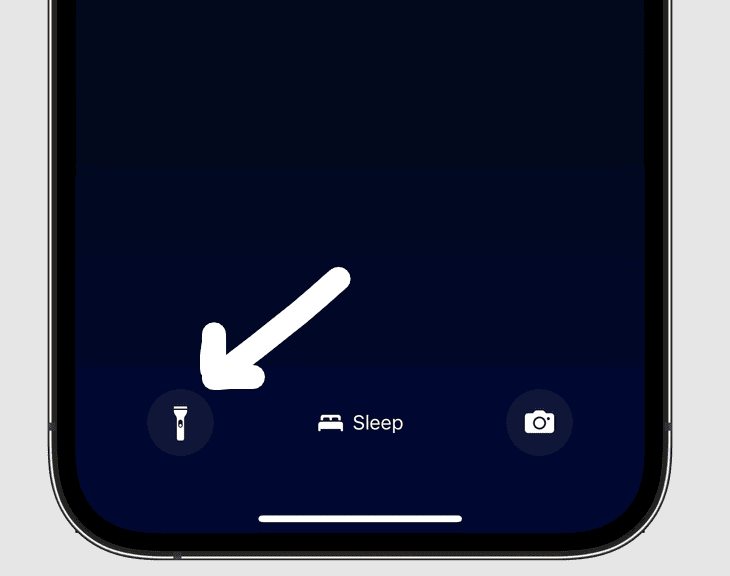
- On the lock screen, press and hold the flashlight icon (bottom-left corner).
- Release to turn it off.
This method is especially useful in emergencies or when you need light quickly.
How to Adjust Flashlight Brightness
Most modern iPhones allow you to control how bright the flashlight is.
- Open Control Center.
- Press and hold the flashlight icon.
- Use the slider to adjust brightness from low to high.
This is helpful if you want to save battery or avoid overly bright light.
How to Turn On the Flashlight Using Siri
You can also use voice commands.
- Say: “Hey Siri, turn on the flashlight.”
- To turn it off, say: “Hey Siri, turn off the flashlight.”
This works even when your hands are busy, as long as Siri is enabled.
How to Turn Off the Flashlight
To turn off the flashlight:
- Tap the flashlight icon again in Control Center, or
- Press and hold the flashlight icon on the lock screen, or
- Ask Siri to turn it off.
Troubleshooting Flashlight Issues
If your iPhone flashlight isn’t working, try these fixes:
- Close the Camera app, as the flashlight can’t be used while the camera is active.
- Restart your iPhone.
- Check battery level—the flashlight may be disabled if your battery is very low.
- Make sure your iPhone isn’t overheating, as iOS may temporarily disable the flashlight.
Final Thoughts
The iPhone flashlight is easy to access and versatile, whether you use Control Center, the lock screen, or Siri. Once you know where it’s located and how to adjust brightness, it becomes an everyday tool you can rely on whenever you need extra light.