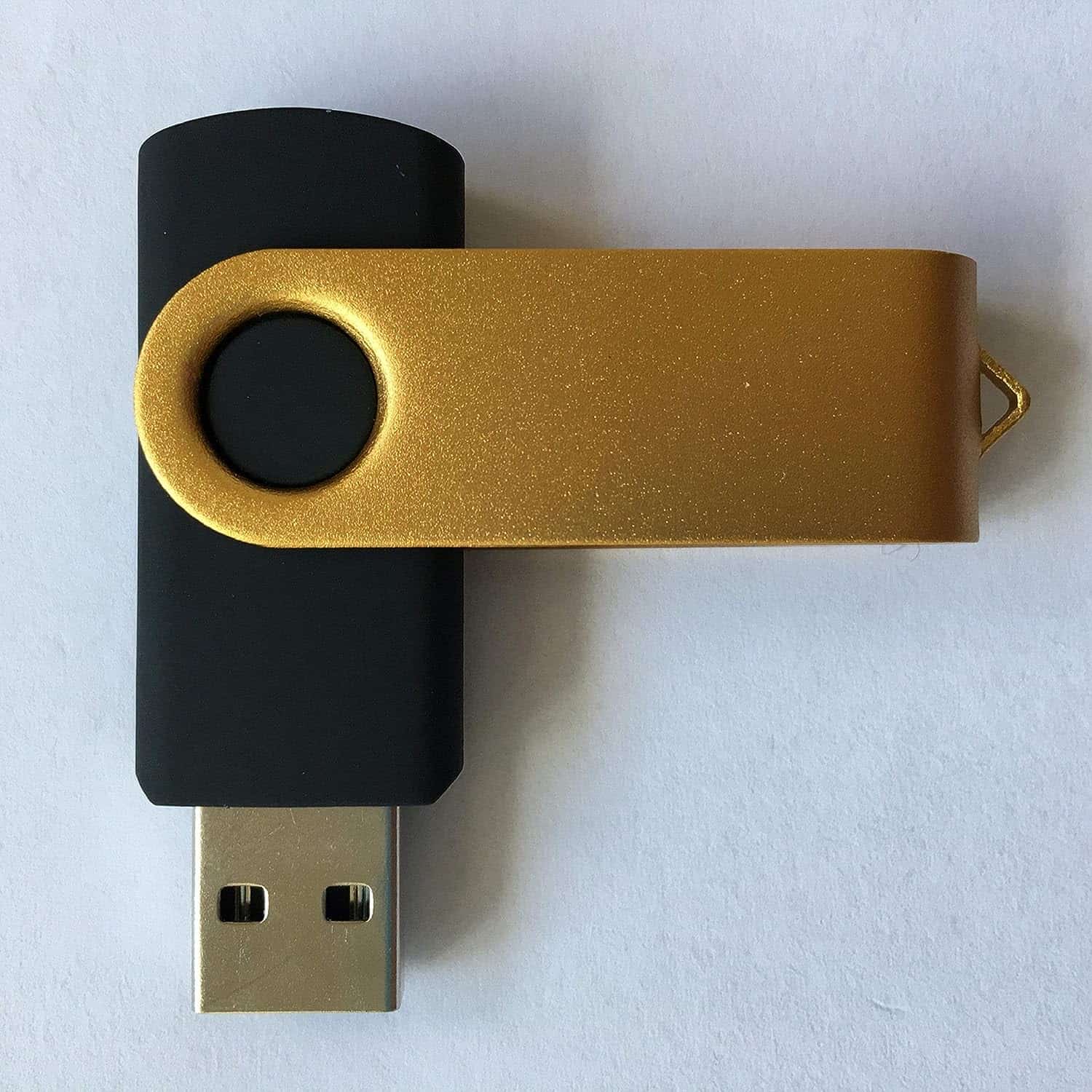
USB flash drives are widely used for data storage, transfer, and backup. To ensure reliability, performance, and data integrity, a standardized testing procedure is essential. This article outlines a comprehensive USB flash drive testing procedure covering functionality, performance, durability, and compatibility.
1. Test Objectives
The main objectives of USB flash drive testing are to:
- Verify correct functionality and data integrity
- Measure read and write performance
- Ensure compatibility with different systems and file formats
- Assess durability and reliability under normal and stress conditions
- Identify manufacturing defects or firmware issues
2. Test Environment Setup
2.1 Hardware Requirements
- Test computer(s) with USB 2.0, USB 3.0, and/or USB-C ports
- Different operating systems (Windows, macOS, Linux if available)
- Powered USB hub (optional)
2.2 Software Tools
- Disk formatting tools (e.g., Windows Disk Management, Disk Utility)
- File integrity tools (checksum utilities like MD5/SHA)
- Performance benchmarking software (e.g., CrystalDiskMark, ATTO)
- File transfer utilities
3. Visual and Physical Inspection
Before functional testing, perform a physical inspection:
- Check for physical damage to the casing and connector
- Verify label accuracy (capacity, brand, USB version)
- Ensure the connector fits securely into USB ports
4. Functional Testing
4.1 Device Recognition
- Insert the USB flash drive into the test system
- Confirm the device is detected correctly by the operating system
- Verify reported storage capacity matches specifications
4.2 File System Verification
- Format the drive using supported file systems (FAT32, exFAT, NTFS)
- Ensure formatting completes without errors
- Verify the drive mounts correctly after formatting
4.3 Basic Read/Write Test
- Copy a variety of files (small, medium, and large) to the drive
- Safely eject and reconnect the drive
- Verify files open correctly and are not corrupted
5. Performance Testing
5.1 Read and Write Speed
- Run benchmark tests using standard performance tools
- Measure sequential and random read/write speeds
- Compare results against manufacturer specifications
5.2 Sustained Transfer Test
- Copy a large dataset continuously to assess thermal throttling
- Monitor transfer speed consistency over time
6. Data Integrity Testing
- Generate test files with known checksums
- Copy files to the USB flash drive and back to the host system
- Compare checksums to confirm data integrity
- Repeat the process multiple times
7. Compatibility Testing
- Test the USB flash drive on multiple operating systems
- Verify compatibility with different USB port versions
- Confirm proper operation on desktops, laptops, and other supported devices
8. Reliability and Stress Testing
8.1 Repeated Insert/Remove Test
- Perform multiple insertion and removal cycles
- Check for detection failures or connector wear
8.2 Power Interruption Test
- Simulate sudden removal during file transfer (where safe to do so)
- Check file system recovery and data integrity afterward
8.3 Temperature and Environmental Test (Optional)
- Operate the drive under varying temperature conditions
- Monitor for performance degradation or failures
9. Security Testing (If Applicable)
- Test password protection or encryption features
- Verify data cannot be accessed without proper authentication
- Confirm encryption does not significantly degrade performance
10. Test Results and Reporting
- Document all test cases, tools used, and results
- Record failures, error messages, and anomalies
- Compare results against acceptance criteria
- Provide a final pass/fail assessment
USB Flash Drive Fundamentals
When you think about carrying digital information with you, a USB flash drive likely comes to mind. These portable storage devices are universal. A typical USB drive plugs directly into the USB port on your computer, allowing for quick and easy file transfers. Unlike an external hard drive, which is larger and requires separate power, USB flash drives are smaller and more convenient.
USB flash drives come in a variety of storage capacities—ranging from a few megabytes to several terabytes. This means they can hold anything from documents to large video files. They operate using flash memory, a type of storage that’s non-volatile. The data stays put even when the drive isn’t powered.
Here’s a quick breakdown of USB flash drive features:
- Portability: Small enough to fit on a keychain.
- Compatibility: Works with nearly any computer with a USB port.
- Durability: No moving parts inside, making them robust.
- Transfer Speed: Varies based on the USB version (USB 2.0, USB 3.0, USB 3.1, etc.)
- Capacity: Available in various sizes to suit different storage needs.
They stand out for being rewritable and due to their ease of use—just plug in and move files as needed—no complex setup required. Whether you’re a student needing to carry school projects, a photographer saving photos, or just need a backup of important documents, a USB flash drive is a solid choice.
It’s key to remember, however, that while they’re incredibly useful, they aren’t indestructible. Protect your data by keeping your USB drive away from extreme temperatures, water, and strong magnetic fields. With proper care, your USB flash drive should be a reliable tool for years to come.
Compatibility and Standards
When discussing the functionality of USB flash drives, understanding the interface standards and operating system compatibility is crucial for ensuring that drives operate smoothly across various devices and systems.
Interface Standards
USB flash drives have evolved through different versions, with USB 2.0 and USB 3.0 being the most commonly used. USB 2.0, an older standard, offers a maximum transfer rate of 480 Mbps. It has broad device support but slower data transfer speeds compared to USB 3.0. In contrast, USB 3.0, also known as USB 3.1 Gen 1, boosts data transfer speed up to 5 Gbps, enhancing performance for large file transfers.
| USB Version | Max Transfer Rate | Backward Compatibility |
|---|---|---|
| USB 2.0 | 480 Mbps | Yes, with USB 1.1 |
| USB 3.0 | 5 Gbps | Yes, with USB 2.0 |
Operating System Compatibility
USB flash drives must be formatted with a file system that the operating system (OS) recognizes. Windows systems predominantly use NTFS, which supports large files and is ideal for internal drives but has limited compatibility with non-Windows devices. For exchange between Windows and Mac systems, exFAT is a more suitable file system. It handles large files and capacities well and is universally compatible with newer operating systems and gaming consoles.
- NTFS:
- Best for use within Windows environments.
- Large file support, but limited cross-platform compatibility.
- exFAT:
- Great for Windows and Mac compatibility.
- Supports large files and drives, widely accepted on modern devices.
Performance Metrics
When assessing a USB flash drive’s efficiency, focussing on performance metrics is crucial. These metrics gauge the drive’s abilities, giving insight into its speed and overall operation.
Read Speed: This measures how quickly data can be retrieved from the drive. For files like videos or photos, a speedy read rate means less waiting around when opening them.
Write Speed: It indicates the pace at which data can be saved onto the flash drive. Faster write speeds make copying files onto the drive a breeze, saving time and frustration.
Both read and write speeds are usually expressed in megabytes per second (MB/s).
Here’s a snapshot of what these metrics could look like:
| Metric | Description | Importance |
|---|---|---|
| Read Speed | Time it takes to open files from the USB | Key for streaming & accessing data |
| Write Speed | Time it takes to save files to the USB | Vital for file transfers |
Additionally, random read/write speed refers to how quickly a drive can access non-sequential data scattered across the drive, which can affect performance during certain tasks.
For a USB flash drive speed test, tools like USB Flash Benchmark or CrystalDiskMark offer real-time speed evaluations. These tests provide a comprehensive understanding of a drive’s data transfer speed under various conditions, from large, continuous files to smaller chunks of data.
Understanding these metrics allows buyers to choose a flash drive that best suits their needs, whether for media professionals who need rapid transfer speeds or someone who just wants a reliable drive for everyday use.
Testing Tools Overview
When someone needs to gauge a USB flash drive’s performance or check its health, certain software tools can provide valuable insights. These utilities can measure read/write speeds and verify the functionality of the flash drive.
Software Tools for Windows
ChkFlsh (Check Flash) is straightforward in its purpose, allowing users to perform thorough read and write tests to assess their USB drives. CrystalDiskMark is another reliable tool meant for testing the performance of storage devices by measuring sequential and random read/write speeds. HDTune serves a dual role of benchmarking performance and scanning for errors. For those looking to tweak and organize their drives, EaseUS Partition Master combines partitioning functions with performance checks. RMPrepUSB not only tests USBs but also prepares them for booting purposes.
Users seeking a simple overview of all USB devices and their usage history can turn to USBDeview. If they’re specifically after speed testing, SpeedOut and Parkdale offer straightforward services to measure the USB flash drive’s speed.
Cross-Platform Software Tools
For users not bound to the Windows ecosystem, there are tools that work across various operating systems.
One such tool is the USB Flash Benchmark, which is compatible with most platforms and gives users a detailed analysis of their USB flash drive’s speed. It often appeals to those who want to publish and compare their test results. Another utility is RMPrepUSB, which, aside from testing functions, prepares drives for booting across different systems.
Testing Procedures
Before delving into specifics, it’s worth noting that USB flash drive testing is critical for assessing performance and reliability. This involves several key types of tests, each designed to ensure that flash drives function correctly and efficiently.
Benchmark Testing
Benchmarking is a process for gauging the performance of your USB flash drive. A benchmark test typically evaluates the drive’s read and write speeds using a USB speed test tool. This test can reveal how well your flash drive would perform under different scenarios through a standardized series of tests that measure performance.
Error Checking
Regularly scanning a USB flash drive for errors is crucial for maintaining its health. To scan for errors, one can utilize built-in tools such as the Windows Check Disk utility (CHKDSK), which scans and repairs file systems and bad sectors. This helps in ensuring data integrity and proper functioning of the flash drive.
Speed Measurement
Speed measurement includes both read and write operations to test how quickly data can be transferred to and from the flash drive. Various free tools provide a quick size test and read stability test to provide a detailed assessment of a drive’s speed capabilities, pinpointing any performance issues that could affect user experience.
Capacity Verification
To verify if a USB flash drive is genuine and not presenting a fake capacity, it’s essential to conduct a capacity verification test. Utility tools such as RMPrepUSB can perform this test. A capacity test will identify whether a flash drive’s advertised storage matches its actual usable space, protecting users from fraudulent products.
Understanding Test Results
When testing USB flash drives, it’s important to understand what the test results suggest about the drive’s performance and health. The data can reveal the speed of data transfer and pinpoint any potential issues with the drive, such as drive errors or bad sectors that can delay data.
Interpreting Speeds
USB flash drive speeds are measured in terms of I/O (Input/Output) performance. This usually includes:
- Read speed: How quickly data can be read from the drive.
- Write speed: How quickly data can be written to the drive.
The speed is typically reported in megabytes per second (MB/s). High read and write speeds mean files can be transferred to and from the drive more quickly. For example, a read speed of 80 MB/s and a write speed of 30 MB/s indicate that it would be faster to retrieve files from the drive than to copy new ones onto it.
Identifying Errors
Errors in USB flash drives can manifest as corrupt files, failed transfers, or an inability to save data. These are signs to look out for:
- Drive Errors: Your computer might prompt you about these errors, suggesting that the drive needs to be repaired.
- Bad Sectors: These are parts of the drive that can no longer be used. A tool that checks for bad sectors can inform you if your drive is becoming unreliable.
- Delay in Data Access: If it takes longer than usual to open files or folders, there may be underlying errors.
Use standard tools to inspect the drive for these issues, so you can replace or repair the drive if necessary. It’s critical to interpret these results correctly to avoid data loss.
Troubleshooting Common Issues
When USB flash drives act up, figuring out what’s wrong can be as easy as running a few checks and making some quick fixes. The following tips are all about getting your flash drive back on track without a hitch.
Resolving Speed Problems
If your flash drive is performing slower than it used to, make sure it’s formatted correctly for your device. Often, a quick format can set things straight. For Windows users, simply:
- Insert the USB flash drive.
- Open File Explorer and find your device.
- Right-click on the drive, choose Format, and select the appropriate file system.
Remember, formatting erases data, so back up your files first!
Repairing Drive Errors
Sometimes, flash drives can have errors that mess with your files. Windows has built-in tools to fix these issues.
- Plug in the USB flash drive.
- Open File Explorer, right-click the drive, and select Properties.
- Go to the Tools tab and click the Check button.
- If errors are found, opt for the Scan and Repair Drive action.
Give it some time to do its magic, and it often will get your drive working like new.
Dealing with Fake Drives
The market is flooded with counterfeit flash drives that claim more storage than they actually provide. To suss out a fake:
- Use a tool like FakeFlashTest to verify the drive’s actual capacity.
- Apply a flash drive/card tester to check the speed and functionality against the manufacturer’s specifications.
If the tests reveal less storage than advertised, you’re likely dealing with a counterfeit drive.
Advanced Topics
In this section, we’ll examine how to ensure the durability of USB flash drives and the best ways to configure them for peak performance.
Longevity and Wear Leveling
USB flash drives, similar to SSDs, have a finite number of write cycles. Manufacturers use wear leveling to prolong their lifespan. Wear leveling is a process that distributes data writes evenly across the drive’s memory cells to avoid excessive wear on any single part of the device. This is vital for all flash memory-based storage, including memory cards, pen drives, and SSD drives. While internal and external hard drives (HDDs) don’t rely on wear leveling due to their different technology, it’s key for ensuring flash storage operates reliably for as long as possible.
File System Optimization
The file system you choose for your USB flash drive can significantly affect its performance and compatibility. For instance, the exFAT file system is optimized for flash drives, rendering it ideal for transferring large files and performing well on both Windows and macOS. FAT32, on the other hand, offers broad compatibility but limits file sizes. Opting for NTFS can be beneficial if you’re using the drive solely on Windows systems, as it provides better security and handles large files, but it may not be compatible with other devices. It’s like finding the best fit for your shoe—each file system serves a purpose, whether you’re dealing with a pen drive, external hard drive, or SSD drive.
Hardware Considerations
Testing USB flash drives is more than just plugging them in and seeing if they store your files. Various hardware factors can affect the performance and reliability of your flash drives. Desktops or laptops with modern USB ports are essential because an older USB port can limit the drive’s performance. For instance, a USB 3.0 flash drive won’t reach its maximum speed if it’s plugged into a USB 2.0 port.
CPU and RAM in the computer also play a role. They should be robust to prevent bottlenecks when transferring data to and from the flash drive. If the computer is slow or old, it might seem like the flash drive is the issue when it’s not. When it comes to the type of technology your computer uses, a newer hard drive, especially solid-state drives (SSDs), can help tests run more accurately by reducing the chance of errors that aren’t the flash drive’s fault.
Here’s a quick checklist for your hardware setting:
- Desktop/Laptop: Should have updated USB ports (preferably USB 3.0 or higher).
- CPU: Suitable for multitasking and data transfer processes.
- RAM: Sufficient to manage the load without affecting performance.
- Hard Drive: Preferably an SSD for the fastest read/write capability.
- USB Port: Must match or exceed the flash drive’s specifications for accurate testing.
Testing a USB flash drive requires a reliable and current computer setup to ensure that the test results are accurate and reflect the flash drive’s true performance. If the hardware is outdated, it may unfairly penalize the flash drive with poor test outcomes.
Brand and Model Comparisons
When assessing USB flash drives, it’s important to look at different brands and models to understand which might fit your needs. Western Digital (WD) and Samsung are two prominent brands worth noting. Western Digital is recognized for their durable drives, offering a range of products that cater to both general consumers and tech enthusiasts. Samsung, on the other hand, is known for their innovative technology and reliability.
A quick look at various models:
- WD offers the My Passport series with built-in encryption features.
- Samsung impresses with the FIT Plus for its compact size and robust performance.
Performance Metrics:
- Sequential Read/Write: Samsung typically excels with quick data transfer.
- Endurance: WD drives are praised for their longevity and robustness.
The table below represents a comparison of key features between select models:
| Brand | Model | Capacity Options | Read Speed | Encryption |
|---|---|---|---|---|
| WD | My Passport | 32GB – 2TB | Up to 400 MB/s | Yes |
| Samsung | FIT Plus | 32GB – 256GB | Up to 300 MB/s | No |
Different models also often feature unique selling points:
- Some WD drives have shock resistance, useful for those who travel often.
- Samsung’s offerings include waterproof models, providing extra peace of mind.
While capacities and security features are important, what ultimately matters is how the drive performs in day-to-day use. Your choice should depend on your specific needs, whether it’s for transferring large video files swiftly or keeping your data secure for a long time.
Optimizing Performance
Optimizing the performance of a USB flash drive involves several steps to ensure it operates efficiently. While using a drive, people might notice that data transfer speeds can vary. To address this, several methods can be applied to test and enhance the USB drive’s functionality.
Read Stability Test: Carrying out a read stability test can confirm the reliability of data retrieval. This test can determine whether data can be consistently read at the same speed without errors over time.
Task Manager Insights: Windows users can access the Task Manager to review the performance of their USB drive. It provides real-time data on the bandwidth utilized by the flash drive, which is helpful in identifying any performance hiccups.
Benchmark Performance: Using benchmarking software allows users to measure the speed of their USB drives. Programs like UserBenchmark are popular for comparing a drive’s performance against others. They offer a comprehensive evaluation, looking at:
- Read and write speeds
- Data transfer consistency
- Comparative rankings
In the table below, benchmark dimensions provide a clear overview:
| Benchmark Aspect | Purpose |
|---|---|
| Sequential Read | Measures continuous read speed |
| Sequential Write | Measures continuous write speed |
| Random Read/Write | Evaluates performance during random data access |
This benchmark data can be instrumental for users to determine where their USB drive stands in performance, leading to informed decisions regarding its optimization.
To enhance performance, one might consider:
- Formatting the drive with an appropriate file system (e.g., NTFS for Windows)
- Disabling unnecessary software that may interfere with the drive
- Ensuring the USB drive’s firmware is up to date
Users should always back up their data before performing tweaks and optimizations to avoid data loss.
USB Technology Evolution
USB technology has undergone significant transformations since its inception. The introduction of USB 3.0 marked a considerable leap forward in data transfer speeds. Compared to its predecessor, USB 2.0, which had a transfer rate of 480 Mbps, USB 3.0 made a splash with a speed of 5 Gbps.
The evolution of USB is reflected in its increasing data transfer rates and the shrinking physical size of the connectors leading to improved user convenience. For instance, the USB Type-C connector, emerging as the go-to for new devices, supports USB 3.1 speeds of up to 10 Gbps. This advancement has made a significant impact on how quickly one can move files—especially large ones.
As one considers the journey from USB 1.1 to today’s standards, it’s apparent how these changes enhance user experience:
- USB 1.1: Slow and less common
- USB 2.0: Universal, but limited speed
- USB 3.0: Fast, allowing for better handling of larger file sizes
- USB 3.1: Faster, making quick data transfer a reality
USB’s future looks to maintain this trajectory of speed and efficiency. Newer specifications aim to simplify and unify USB standards, further improving utility and compatibility.
Frequently Asked Questions
When it comes to USB flash drives, it’s essential to know how to ensure they’re working correctly. This section covers how to test your drive’s capacity, speed, health, and more.
How can I verify the actual storage capacity of my USB flash drive?
To check the real storage capacity of your USB flash drive, you can use tools like H2testw for Windows or F3 for Mac and Linux. These programs write data to the drive and read it back to verify the actual space available for use.
What is the most reliable software for testing USB flash drive speed and health?
CrystalDiskMark is widely respected for testing the speed of your USB flash drive. For health status, you can rely on programs like Check Flash or Flash Drive Tester, which can provide a comprehensive diagnosis.
Is there a way to assess the condition of a USB flash drive without special software?
Yes, you can look at the drive’s properties in the computer’s operating system to check the used and available space. For a basic health check, perform regular read and write operations. If files transfer without errors and at expected speeds, the drive is likely in good condition.
How do I conduct a performance test on my USB flash drive?
Performance tests can be done using benchmark tools like CrystalDiskMark or ATTO Disk Benchmark. They measure read and write speeds under various conditions, which reflect the drive’s performance.
What are the indicators of a corrupted or failing USB flash drive?
Common signs of a failing USB flash drive include slow data transfer rates, inability to access files, frequent error messages during file operations, and a computer’s failure to recognize the drive.
Can I perform an integrity test on my USB flash drive online?
No current online services can perform a thorough integrity test on your USB flash drive due to limitations in web technology and security. Local software solutions are recommended for a reliable test.