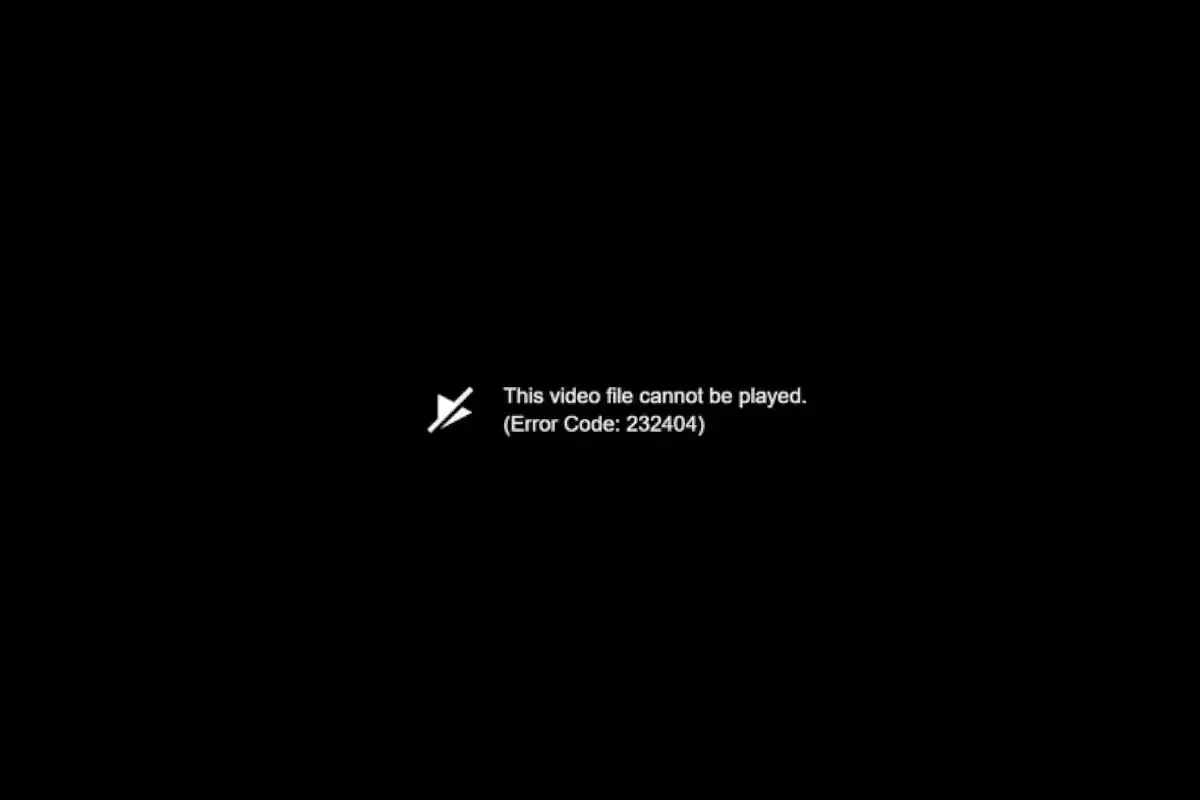
Error code 232404 appears when videos refuse to play on your computer or browser. This frustrating message blocks access to important content and disrupts streaming sessions across platforms like YouTube and Netflix.
Error code 232404 typically stems from corrupted video files, outdated browser cache, missing codecs, or unstable internet connections. The problem affects both downloaded videos and streaming content. Most users can resolve this issue through simple browser fixes or file repair methods.
Understanding the root cause helps determine the best solution. Browser-related problems need different approaches than corrupted files. Network issues require connectivity fixes while damaged videos may need specialized repair tools.
Understanding and Resolving Error Code 232404: A Quick Guide
Error Code 232404 is a common issue encountered when attempting to play or access certain video files or streaming content. This error typically indicates a problem with video file corruption, incompatible system settings, or irregularities in registry entries that prevent smooth playback.
This guide explains what causes Error Code 232404 and provides effective steps to fix it.
What Causes Error Code 232404?
Common causes include:
- Corrupted video files: The video you’re trying to play may be damaged or incomplete.
- Incorrect system settings: Misconfigured system or media player settings can trigger this error.
- Registry issues: Irregular or corrupted Windows registry entries related to video playback.
- Cache problems: Corrupted or outdated cache files in your media player or browser.
- Unsupported video format or codec: The player may lack the necessary codec to decode the video.
How to Fix Error Code 232404
1. Clear Cache and Temporary Files
- Clear your media player or browser cache.
- Restart the application and try playing the video again.
2. Repair or Convert the Video File
- Use video repair tools or AI-based repair software to fix corrupted video files.
- Convert the video to a more compatible format (e.g., MP4) using free video converters.
3. Update or Reinstall Your Media Player
- Ensure your media player is up to date.
- If problems persist, uninstall and reinstall the player.
4. Check and Fix System Settings
- Run system file checker tools (e.g.,
sfc /scannowon Windows) to repair corrupted system files. - Reset media player settings to default.
5. Update Video Codecs
- Install or update codec packs like K-Lite Codec Pack to ensure compatibility.
6. Use Alternative Media Players
- Try playing the video with other players like VLC or MPC-HC that support a wide range of formats.
7. Troubleshoot Registry Issues (Advanced)
- Use trusted registry cleaner tools to scan and fix registry errors.
- Be cautious; back up your registry before making changes.
Key Takeaways
- Error code 232404 blocks video playback due to corrupted files, browser issues, or network problems
- Simple fixes like clearing browser cache and updating software resolve most cases
- Specialized repair tools can restore corrupted video files when basic troubleshooting fails
Frequently Asked Questions
Error code 232404 affects multiple devices and platforms, from Windows computers to Android phones and smart TVs. Users need specific solutions for their device type and streaming platform to fix this multimedia playback error.
What steps can I take to resolve the error code 232404 on Windows 11?
Windows 11 users should start by restarting their device to clear temporary glitches. This simple step fixes many playback errors quickly.
Update the media player software and graphics drivers through Windows Update. Outdated drivers cause compatibility issues that trigger error code 232404.
Clear the browser cache if the error occurs during web streaming. Press Ctrl + Shift + Delete to open the clear browsing data menu.
Run a malware scan using Windows Defender or third-party antivirus software. Malicious programs can corrupt system files and cause media playback errors.
Check hardware connections for external speakers or monitors. Loose connections create audio and video playback problems.
How can I fix the error code 232404 that occurs on Android devices?
Android users should force close the affected app and restart it. Swipe up from the bottom of the screen and swipe away the problematic app.
Clear the app’s cache and data through Settings > Apps. This removes corrupted temporary files that cause playback errors.
Update the streaming app through Google Play Store. App developers release updates to fix known bugs and compatibility issues.
Restart the Android device by holding the power button. A full restart clears memory issues that affect media playback.
Check the internet connection speed and switch between WiFi and mobile data. Slow connections cause streaming errors that display as code 232404.
Why am I encountering error code 232404 on Samsung Smart TVs and how do I fix it?
Samsung Smart TVs show error code 232404 when the streaming app has corrupted data or outdated software. Network connectivity issues also trigger this error.
Clear the app cache by going to Settings > Apps and selecting the problematic streaming app. Choose “Clear Cache” to remove temporary files.
Update the TV’s firmware through Settings > Support > Software Update. Samsung releases updates that fix streaming compatibility problems.
Reset the network connection by unplugging the TV for 30 seconds. This refreshes the network connection and clears temporary glitches.
Reinstall the streaming app by deleting it and downloading it again from the Samsung App Store. This replaces corrupted app files with fresh copies.
What are the common reasons for seeing error code 232404 when streaming on BravoTV?
BravoTV shows error code 232404 when the browser has conflicting extensions or corrupted cache files. Ad-blocking extensions commonly cause this specific error.
Disable browser extensions one by one to identify the problem extension. Start with ad blockers like Ghostery or uBlock Origin.
Clear the browser cache and cookies for the BravoTV website. Go to browser settings and select “Clear browsing data” for the past 24 hours.
Try a different browser to test if the error persists. Chrome, Firefox, and Safari handle streaming content differently.
Check if BravoTV has server issues by visiting their social media pages. Platform-wide outages cause error codes for all users.
Can error code 232011 be related to error code 232404 and how can they be distinguished?
Error codes 232011 and 232404 are different multimedia playback errors with distinct causes. Code 232011 typically indicates network connectivity problems during streaming.
Error 232404 points to corrupted system files or incompatible media formats. This error appears when the device cannot process the video or audio codec.
Code 232011 happens during initial video loading when the connection fails. Users see this error before the video starts playing.
Error 232404 occurs during playback or when trying to play downloaded content. The media file itself has problems that prevent normal playback.
Network troubleshooting fixes code 232011, while system repairs and codec updates resolve code 232404.
Is there a connection between error codes 232404 and 233404, and how can each be addressed?
Error codes 232404 and 233404 are separate issues with different root causes. Code 233404 relates to server-side streaming problems on the content provider’s end.
Error 232404 stems from client-side issues like corrupted files or system problems. Users can fix this error through device troubleshooting and software updates.
Code 233404 requires waiting for the streaming service to resolve server issues. Users cannot fix this error through device changes.
Error 232404 responds to cache clearing, driver updates, and system repairs. These actions address the local device problems causing the error.
Contact the streaming service for code 233404 resolution. Report code 232404 issues to device manufacturers or perform local troubleshooting steps.