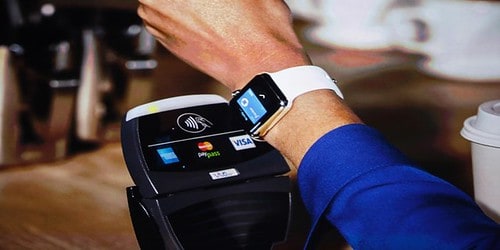
Apple Pay’s integration with accessibility features, particularly on devices like the Apple Watch, significantly enhances convenience and ease of use for all users, including those with disabilities.
Apple Pay and Accessibility: A Comprehensive Guide
Apple Pay isn’t just a convenient payment method—it’s a powerful accessibility tool that removes numerous barriers faced by people with disabilities. From eliminating the need to fumble with physical cards to providing discreet payment options, Apple Pay has quietly revolutionized how people with various disabilities manage transactions. Here’s everything you need to know about how Apple Pay supports accessibility.
Why Apple Pay Matters for Accessibility
Traditional payment methods present challenges that many people don’t consider:
- Handling cash requires fine motor skills and visual identification
- Credit cards need precise insertion/swiping and signature writing
- PIN pads are often poorly positioned or difficult to read
- Reading receipts can be challenging for people with visual impairments
- Payment processes can create anxiety or sensory overload
Apple Pay addresses these issues while maintaining privacy, dignity, and independence.
Key Accessibility Features of Apple Pay
1. VoiceOver Integration
For users who are blind or have low vision, Apple Pay works seamlessly with VoiceOver:
Setup Process:
- VoiceOver announces each step of adding cards
- Card details can be read aloud during setup
- All buttons and options are clearly labeled
- Haptic feedback confirms selections
Making Payments:
- VoiceOver announces when your device is near a payment terminal
- Audio confirmation when payment is processing
- Clear announcement of payment success or failure
- Receipt details can be read aloud immediately
Pro Tip: You can add cards by having someone read the details to you, or use the camera to scan cards (VoiceOver guides you through positioning).
2. Face ID and Touch ID Alternatives
Biometric authentication removes multiple barriers:
Benefits:
- No need to remember or type PINs
- No fumbling for cards in wallets
- Faster than traditional payment methods
- Works with adaptive cases and holders
Accessibility Options:
- Face ID works with VoiceOver and doesn’t require precise hand positioning
- Touch ID offers an alternative if Face ID is challenging
- Passcode fallback available if biometrics aren’t suitable
- Attention awareness can be disabled for users who can’t maintain direct eye contact
3. Physical Ease of Use
Apple Pay reduces physical demands:
Motor Skills:
- No need for precise card insertion
- No signature required
- Simply hold device near terminal
- Works while device is in adaptive cases or holders
- Can be used with stylus or adaptive tools for activation
Positioning:
- More flexible than inserting cards in specific slots
- Can be held at various angles
- Works through most phone cases
- Contactless readers are often in more accessible positions
4. Reduced Cognitive Load
For users with cognitive disabilities or anxiety:
Simplification:
- Consistent process across all locations
- Fewer steps than traditional payments
- Visual and audio confirmation reduces uncertainty
- Transaction history helps track spending
- No need to calculate change or verify bills
Stress Reduction:
- Faster checkout reduces pressure
- No public counting of cash
- Discreet—others can’t see your card or balance
- Reduces decision paralysis at checkout
5. Switch Control Compatibility
For users who rely on Switch Control:
- All Apple Pay functions are accessible via switches
- Customizable timing for authentication
- Step-by-step progression through payment
- Clear visual feedback at each stage
- Can be operated with single-switch scanning
6. Voice Control Support
With Voice Control enabled:
- “Open Wallet” activates Apple Pay
- Card selection via voice commands
- Authentication can be triggered by voice
- No touching required for navigation
- Works alongside other assistive technologies
Setting Up Apple Pay with Accessibility Features
For Users with Visual Impairments
- Enable VoiceOver (Settings > Accessibility > VoiceOver)
- Open Wallet app—VoiceOver will guide you through
- Tap “Add Card” or scan using camera with VoiceOver guidance
- Enter card details or have someone read them to you
- Verify with bank—usually via text or call, both VoiceOver-accessible
Tip: Ask your bank if they support braille statements or audio verification for added security.
For Users with Motor Impairments
- Position device comfortably in whatever adaptive holder you use
- Enable AssistiveTouch if needed (Settings > Accessibility > Touch > AssistiveTouch)
- Adjust Face ID to work with your typical head position
- Consider Reachability (double-tap home area) if reaching the top of screen is difficult
- Set up Express Transit if you use public transportation frequently
Tip: Express Transit doesn’t require authentication, making it ideal for users who find repeated biometric authentication challenging.
For Users with Cognitive Disabilities
- Organize cards in Wallet with most-used card as default
- Enable notifications for transaction confirmations
- Set up Screen Time limits if budgeting is a concern
- Use Apple Card (if available) for clear, simple transaction tracking
- Create shortcuts for frequently needed Wallet actions
Tip: The Apple Card’s color-coded spending categories provide visual cues that simplify budget tracking.
Using Apple Pay in Different Accessibility Scenarios
In-Store Payments
For users with visual impairments:
- Listen for the payment terminal beep (most make a sound)
- Hold phone near the top of the terminal
- VoiceOver will announce when payment processes
- Request audio confirmation from cashier if needed
For users with motor impairments:
- You can activate Apple Pay while device is still in pocket
- Hold phone in whatever position is comfortable
- No need for precise alignment
- Works through most protective cases
For users with hearing impairments:
- Strong haptic feedback confirms payment
- Visual checkmark appears on screen
- Receipt immediately visible in Wallet
- No need to hear terminal beeps
Online and App Purchases
Advantages:
- No typing credit card numbers
- No navigating multiple form fields
- Works with VoiceOver, Switch Control, and Voice Control
- Shipping and billing info auto-filled
- Touch ID/Face ID or passcode completes purchase
Process:
- Select items as usual
- Choose “Apple Pay” at checkout
- Review order (assistive tech reads all details)
- Authenticate with Face ID, Touch ID, or passcode
- Done—confirmation appears immediately
Public Transit (Express Transit)
Ideal for:
- Users who find repeated authentication difficult
- Those who need quick, reliable access
- Anyone who wants minimal interaction at turnstiles
Setup:
- Go to Wallet & Apple Pay in Settings
- Select your transit card
- Enable “Express Transit Card”
- Now just tap phone—no authentication needed
Benefits:
- Works even with locked phone
- No Face ID or Touch ID needed
- Faster than fumbling for transit card
- Works when battery is critically low
Accessibility Features by Apple Pay Device
iPhone
Unique advantages:
- Largest screen for visibility
- VoiceOver optimized
- Face ID works at various angles
- Can be used in adaptive mounts
Apple Watch
Accessibility benefits:
- Double-click side button activates payment
- Works for users with limited reach (no pulling phone from pocket)
- Ideal for wheelchair users
- VoiceOver support
- Taptic feedback for confirmations
- Can be operated with one hand entirely
Setup for accessibility:
- Larger watch faces for better visibility
- Bold text option
- Haptic strength adjustment
- VoiceOver specifically optimized for Watch
iPad
When useful:
- In-app purchases with larger visual feedback
- Easier for users with low vision
- Touch ID on side button (newer models)
- Compatible with adaptive stands
Mac
Accessibility features:
- Touch ID on keyboard or laptop
- Apple Watch can authenticate Mac purchases
- VoiceOver integration
- Switch Control support
- Large display for verification
Troubleshooting Accessibility Issues
VoiceOver Not Announcing Payments
Solutions:
- Ensure VoiceOver is enabled system-wide
- Check that Wallet app has permission
- Update iOS to latest version
- Restart VoiceOver (triple-click side/home button)
Face ID Not Working with Adaptive Equipment
Solutions:
- Reset Face ID from a comfortable position
- Disable “Require Attention for Face ID” (Settings > Face ID & Passcode)
- Use passcode as alternative
- Consider Apple Watch for authentication
Difficulty Positioning Phone at Terminal
Solutions:
- Hold phone near top of terminal (where card would tap)
- Try different angles—it’s forgiving
- Ask staff where contactless reader is located
- Use Apple Watch instead for easier positioning
Express Transit Not Working
Solutions:
- Verify card is set as Express Transit Card
- Ensure battery isn’t completely dead (reserve power allows some transactions)
- Check with transit agency that they support Apple Pay Express
- Try repositioning device against reader
Privacy and Security Accessibility Benefits
Enhanced Safety
Advantages for all users:
- No visible card numbers
- No signatures to forge
- Biometric authentication can’t be easily stolen
- Transactions are tokenized (merchants never see actual card number)
Specific accessibility benefits:
- Users with visual impairments aren’t exposing card details to observers
- No need to hand card to others
- Lost phone can be remotely disabled
- Transaction notifications alert to unauthorized use
Financial Privacy
Important for:
- Users who need support but want financial independence
- Those who find traditional banking intimidating
- People who want discreet transactions
Features:
- Purchases are private
- No detailed merchant info visible to others nearby
- Transaction history in Wallet is protected by biometrics
- Can be set up without assistance from others
Apple Pay and Specific Disabilities
For Users Who Are Blind or Have Low Vision
Key benefits:
- Complete VoiceOver integration throughout
- No need to identify bills or coins
- Immediate audio receipt confirmation
- Transaction history fully accessible
- No struggling with card readers
Best practices:
- Set up Siri for “Show my Apple Card balance”
- Use Apple Card for clearest transaction descriptions
- Enable VoiceOver hints for detailed guidance
- Set up notifications for all transactions
For Users with Motor Impairments
Key benefits:
- Minimal physical interaction required
- No precise movements needed
- Works in adaptive cases and holders
- Apple Watch option for even easier access
- No signature required
Best practices:
- Set up Express Transit for frequent locations
- Use Apple Watch for maximum independence
- Enable Reachability if needed
- Consider Siri activation: “Hey Siri, open Wallet”
For D/deaf and Hard of Hearing Users
Key benefits:
- No need to hear cashier instructions
- Visual confirmation on screen
- Strong haptic feedback
- Text-based receipts immediately available
- No misunderstandings about totals
Best practices:
- Enable strong haptic feedback
- Watch for visual checkmark
- Screenshot receipts if needed for records
- Enable transaction notifications
For Users with Cognitive Disabilities
Key benefits:
- Consistent process everywhere
- Reduced steps compared to traditional payment
- Clear visual feedback
- Transaction history for memory support
- Less anxiety-inducing than cash counting
Best practices:
- Set up spending limits if helpful
- Use color-coded spending tracking
- Enable all notifications for awareness
- Keep primary card as default to reduce choices
For Users with Anxiety or Sensory Sensitivities
Key benefits:
- Faster checkout reduces time pressure
- Minimal interaction with staff
- Predictable process
- Quiet (no loud card readers)
- Private and discreet
Best practices:
- Practice at home with Wallet app
- Use self-checkout when available
- Express Transit for busy public transit
- Online Apple Pay for shopping from home
Tips for Maximum Accessibility
1. Customize Your Setup
- Arrange cards in order of frequency of use
- Enable all relevant accessibility features before you need them
- Set up alternative authentication methods
- Customize haptic feedback strength
- Adjust text size in Wallet if needed
2. Take Advantage of Shortcuts
Create Siri Shortcuts for:
- “Open my Wallet”
- “Show my recent transactions”
- “What’s my Apple Card balance?”
- “Find coffee shops that take Apple Pay”
3. Combine with Other Accessibility Features
AssistiveTouch:
- Create custom gesture for opening Wallet
- Add Wallet to top-level menu
Apple Pay Accessibility Overview
| Feature | Description | Benefits for Users with Disabilities |
|---|---|---|
| VoiceOver Compatibility | Apple Pay works seamlessly with VoiceOver, allowing users with visual impairments to navigate the app and make payments independently. | Voice guidance provides clear instructions and feedback throughout the payment process. |
| Haptic Feedback | Subtle vibrations confirm button presses and other actions, providing tactile feedback for users with visual or hearing impairments. | Ensures users are aware of their actions and receive confirmation without relying on visual or audio cues. |
| Dynamic Type Support | Users can adjust the font size and style within the Wallet app to improve readability for users with low vision. | Customized text size and style enhance accessibility and user experience. |
| Zoom Functionality | Users can zoom in on specific areas of the Wallet app and payment screens for increased visual clarity. | Magnifies essential details and information for users with visual impairments. |
| AssistiveTouch Compatibility | Users with limited mobility can use AssistiveTouch to control their iPhone and make payments through Apple Pay. | Provides alternative input methods for users who cannot operate the touchscreen directly. |
| Multiple Payment Options | Users can choose the payment method that best suits their needs, including contactless payments, online transactions, and peer-to-peer payments. | Offers flexibility and convenience for users with disabilities who may have difficulty carrying physical cards or accessing traditional payment methods. |
| Integration with Apple Watch | Users can make contactless payments using their Apple Watch, providing a convenient and accessible payment option. | Eliminates the need to carry an iPhone or other device, enhancing accessibility for users with limited mobility. |
| Security and Privacy | Apple Pay utilizes advanced security features like Secure Enclave and biometrics to protect user information. | Provides peace of mind for users with disabilities who may be concerned about security and privacy. |
| User-Friendly Interface | The Wallet app and Apple Pay interface are designed to be simple and intuitive, making them easy to use for users with varying abilities. | Clear navigation and minimal clutter ensure accessibility and a positive user experience. |
Overall, Apple Pay offers a multitude of features and benefits that enhance accessibility for users with disabilities. By incorporating VoiceOver compatibility, haptic feedback, dynamic type support, and other accessibility features, Apple Pay empowers users with disabilities to make secure and convenient payments independently. As Apple continues to develop and improve its accessibility features, we can expect Apple Pay to become even more inclusive and user-friendly for everyone.
Introduction to Apple Pay’s Accessibility Features
Apple Pay is designed with simplicity and user-friendliness, making the payment process straightforward for everyone, including users with accessibility needs.
AssistiveTouch on Apple Watch Enhancing Apple Pay
Compatibility and Setup
AssistiveTouch on Apple Watch, compatible with Series 4 and later models, is activated through the Settings app, enabling users to navigate and use their watch and Apple Pay through hand gestures.
Navigating with Hand Gestures
Users navigate their Apple Watch and confirm payments with Apple Pay using various hand gestures.
Customizing AssistiveTouch Gestures
Customization options for hand gestures are available in the Apple Watch settings.
Manual and Auto Scanning
AssistiveTouch supports both manual and auto scanning for controlling navigation.
Accessibility Features in Apple Pay Transactions
Confirming Payments with AssistiveTouch
Apple Watch users can confirm Apple Pay payments using AssistiveTouch actions.
Motion Pointer for Navigation
The motion pointer feature aids in navigating the Apple Watch screen for accessing Apple Pay.
Action Menu for Quick Access
The AssistiveTouch action menu offers quick access to various Apple Watch actions, including Apple Pay.
Quick Actions for Alerts
Quick actions in AssistiveTouch allow users to respond efficiently to alerts, including notifications related to Apple Pay transactions.
Conclusion
Apple Pay’s accessibility features like AssistiveTouch on Apple Watch demonstrate Apple’s commitment to inclusivity, ensuring digital payment convenience for all users.
FAQs
- Is Apple Pay accessible for people with disabilities? Yes, Apple Pay is designed to be accessible.
- Can I use hand gestures to navigate Apple Pay on my Apple Watch? Yes, hand gestures via AssistiveTouch can be used.
- Is AssistiveTouch compatible with all Apple Watch models? It’s compatible with Series 4 and later models.
- How do I activate AssistiveTouch on my Apple Watch? Activate AssistiveTouch in the Settings app under Accessibility.
- Can I customize the hand gestures for Apple Pay on my Apple Watch? Yes, customization is possible in the AssistiveTouch settings.
- What is the motion pointer in AssistiveTouch? The motion pointer allows screen control by tilting the Apple Watch.
- How does the AssistiveTouch action menu aid in using Apple Pay? The action menu provides quick access to actions related to Apple Pay.
- Can I use Apple Pay with Auto Scanning in AssistiveTouch? Yes, Auto Scanning allows automatic navigation.
- What are quick actions in AssistiveTouch for Apple Watch? Quick actions allow users to respond to alerts, including Apple Pay notifications.
- How does Apple Pay ensure accessibility for all users? Apple Pay is designed for accessibility for everyone, including those with disabilities.