If you’re missing calls or notifications—or your phone rings too loudly—your ringer volume likely needs adjustment. This guide explains how to control ringer volume across popular devices, plus tips to avoid common volume problems.
What Is Ringer Volume?
Ringer volume controls how loud your device sounds for:
- Incoming calls
- Text message alerts
- App notifications
- System alerts (alarms may be separate)
⚠️ Ringer volume is different from media volume (music, videos) and call volume (during a phone call).
How To Adjust Ringer Volume on iPhone
Method 1: Using Settings (Most Reliable)
- Open Settings
- Tap Sounds & Haptics
- Under Ringer and Alerts, drag the slider left or right
- Toggle Change with Buttons ON or OFF
✅ Turning Change with Buttons ON lets you adjust ringer volume using the side buttons.
Method 2: Using the Side Buttons
- Press Volume Up or Volume Down
- Works only if Change with Buttons is enabled
✅ Check the volume indicator—it should say Ringer, not Volume.
Silent Mode & Focus Modes
- Flip the Silent switch (if your iPhone has one)
- Check Focus modes (Do Not Disturb, Sleep, Work) in Settings → Focus
How To Adjust Ringer Volume on Android
Steps may vary slightly by manufacturer.
Method 1: Volume Buttons
- Press a volume button
- Tap the volume icon or arrow
- Adjust the Ring volume slider
Method 2: Through Settings
- Open Settings
- Tap Sound & vibration
- Adjust the Ring volume slider
Check Do Not Disturb
- Go to Settings → Notifications → Do Not Disturb
- Ensure it’s turned off or properly configured
Adjusting Ringer Volume on Other Devices
Apple Watch
- Open Settings
- Tap Sounds & Haptics
- Adjust the volume slider
iPad
- Go to Settings → Sounds
- Adjust Ringer and Alerts
- Enable Change with Buttons if needed
Common Ringer Volume Problems (and Fixes)
| Problem | Likely Cause | Fix |
|---|---|---|
| Phone doesn’t ring | Silent mode on | Disable Silent |
| Volume buttons don’t work | Button control disabled | Enable “Change with Buttons” |
| Rings too quietly | Low ringer setting | Increase ringer volume |
| No sound during Focus | Focus mode active | Customize or disable Focus |
| Volume changes by itself | Attention or adaptive features | Disable smart volume features |
Tips to Avoid Missing Calls
- Set ringer volume near maximum
- Use vibration + sound
- Customize Focus modes for exceptions
- Test ringer volume monthly
- Use emergency bypass for important contacts
Why Does My Ringer Volume Keep Changing?
Possible reasons include:
- Adaptive sound features
- Bluetooth device connections
- Focus or automation rules
- Software bugs
✅ Restart your device and check sound settings if this happens often.
Quick Comparison Table
| Device | Path to Ringer Volume |
|---|---|
| iPhone | Settings → Sounds & Haptics |
| Android | Settings → Sound & vibration |
| iPad | Settings → Sounds |
| Apple Watch | Settings → Sounds & Haptics |
Final Thoughts
Adjusting your ringer volume is simple once you know where to look—but system features like Focus modes, Silent switches, and adaptive volume can interfere. A quick check of your sound settings can save you from missing important calls and alerts.
Overview of Ringer Volume
The control of ringer volume on a device like the iPhone affects how we hear notifications and calls, making it a crucial setting for everyday use.
Importance of Ringer Volume Management
Ringer volume is essential because it governs the loudness of calls and notifications. If too low, one might miss important alerts; too high, and it can become a nuisance. Users should adjust the ringer volume to suit their environment and personal preferences.
Ringer Volume vs. System Volume
Ringer volume and system volume serve different purposes. The ringer volume is solely for the sound of incoming calls and notifications, while the system volume adjusts the audio for apps, music, and videos. It’s important to manage these separately to ensure a balanced audio experience on the device.
Adjusting Ringer Volume on iPhone
When it’s time to customize how loud your iPhone rings, you’ve got two straightforward options: adjusting the settings directly with the physical volume buttons or tweaking your preferences within the Settings app.
Using Volume Buttons
Your iPhone makes it simple to adjust the ringer volume with its side buttons. To use them for the ringer:
- Ensure the Change with Buttons function is active — you’ll find this in the Settings.
- Press the Volume Up button to increase the ringtone volume.
- Press the Volume Down button to decrease the volume.
Remember, if Change with Buttons is turned off, the volume buttons will only control the volume of the media playing and not the ringer.
Through Settings App
For a more precise adjustment:
- Open the Settings app on your iPhone.
- Select Sounds & Haptics.
- Look for the Ringer and Alerts option where you’ll find a slider.
- Drag the slider right or left to raise or lower the ringer volume, respectively.
This screen also offers the option to manage whether your iPhone vibrates when it rings. You can toggle this preference to suit your needs at any given time.
Understanding Sound & Notifications
Navigating your phone’s sound settings is crucial for a personalized experience. Grasping how to adjust your ringer, manage silent mode, and customize your alerts ensures you never miss important calls or messages while maintaining control over your device’s noise levels.
Sounds & Haptics Settings
In the Sounds & Haptics section of your iPhone’s settings, you can manage how your phone sounds and feels when you receive a notification. To find these options:
- Open Settings.
- Tap on Sounds & Haptics.
Here, you can adjust the slider for the Ringer and Alerts to set the volume for your ringer and notifications. If you wish the volume buttons on the side of your phone to control your ringer volume as well, simply toggle on Change with Buttons.
Silent Mode vs. Ringer Mode
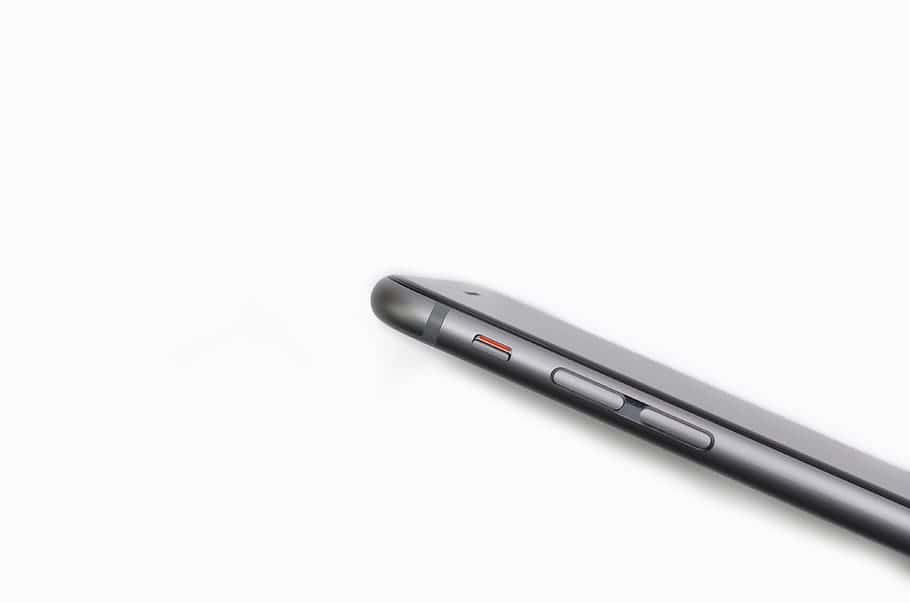
Your iPhone allows you to switch between Silent Mode and Ringer Mode easily. When you flip the Ring/Silent switch on the side of your iPhone to silent, you won’t hear any ringtones or alerts, but you may still feel vibrations if Vibrate is enabled in your settings.
To manage silent mode further:
- Swipe to open the Control Center.
- Tap on the bell icon to quickly toggle silent mode on or off for more silent operation or to reactivate audible alerts.
Customizing Alerts and Ringtones
Every iPhone user can set their own unique touch by customizing alerts and ringtones. To tailor your experience:
- Settings > Sounds & Haptics.
- Under Sounds and Vibration Patterns, tap any sound option.
- Select a new ringtone or vibration pattern from the list.
This section gives you the power to assign different sounds for calls, messages, emails, and app notifications, ensuring you recognize the type of incoming alert without looking at your screen.
Managing Audio and Video Playback
When using an iPhone, controlling the audio for media and video playback is critical to ensure a user-friendly experience. It’s important to know the settings that are available to make these adjustments convenient and tailored to personal preferences.
Media Volume Control
On an iPhone, the media volume controls the sound level for activities such as listening to music, watching videos, and playing games. To adjust the media volume:
- Without playing media: Use the volume buttons to increase or decrease the system volume.
- While media is playing: The volume buttons control the audio for that specific content.
It’s worth noting that if you want to change the ringer volume with the volume buttons, this can be set in the iPhone’s Settings under Sounds & Haptics.
Video Playback Settings
Adjusting the video playback settings can enhance the watching experience. Here’s how to manage the volume while watching videos:
- Volume Level: This can be altered using the side buttons during playback.
- Mute Option: Some apps allow you to mute video playback entirely.
For a distraction-free viewing, consider using earphones or setting the phone to silent mode to avoid interruptions from calls or notifications. Settings for video playback volume can be fine-tuned in the app being used or through the general Settings on the iPhone.
Device-Specific Volume Features
Modern devices like the iPhone 13 provide users with various ways to control their ringer volume, making sure they never miss an important call or notification.
Physical Buttons and Accessibility
The iPhone and iPad are equipped with physical buttons that offer a tactile and readily available means to adjust volume levels. Located on the side of these devices, these buttons control the system volume by default. However, users can configure settings to allow these same buttons to adjust the ringer and alert volumes, giving them quick accessibility without the need to navigate through menus.
- iPhone/iPad: Volume can be changed with side buttons.
- Settings: Option to link buttons to ringer volume is available.
Unique Volume Features for iPhone 13 and iOS 11
The iPhone 13 introduces a more granular control over the ringer volume. By navigating to the ‘Sounds & Haptics’ settings, users can interact with a slider to precisely set their desired ringer volume. Moreover, enabling the ‘Change with Buttons’ feature allows the alteration of the ringer volume using the physical buttons, a flexibility that further enhances the user experience.
- ‘Sounds & Haptics’ Setting: Use a slider for precise volume control.
- iPhone 13 Flexibility: Enable volume change with buttons for ringer volume.
Through hardware integration and software settings, Apple has ensured that managing volume is intuitive and user-friendly on their devices. These features reflect the company’s tech prowess and understanding of users’ needs for straightforward and effective control over their device’s auditory notifications.
Frequently Asked Questions
Managing the ringer volume on your phone ensures you don’t miss important calls. This section answers common questions about adjusting the ringer volume, turning the ringer on or off, and troubleshooting common issues.
How can I change the ringer volume on my iPhone?
To adjust the ringer volume on an iPhone, open the Settings app and tap “Sounds & Haptics.” In the Ringer and Alerts section, you can drag the slider to set the desired volume. If you want to use the volume buttons to change the ringer volume, toggle on “Change with Buttons.”
What steps are needed to adjust the ringer volume on an Android device?
On an Android device, pressing the volume up or down buttons on the side of the phone will bring up the volume control overlay. Tap the gear icon to enter more detailed settings, where you can adjust the ringer volume specifically.
Is there a way to increase the ringer volume for incoming calls on my iPhone?
Yes, to increase the ringer volume for incoming calls on your iPhone, navigate to Settings, then to “Sounds & Haptics,” and adjust the volume slider under the Ringer and Alerts section to your preference.
How can I turn my phone’s ringer back on quickly?
To quickly turn your phone’s ringer back on, use the volume up button on the side of your device. On most phones, you can also do this from the lock screen or notification shade, depending on your phone’s make and model.
Can the ringer volume be set to change automatically at certain times?
Some devices offer Do Not Disturb or sound schedule features that can automatically adjust the ringer volume at specific times. Check your phone’s sound or automation settings to see if you can schedule volume changes.
What should I do if my phone’s ringer volume is too low even at the highest setting?
If your phone’s ringer volume is too low at the highest setting, check for any dirt or debris blocking the speaker grille. If clean and still too low, consider using a louder ringtone or consult your phone’s support service for further assistance.