If you’ve ever watched a TikTok video and thought, “I wish I could see this on my TV,” you’re not alone. With short-form videos getting more cinematic and live streams becoming more popular, many users want to know:
Can you Chromecast TikTok?
The short answer: Yes, you can — but it depends on your device and setup.
Here’s everything you need to know.
✅ Can You Chromecast TikTok Directly?
In 2026, TikTok supports casting to Chromecast on many devices, but availability can vary depending on:
- Your smartphone (Android vs. iPhone)
- Your TV (Chromecast built-in, Google TV, etc.)
- The TikTok app version
- Your region
On supported devices, you’ll see a Cast icon (usually in the top corner of the video player). Tap it, choose your TV, and your TikTok video will play on the big screen.
However, not all versions of the app offer seamless native Chromecast support — especially on some iOS setups.
📱 How to Chromecast TikTok from Android
If you’re using an Android phone, casting is typically straightforward:
Method 1: Using the Built-in Cast Button
- Open the TikTok app.
- Start playing a video.
- Tap the Cast icon (if available).
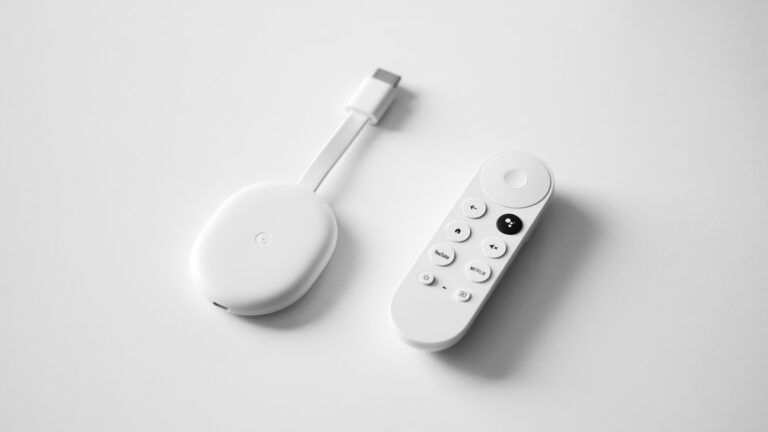
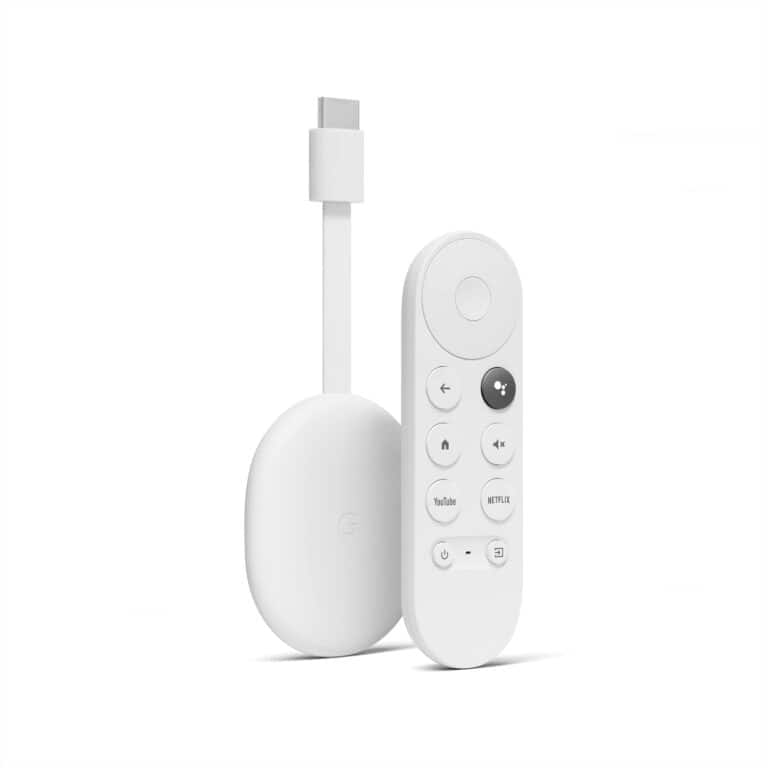
- Select your Chromecast or Google TV device.
- The video should begin playing on your TV.
Method 2: Screen Mirroring
If you don’t see a Cast button:
- Open your phone’s Quick Settings.
- Tap Cast or Screen Share.
- Select your Chromecast device.
- Your entire screen will mirror to your TV.
This method works almost universally — but it mirrors your whole screen, not just TikTok.
🍎 How to Chromecast TikTok from iPhone
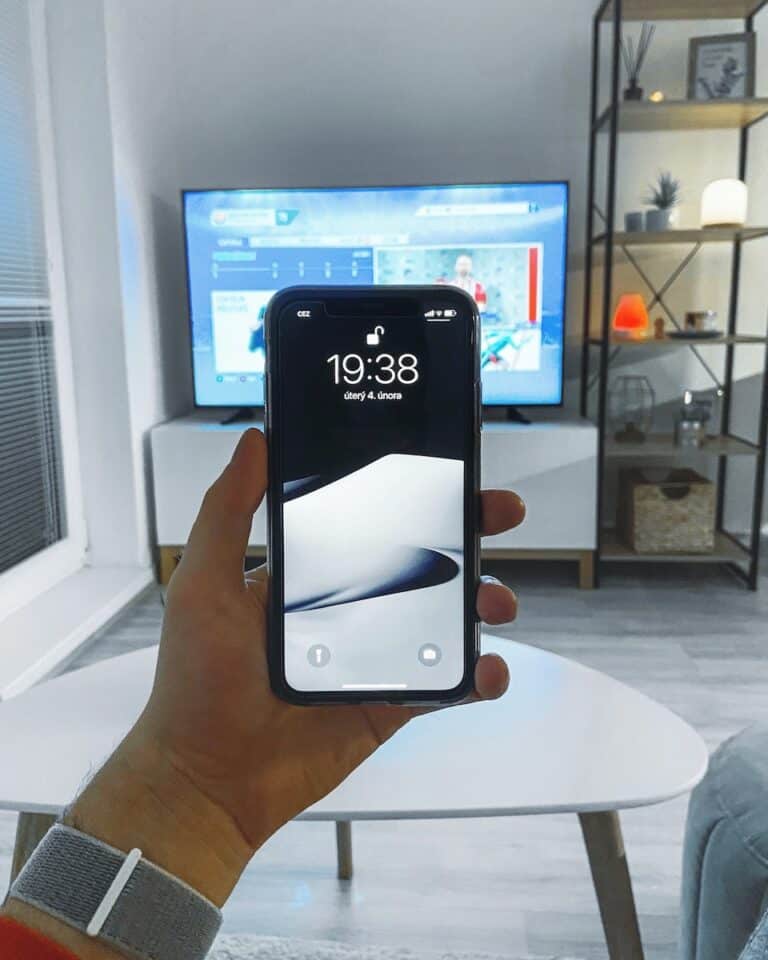
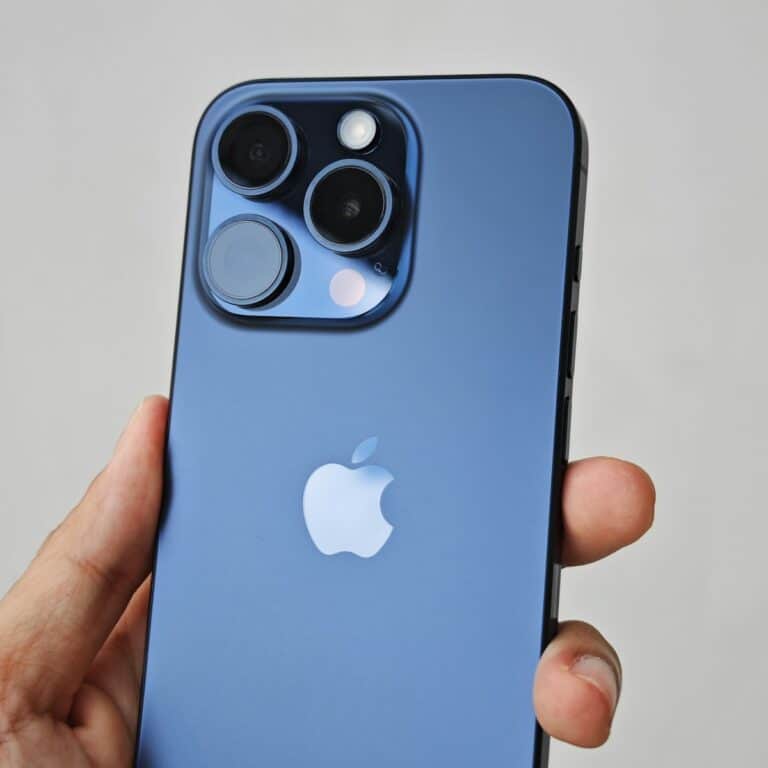
iPhones don’t support Chromecast as natively as Android devices, but you still have options.
Option 1: Use a Third-Party Chromecast App
Apps like Google Home can help mirror your screen to a Chromecast-compatible TV.
Steps:
- Connect your iPhone and Chromecast to the same Wi-Fi network.
- Open the Google Home app.
- Select your Chromecast device.
- Use screen mirroring (if supported).
Option 2: Use AirPlay Instead
If your TV supports AirPlay (many smart TVs do in 2026), this is often easier:
- Swipe down for Control Center.
- Tap Screen Mirroring.
- Select your TV.
📺 Can You Chromecast TikTok Live?
Yes — but typically through screen mirroring.
TikTok Live doesn’t always display a dedicated Cast button. If that’s the case, screen mirroring is your best solution.
Keep in mind:
- You may experience slight delay (latency).
- Notifications will appear on screen if you’re mirroring your full display.
⚠️ Common Issues When Casting TikTok
1. No Cast Button Appearing
- Update the TikTok app.
- Make sure your phone and TV are on the same Wi-Fi network.
- Restart the app and Chromecast device.
2. Lag or Stuttering
- Move closer to your Wi-Fi router.
- Reduce other devices streaming on the same network.
- Use 5GHz Wi-Fi if available.
3. Black Screen When Casting
- Try screen mirroring instead of native casting.
- Restart both your phone and Chromecast.
Is There a TikTok TV App?
As of 2026, TikTok has limited official smart TV apps compared to platforms like YouTube. Some smart TVs may offer a TikTok app, but availability varies by brand and region.
If your TV doesn’t support it directly, Chromecast or screen mirroring remains the easiest solution.
Should You Chromecast TikTok?
It depends on how you use it.
✅ It’s Great For:
- Watching TikTok compilations
- Sharing funny videos with friends
- Viewing travel, cooking, or fitness content on a larger screen
- Watching TikTok Live events
❌ It’s Less Ideal For:
- Quick scrolling sessions
- Private browsing
- When you need instant responsiveness (mirroring can lag)
Final Answer: Can You Chromecast TikTok?
Yes, you can Chromecast TikTok — either directly through the app (on supported devices) or by screen mirroring your phone.
Android users generally have the smoothest experience, while iPhone users may need to rely on screen mirroring or AirPlay alternatives.
If you want the best experience:
- Keep your app updated
- Use a strong Wi-Fi connection
- Consider Google TV or Chromecast with built-in casting support
With the right setup, watching TikTok on your TV is simple — and surprisingly fun. 🎬📺