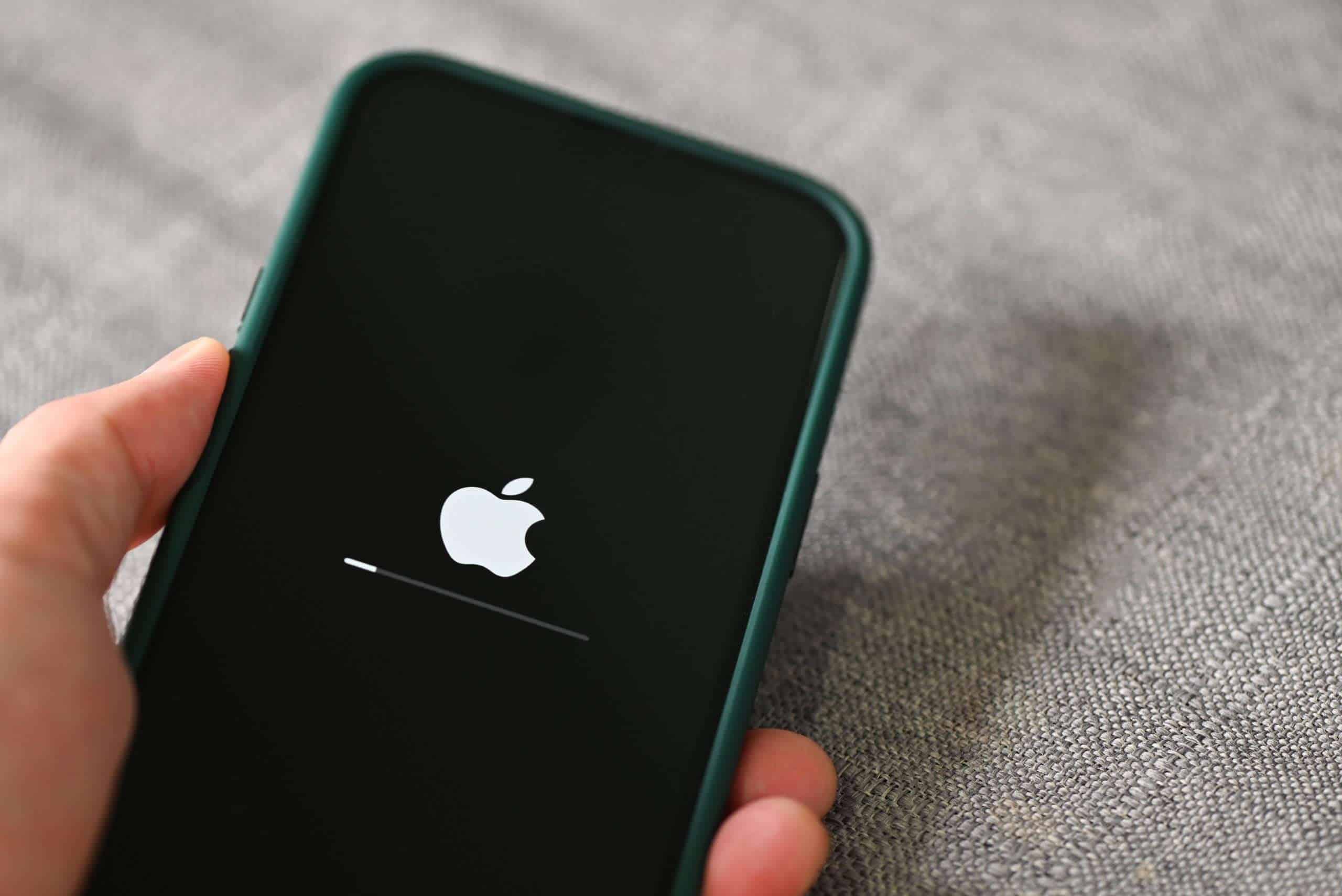
iPhone error 4013 is a common issue that many users encounter when they try to update or restore their device through iTunes. This error can disrupt your workflow and cause significant frustration. The good news is that there are proven methods to fix this error and get your device back to normal functionality. One common reason for iPhone error 4013 is using an outdated version of iTunes or your computer’s operating system.
Make sure to update both to the latest versions. Another approach is to enter DFU mode and try the restore process again. If you encounter more complex issues, it may be necessary to contact Apple Support for further assistance. With expert help, you can address deeper hardware concerns that may be causing the error. Following these steps can help you resolve iPhone error 4013 effectively.
iPhone Error 4013: Solution Guide
What is iPhone Error 4013?
Error 4013 is a common iTunes or Finder error that appears when you try to restore or update your iPhone, iPad, or iPod touch. It usually indicates a problem with the device’s communication with your computer, often related to hardware or software issues.
Causes of iPhone Error 4013
- Faulty or damaged Lightning cable or USB port
- Outdated or corrupted iTunes/Finder software
- Insufficient storage or corrupted iOS software
- Hardware issues with the iPhone (logic board or memory problems)
- Interruption during the restore/update process
Step-by-Step Solutions to Fix iPhone Error 4013
1. Check Your Lightning Cable and USB Port
- Use an official Apple cable or a certified one.
- Try a different USB port on your computer.
- Avoid using USB hubs or adapters.
- If possible, try a different computer.
2. Update iTunes or Finder
- Make sure your iTunes (Windows or macOS Mojave and earlier) or Finder (macOS Catalina and later) is up to date.
- Restart your computer after updating.
3. Restart Your iPhone and Computer
- Force restart your iPhone:
- For iPhone 8 and later: Press and quickly release Volume Up, then Volume Down, then hold Side button until Apple logo appears.
- For iPhone 7/7 Plus: Hold Volume Down + Side button until Apple logo appears.
- For iPhone 6s and earlier: Hold Home + Side button until Apple logo appears.
- Restart your computer as well.
4. Use Recovery Mode to Restore Your iPhone
- Connect your iPhone to your computer.
- Put your iPhone into recovery mode (similar button sequences as force restart but keep holding buttons until recovery mode screen appears).
- Open iTunes/Finder and select “Update” first, which attempts to reinstall iOS without erasing data. If that fails, try “Restore” (this erases data).
5. Use DFU Mode for a Deeper Restore
- Device Firmware Update (DFU) mode reloads firmware and software completely.
- Enter DFU mode (specific button sequences depending on iPhone model).
- Restore your iPhone via iTunes/Finder. This is more thorough than recovery mode but erases data.
6. Check for Hardware Issues
- If error 4013 persists, it might be a hardware problem (logic board, memory, or battery).
- Visit an Apple Store or authorized service provider for diagnostics.
7. Use Third-Party Repair Tools (Optional)
- Tools like AnyFix, ReiBoot, or similar iOS system repair software can fix system errors without data loss.
- Use reputable software and follow their instructions carefully.
Summary
| Solution Step | Description |
|---|---|
| 1. Check cables & ports | Use official cables and different ports |
| 2. Update iTunes/Finder | Ensure software is current |
| 3. Restart devices | Force restart iPhone and reboot computer |
| 4. Use Recovery Mode | Attempt update or restore via recovery |
| 5. Use DFU Mode | Deep restore for firmware/software issues |
| 6. Hardware check | Visit Apple if problem persists |
| 7. Third-party repair tools | Use software like AnyFix for repair |
References
Troubleshooting the Dreaded iPhone Error 4013
What Causes iPhone Error 4013?
This error usually happens when your iPhone or iPad can’t talk to iTunes or Finder during an update or restore. This is often due to a bad USB cable or port, old software, or even problems with your device’s hardware. Let’s tackle some common causes and get your Apple gadget working again!
Quick Fixes for Error 4013
Give these simple tricks a shot before diving into more complex solutions:
- Check your cable: Make sure your USB cable isn’t damaged and it’s an Apple-approved one.
- Try a different port: Switch to another USB port on your computer.
- Restart everything: Restart your iPhone, iPad, and computer.
- Update iTunes or Finder: Grab the latest version of iTunes (for Windows or older macOS) or use Finder (for newer macOS).
Advanced Troubleshooting Steps
If the easy fixes didn’t work, don’t worry! Here are some more in-depth solutions:
- Update iOS: Try updating your device’s software to the latest version.
- Check your computer’s software: Make sure your operating system (Windows or macOS) is up-to-date.
- DFU Mode Restore: This is a deeper kind of restore that can fix software issues.
- Hardware Check: If nothing else works, your device might need a checkup at the Apple Store.
When to Seek Professional Help
If you’ve tried all these steps and you’re still seeing Error 4013, it’s time to call in the pros. Apple’s support team can help you figure out what’s wrong and fix it.
Preventing Future Errors
Keep these tips in mind to avoid running into Error 4013 again:
- Use genuine Apple cables and accessories: They’re designed to work best with your device.
- Keep your software updated: This includes iOS, iTunes/Finder, and your computer’s operating system.
Comparing Common Solutions
| Solution | Difficulty | Effectiveness | Additional Notes |
|---|---|---|---|
| Check cable/port | Easy | Often works | First thing to try! |
| Restart devices | Easy | Sometimes works | Can resolve temporary glitches |
| Update software | Easy | Often works | Ensure you have the latest versions |
| DFU Mode Restore | Medium | Often works | Requires more technical knowledge, can fix software issues |
| Hardware Check | Difficult | Usually works | Best left to Apple professionals |
Remember, don’t get discouraged by Error 4013! With a little patience and troubleshooting, you’ll get your Apple device up and running again in no time.
Key Takeaways
- Update iTunes and your computer’s operating system
- Enter DFU mode to restore your device
- Contact Apple Support for complex issues
Diagnosing iPhone Error 4013
To diagnose iPhone Error 4013, users need to ensure their connections are secure and verify their software is up to date. Additionally, using recovery and DFU modes can help address this issue.
Check Connection and Ports
First, check the USB or Lightning cable connecting the iOS device. Ensure the cable is not damaged or frayed. Trying a different USB or Lightning cable can help rule out cable issues.
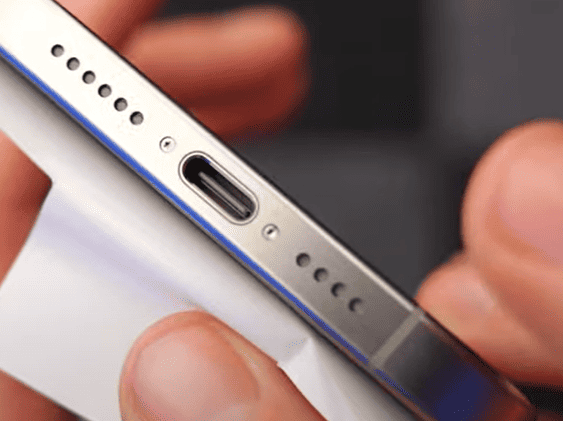
Next, check the USB port on the computer. Connecting the device to a different USB port can help determine if a port issue is causing the error. Inspect and clean the charging port on the iOS device using a soft brush or compressed air.
These steps help identify and address connection or hardware problems that might cause Error 4013.
Software and Update Verification
Verify that the latest version of iTunes or Finder is installed on your Mac or PC. Open iTunes and go to Help > Check for Updates on Windows, or use the App Store on macOS. Keeping iTunes or Finder updated ensures that compatibility issues are minimized.
Also, make sure the iOS device has the latest software updates. Open Settings > General > Software Update to check for updates. Any pending iOS updates should be installed as they may include bug fixes relevant to Error 4013.
Ensure that the firewall and antivirus settings on your computer are not blocking the connection between the iOS device and iTunes.
Utilizing Recovery and DFU Modes
If the error persists, use recovery mode. Connect the iPhone, iPad, or iPod Touch to the computer. Then, press and release the Volume Up button, followed by the Volume Down button, and press and hold the Side button until you see the recovery mode screen.
Alternatively, if recovery mode fails, try DFU mode. Connect the device to the computer. Quickly press and release the Volume Up button, then the Volume Down button. Press and hold the Side button until the screen turns black. Continue holding the Side button and also press the Volume Down button for 5 seconds. Release the Side button but keep holding the Volume Down button for 10 seconds more.
Using these modes can help restore the device and potentially fix Error 4013.
Frequently Asked Questions
This section addresses common questions about fixing iPhone Error 4013, offering practical and detailed solutions for users facing this issue.
What steps can be taken to resolve error 4013 on an iPhone X?
First, update iTunes to the latest version. Next, connect the iPhone X to the computer using a USB cable. Enter DFU mode by pressing and holding the Volume Up, Volume Down, and Power buttons in sequence. Follow the prompts in iTunes to restore the device.
How can one troubleshoot the “iPhone could not be restored” issue related to error 4013?
Check for software updates on both the computer and iTunes. If updates are available, install them. Reboot the computer, and attempt the restore again. Ensure the USB cable and port are functioning properly by trying different ones.
What are the common causes of error 4013 on iPhone 11 devices?
Error 4013 often arises from software issues, outdated iTunes versions, or faulty connections. Problems during iOS updates or system restore processes can also trigger this error. Additionally, corrupted backups may contribute to the issue.
Can hardware problems lead to error 4013 on iPhones, and how can they be identified?
Yes, hardware problems like a damaged USB port or faulty internal components can lead to error 4013. Signs include physical damage to the iPhone or connection issues even after troubleshooting software aspects. A professional diagnostic service may be necessary.
What are the estimated repair costs for addressing error 4013 on an iPhone?
Repair costs can vary widely. Simple software fixes might cost nothing, while hardware repairs can range from $50 to $300. Obtaining a quote from an Apple Store or certified technician is recommended for accurate pricing.
Are there any free solutions available for fixing error 4013 on iOS devices?
Free solutions include updating iTunes, checking USB connections, and entering DFU or recovery mode to restore the device. Sometimes, simply restarting the computer or using a different USB cable can resolve the issue.