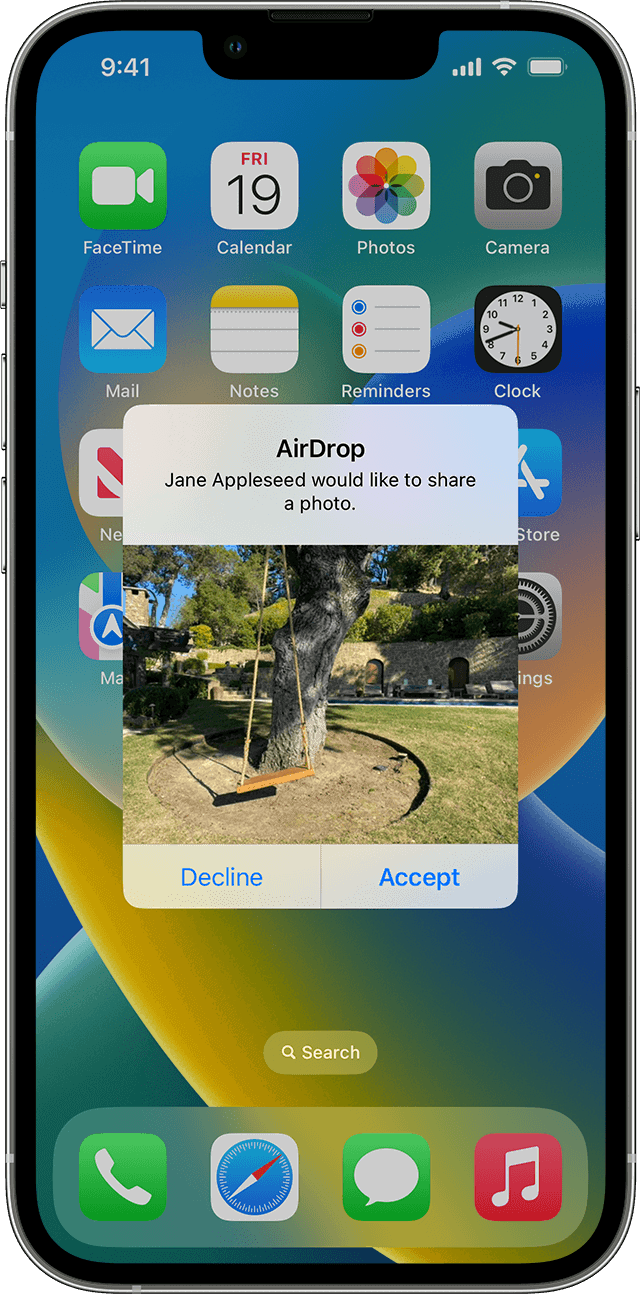
AirDrop has become an indispensable tool for Apple users, offering a convenient way to share files across devices. However, with so many devices often named after the default settings, it can be challenging to identify your device quickly. Changing your AirDrop name not only adds a personal touch but also enhances the ease of file sharing. This comprehensive guide will walk you through the steps to customize your AirDrop name on various Apple devices and troubleshoot common issues.
How to Change Your AirDrop Name: A Comprehensive Guide
Your AirDrop name is the identity other Apple users see when you share files. If it’s outdated, confusing, or includes personal information, changing it is quick and easy. This guide walks you through how to change your AirDrop name on iPhone, iPad, and Mac—plus tips to avoid common issues.
What Is Your AirDrop Name?
Your AirDrop name is pulled from your device’s name, not a separate AirDrop setting. When you change your device name, your AirDrop name updates automatically.
✅ This affects how your device appears in AirDrop, Bluetooth, and sometimes iCloud listings.
How to Change Your AirDrop Name on iPhone or iPad
- Open Settings.
- Tap General.
- Tap About.
- Tap Name.
- Enter your new device name.
- Tap Done.
✅ Your AirDrop name updates immediately.
How to Change Your AirDrop Name on Mac
- Click the Apple menu () in the top‑left corner.
- Select System Settings (or System Preferences on older macOS).
- Go to General → About.
- Click Name.
- Enter your new device name.
✅ This name is used for AirDrop, Bluetooth, and file sharing.
How to Check Your AirDrop Visibility Settings
If others still can’t see your device:
- Open Settings → General → AirDrop (iPhone/iPad)
- Choose one of the following:
- Receiving Off
- Contacts Only
- Everyone for 10 Minutes
💡 Select Everyone for 10 Minutes for quick, hassle‑free sharing.
Why Your AirDrop Name Might Not Update
If your old name still appears:
- Turn Wi‑Fi and Bluetooth off, then back on
- Restart your device
- Ask the other person to restart AirDrop
- Make sure both devices are signed into iCloud
✅ Name changes usually sync instantly but may need a refresh.
Tips for Choosing a Good AirDrop Name
- Use a clear and recognizable name
- Avoid personal details (phone number, address)
- Add device type if you own multiple Apple devices
Example: “Alex’s iPhone” or “Alex MacBook Pro”
Does Changing AirDrop Name Affect Anything Else?
Changing your device name may also affect:
- Bluetooth connections
- Personal Hotspot name
- Finder or iTunes device listings
✅ No data is deleted, and your Apple ID remains unchanged.
Frequently Asked Questions
Can I use emojis in my AirDrop name?
✅ Yes, emojis are supported.
Does this change my Apple ID name?
❌ No, it only changes your device name.
Do I need to sign out of iCloud?
❌ No sign‑out required.
Changing Your AirDrop Name
Changing your AirDrop name helps personalize your device and makes it easier for others to identify you when sharing files. The process is simple and similar across all Apple devices. Here’s a table outlining the steps for each:
| Device | Steps |
|---|---|
| iPhone & iPad (iOS 16 and later) | 1. Open the Settings app. |
| 2. Tap General. | |
| 3. Tap About. | |
| 4. Tap Name. | |
| 5. Enter your desired AirDrop name and tap Done. | |
| iPhone & iPad (iOS 15 and earlier) | 1. Open the Contacts app. |
| 2. Tap your own contact card at the top. | |
| 3. Tap Edit in the upper right corner. | |
| 4. Tap the first name field. | |
| 5. Enter your desired AirDrop name and tap Done twice. | |
| Mac | 1. Click the Apple logo in the top left corner of the screen. |
| 2. Select System Preferences. | |
| 3. Click General. | |
| 4. Click the computer name field. | |
| 5. Enter your desired AirDrop name and press Enter. |
Tips:
- You can choose any name you like for your AirDrop, but keep it appropriate and easy to remember.
- Make sure your AirDrop settings are turned on and discoverable by others.
- If you’re having trouble changing your AirDrop name, restart your device and try again.
Key Takeaways:
- Learn how to change your AirDrop name on iPhone, iPad, and Mac.
- Discover advanced tips for making your device easily discoverable.
- Understand how to troubleshoot common problems with AirDrop.
Understanding AirDrop
AirDrop is a feature in Apple devices that allows users to wirelessly share content like photos, videos, documents, and more with nearby devices. It uses Bluetooth to create a peer-to-peer Wi-Fi network between the devices, making file transfer quick and easy. However, with multiple Apple devices around, it’s essential to have a distinct AirDrop name for your device to avoid confusion.

Changing AirDrop Name on iPhone and iPad
Step-by-Step Guide
Changing your AirDrop name on an iPhone or iPad is a simple process:
- Open the Settings app and tap on your name at the top.
- Tap on ‘Name, Phone Numbers, Email’.
- In the upper right corner, tap ‘Edit’.
- Type the name you want others to see when they AirDrop files to you.
- Tap ‘Done’ to save the changes.
This name change not only affects AirDrop but also how your device appears in other Apple services like iCloud, iTunes, and App Store. Remember, the name you choose will be visible to others, so pick something appropriate and easily recognizable.
Advanced Tips
- Add a Profile Picture: Enhance your Contact Card by adding a photo. This can help others to identify your device quickly when sharing via AirDrop.
- Ensuring Discoverability: Make sure that AirDrop is enabled and set to ‘Everyone’ or ‘Contacts Only’, depending on your preference.
Watch a detailed tutorial here: How To Change your AirDrop Name – Comprehensive Guide
Table: Steps to Change AirDrop Name on iPhone/iPad
| Step | Description |
|---|---|
| 1 | Open Settings and tap your name |
| 2 | Select ‘Name, Phone Numbers, Email’ |
| 3 | Tap ‘Edit’ in the upper right corner |
| 4 | Enter your desired AirDrop name |
| 5 | Tap ‘Done’ to save changes |
Updating AirDrop Name on Mac
Detailed Instructions
Changing the AirDrop name on a Mac is equally straightforward:
- Click on the Apple icon in the upper left-hand corner.
- Select ‘System Preferences’, then ‘Sharing’.
- Type the name you want to use in the ‘Computer Name’ box.
This name will be used for AirDrop as well as identifying your Mac on a network. It’s important to choose a name that is distinct and easy to recognize, especially in a workspace with multiple Macs.
Troubleshooting Common Issues
Occasionally, the updated name might not appear immediately. Here are some tips to resolve this:
- Restart Your Device: Sometimes, a simple restart can help the new name to appear.
- Check for Software Updates: Ensure your device is running the latest version of macOS.
For more in-depth guidance, check out this tutorial: How To Change Your Airdrop Name – Step-by-Step Tutorial
Table: Steps to Change AirDrop Name on Mac
| Step | Description |
|---|---|
| 1 | Click on Apple icon, select ‘System Preferences’ |
| 2 | Go to ‘Sharing’ |
| 3 | Enter your desired AirDrop name in ‘Computer Name’ |

Advanced Tips and Tricks for AirDrop
To make the most out of AirDrop, here are some advanced tips:
- Profile Picture Addition: Similar to iPhone and iPad, adding a profile picture to your Mac’s Contact Card can make it more recognizable in AirDrop.
- Making Your Device Discoverable: In AirDrop settings, adjust the discoverability to ‘Everyone’ or ‘Contacts Only’ to control who can see your device.
Troubleshooting Common AirDrop Problems
Sometimes, despite changing the AirDrop name, you might face issues with discoverability or connectivity. Here’s how to troubleshoot these problems:
- Reset Network Settings: On your iPhone or iPad, go to Settings > General > Reset and select ‘Reset Network Settings’. This will restart your device and can often solve connectivity issues.
- Ensure WiFi and Bluetooth are On: Both devices need to have WiFi and Bluetooth enabled for AirDrop to work.
For more troubleshooting tips, especially on ensuring your device appears in others’ AirDrop selections, visit Alphr’s Comprehensive AirDrop Name Changing Instructions.
Frequently Asked Questions
How do I change the AirDrop name on an older iPod model?
For older iPod models like the iPod classic, nano, or shuffle:
- Connect your iPod to your computer.
- Launch iTunes and select your device.
- Enter the new name, which will be used for AirDrop.
Can I change my AirDrop name to include emojis?
Yes, you can include emojis in your AirDrop name. This can add a fun, personalized touch to your device’s identity.
Why is my new AirDrop name not appearing immediately?
If your new name doesn’t appear, try restarting your device or reset your network settings. This typically resolves the issue.
Additional Troubleshooting Tips
- Updating Device Software: Always keep your device updated to the latest version of iOS or macOS to ensure optimal performance of features like AirDrop.
- Distance and Obstructions: For a successful AirDrop connection, ensure that both devices are within 30 feet of each other and there are no significant obstructions.
For more details on troubleshooting AirDrop, check out this informative video: How To Change Airdrop Name (Easy).

Table: Troubleshooting AirDrop Issues
| Issue | Solution |
|---|---|
| Name not appearing | Restart device, reset network settings |
| Connection failure | Check WiFi, Bluetooth, and proximity |
| Software-related issues | Update to the latest iOS or macOS version |
Advanced AirDrop Settings
Setting AirDrop Receiving Options
In AirDrop settings, you can set your device to be discoverable to ‘Everyone’, ‘Contacts Only’, or receive off. This controls who can see your device and send you files.
Using AirDrop on Different Apple Devices
The process to use AirDrop varies slightly across different devices. Familiarize yourself with the specific steps for your device to streamline file sharing.
Conclusion
Customizing your AirDrop name enhances your user experience by making file transfers easier and more personal. With the steps and tips provided in this guide, you should now be able to change your AirDrop name effortlessly and troubleshoot common issues.
Remember, the key to a seamless AirDrop experience lies in not just personalizing your device name but also in ensuring that your devices are up-to-date and properly configured for optimal performance.