Replacing the battery in a Samsung Galaxy S6 might seem tricky, but with the right guidance, it’s quite manageable. This process can be completed in just a few minutes, ensuring your device is back up and running smoothly. Whether your battery drains too fast or won’t hold a charge, replacing it can extend the life of your phone.
Before getting started, ensure you have the necessary tools and a new battery. Having a discharged battery below 25% is crucial to avoid potential fire or explosion risks. Galaxy S6 has a glass back, so take care not to damage it during the replacement.
Make sure to work in a clean, well-lit area. A bit of patience and careful handling will make this repair task straightforward. Following these steps will save you time and the cost of professional repair services.
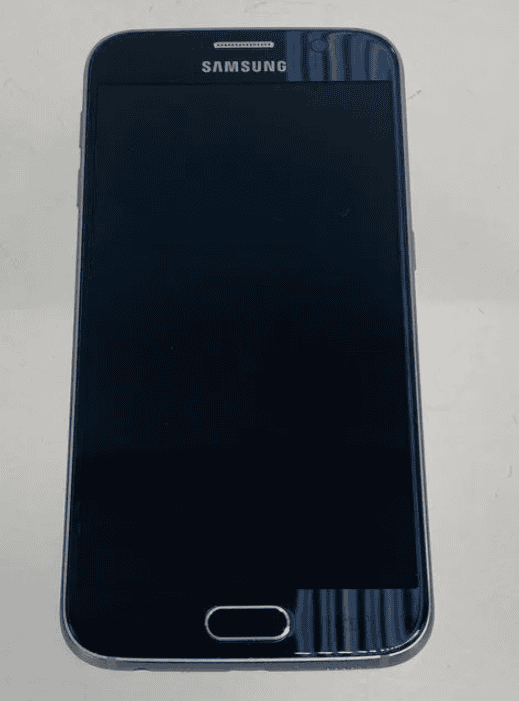
Replacing the Battery in a Samsung Galaxy S6: Step-by-Step
If your Samsung Galaxy S6 is experiencing charging issues, unexpected shutdowns, or reduced battery life, it might be time for a battery replacement. While the Galaxy S6 has a non-removable battery, you can replace it yourself with the right tools and careful attention to detail. This comprehensive guide will walk you through the entire process.
Important Safety Precautions
Before you begin:
- Power off your device completely before starting
- Work in a clean, well-lit environment
- Wear safety glasses to protect your eyes from glass fragments
- Be aware that opening your device may void your warranty
- Handle the battery carefully to avoid puncturing it
- Keep heat sources away from the battery (source: Battery Spotlight)
Tools You’ll Need
- Small Phillips screwdriver
- Plastic spudger or prying tool
- Suction cup
- Heat gun or hair dryer
- Tweezers
- Replacement battery (ensure it’s compatible with Galaxy S6)
- Adhesive strips or double-sided tape
- Opening picks or guitar picks
- Isopropyl alcohol (for cleaning adhesive)
Step-by-Step Battery Replacement Process
Step 1: Power Down Your Device
Hold the power button and select “Power Off.” Wait until the device is completely shut down before proceeding.
Step 2: Remove the SIM Card Tray
Use the SIM ejector tool to remove the SIM card tray from the top of the device. Set it aside in a safe place.
Step 3: Heat the Back Panel
Apply heat around the edges of the back glass panel using a heat gun or hair dryer for about 2-3 minutes. This softens the adhesive holding the back cover in place. Be careful not to overheat the device.
Step 4: Remove the Back Glass Panel
- Place a suction cup near the bottom edge of the back panel
- Gently pull up while inserting a plastic opening pick into the gap
- Carefully slide the pick around the edges to separate the adhesive
- Work slowly to avoid cracking the glass
- Lift the back panel off once all adhesive is separated (source: Nerdy Tech Blog)
Step 5: Remove the Midframe Screws
You’ll see several small Phillips screws holding the midframe in place. Remove all visible screws (typically 12-15 screws) and keep them organized, as they may be different sizes.
Step 6: Remove the Midframe
Carefully lift the plastic midframe away from the device. You may need to use a spudger to gently pry it up at the edges.
Step 7: Disconnect the Battery
This is a critical step:
- Locate the battery connector on the motherboard
- Use the flat end of a spudger to carefully disconnect the battery connector from its socket
- Pry gently upward to avoid damaging the connector (source: iFixit)
Step 8: Remove the Old Battery
The battery is held in place with strong adhesive strips:
- Apply gentle heat to the back of the phone (where the battery sits) to soften the adhesive
- Use a plastic spudger or opening pick to carefully pry up the battery
- Work slowly and avoid bending the battery excessively
- If there are pull tabs on the adhesive, gently pull them at a low angle
- Never use metal tools directly on the battery to prevent puncturing it
Step 9: Clean the Battery Compartment
Remove any remaining adhesive residue using isopropyl alcohol and a lint-free cloth. Ensure the area is completely clean and dry before installing the new battery.
Step 10: Install the New Battery
- Apply new adhesive strips to the battery compartment or to the back of the new battery
- Carefully position the new battery in place, ensuring proper alignment
- Press down firmly to secure the adhesive bond
- Make sure the battery connector is accessible and properly positioned
Step 11: Reconnect the Battery
Align the battery connector with its socket on the motherboard and press down gently until it clicks into place. Ensure a secure connection (source: Battery Spotlight).
Step 12: Reassemble the Midframe
- Replace the plastic midframe
- Reinstall all screws in their correct positions
- Ensure everything is seated properly before tightening
Step 13: Test Before Sealing
Before reattaching the back glass:
- Press and hold the power button to see if the device powers on
- Check that the battery is charging properly
- Verify all functions are working
Step 14: Reattach the Back Panel
- Clean both surfaces thoroughly
- Apply new adhesive around the edges of the frame
- Carefully position the back glass panel
- Press firmly around all edges to secure the seal
- You may want to place a book or weight on top for a few hours to ensure proper bonding
Step 15: Final Steps
- Reinsert the SIM card tray
- Charge your device fully before regular use
- Calibrate the battery by charging to 100%, then draining completely, then charging to 100% again
Battery Maintenance Tips
To maximize your new battery’s lifespan:
- Avoid extreme temperatures – heat significantly impacts battery health (source: Battery Spotlight)
- Don’t let the battery drain to 0% regularly
- Use original or certified chargers
- Avoid charging overnight if possible
- Keep your device updated with the latest software
Troubleshooting
Device won’t power on:
- Check that the battery connector is properly seated
- Ensure all ribbon cables are connected
- Try charging for 30 minutes before attempting to power on
Battery drains quickly:
- Allow 2-3 charge cycles for the battery to calibrate
- Check for apps consuming excessive power
- Ensure you purchased a genuine replacement battery
Device overheats:
- Remove the battery immediately if it becomes hot during installation
- This could indicate a defective battery – do not use it
When to Seek Professional Help
Consider professional repair if:
- You’re uncomfortable working with small components
- The back glass is already cracked (higher risk of further damage)
- You encounter unexpected complications during disassembly
- The device won’t power on after reassembly
Conclusion
Replacing the battery in your Samsung Galaxy S6 can significantly enhance its performance and extend its usable life (source: Nerdy Tech Blog). While the process requires patience and careful attention to detail, it’s entirely manageable with the right tools and approach. By following this step-by-step guide, you can successfully replace your battery and breathe new life into your device.
How to Replace the Battery in a Samsung Galaxy S6
Tools and Parts Needed
- New Battery: Buy a replacement battery online or at a phone repair shop.
- Heat Gun or Hair Dryer: To soften the adhesive.
- Suction Cup: To lift the back cover.
- Plastic Opening Tool or Guitar Pick: To pry open the phone.
- Phillips #00 Screwdriver: To remove screws.
- Spudger or Plastic Pry Tool: To disconnect the battery.
Step-by-Step Instructions
- Power Off: Turn off your phone.
- Heat the Back Cover: Use a heat gun or hair dryer on low heat to soften the adhesive around the back cover’s edges. Move it constantly to avoid overheating.
- Lift the Back Cover: Apply the suction cup near the bottom and gently lift to create a gap. Insert the plastic opening tool and slide it around the edges to loosen the adhesive.
- Remove the Back Cover: Once the adhesive is loose, carefully lift off the back cover.
- Remove Screws: Unscrew the 13 Phillips screws holding the midframe in place.
- Remove Midframe: Gently pry up the midframe using the plastic opening tool. Be careful not to damage any components.
- Disconnect Battery: Use the spudger or plastic pry tool to disconnect the battery connector from the motherboard.
- Remove Old Battery: Carefully pry up the old battery. It’s glued in, so use gentle force and even heat if needed.
- Install New Battery: Position the new battery and connect the connector.
- Reassemble: Put the midframe back in place, screw in the screws, and carefully press the back cover onto the phone.
Safety Precautions
- Discharge Battery: Before starting, discharge the battery to below 25% to reduce the risk of fire.
- Work in a Well-Ventilated Area: Adhesive fumes can be harmful.
- Handle with Care: Be gentle to avoid damaging internal components.
Troubleshooting
If your phone doesn’t turn on after replacing the battery, double-check the connections and ensure the battery is seated properly. If problems persist, consider seeking professional help.
Additional Tips
- Watch instructional videos online before starting.
- Use a magnetic mat to keep track of screws.
- If your phone has a swollen battery, take extra precautions and consider professional repair.
Key Takeaways
- Replacing the battery can be done in a few minutes.
- A discharged battery and proper tools are essential.
- Handle the glass back with care to prevent damage.
Preparing for Battery Replacement
Replacing the battery in a Samsung Galaxy S6 requires careful preparation. Safety, the right tools, and initial steps are all important for a successful battery change.
Safety Precautions
Safety is the first priority. Lithium-Ion batteries can be dangerous. Work in a well-ventilated area. Keep a fire extinguisher nearby. Handle the battery gently to avoid puncturing it. Wear safety glasses and gloves. Turn off your Samsung Galaxy S6 before starting.
Avoid overheating the battery. Using a heat gun or Iopener helps soften the adhesive but use low heat. This prevents the glass from cracking or the battery from catching fire. If using a microwave to warm up an Iopener, follow the instructions closely to avoid overheating it.
Required Tools and Parts
Gather all necessary tools and parts. You will need a Philips #00 screwdriver, spudger tool, plastic opening tool, tweezers, suction cup, and double-sided tape. Also, have a new battery ready. Use high concentration isopropyl alcohol to dissolve adhesive.
Get a heat gun or Iopener to loosen the adhesive. You may also need packing tape to prevent the back glass from shattering. Having the user manual nearby can guide you through the steps.
Initial Steps Before Opening the Device
Start by turning off your Samsung Galaxy S6. Remove the SIM card tray using a pin or SIM removal tool. This ensures you do not damage the SIM card slot during the process.
Use the heat gun or Iopener to soften the adhesive around the rear glass. Gently apply heat and use a suction cup to lift the glass. Insert a thin plastic opening tool underneath the glass to carefully separate it from the device.
Once the back cover is removed, locate the battery connector. Unscrew the Philips #00 screws that hold it in place. Detach the battery connector using the spudger. You are now ready to replace the battery.
Frequently Asked Questions
When replacing the battery in a Samsung Galaxy S6, many questions can arise. Below are key points covering cost, services, and battery specifics.
Is it worth getting a battery replacement for a Samsung Galaxy S6?
Yes, if the phone is still in good condition and meets your needs. Replacing the battery can extend its usability.
What is the official cost of a Samsung Galaxy S6 battery replacement?
The cost varies by location and service provider. Typically, it ranges from $50 to $100.
Where can I find a battery replacement service for a Samsung Galaxy S6 nearby?
Many electronics repair shops and online repair services offer battery replacement. Check local shops or websites like iFixit.
How can I ensure I get an original battery for my Samsung Galaxy S6?
Purchase replacement batteries from reputable vendors. Look for genuine Samsung parts and avoid third-party sellers with unknown brands.
What is the Samsung Galaxy S6’s typical battery life after replacement?
A new battery usually lasts around 12 hours with moderate use, similar to when the phone was new.
How can I find the model number for a Samsung Galaxy S6 battery?
The model number is typically printed on the battery itself. You can also find it in the phone’s manual or by searching online for Samsung Galaxy S6 battery specifications.