Experiencing your Apple Watch stuck on the Apple logo can be a frustrating ordeal. This common issue, often referred to as the ‘Apple logo of death,’ mirrors the Mac’s ‘spinning wheel of death’ and can stem from a variety of reasons, including software glitches or battery issues. The good news is, there are several tried and tested methods to resolve this problem. Let’s dive into these solutions so you can get your Apple Watch up and running again.
Fixing the Apple Watch Stuck on Apple Logo Issue
If your Apple Watch is stuck on the Apple logo and won’t fully boot, it can be frustrating—but in many cases, it’s fixable without a trip to the Apple Store. This guide walks you through practical troubleshooting steps, from quick fixes to advanced solutions.
Why Is My Apple Watch Stuck on the Apple Logo?
Common causes include:
- A failed or interrupted software update
- Low battery or charging issues
- Corrupted watchOS files
- Pairing or syncing errors with your iPhone
- Hardware problems (less common)
Understanding the cause can help you choose the right fix.
Step-by-Step Fixes
1. Force Restart the Apple Watch
This is the quickest and safest first step.
How to do it:
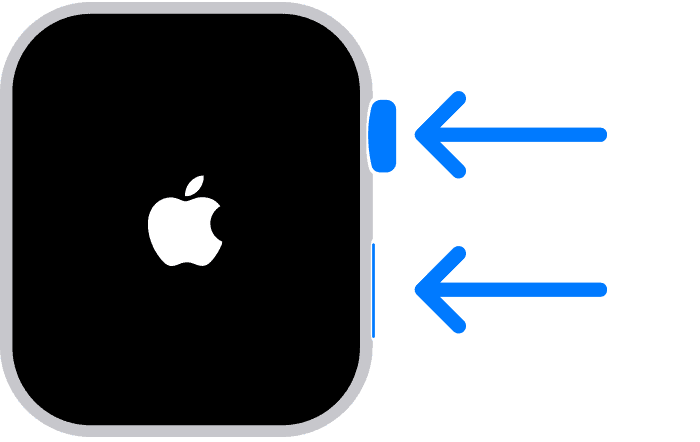
- Press and hold both the Side Button and the Digital Crown.
- Keep holding for about 10–15 seconds.
- Release when you see the Apple logo again.
✅ This often resolves temporary software glitches.
2. Charge the Apple Watch Fully
A low or unstable battery can prevent proper startup.
Tips:
- Use the original Apple charging cable if possible.
- Charge for at least 30–60 minutes.
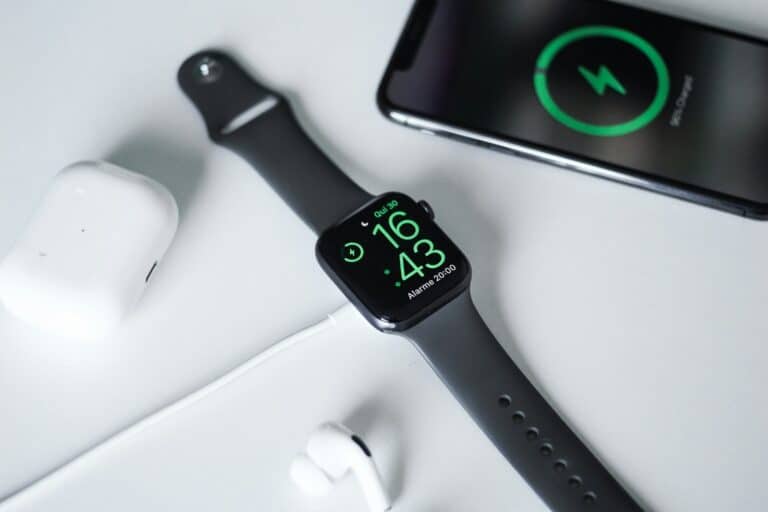
- Make sure the charging icon appears on the screen.
If the watch boots after charging, the issue was likely power-related.
3. Check for Overheating or Cold Temperatures
Extreme temperatures can cause startup issues.
- Let the watch cool down if it feels warm.
- Bring it to room temperature if it was exposed to cold.
Try restarting again once the temperature stabilizes.
4. Update iPhone and Try Re-Pairing (If Possible)
If your watch partially boots or connects briefly:
- Update your iPhone to the latest iOS version.
- Open the Watch app and check for update prompts.
In some cases, iPhone compatibility issues can cause boot loops.
5. Unpair and Re-Pair the Apple Watch
If the watch turns on but stays stuck on the logo during pairing, unpairing may help.
Steps (if accessible):
- Open the Watch app on your iPhone.
- Tap All Watches → i icon.
- Select Unpair Apple Watch.
This erases the watch and reinstalls watchOS, often fixing corrupted files.
6. Remove the Update File (During a Failed Update)
If the issue occurred during an update:
- Open the Watch app on your iPhone.
- Go to General → Storage.
- Delete any partially downloaded watchOS update.
- Restart both devices and try the update again.
7. Try Recovery Mode (Newer Apple Watch Models)
Some newer models support recovery mode.
General process:
- Place the watch on its charger.
- Press and hold the Side Button until the power screen appears.
- Press and hold the Digital Crown until recovery options appear.
- Follow on-screen instructions via your iPhone.
(Steps may vary slightly by model.)
When to Contact Apple Support
If none of the above steps work, the issue may be hardware-related.
Contact Apple Support or visit an Apple Authorized Service Provider if:
- The watch is stuck on the logo for hours
- The watch won’t respond to button presses
- The issue occurred after water damage or a drop
If your watch is under warranty or AppleCare+, repairs may be covered.
Frequently Asked Questions
Q: Will I lose my data if I reset my Apple Watch?
A: Possibly, but most data is backed up to your paired iPhone automatically. When you re-pair, you can restore from the latest backup.
Q: How long should the Apple logo stay on during startup?
A: Typically, only a few seconds. If it stays on for more than 5–10 minutes, there’s likely an issue.
Q: Can a dead battery cause the Apple logo loop?
A: Yes. Insufficient power can cause repeated boot attempts.
Troubleshooting Your Apple Watch
If your Apple Watch gets stuck on the Apple logo, don’t worry. There are a few ways to get it working again.
Force Restart
The first thing to try is a force restart. Press and hold both the side button and the Digital Crown for at least 10 seconds. Let go when the Apple logo shows up again. This simple fix often works.
Unpair and Re-pair
If a force restart doesn’t work, try unpairing your watch from your iPhone and then pairing it again. This can fix some software glitches causing the issue.
To unpair:
- Open the Watch app on your iPhone.
- Go to “My Watch” and tap “All Watches.”
- Tap the info button next to the watch you want to unpair.
- Tap “Unpair Apple Watch.”
After unpairing, pair it again as if it were new.
Check for Software Updates
Sometimes, outdated software can cause the Apple logo to get stuck. Make sure your watch has the latest version of watchOS installed.
To check for updates:
- Open the Watch app on your iPhone.
- Go to “My Watch” and tap “General.”
- Tap “Software Update.”
If an update is available, install it and see if it fixes the problem.
Contact Apple Support
If none of the above solutions work, it’s time to contact Apple Support. They can help you troubleshoot further or arrange a repair if needed.
Additional Tips
Here are some other things to consider:
- Battery: Make sure your watch has enough battery. If it’s completely dead, let it charge for a while before trying to restart.
- Water Damage: If your watch was recently exposed to water, there might be water damage. In this case, contact Apple Support for assistance.
Remember, patience is key. These fixes might take a few tries before they work.
Troubleshooting Summary
| Issue | Solution |
|---|---|
| Stuck on Apple logo | Force restart |
| Still stuck | Unpair and re-pair |
| Outdated software | Check for updates |
| None of the above | Contact Apple Support |
Understanding the Cause
The Apple Watch displaying only the Apple logo, a condition informally known as the ‘Apple logo of death,’ is primarily attributed to software-related issues. This can occur due to a software glitch, often resolved in newer watchOS updates, or it might be a one-off problem that a simple reset can fix. In some cases, the issue arises post a software update attempt, where the watch gets stuck during the process.
Initial Steps to Take
- Wait and Charge: If the issue occurred during a software update, the first step is to wait. Place your Apple Watch on its charger and leave it for an hour or two. This allows the update process to complete and can prevent further software complications that may necessitate a factory reset.
- Basic Reset: Begin with a basic reset. Press and hold the side button on your Apple Watch until the menu with the off button appears. This process turns your watch off and then back on, potentially resolving minor software glitches.
Advanced Troubleshooting Methods
- Force Restart: If the basic reset doesn’t work, try a force restart. Hold the Side button and Digital Crown simultaneously for about 10 seconds, then release them. This method is a bit more assertive and can resolve issues that a simple restart can’t.
- Use Find My App: Surprisingly, using the Find My app to play a sound on your Apple Watch might help. This unconventional method has worked for some users, though the exact reason it helps is unclear. Access Find My on another Apple device or through the iCloud website and play a sound on your watch.
- Unpair and Re-Pair: If your Apple Watch remains stuck, consider unpairing it from your iPhone and then re-pairing it. This process refreshes the connection and can resolve deeper software issues.
- Factory Reset: As a last resort, if none of the above methods work, a factory reset might be necessary. This step is time-consuming and requires you to back up any important data to avoid losing it. Factory resetting involves unpairing your watch and then resetting it to its original settings.
- Contact Apple Support: If all else fails, reaching out to Apple support can provide a solution. They offer assistance through various channels, including in-person Apple stores, the Apple Support app, or direct calls.
Preventative Measures
To avoid future occurrences of this issue, ensure your Apple Watch is running the latest software version. Regular updates can fix known bugs and software problems, enhancing the overall performance and stability of your device.
FAQs
- Why is my Apple Watch stuck on the Apple logo while charging?
- This might happen if your watch is updating. Leave it on the charger to allow the update to complete.
- What if my Apple Watch won’t force restart?
- If a force restart doesn’t work, try the Find My trick or unpair it from your iPhone.
- How to unfreeze my Apple Watch?
- Can a low battery cause my Apple Watch to get stuck on the logo?
- Yes, a low battery can sometimes cause this issue. Try charging your watch fully before attempting other fixes.
- Is it safe to force restart my Apple Watch frequently?
- While force restarting can be a useful troubleshooting tool, it’s not recommended to do it frequently. Use it only when necessary.
- Can outdated software lead to my Apple Watch getting stuck?
- Yes, running old software versions can cause this and other issues. Regular updates are recommended.
- Will I lose my data if I unpair my Apple Watch?
- Unpairing your watch will create a backup on your iPhone, so you can restore your data after re-pairing.
- How long should I wait before trying to restart my watch during an update?
- If your watch is updating, wait at least an hour or two before attempting a restart.