Intel’s 13th and 14th Gen Raptor Lake desktop processors have faced ongoing stability issues that sparked concern among PC builders and gamers. Reports of crashes, blue screens, and system instability began appearing more often in 2024, leading Intel to investigate the cause. The problem comes from excessive voltage requests that cause parts of the chip to degrade over time, leading to instability and even permanent damage.
Intel has since identified the root cause, known as “Vmin Shift Instability,” which happens when the processor and motherboard push higher voltage than the chip can handle safely. This issue affects performance during both heavy workloads and lighter tasks, making it unpredictable and difficult to avoid without proper updates. Intel has rolled out BIOS and microcode fixes to prevent further damage, but chips that already show signs of instability cannot be repaired.
For anyone using or considering a Raptor Lake CPU, the situation highlights the importance of knowing how these processors behave under different conditions. Intel now offers extended warranty coverage, but stability concerns remain a key point of discussion for those relying on these chips for gaming or professional work.
What Is the Problem With Intel 13th and 14th Gen Processors?
Intel’s 13th Gen (Raptor Lake) and 14th Gen (Raptor Lake Refresh) desktop processors have delivered excellent gaming and productivity performance—but they’ve also been at the center of widespread stability concerns.
If you’ve heard about crashes, instability, or degradation affecting certain Intel CPUs, this guide explains what’s happening, which chips are affected, and what you can do about it.
The Core Problem: Instability and Potential Degradation
Many users have reported:
- Frequent game crashes (especially Unreal Engine titles)
- “Out of video memory” errors
- Blue Screens of Death (BSOD)
- System reboots under load
- Applications crashing during shader compilation
- Systems failing stability tests
The issue appears most common with high-end unlocked desktop CPUs, particularly:
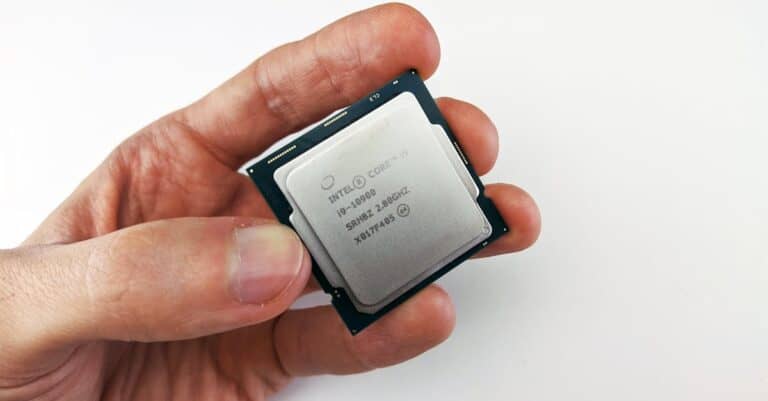
- Core i9-13900K / 13900KS
- Core i7-13700K
- Core i9-14900K / 14900KS
- Core i7-14700K
Not every CPU is affected, but enough cases have surfaced to raise serious concerns.
What’s Causing the Problem?
The instability appears linked to aggressive power delivery and voltage behavior, especially on enthusiast motherboards.
1. Excessive Default Power Settings
Many motherboard manufacturers ship boards with:
- Power limits removed
- Multi-Core Enhancement (MCE) enabled
- Higher-than-Intel-specified voltages
This allows CPUs to boost higher for longer—but can also push chips beyond intended long-term operating conditions.
2. Voltage Spikes and Degradation
Reports suggest that some chips experience:
- High transient voltage spikes
- Sustained elevated Vcore
- Increased wear over time
In extreme cases, this may lead to permanent silicon degradation, meaning the CPU becomes unstable even at stock settings.
This appears more common in:
- Core i9 models
- Systems running at high boost clocks for extended periods
- Poorly cooled setups
3. 14th Gen Is Not a New Architecture
Intel 14th Gen desktop CPUs are largely a refresh of 13th Gen silicon.
This means:
- Same underlying architecture
- Similar voltage and power characteristics
- Same motherboard ecosystem
As a result, 14th Gen chips may show similar instability patterns if not configured properly.
Is This an Intel Defect?
Intel has acknowledged stability issues and has:
- Worked with motherboard manufacturers to enforce “Intel Default Settings”
- Released microcode updates
- Recommended BIOS updates for affected boards
However, the situation appears to be a combination of:
- Extremely aggressive boost behavior
- Motherboard vendors prioritizing performance benchmarks
- High thermal and voltage demands
- Edge-case silicon variability
It’s not necessarily that every CPU is defective—but some chips may have degraded due to sustained overvoltage conditions.
Who Is Most at Risk?
You may be at higher risk if:
- You’re running a Core i9 13900K / 14900K
- Your motherboard has power limits disabled
- You’ve never updated your BIOS
- Your CPU regularly hits 100°C
- You run heavy workloads like shader compilation or CPU rendering
Casual users may never encounter issues.
How to Fix or Prevent the Problem
✅ 1. Update Your BIOS Immediately
Motherboard vendors have released BIOS updates that:
- Reinstate Intel’s official power limits
- Adjust voltage behavior
- Include updated microcode
Go to your motherboard manufacturer’s website and install the latest BIOS version.
✅ 2. Enable “Intel Default Settings”
Many BIOS updates now include an option labeled:
- “Intel Baseline Profile”
- “Intel Default Settings”
- “Enforce All Limits”
Enable this option to restore safe power parameters.
✅ 3. Disable Multi-Core Enhancement (MCE)
If enabled, MCE removes power limits.
Set it to:
- Disabled
or - Enforce Intel limits
This may slightly reduce performance—but improves stability and longevity.
✅ 4. Undervolt (Advanced Users)
Careful undervolting can:
- Reduce voltage spikes
- Lower temperatures
- Improve stability
However, improper undervolting can cause instability. Proceed only if comfortable adjusting BIOS settings.
✅ 5. Improve Cooling
High temperatures accelerate degradation.
Consider:
- A 360mm AIO liquid cooler for i9 models
- High-end air coolers
- Better case airflow
- Fresh thermal paste
What If Your CPU Is Already Unstable?
If your system:
- Crashes at stock settings
- Fails stress tests
- Becomes unstable even after BIOS updates
You may need to:
- Contact Intel support
- Begin an RMA (warranty replacement)
- Provide crash logs or diagnostic info if requested
Intel CPUs typically include a 3-year limited warranty.
Is This Affecting Laptops?
Most reports focus on desktop K-series chips.
Laptop CPUs:
- Operate under stricter power limits
- Are less commonly reported with these issues
However, OEM BIOS behavior still matters.
Should You Avoid Intel 13th/14th Gen?
Not necessarily.
When configured properly:
- They offer excellent performance
- Gaming results are still competitive
- Stability improves significantly with updated BIOS settings
The key issue has been aggressive motherboard defaults—not universal CPU failure.
Final Thoughts
The problem with Intel 13th and 14th Gen processors isn’t a simple defect—it’s a complex mix of:
- High power draw
- Voltage behavior
- Motherboard vendor tuning
- Thermal stress
If you own one of these CPUs, the most important step is to update your BIOS and enforce Intel’s power limits.
Once properly configured, most systems operate reliably.
As always with high-performance hardware, stability depends on careful configuration—not just raw speed.
Key Takeaways
- Intel’s 13th and 14th Gen Raptor Lake CPUs face stability problems.
- The root cause is excessive voltage leading to premature degradation.
- Intel released fixes and extended warranties, but damaged chips cannot be repaired.
Frequently Asked Questions
Intel’s 13th and 14th generation processors face ongoing concerns with stability, heat output, and power efficiency. Updates and fixes have reduced some problems, but reliability and long-term performance remain under review.
What are the known issues affecting Intel’s 13th and 14th generation processors?
Users have reported frequent system crashes, instability during gaming, and high return rates. Investigations linked many failures to excessive operating voltage and degraded CPU behavior over time. Some processors also showed instability with certain workloads, such as Unreal Engine 5 games.
How do the thermal performance challenges impact Intel’s recent CPU generations?
These processors run hot under heavy loads, which can reduce sustained performance. High temperatures may also shorten component lifespan if cooling systems are not sufficient. Many users rely on stronger aftermarket cooling to maintain stable operation.
What are the compatibility concerns with Intel’s latest processor architectures?
Intel’s 13th and 14th gen CPUs use the LGA1700 socket, which carries over from the 12th gen. While this preserves motherboard compatibility, some boards apply aggressive power settings that can worsen instability. BIOS updates with Intel’s baseline profiles aim to correct these issues.
Are there any significant differences in power consumption for Intel’s 13th and 14th gen CPUs?
Both generations draw more power than the 12th gen, especially under peak workloads. This higher demand often leads to greater heat output and requires stronger power delivery from motherboards. Efficiency has not improved much between the 13th and 14th gen models.
What improvements have been made to address the initial problems in Intel’s 13th gen processors?
Intel released microcode updates and worked with motherboard vendors to provide safer voltage settings. Some manufacturers added BIOS options to enforce Intel’s recommended limits. Warranty extensions were also offered to cover affected CPUs.
How do the 14th gen Intel processors compare to their predecessors in terms of reliability?
The 14th gen chips share many of the same concerns as the 13th gen, though refinements reduced some instability. Return rates remain higher than older 12th gen models, showing that reliability is still uneven. Many buyers wait for further fixes or the next generation before upgrading.