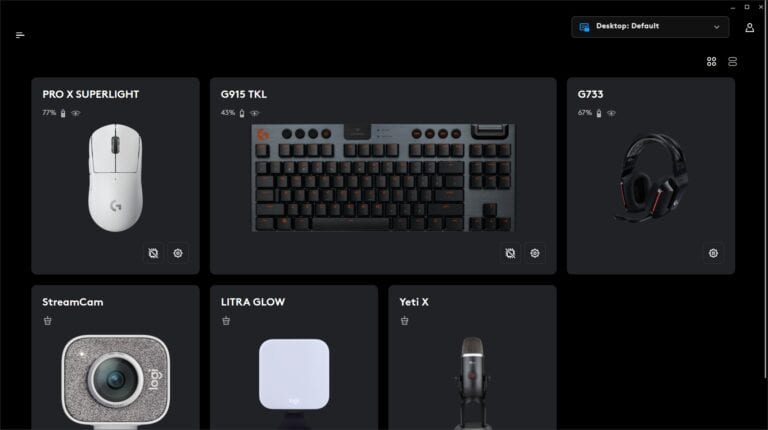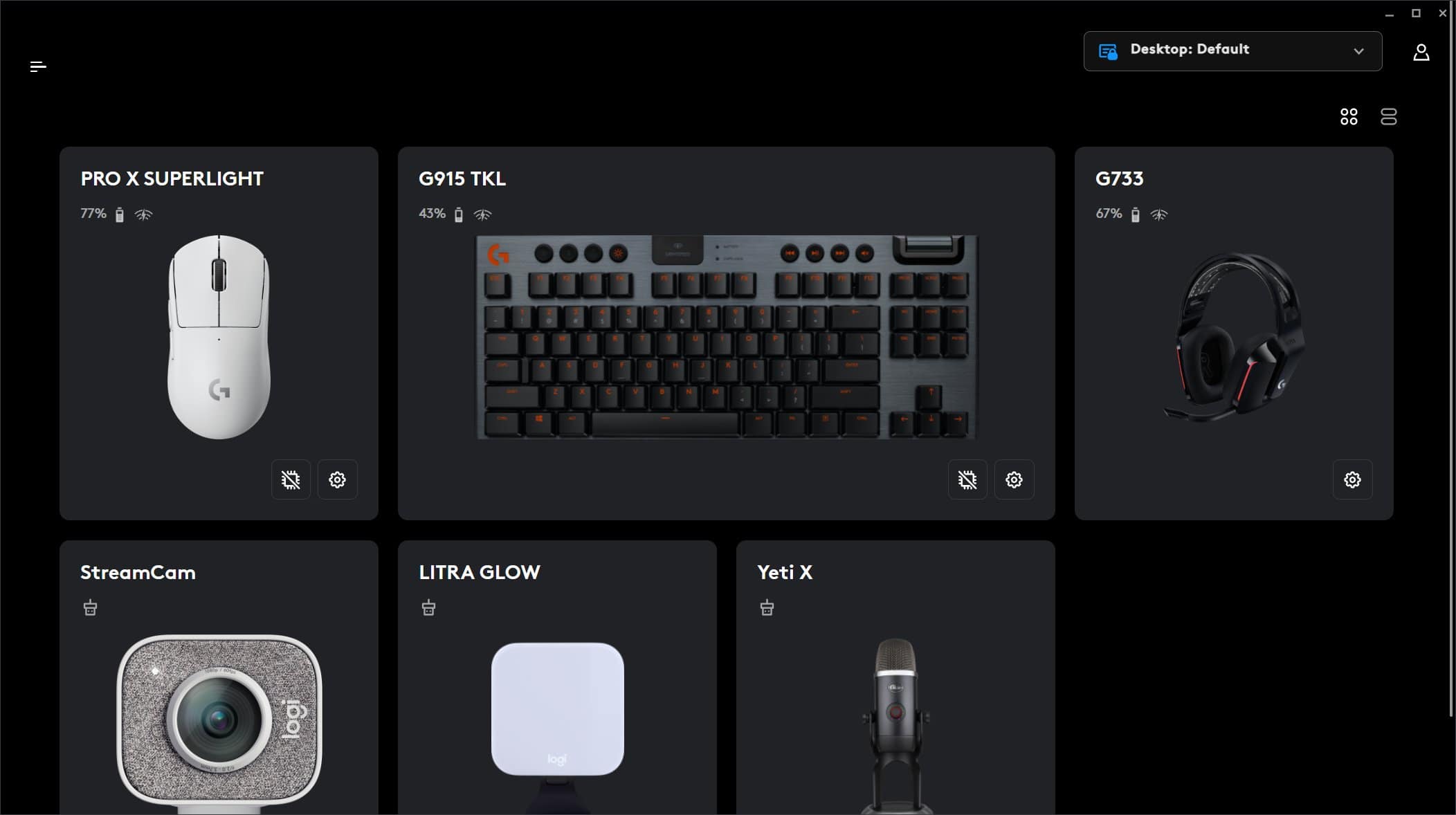
Logitech G HUB is the central command center for your gaming peripherals, allowing you to customize RGB lighting, remap buttons, and adjust DPI settings. However, it is notorious for one specific issue: refusing to open or getting stuck on the infinite loading animation.
If you’re staring at a spinning logo that never ends, you aren’t alone. Here is a step-by-step guide to troubleshooting and fixing Logitech G HUB when it won’t launch.
1. Kill All G HUB Processes in Task Manager
Often, G HUB fails to open because a background service has crashed or hung. Simply clicking the icon again won’t work until you clear the “ghost” processes.
- Press Ctrl + Shift + Esc to open the Task Manager.
- Look for any processes named LGHUB, LGHUB Agent, or LGHUB Updater.
- Right-click each one and select End Task.
- Try launching the software again as an Administrator (Right-click the shortcut > Run as administrator).
2. Manually Restart G HUB Services
If the standard launch fails, you can try starting the core components in a specific order. This often bypasses the loading loop.
- Close G HUB completely (ensure it’s not in your system tray).
- Navigate to the G HUB installation folder (usually
C:\Program Files\LGHUB). - Run these files in this exact order by right-clicking them and selecting Run as administrator:
lghub_updater.exelghub_agent.exelghub.exe
3. Check for Windows Updates and Media Feature Packs
G HUB relies on specific Windows components to render its interface. If your Windows is out of date, or if you are using a Windows “N” version, the software may fail.
- Windows Update: Go to Settings > Update & Security > Check for updates. Install any pending updates and restart your PC.
- Media Feature Pack: If you have a Windows “N” edition, G HUB often won’t run because it lacks media playback features. Download and install the Media Feature Pack from Microsoft’s official website.
4. Reinstall G HUB (The “Clean” Way)
A standard uninstallation often leaves behind corrupted configuration files that cause the same problem even after a reinstall. To fix this, you need a “clean” reinstall.
- Uninstall Logitech G HUB via Control Panel > Programs and Features.
- Press Windows Key + R, type
%AppData%, and hit Enter. Delete the LGHUB folder. - Press Windows Key + R again, type
%ProgramData%, and hit Enter. Delete the LGHUB folder. - Restart your computer.
- Download the latest version of G HUB from the official Logitech website and install it.
5. Update or Reinstall Device Drivers
Sometimes a conflict between the G HUB software and your hardware drivers causes the app to hang.
- Right-click the Start button and select Device Manager.
- Expand Human Interface Devices.
- Look for Logitech G HUB G-Keys or Logitech USB Input Device.
- Right-click them and select Update driver, or select Uninstall device (Windows will automatically reinstall the driver when you unplug/replug the device or restart your PC).
6. Disable “Automatic Updates” (Once Fixed)
If you manage to get G HUB running, many users find that the software breaks after a silent background update.
- Once the app is open, go to Settings.
- Uncheck “Enable Automatic Updates.”
- Manually update the software only when you know a stable version is available.
Final Tip: Check Your Firewall
In rare cases, your Firewall or Antivirus may flag the lghub_updater.exe as a false positive, preventing it from connecting to the internet and causing the app to hang. Ensure that the LGHUB folder is added to your antivirus Exclusion List.
Still not working? If none of these steps work, your hardware might be experiencing a firmware conflict. Try plugging your peripherals into different USB ports (preferably USB 2.0 instead of 3.0) to see if the software recognizes them.