Changing the contrast on your laptop can make it easier to work, play, or watch videos. It’s important to adjust these settings properly to prevent eye strain and ensure that content looks right. Most laptops offer easy ways to change the contrast, either using keyboard shortcuts or through system settings, which can be tailored to your preferences and needs. To adjust the contrast on a Windows laptop, go to the Ease of Access Center in the Control Panel and choose High Contrast options. For macOS, find similar settings in the Accessibility menu under System Preferences, and move the display contrast slider to a comfortable level.
A Guide to Fixing Contrast on Your Laptop
Contrast issues can make your laptop screen difficult to read and cause eye strain. Whether your display looks washed out or too dark, here’s how to fix contrast problems on your laptop.
Understanding Contrast
Contrast refers to the difference in luminance or color that makes objects distinguishable on your screen (source: TechBloat). Proper contrast settings help text and images appear crisp and clear.
Quick Fixes Using Function Keys
Most laptops have dedicated brightness controls that can help with contrast:
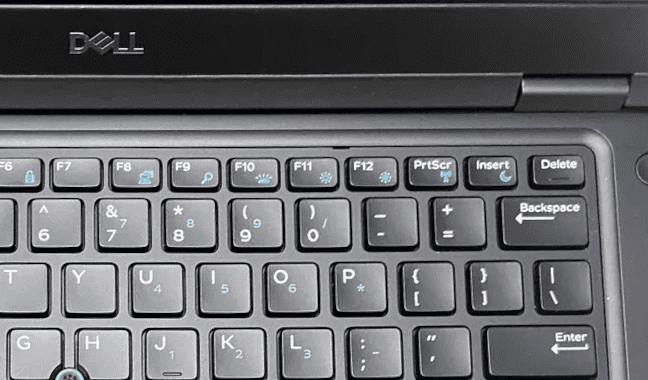
- Look for brightness keys on your keyboard (usually F keys with sun icons)
- Hold the Fn key and press the brightness up/down keys
- Some laptops allow brightness adjustment without the Fn key (source: Computer Hope)
Calibrating Display on Windows
Windows 10/11 Display Calibration
- Open Settings > Display
- Search for “calibrate display color” in Windows search
- Click Calibrate display color
- Follow the on-screen wizard to adjust:
- Gamma (light intensity)
- Brightness (how blacks appear)
- Contrast (how whites appear)
- Note: Laptop users may not have separate brightness/contrast controls and can skip those steps (source: Eleven Forum)
Using High Contrast Mode
For accessibility or severe contrast issues:
- Go to Settings > Ease of Access > High Contrast
- Toggle Turn on high contrast
- Choose a high contrast theme
- Windows will take a few seconds to apply changes (source: Microsoft Support)
MacBook Adjustments
- Use the brightness keys (F1/F2)
- Go to System Preferences > Displays
- Adjust the brightness slider
- Enable Night Shift or True Tone for automatic adjustments
Chromebook Adjustments
- Use brightness keys (typically top row)
- Access Settings > Device > Displays
- Adjust brightness slider as needed
Additional Tips
- Update graphics drivers: Outdated drivers can cause display issues
- Check external monitor settings: If using an external display, adjust contrast using the monitor’s physical buttons
- Adjust ambient lighting: Sometimes the problem is room lighting, not your screen
- Clean your screen: Dust and fingerprints can make contrast appear worse
- Check for hardware issues: If software adjustments don’t help, your display may need repair
When to Seek Professional Help
If contrast issues persist after trying these fixes, you may have a hardware problem such as:
- Failing LCD backlight
- Damaged display cable
- Defective screen panel
In these cases, contact your laptop manufacturer or a professional repair service.
By following these steps, you should be able to optimize your laptop’s contrast for comfortable viewing and reduced eye strain.
Adjusting Your Laptop’s Display for Optimal Viewing
Contrast is how your laptop screen shows the difference between dark and light colors. It’s essential for a comfortable viewing experience. If your laptop’s contrast is off, images and text can appear faded or hard to distinguish.
Here are a few different ways to fix the contrast on your laptop:
Built-in Display Settings
- Access Settings: For Windows, go to “Start” > “Settings” > “System” > “Display”. On a Mac, open “System Preferences” and select “Displays”.
- Adjust Contrast: Find the “Contrast” slider and adjust it. If you don’t see this option, try looking for “Brightness and contrast” or a similar setting.
Keyboard Shortcuts
Many laptops have function keys to adjust contrast instantly. Look for symbols like a sun or a half-filled circle to find them. These shortcuts may require you to hold down the “Fn” key while using them.
Graphics Card Settings
Laptops with dedicated graphics cards (like NVIDIA or AMD) have control panels for adjusting graphics settings.
- Access the Driver’s Control Panel: Right-click on your desktop and find the option for your graphics card’s control panel.
- Adjust the Contrast: Find the display or color settings, and then find the contrast slider. Adjust it accordingly.
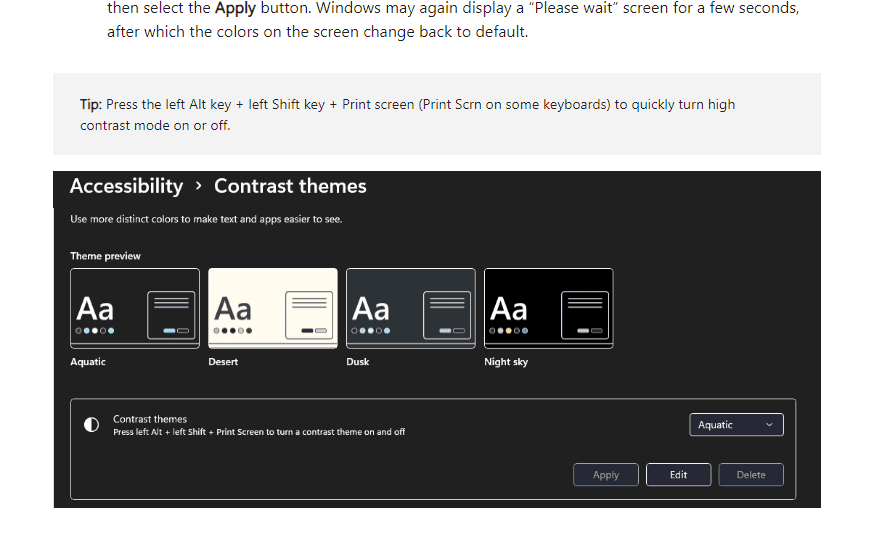
Table of Settings Locations
| Operating System | Settings Path |
|---|---|
| Windows 10/11 | “Start” > “Settings” > “System” > “Display” |
| macOS | “System Preferences” > “Displays” |
Additional Considerations
- Room Lighting: The lighting where you use your laptop can also impact how the contrast appears. Try adjusting your screen brightness as needed.
- External Monitor: If you use a second monitor, check its settings too. The contrast settings might be different from your laptop’s.
- Update Your Drivers: Outdated graphics drivers can interfere with display settings. Make sure yours are up to date.
Key Takeaways
- Screen contrast affects visibility and comfort.
- Contrast settings are adjustable in system preferences.
- Proper adjustment enhances the viewing experience.
Understanding Laptop Display Settings
Laptop display settings are key to achieving the best visual experience. Simple adjustments to brightness and contrast can help reduce eye strain and improve clarity.
Exploring Contrast and Brightness Settings
Brightness on a laptop determines how light or dark the screen appears, while contrast affects the difference between the light and dark areas. Most laptops have keys on the keyboard to quickly adjust these settings. For fine-tuning, you can use a slider in the laptop’s display settings.
Navigation to Display Settings
To change display settings, you often start with the system menu. In Windows, right-click the desktop and select Display Settings. On a Mac, click the Apple menu, choose System Settings, and find the display options. Look for sliders or options to adjust brightness and contrast.
Operating System Specifics
Windows Systems: Access the Ease of Access center via the control panel or settings. Here, adjust high contrast and other display options to your preference. Windows 10 and 11 support these features with slight variations.
macOS: Apple users can adjust display settings under System Settings. Here, locate color and brightness sliders to customize your view. Keyboard shortcuts also offer a quick method to change these settings.
By knowing where and how to adjust laptop display settings, eye comfort and display clarity are much improved.
Optimizing Visual Experience on Your Laptop
Tuning your laptop’s display settings can make a huge difference in your daily computer use. The proper adjustments lead to less eye strain and a more vibrant, clear picture for everything from reading text to photo editing.
Calibration Tools and Techniques
Most laptops come with built-in tools to calibrate display color. Go to the display settings on your system and look for the display tab. You may find a button that says “Calibrate display.” This process will walk you through adjusting gamma, brightness, contrast, and color balance. Make each adjustment until you reach levels that are comfortable for your eyes. Tools such as the Intel Graphics Control Panel or the color settings in your graphics card’s software can also be used.
Enhancing Readability and Comfort
To reduce strain on your eyes, the contrast between text and background is key. High contrast mode makes text stand out more, making it easier to read. You can find this option in the accessibility settings on your laptop. Adjusting the hue and saturation can also contribute to readability. Aim for a softer color palette that eases the eye’s burden without making the colors too dull.
Configuring Advanced Color Profiles
Professionals needing precise color detail, such as in photo editing, should look into advanced color profiles. These are calibrated to your specific display and take into account the room’s lighting. Access the color management settings and link a color profile that matches your display’s requirements. Remember, the right color profile can render images more accurately, which is vital when the color detail is critical.
Frequently Asked Questions
In this section, you’ll find straightforward steps to adjust contrast on laptops with Windows operating systems, from Windows 7 to Windows 11, as well as tips on using keyboard shortcuts for easy access.
How can I adjust the contrast on a Windows 10 laptop?
On Windows 10, you can easily alter contrast by going to Settings, then Ease of Access, and selecting High Contrast. Here, you can choose a high contrast theme or customize your own.
What steps do I follow to change the brightness and contrast settings in Windows 10?
Change brightness and contrast by opening Settings, clicking on System, and then Display. Use the sliders under Brightness and color to adjust these settings to your preference.
Is there a way to quickly toggle high contrast mode on and off on my laptop?
Yes, you can toggle high contrast mode quickly by holding down the left Alt key, the left Shift key, and the Print Screen key together. A prompt will appear, and you can enable or disable the feature with one click.
What is the procedure for altering contrast settings in Windows 7 on a laptop?
In Windows 7, go to Control Panel, then Ease of Access Center. Click on Make the computer easier to see and then check the box beside Turn on or off High Contrast when left Alt + left Shift + Print Screen is pressed.
Can you adjust a laptop’s display contrast using keyboard shortcuts?
Indeed, many laptops include keyboard shortcuts for adjusting the display contrast. Typically, you press the Fn key together with one of the function keys (like F7 or F8) that has a symbol for brightness or contrast.
How do I reset the contrast settings to default on a Windows 11 laptop?
To reset the contrast on a Windows 11 laptop, head to Settings, click on Accessibility, and then select Contrast themes. Here, switch off any applied themes to revert to default contrast settings.