Customizing the screensaver on an Apple TV can enhance the viewing experience, adding a personal touch to the device. Whether it’s showing off favorite photos or enjoying the stunning aerial videos that come with the platform, changing the screensaver is a simple process. Users can choose from a variety of options to best suit their preferences and can easily set the preferred duration before the screensaver activates on an idle screen.
Personalizing an Apple TV is not limited to screensavers; the device also allows for reordering apps and adjusting settings to better fit the user’s lifestyle. Despite the variety of advanced options available, the interface is user-friendly, ensuring that even those new to Apple TV can navigate the customization process with ease.
How to Change Your Apple TV Screensaver
Apple TV screensavers are famous for their stunning aerial views, but you’re not stuck with the default settings. Whether you want different aerial footage, faster updates, or your own photos, changing your Apple TV screensaver is quick and easy.
This guide walks you through how to change your Apple TV screensaver, customize its settings, and fix common issues.
How to Change the Screensaver on Apple TV (tvOS)
Step 1: Open Settings
- On your Apple TV, go to Settings
Step 2: Go to Screensaver
- Select General
- Choose Screensaver
This menu controls all screensaver options.
Change the Screensaver Type
Option 1: Aerial Screensavers (Default)
Apple’s iconic slow‑motion aerial videos.
- Go to Screensaver → Type
- Select Aerial
- Choose which locations you want:
- Cityscape
- Landscape
- Underwater
- Earth
You can enable or disable specific categories.
Option 2: Photos Screensaver
Use your own photos instead of aerial videos.
- Go to Screensaver → Type
- Select Photos
- Choose a photo source:
- iCloud Photos
- Shared Albums
- Home Sharing
You can customize:
- Transition style
- Speed
- Whether photos repeat
Option 3: Music Library Artwork
Display album art while music plays.
- Select Music Library
- Works best when playing Apple Music
Adjust Screensaver Settings
Change When the Screensaver Starts
- Go to Screensaver → Start After
- Choose a time (2 minutes to Never)
Download New Aerial Videos
- Go to Screensaver → Download New Videos
- Choose:
- Daily
- Weekly
- Monthly
- Never
More frequent downloads give you fresh visuals but use more storage.
How to Manually Change Aerial Locations
If you’re tired of seeing the same scenes:
- Go to Settings → General → Screensaver → Aerial
- Toggle different location categories on or off
- Restart Apple TV if changes don’t appear immediately
Use Live Photos as a Screensaver
You can display Live Photos as motion screensavers:
- Select Photos as the screensaver type
- Choose an album containing Live Photos
- Apple TV automatically animates them
Screensaver Tips & Tricks
- Swipe on the remote during an aerial screensaver to see location names
- Click the remote to instantly exit the screensaver
- Use Reduce Motion (Settings → Accessibility) if motion makes you uncomfortable
- Aerial videos are labeled by city and region
Common Screensaver Problems & Fixes
Screensaver Won’t Change
- Restart Apple TV
- Check for tvOS updates
- Make sure Aerial downloads are enabled
Photos Not Showing
- Confirm iCloud Photos is turned on
- Check album permissions
- Ensure Apple TV is signed into the correct Apple ID
Storage Issues
- Reduce aerial video download frequency
- Delete unused apps
Final Thoughts
Changing your Apple TV screensaver is a simple way to personalize your viewing experience—whether you prefer breathtaking aerial footage or personal photo memories. With a few settings tweaks, you can keep your Apple TV looking fresh every time it goes idle.
How to Change The Apple TV Screensaver
| Step | Instructions |
|---|---|
| 1 | Open the Settings app on your Apple TV. |
| 2 | Navigate to General > Screen Saver. |
| 3 | Choose the desired category under Type: |
| * Aerials: Stunning aerial footage captured around the world. | |
| * Photography: Apple-curated photo collections with various themes. | |
| * Classic: Simple and elegant clock or kaleidoscope options. | |
| * My Photos: Use your own photos from the Photos app. | |
| 4 | (Optional) For Aerials or Photography categories: |
| * Select Themes to choose which scenes or themes to display. | |
| * Select Download New Video to adjust how often new content is downloaded. | |
| 5 | (Optional) Choose whether to Show During Music and Podcasts based on your preference. |
Key Takeaways
- Changing the screensaver personalizes the Apple TV viewing experience.
- The process is user-friendly, catering to Apple TV owners of all levels of tech expertise.
- Additional customization options are available for apps and settings.
Setting Up Your Apple TV Screensaver
Setting up your Apple TV with a screensaver that reflects your personal style is a straightforward process. This section guides you through accessing screensaver settings, selecting the type you prefer, and fine-tuning the screensaver to match your preferences.
Accessing Screensaver Settings
To begin personalizing your Apple TV’s display while it’s idle, start by navigating to the screensaver settings. Open the Settings app on your Apple TV, and scroll down to select General. From there, choose Screen Saver to access the different customization options available for your device’s screensaver.
Choosing Your Screensaver Type
Once you’re in the screensaver menu, the Type option lets you pick the kind of screensaver you want. You can choose the default Aerial themes, which showcase stunning landscapes from around the world, or you can select My Photos to use personal images from your Apple Photos or iCloud Photo Library. If you prefer to showcase your music taste, you can opt for Album Art to display cover art from your music collection as your screensaver.

Customizing Screensaver Preferences
After selecting your screensaver type, you can customize various settings to make your screensaver truly yours. Use Preview to see a quick demonstration. Adjust the Start After setting to determine how long the Apple TV waits before launching the screensaver. If you enjoy variety, enable Download New Videos—this will keep your Aerial screensaver fresh by fetching new content. You can also personalize the transition style and theme to ensure your screensaver shifts from one image to the next smoothly and in a style that pleases your eye.
Advanced Screensaver Options
Upgrading your Apple TV’s visual atmosphere is easy with a few tweaks to the screensaver settings. From incorporating family memories to enjoying breathtaking aerials, let’s explore how to personalize your viewing experience.
Integrating Personal Media
With Home Sharing, you can display your favorite photos and videos as a screensaver on your Apple TV. Here’s how you do it:
- Ensure that Home Sharing is enabled on both your Apple TV and iTunes on your computer.
- On your Apple TV, go to Settings > General > Screensaver.
- Select Photos and choose the Shared Photos option to access your personal media.
- Choose a specific album from your library to set as your screensaver.
Using Aerial Screen Savers
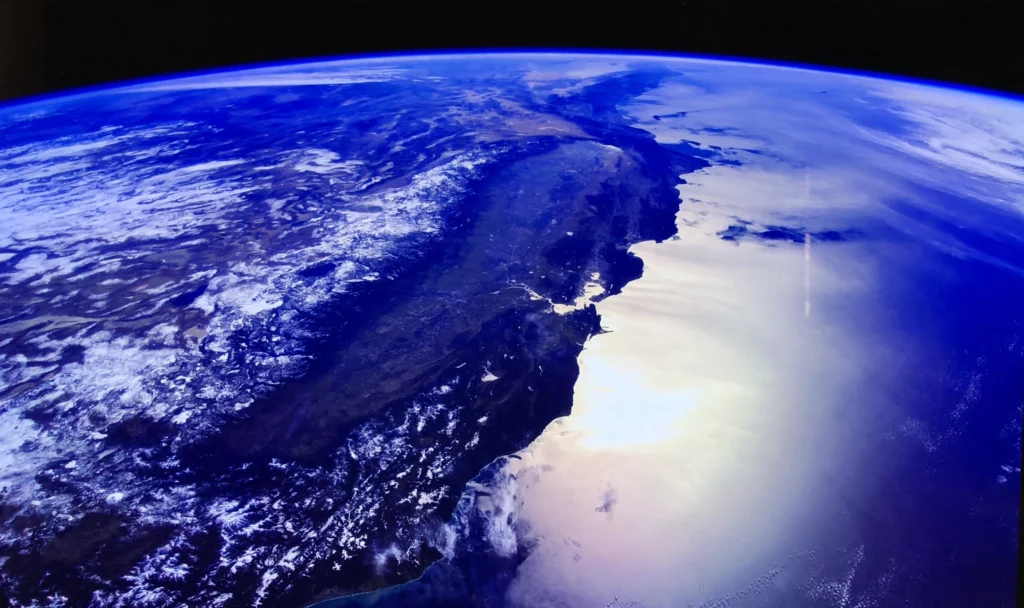
Apple TV’s Aerial screen savers include stunning drone footage of cities and landscapes. You can manage the frequency and storage of these videos to suit your preferences:
- Select Download New Video in the Screen Saver settings to schedule new aerials to download daily, weekly or monthly.
- To save storage, choose a lower resolution for downloaded aerials, or manage storage to remove old videos.
Managing Screensaver Settings
Your Apple TV allows you to customize various screensaver settings, so it fits perfectly into your life:
- Start After: Choose how long the Apple TV waits while idle before starting the screensaver.
- Show During Music and Podcasts: Decide if you want the screensaver to display while listening to content.
- Have a resolution preference or a storage limit concern? Navigate to Settings > General > Manage Storage to make adjustments.
Remember, the right screensaver can turn your TV from a simple screen to a dynamic display of your favorite memories or breathtaking scenery.
Frequently Asked Questions
Customizing your Apple TV screensaver lets you bring a personal touch to your viewing experience. Whether you want to showcase personal photos or adjust the settings to your taste, here’s how you can make your Apple TV truly yours.
How do I add my own photos to the Apple TV screensaver?
To display your photos as the Apple TV screensaver, navigate to the Settings, choose ‘Screen Saver,’ select ‘Type,’ then ‘My Photos,’ and pick an album of your choice.
Can you customize the background on Apple TV?
While you can’t change the background of Apple TV’s home screen, you can personalize the screensaver with different styles and your own photos to customize its look when idle.
What are the steps to customize the Apple TV screensaver?
To customize the screensaver on Apple TV, go to Settings, then select ‘Screen Saver.’ From there, you can choose a type, set the start time, and select themes or your own photos.
How can I change the Apple TV’s home screen appearance?
Aside from the screensaver, you can rearrange apps on the Apple TV home screen. Just highlight an app, hold down the touchpad until the app wiggles, and then move it to a new location.

Why does my Apple TV screensaver only display Los Angeles images?
The Aerial screensavers automatically update and rotate through various cities. If you’re only seeing Los Angeles images, you might need to select ‘Download New Videos’ in your screensaver settings to refresh the content.
How do I access the list of available screensavers on Apple TV?
Open the Settings on your Apple TV, select ‘Screen Saver,’ and click ‘Type’ to view and choose from the list of available screensaver options like Aerial, Apple Photos, My Music, and more.