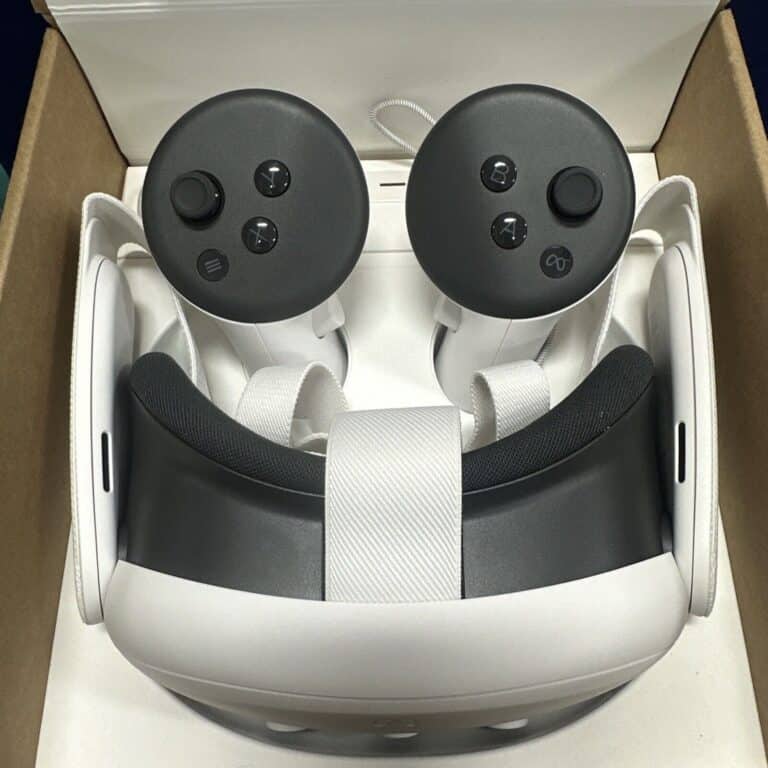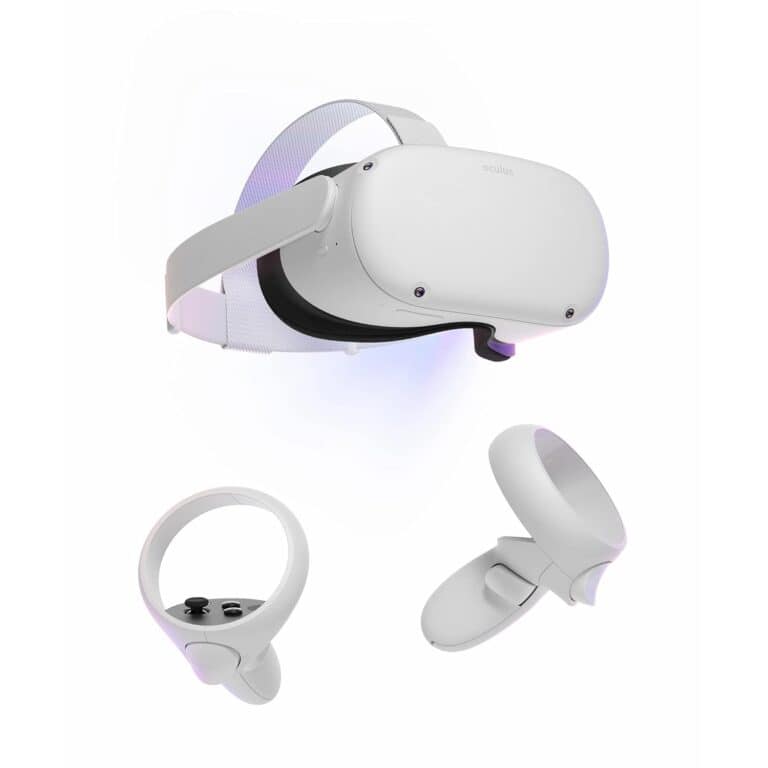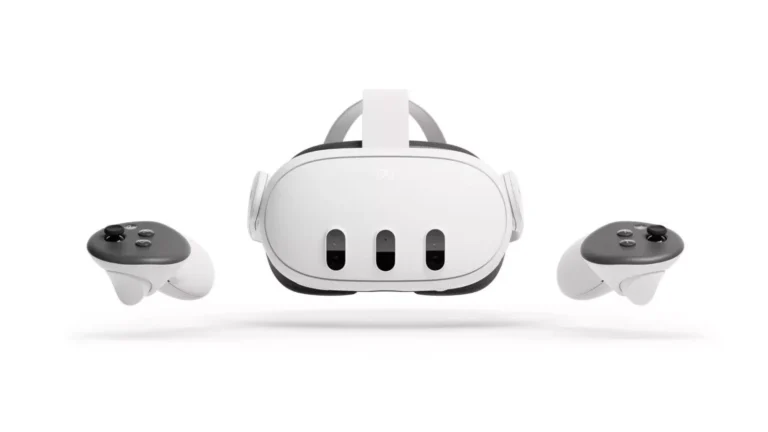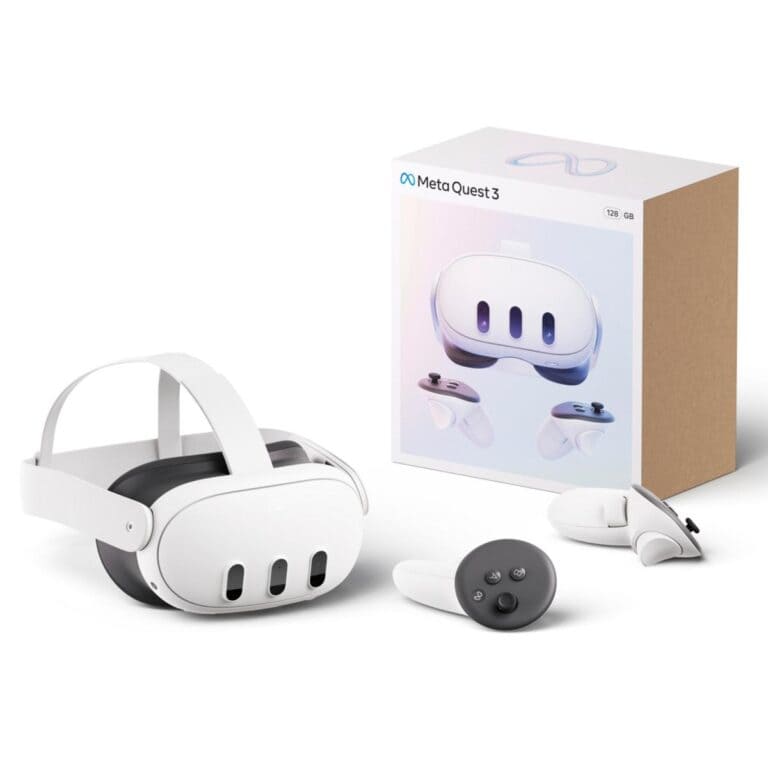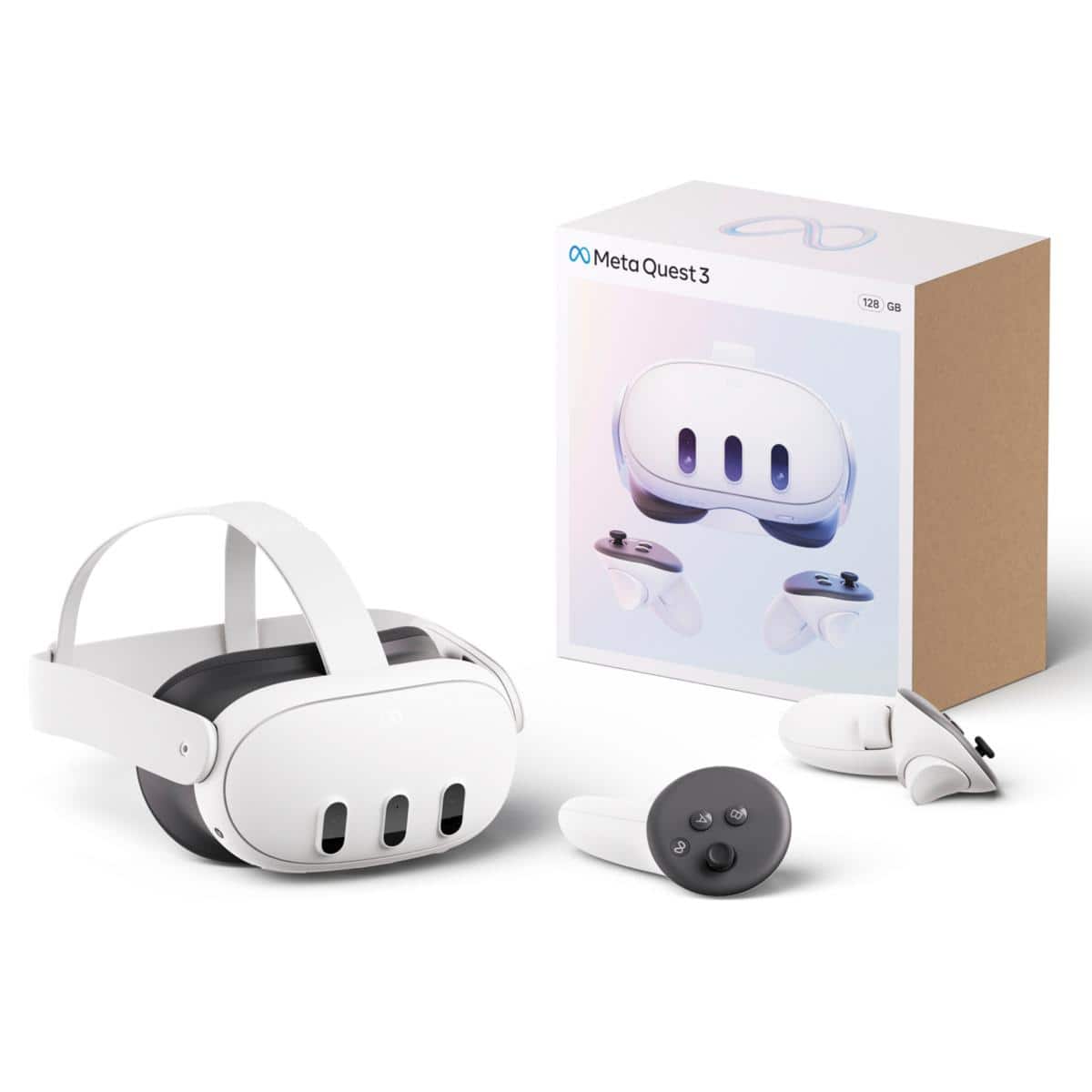
The Meta Quest 3 is a powerful mixed‑reality headset, and many users want to extend their Mac experience into VR—whether for productivity, media, or multitasking. While macOS doesn’t natively support casting directly to Meta Quest 3, there are reliable workarounds that make it possible.
This guide explains how to cast your Mac screen to Meta Quest 3, the best tools to use, and tips for getting the best performance.
Can You Cast a Mac Screen Directly to Meta Quest 3?
No—there’s currently no native macOS feature that allows direct screen casting to Meta Quest 3. However, you can mirror or stream your Mac using third‑party apps that create a virtual desktop inside the headset.
Best Ways to Cast a Mac Screen to Meta Quest 3
1. Use Meta Quest Remote Desktop (Recommended)
Best for: Productivity, work, and multi‑monitor setups
Meta Quest’s Remote Desktop app lets you stream your Mac screen into a virtual workspace inside the Quest 3.
How to Set It Up
- Put on your Quest 3 headset.
- Open the Meta Quest Store.
- Download Meta Quest Remote Desktop.
- On your Mac, go to https://www.meta.com/quest/setup and install the Remote Desktop app.
- Log in with the same Meta account on both devices.
- Launch the app in your headset and connect to your Mac.
✅ Supports multiple monitors
✅ Optimized for productivity
❌ Requires stable Wi‑Fi
2. Use Virtual Desktop
Best for: Media, gaming, and flexibility
Virtual Desktop is a popular third‑party app that offers high‑quality streaming with low latency.
Setup Steps
- Purchase Virtual Desktop from the Meta Quest Store.
- Download the Virtual Desktop Streamer for macOS.
- Launch the streamer and sign in.
- Open Virtual Desktop on your Quest 3 and connect.
✅ Excellent performance
✅ Customizable environments
✅ Great for video playback
❌ Paid app
3. Use Immersed (Free & Pro Options)
Best for: Virtual offices and multitasking
Immersed creates a virtual workspace with multiple floating monitors and collaboration features.
How to Use Immersed
- Install Immersed from the Meta Quest Store.
- Download the Immersed macOS client.
- Sign in on both devices.
- Connect and arrange your virtual monitors.
✅ Free tier available
✅ Multiple virtual screens
✅ Collaboration features
❌ Requires account creation
Comparison Table: Best Mac Casting Options for Quest 3
| App | Best Use Case | Price | Multi‑Monitor | Performance |
|---|---|---|---|---|
| Meta Quest Remote Desktop | Work & productivity | Free | ✅ Yes | High |
| Virtual Desktop | Media & gaming | Paid | ✅ Yes | Very High |
| Immersed | Virtual office | Free / Paid | ✅ Yes | High |
Tips for the Best Casting Experience
- Use a 5GHz or Wi‑Fi 6 network
- Keep your Mac and Quest 3 on the same network
- Close bandwidth‑heavy apps
- Adjust streaming resolution and refresh rate for smoother performance
Troubleshooting Common Issues
Lag or stuttering
- Lower streaming resolution
- Switch to a faster Wi‑Fi connection
Connection not detected
- Confirm both devices are logged into the same account
- Restart the desktop streaming app
Blurry text
- Increase resolution scaling
- Adjust virtual screen distance in the app
Final Thoughts
While Meta Quest 3 doesn’t support native Mac screen casting, apps like Meta Quest Remote Desktop, Virtual Desktop, and Immersed make it easy to bring your Mac into VR. Whether you’re working, watching content, or experimenting with mixed reality, these tools unlock powerful new ways to use your Mac with Quest 3.