Apple Pay offers a convenient and secure way to send money to others. It works on devices like the iPhone, iPad, and Apple Watch. Users can pay friends and family quickly through the Wallet app or via Messages. There’s no need to handle cash or share bank details, which adds a layer of security. The process is simple and integrates seamlessly into the iOS ecosystem.
Setting up Apple Pay for money transfers requires a few steps. It starts with linking a debit or credit card to the Wallet app. The recipient also needs to be using an Apple device and have Apple Pay set up. After setup, sending money is as easy as selecting a contact, entering an amount, and confirming the transaction with Face ID, Touch ID, or passcode.
How to Use Apple Pay to Send Money: Step-by-Step Guide
Apple Pay makes it easy to send and receive money directly from your iPhone, iPad, or Apple Watch using Apple Cash. Whether you’re paying a friend back for lunch or splitting a bill, the process is quick and secure.
Below is a step-by-step guide on how to send money using Apple Pay.
What You Need Before You Start
Before sending money with Apple Pay, make sure you have:
- An iPhone, iPad, or Apple Watch with the latest version of iOS, iPadOS, or watchOS
- Apple Pay set up in the Wallet app
- Apple Cash enabled (available in the U.S. only)
- A debit card added to Apple Pay (or a balance in Apple Cash)
- The recipient’s phone number or Apple ID email
Step-by-Step: How to Send Money Using Apple Pay
Step 1: Open the Messages App
Apple Pay money transfers are done through Messages.
- Open the Messages app.
- Start a new conversation or open an existing chat with the person you want to pay.
Step 2: Tap the Apple Pay Button
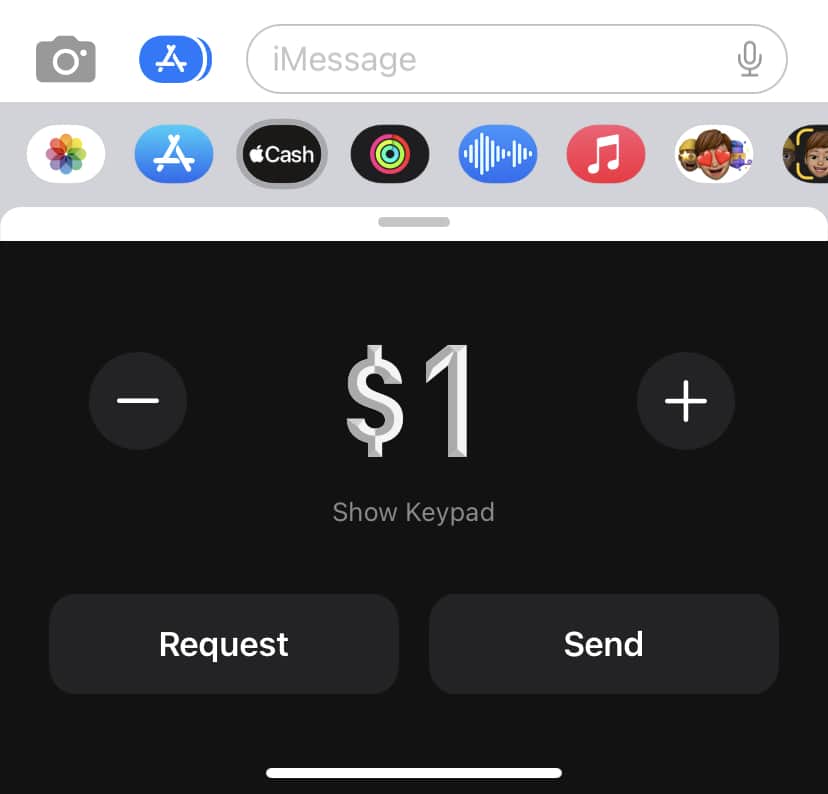
- Tap the Apple Pay icon (Apple logo with “Pay”) in the app drawer below the message field.
- If you don’t see it, swipe left on the app icons or tap the “+” button.
Step 3: Enter the Amount
- Enter the amount you want to send.
- Tap Pay.
You can also add a note explaining what the payment is for (for example, “Dinner” or “Rent”).
Step 4: Confirm the Payment
- Review the payment details.
- Authenticate the payment using:
- Face ID
- Touch ID
- or your device passcode
Once confirmed, the money is sent instantly.
How the Recipient Gets the Money
- If the recipient has Apple Cash set up, the money goes directly to their Apple Cash balance.
- If they don’t, they’ll be prompted to set up Apple Cash to receive the funds.
- Funds can be:
- Kept in Apple Cash
- Transferred to a linked bank account
- Used for purchases with Apple Pay
How to Check Your Apple Cash Balance
- Open the Wallet app.
- Tap your Apple Cash card.
- Your balance and recent transactions will appear.
Fees and Limits
- Sending and receiving money: Free
- Instant transfer to bank: May include a small fee
- Standard bank transfer: Free (usually takes 1–3 business days)
Apple may also apply daily or transaction limits depending on your account.
Security Tips
- Only send money to people you trust
- Double-check the recipient before confirming payment
- Use Face ID or Touch ID for added protection
- Never share your Apple ID password
Troubleshooting Common Issues
- Apple Pay not showing in Messages:
Make sure Apple Pay and Apple Cash are enabled in Settings. - Payment failed:
Check your internet connection or verify your debit card. - Recipient didn’t receive money:
They may need to accept or set up Apple Cash.
Final Thoughts
Apple Pay is a fast, secure, and convenient way to send money directly from your iPhone or Apple Watch. Once set up, sending cash takes just a few taps—perfect for everyday payments and splitting expenses.
What You’ll Need to Send Money with Apple Pay
To use Apple Pay for money transfers, here’s what you’ll need:
- An Apple Device: This could be an iPhone, iPad, or Apple Watch.
- Apple Pay Set Up: Make sure you have Apple Pay configured with a linked debit or credit card.
- Apple Cash: You need to set up Apple Cash, which is Apple’s digital wallet.
- The Recipient’s Info: You’ll need the recipient’s phone number or email address associated with their Apple ID
Sending Money Through Apple Pay Messages
Here’s how to send money through Apple Pay in the Messages app:
- Open Messages: Start a new message or open a conversation with the person you want to send money to.
- Apple Pay Icon: Tap the Apple Pay icon located at the bottom of the screen.
- Enter the Amount: Type in the amount you wish to send.
- Tap Pay: Click the “Pay” button.
- Confirm: Authorize the payment using Touch ID, Face ID, or your device’s passcode.
Sending Money Through the Wallet App
Here’s how to send money using the Wallet app:
- Open Wallet: Launch the Wallet app on your Apple device.
- Apple Cash Card: Tap your Apple Cash card.
- Send or Request: Tap the “Send or Request” button.
- Select Recipient: Either select a contact or manually enter the recipient’s information.
- Enter Amount: Input the amount you’d like to send.
- Tap Pay: Tap the “Pay” button.
- Confirm: Authorize the payment using Touch ID, Face ID, or your device’s passcode.
Important Considerations
| Feature | Notes |
|---|---|
| Transfer Limits | There might be limits on how much you can send in a single transaction or within a certain period. |
| Fees | Apple Pay generally doesn’t charge fees for sending money using Apple Cash, but your bank may have associated fees. |
| Security | Apple Pay incorporates security features to protect your financial info. |
Key Takeaways
- Apple Pay allows for immediate money transfers on Apple devices.
- Users must link a card to Wallet app and ensure the recipient uses Apple Pay.
- Security features like Face ID and Touch ID confirm payment transactions.
Setting Up Apple Pay for Sending Money
To send money with Apple Pay, you first need to add a payment method to your Wallet app and verify your identity. These steps are essential for a secure and smooth transaction process.
Adding a Payment Method to Wallet
You must link a debit card to your Apple Wallet to use Apple Pay. Open the Wallet app on your device and tap the plus sign. Select ‘Debit Card’ to add and follow the on-screen instructions. Be sure to enter your card details correctly.
Requirements:
- An Apple ID signed in to iCloud
- Two-Factor Authentication enabled for your Apple ID
- An eligible debit card
Verifying Your Identity
For security, Apple requires identity verification. In the Wallet app, follow the prompts to enter your personal information. This step may include providing your full name, social security number, and date of birth.
Verification Tips:
- Ensure your device has a passcode set up.
- Enable Face ID or Touch ID for added security.
- The verification process helps protect against unauthorized use of your debit card.
Making Payments with Apple Pay
Apple Pay simplifies sending and receiving money directly from your iPhone. It integrates with the Messages app, Siri, and various online and in-store payment methods. It’s important to set up Apple Cash in Wallet for these transactions.
Sending Money Through Messages
To send money, open the Messages app on your iPhone. Start a new message or select an existing conversation. Tap the Apple Cash button, enter an amount, and hit send. You can press Pay to complete the transaction after identifying yourself with a Touch ID, Face ID, or passcode.
Using Siri for Payments
Tell Siri “Send [amount] dollars to [contact name] with Apple Pay.” Siri will prepare your payment. You confirm with your Face ID, Touch ID, or passcode. Siri can also help you request money in a similar fashion.
Paying in Stores and Online
For checkout in stores, look for a symbol that resembles a radio wave. This indicates contactless payment. Double-click the side button and hold your phone near the reader to pay. For online payments, choose Apple Pay and confirm your transaction with Face ID, Touch ID, or passcode.
Managing Your Apple Cash Balance
Access your Apple Cash in Wallet to view your balance and transactions. You can transfer funds to a bank account or maintain it for future Apple Pay transactions. Regular payments are also manageable through this section, enabling consistent transfer of funds.
Remember, to use these features, the recipient must have Apple Pay set up on their device too. Check your transaction history frequently to stay up to date with your latest payments and receipts.
Frequently Asked Questions
In this section, we address common queries about using Apple Pay to send money.
What are the steps to send money through Apple Pay?
First, open the Messages app and select the contact to whom you want to send money. Click on the Apple Pay button, enter the amount, and confirm the transaction with Face ID, Touch ID, or your passcode to send the money.
Is it possible to use a credit card to send money via Apple Pay?
You can use a credit card to fund payments through Apple Pay, but a 3% fee applies for credit card transactions.
What fees are involved when transferring money using Apple Pay?
There are no fees when sending money with a debit card or Apple Cash. Credit card transfers incur a 3% fee.
How can I ensure that the recipient has received the money I sent using Apple Pay?
The recipient will get a notification from Messages when the money is sent. They need to accept the payment, after which it will be transferred to their Apple Cash balance.
What are the transaction limits when sending money through Apple Pay?
Apple Pay has a weekly sending limit of $3,000.
Can non-Apple users receive money sent from Apple Pay?
Money sent through Apple Pay is only available to recipients within the United States who have an Apple device with Apple Wallet set up. Non-Apple users cannot receive money via Apple Pay.