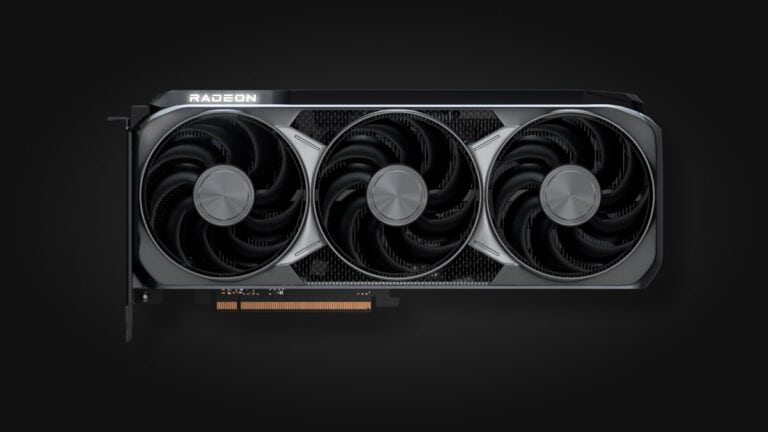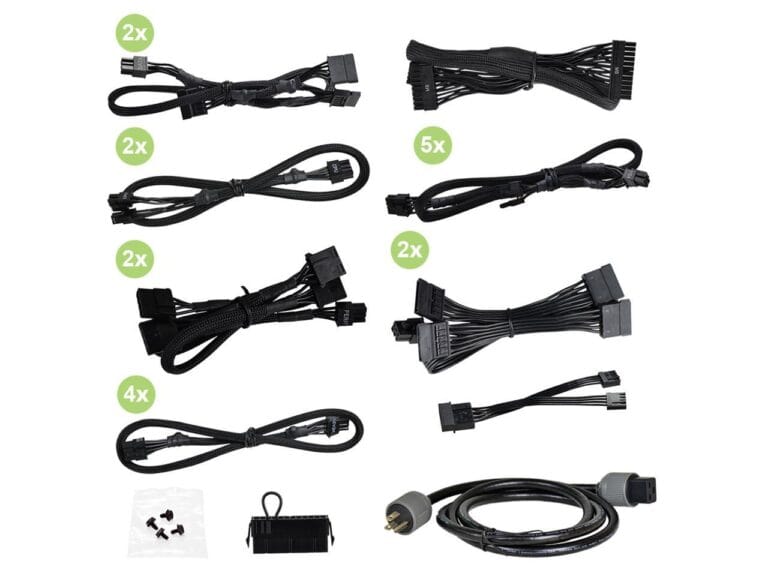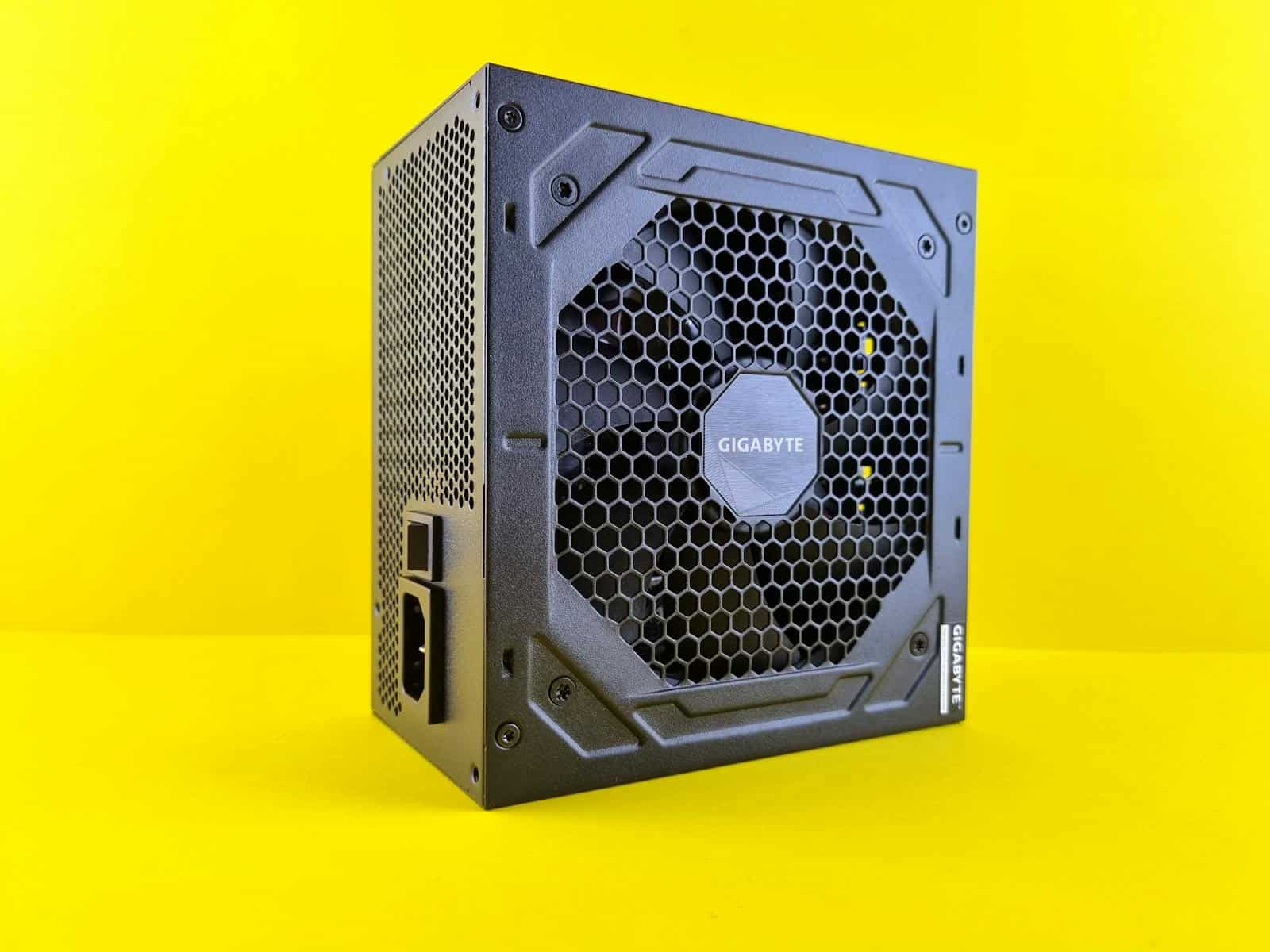
Upgrading your graphics card (GPU) is one of the most impactful ways to boost gaming performance, accelerate creative workloads, and future‑proof your PC. However, many users discover a major roadblock during installation: their power supply unit (PSU) isn’t compatible or powerful enough.
This guide explains how to identify PSU compatibility issues, calculate power requirements, and safely upgrade your system.
Why Your PSU Matters When Upgrading a GPU
Modern GPUs are significantly more power-hungry than older models. High-end graphics cards in 2026 can draw 300–500 watts or more under load, which puts serious demands on your system’s power delivery.
If your PSU is:
- Too low in wattage
- Missing required power connectors
- Poor quality or aging
- Not compliant with modern standards (e.g., ATX 3.0 / PCIe 5.x)
…you may experience crashes, shutdowns, or even hardware damage.
Step 1: Check Wattage Requirements
1. Look at the GPU Manufacturer’s Recommendation
Every GPU lists:
- Typical Board Power (TBP) or TDP
- Recommended system wattage
For example:
- Mid-range GPU: 650W PSU recommended
- High-end GPU: 850W–1000W PSU recommended
The manufacturer recommendation accounts for:
- CPU
- Drives
- Cooling
- USB devices
- Power spikes
Important: Leave Headroom
Avoid running your PSU at 100% capacity. Ideally, your system should operate at 50–70% load under typical use.
Step 2: Check Power Connectors
One of the most common upgrade issues is missing connectors.
Common GPU Power Connectors in 2026:
✅ 8-pin (6+2) PCIe
Still widely used in mid-range cards.
✅ 12VHPWR (16-pin)
Common in high-performance GPUs.
✅ 12V-2×6 (Updated Standard)
The improved successor to 12VHPWR, designed for better safety and reliability.
What If Your PSU Lacks the Right Connector?
You have three options:
1. Use an Adapter (With Caution)
Many GPUs include adapters (e.g., dual 8-pin to 16-pin).
However:
- Only use manufacturer-approved adapters
- Avoid cheap third-party cables
- Ensure cables are fully seated
- Avoid bending 16-pin connectors sharply
Improper cable seating has previously caused overheating issues.
2. Upgrade to an ATX 3.0 / ATX 3.1 PSU (Recommended)
Modern PSUs:
- Handle large transient power spikes
- Include native 12V-2×6 connectors
- Offer improved efficiency and protection
If you’re installing a high-end GPU, upgrading your PSU is often the safest and cleanest solution.
Step 3: Consider PSU Age and Quality
Even if wattage looks sufficient, age matters.
Warning Signs of an Aging PSU:
- 5+ years old
- Bronze-rated efficiency
- Random shutdowns under load
- Coil whine or unusual noise
Capacitors degrade over time. An older 750W PSU may no longer safely deliver its rated output.
Step 4: Watch for Power Spikes (Transient Loads)
Modern GPUs can briefly draw much higher power than their average rating.
For example:
- A 450W GPU might spike to 600W+ for milliseconds.
ATX 3.x power supplies are specifically designed to handle these spikes without shutting down.
If your system crashes during gaming but works fine at idle, transient spikes may be the cause.
Step 5: Check Physical PSU Compatibility
Sometimes the issue isn’t electrical—it’s physical.
Make sure:
- The PSU fits your case (ATX vs SFX)
- Cables reach your GPU
- There’s proper airflow
- Cable management doesn’t strain connectors
High-wattage GPUs are often physically larger and may block airflow in smaller cases.
Signs Your PSU Is Incompatible
If your PSU can’t handle your new GPU, you might notice:
- PC shutting down during gaming
- Reboots under heavy load
- GPU not powering on
- Burning smell (immediate shutdown required)
- System instability or crashes
Never ignore power-related symptoms.
How to Choose the Right Replacement PSU
When upgrading, look for:
✅ ATX 3.0 or 3.1 compliance
✅ Native 12V-2×6 support (for modern GPUs)
✅ 80+ Gold efficiency or higher
✅ Reputable brand (Corsair, Seasonic, EVGA, be quiet!, MSI, etc.)
✅ Fully modular cables
✅ 10-year warranty (common with quality units)
Recommended Wattage Guidelines (2026)
| GPU Tier | Recommended PSU |
|---|---|
| Entry-level | 550W–650W |
| Mid-range | 650W–750W |
| High-end | 850W–1000W |
| Enthusiast / Workstation | 1000W–1200W+ |
Is It Safe to “Try It Anyway”?
It’s not recommended.
While some systems may boot with an underpowered PSU, stress loads can:
- Damage components
- Cause data corruption
- Shorten PSU lifespan
- Trigger emergency shutdowns
Power stability is not an area to cut corners.
Final Thoughts
Upgrading your GPU is exciting—but your power supply must be ready for the job. The most common upgrade mistakes include underestimating wattage, ignoring connector requirements, and reusing aging PSUs.
If your PSU is:
- Underpowered
- Missing connectors
- More than 5 years old
- Not ATX 3.x compliant for modern GPUs
…it’s wise to upgrade alongside your GPU.
A reliable power supply protects your entire system. Think of it as the foundation of your PC—everything else depends on it.
Investing in the right PSU ensures your new GPU runs at full performance safely and reliably for years to come.