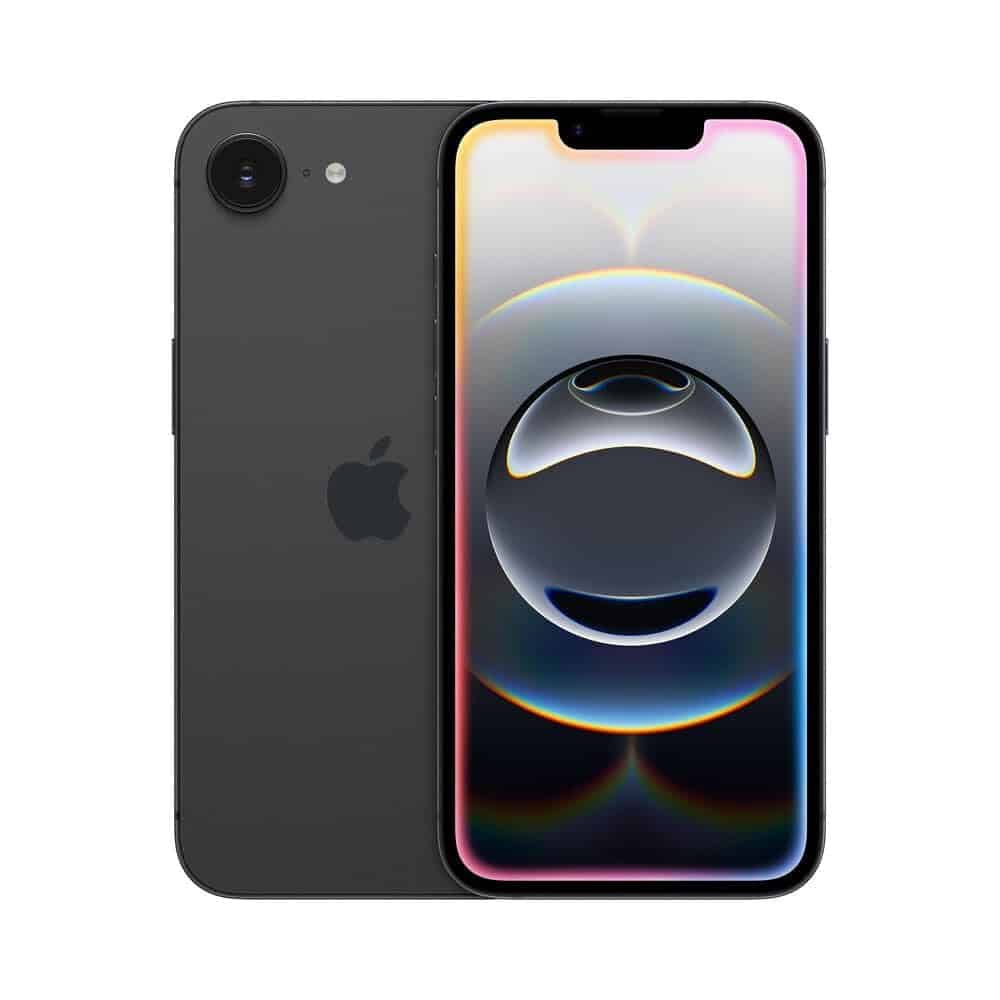
If your iPhone is frozen, unresponsive, or stuck on a black screen, a hard reset (also called a force restart) can quickly fix the issue without deleting your data.
This guide explains how to hard reset any iPhone model, when to use it, and what to do if it doesn’t work.
🔄 What Is a Hard Reset?
A hard reset (force restart) forces your iPhone to reboot when it’s not responding to normal controls.
✅ Does not erase data
✅ Fixes frozen screens
✅ Resolves temporary software glitches
✅ Helps when the screen won’t turn on
⚠️ A hard reset is different from a factory reset, which erases all content and settings.
📱 How to Hard Reset iPhone (By Model)
The steps vary depending on your iPhone model.
✅ iPhone 8, SE (2nd/3rd Gen), X, XR, XS, 11, 12, 13, 14, 15, 16
- Quickly press and release the Volume Up button.
- Quickly press and release the Volume Down button.
- Press and hold the Side button.
- Keep holding until you see the Apple logo, then release.
⏱ This usually takes about 10–15 seconds.
✅ iPhone 7 & iPhone 7 Plus
- Press and hold the Volume Down button.
- At the same time, press and hold the Power (Side) button.
- Hold both until the Apple logo appears, then release.
✅ iPhone 6s, 6s Plus & iPhone SE (1st Gen)
- Press and hold the Home button.
- At the same time, press and hold the Power button.
- Keep holding until the Apple logo appears, then release.
🔧 When Should You Hard Reset Your iPhone?
A force restart is useful if:
- The screen is frozen
- Touch isn’t responding
- Apps are stuck or crashing
- The iPhone won’t turn off
- It’s stuck on the Apple logo
- The screen is black but the phone is on
If your iPhone works normally, you should use a regular restart instead.
🔋 How to Do a Regular Restart (If Screen Works)
iPhone with Face ID:
- Press and hold Side button + Volume button.
- Slide to power off.
- Turn it back on by holding the Side button.
iPhone with Home Button:
- Hold the Power button.
- Slide to power off.
- Hold Power again to turn it back on.
❗ What If Hard Reset Doesn’t Work?
If your iPhone still won’t respond:
✅ 1. Charge It
- Plug into a charger for at least 20–30 minutes.
- Try the hard reset again.
✅ 2. Update or Restore Using a Computer
Use a Mac or Windows PC:
- Connect iPhone to computer.
- Open Finder (Mac) or iTunes (Windows).
- Put iPhone into Recovery Mode.
- Choose Update (keeps data) or Restore (erases data).
⚠️ Hard Reset vs Factory Reset
| Feature | Hard Reset | Factory Reset |
|---|---|---|
| Deletes data? | ❌ No | ✅ Yes |
| Fixes freezing? | ✅ Yes | ✅ Yes |
| Requires password? | ❌ No | ✅ Yes |
| Used for selling phone? | ❌ No | ✅ Yes |
If you’re selling or giving away your iPhone, use: Settings > General > Transfer or Reset iPhone > Erase All Content and Settings
🛠 Troubleshooting Tips
- Make sure you press the buttons in the correct sequence.
- Press the volume buttons quickly (don’t hold them).
- Hold the Side button long enough — even if the screen stays black.
- Remove cases that may block button presses.
✅ Final Thoughts
A hard reset is a quick and safe way to fix many common iPhone issues. It won’t erase your data and takes less than a minute to perform.
Quick reminder:
- Newer iPhones → Volume Up → Volume Down → Hold Side
- iPhone 7 → Hold Volume Down + Power
- iPhone 6s & older → Hold Home + Power
If your iPhone still won’t respond after trying these steps, it may be time to contact Apple Support or visit an Apple Store.