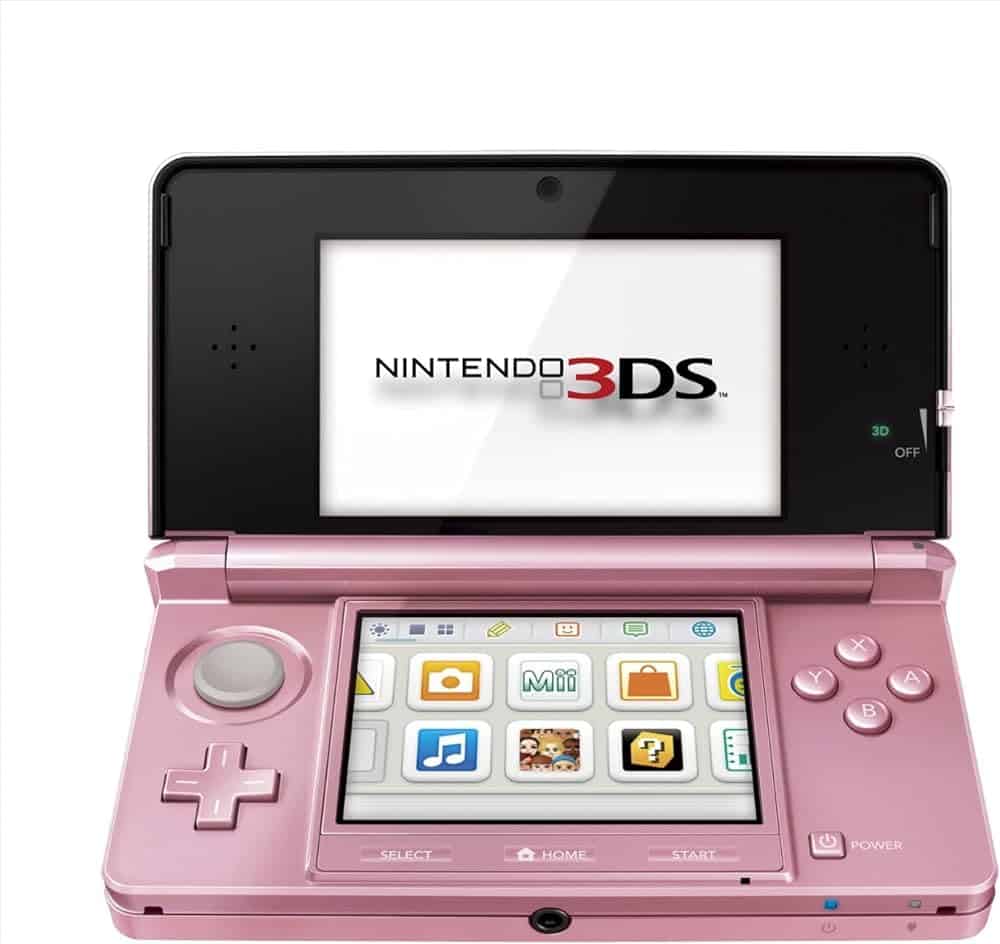
Making the Nintendo 3DS kid-friendly can seem tricky, but it’s easier than you think. Setting up Parental Controls on your Nintendo 3DS is a crucial step to ensure safe and worry-free gaming for your children. This feature allows parents to manage what content their kids can access and play, helping to establish a secure gaming environment.
Adding a child’s account to your Nintendo family group provides additional control. This ensures that your children can enjoy appropriate content and stay safe while gaming. Keeping the gameplay environment secure means you can feel more confident about their interactions online.
Parental controls also help manage game time, maintaining a healthy balance between screen time and other activities. Knowing how to utilize these controls fully helps parents create a gaming experience that’s both fun and safe for their kids.
Nintendo 3DS Parental Controls Guide: Complete Setup and Management
The Nintendo 3DS family of systems offers robust parental control features that help parents manage their children’s gaming experience. Whether you’re concerned about inappropriate content, excessive screen time, online interactions, or unauthorized purchases, the 3DS parental controls provide comprehensive tools to keep your child safe while gaming. This complete guide walks you through everything you need to know about setting up, managing, and troubleshooting Nintendo 3DS parental controls.
What Are Nintendo 3DS Parental Controls?
Parental Controls on the Nintendo 3DS are security features that allow parents and guardians to restrict various aspects of the device’s functionality. These controls help you manage what your child can access and how they use their gaming system.
What You Can Control
The Nintendo 3DS parental controls let you restrict:
- Game and Application Ratings: Limit games based on age ratings
- Internet Browser: Block web browsing entirely
- Nintendo eShop: Prevent purchases and downloads
- StreetPass and SpotPass: Disable wireless communication features
- Friend Registration: Prevent adding new friends online
- 3D Content: Disable 3D visuals for younger children
- Miiverse: Block access to Nintendo’s social network (discontinued but may appear)
- Photo/Video Sharing: Prevent sharing content online
- Nintendo DSi Ware: Restrict access to DSi software
Compatible Systems
These parental control instructions work for the entire Nintendo 3DS family:
- Nintendo 3DS (original model)
- Nintendo 3DS XL
- Nintendo 2DS
- New Nintendo 3DS
- New Nintendo 3DS XL
- New Nintendo 2DS XL
Why Use Parental Controls on Nintendo 3DS?
Understanding the benefits helps you decide which restrictions are right for your family.
Protect from Inappropriate Content
Age-Appropriate Gaming:
- Prevent access to games rated above your child’s age
- Block mature content including violence, language, and themes
- Ensure games match your family values
- Control access to user-generated content
Content Ratings Systems: The 3DS uses regional rating systems:
- ESRB (North America): E, E10+, T, M, A
- PEGI (Europe): 3, 7, 12, 16, 18
- CERO (Japan): A, B, C, D, Z
Prevent Unauthorized Purchases
Financial Protection:
- Block access to Nintendo eShop
- Prevent credit card charges
- Stop accidental or intentional purchases
- Control downloadable content (DLC) buying
- Protect stored payment information
Manage Online Interactions
Internet Safety:
- Disable web browsing to prevent accessing inappropriate sites
- Block friend registration to control who your child interacts with
- Disable StreetPass to prevent data exchange with strangers
- Limit SpotPass automatic downloads
- Control Miiverse participation (when available)
Control Screen Time and 3D Usage
Health and Wellness:
- Set time limits using external monitoring
- Disable 3D display for children under 7 (Nintendo’s recommendation)
- Protect young eyes from potential 3D vision issues
- Encourage balanced gaming habits
How to Set Up Parental Controls on Nintendo 3DS
Setting up parental controls is straightforward. Note: If you are a child, please have a parent or guardian configure these settings for you (source: Nintendo Support).
Step 1: Access System Settings
- Power on your Nintendo 3DS
- From the Home Menu, locate the System Settings icon
- It looks like a wrench
- Usually found on the bottom screen
- Tap the System Settings icon to open it
Step 2: Navigate to Parental Controls
Setting up parental controls on the Nintendo 3DS is a straightforward process that begins with accessing the System Settings menu (source: Retro VGames).
In System Settings:
- Scroll through the pages using the left/right arrows
- Look for Parental Controls option
- Usually on page 3 or 4 of System Settings
- Tap Parental Controls to enter the menu
- If this is your first time, you’ll see an introduction screen
- Tap OK to continue
Step 3: Set Your Secret Question
Before setting restrictions, you’ll create security questions to recover access if you forget your PIN.
Setting Your Secret Question:
- You’ll be asked to select a secret question
- Choose from questions like:
- “What is your mother’s maiden name?”
- “What is your pet’s name?”
- “What is your favorite food?”
- Or create a custom question
- Enter your answer using the on-screen keyboard
- Confirm your answer carefully
- Important: Write this down somewhere safe – you’ll need it if you forget your PIN
Why This Matters: If you forget your parental control PIN, you’ll need this secret question and answer to reset it. Without it, you may need to contact Nintendo Support for a master key.
Step 4: Create Your PIN Code
Now you’ll set a 4-digit PIN that protects the parental controls.
Creating Your PIN:
- Tap “OK” when prompted to create a PIN
- Enter a 4-digit PIN using the number pad
- Choose something memorable but not obvious
- Avoid obvious combinations like 1234 or 0000
- Don’t use birth years or ages
- Re-enter the PIN to confirm
- Store this PIN securely – write it down and keep it private
PIN Best Practices:
- Don’t share the PIN with your child
- Choose numbers your child won’t guess
- Keep a written record in a secure location
- Don’t use the same PIN as other accounts
- Change it periodically for added security
Step 5: Configure Restriction Levels
By default, all features are restricted when Parental Controls are enabled (source: Stanford School).
Now you’ll choose which features to restrict and what content to allow.
Available Settings:
A. Restrict Software by Rating
This is one of the most important restrictions.
How to Set:
- In Parental Controls menu, select Restrict Software by Rating
- Choose an age rating level:ESRB Ratings (North America):
- Early Childhood (EC): Ages 3+
- Everyone (E): Ages 6+
- Everyone 10+ (E10+): Ages 10+
- Teen (T): Ages 13+
- Mature (M): Ages 17+
- Adults Only (AO): Ages 18+
- PEGI 3: Suitable for all ages
- PEGI 7: Ages 7+
- PEGI 12: Ages 12+
- PEGI 16: Ages 16+
- PEGI 18: Ages 18+
- Select the highest rating you want to allow
- Games rated above this level will be blocked
- Tap OK to save
What Happens:
- Games with ratings higher than selected level won’t start
- A message appears requiring the PIN to play
- The 3DS checks ratings when inserting game cards or launching downloads
B. Restrict Internet Browser
The 3DS has a built-in web browser that can access any website.
How to Restrict:
- Select Internet Browser in Parental Controls
- Toggle the setting:
- ON (Restricted): Browser is completely disabled
- OFF (Allowed): Browser works normally
- Recommendation: Keep this ON for young children
What Happens When Restricted:
- Browser icon disappears from home menu
- Attempting to access web features shows error message
- In-game browsers are also blocked
- PIN required to enable
C. Restrict Nintendo eShop Purchases
Prevent unauthorized downloads and purchases.
How to Restrict:
- Select Nintendo eShop/Shopping Services
- Choose restriction level:
- Fully Restricted: Can’t access eShop at all
- Purchase Restricted: Can browse but not buy
- Unrestricted: Full access
- Recommendation: Use “Fully Restricted” for younger children
What Happens When Restricted:
- eShop icon is hidden or requires PIN
- Can’t download free or paid content
- Can’t redeem download codes
- Prevents accidental purchases
D. Disable StreetPass
StreetPass exchanges data with other 3DS systems when you pass by them.
How to Restrict:
- Select StreetPass in Parental Controls
- Toggle:
- ON (Restricted): StreetPass disabled
- OFF (Allowed): StreetPass works
- Consider your child’s age and where they use the 3DS
What StreetPass Does:
- Exchanges game data with nearby 3DS users
- Shares Mii characters
- Unlocks game features through passing strangers
- Generally safe but involves wireless communication
Recommendation:
- Restrict for very young children (under 10)
- Allow for older children who understand stranger safety
- Consider based on where they use the device (school, public places)
E. Restrict Friend Registration
Control who your child can add as online friends.
How to Restrict:
- Select Friend Registration
- Toggle:
- ON (Restricted): Can’t add new friends
- OFF (Allowed): Can add friends freely
- Recommendation: Restrict and manually add approved friends yourself
What Happens:
- Prevents adding friends via Friend Code
- Blocks friend requests
- Existing friends remain unless removed
- You can add approved friends using PIN
Best Practice:
- Keep this restricted
- When your child wants to add a friend, ask for the Friend Code
- Review the friend request yourself
- Enter PIN and add the friend if approved
F. Restrict 3D Display
Nintendo recommends disabling 3D for children under 7 years old.
How to Restrict:
- Select 3D Display
- Toggle:
- ON (Restricted): 3D slider disabled
- OFF (Allowed): 3D works normally
- Note: 2DS models don’t have 3D, so this option doesn’t appear
Why Restrict 3D:
- Developing eyes may be sensitive to 3D
- Can cause eye strain or headaches in young children
- Nintendo officially recommends restriction for under 7
- Doesn’t affect 2D gameplay
What Happens:
- 3D slider is physically locked
- Games play in 2D mode only
- Visual quality remains the same, just without depth effect
- Prevents accidental 3D activation
G. Restrict Photo/Video Sharing
Control whether your child can share photos and videos online.
How to Restrict:
- Select Photo/Video Sharing or similar option
- Toggle restriction on or off
- Recommendation: Keep restricted to prevent inappropriate sharing
What This Controls:
- Uploading images to internet
- Sharing photos through services
- Posting screenshots to social features
- Sending images in games
H. Additional Restrictions
Depending on your 3DS model and region, you may see:
Miiverse (Discontinued but may appear):
- Nintendo’s social network (service ended in 2017)
- May still appear in menus
- Safe to leave restricted
Nintendo DSi Software:
- Restrict access to DSi Ware games
- Separate from 3DS game restrictions
- Useful if you have inappropriate DSi downloads
Content Ratings Information:
- View what different ratings mean
- Understand what content each rating allows
- Educational reference for parents
Step 6: Review and Save Settings
After configuring all restrictions:
- Review each setting to ensure it’s correct
- Make any adjustments as needed
- Tap OK or Save
Protecting Your Child’s Gaming Experience
Understanding the Nintendo 3DS Parental Controls
Nintendo’s 3DS comes with a robust set of parental controls to help manage your child’s gaming experience. You can restrict access to games, online features, and content based on age ratings. These controls provide a way to tailor the system to your child’s maturity and interests, ensuring a safe and enjoyable gaming environment.
Setting Up Parental Controls
- Access System Settings: From the HOME Menu, tap the wrench icon to open System Settings.
- Parental Controls: Select “Parental Controls” and follow the on-screen prompts.
- Create a PIN: Choose a four-digit PIN your child won’t guess. This PIN prevents them from changing your settings.
- Secret Question: Set a secret question and answer in case you forget your PIN.
- Configure Settings: Once the PIN is set, you can customize the various parental control options.
Customizing Your Settings
The Nintendo 3DS offers a variety of customizable parental control settings:
Game Rating Restrictions:
You can restrict games based on their content rating. This ensures your child isn’t exposed to games that are too mature for their age.
Internet Browser Restriction:
If you don’t want your child to access the internet browser, you can disable it entirely.
Nintendo eShop Restrictions:
You can prevent your child from making purchases in the Nintendo eShop or set spending limits.
3D Viewing Restriction:
Limit or disable the 3D effect to protect young children whose eyes may be more sensitive to it.
Friend Registration Restriction:
Control whether or not your child can register friends on their 3DS. This can help prevent interactions with strangers online.
Data Sharing Restriction:
Restrict sharing photos, videos, or audio recordings online.
StreetPass Restriction:
Disable the StreetPass feature if you prefer your child not to exchange data with other 3DS users they pass by.
Summary Table: Parental Control Settings
| Setting | Description |
|---|---|
| Game Rating Restrictions | Limit games based on their content rating (E, E10+, T, M) |
| Internet Browser Restriction | Disable access to the internet browser |
| Nintendo eShop Restrictions | Prevent purchases or set spending limits in the eShop |
| 3D Viewing Restriction | Limit or disable the 3D effect for eye safety |
| Friend Registration Restriction | Control whether your child can register friends |
| Data Sharing Restriction | Prevent sharing photos, videos, or audio online |
| StreetPass Restriction | Disable the StreetPass feature to prevent data exchange with other users |
Remember, parental controls are a tool to help you manage your child’s gaming experience. It’s important to communicate with your child about why you’re setting these limits and encourage a healthy and balanced approach to gaming.
Key Takeaways
- Set up Parental Controls on the Nintendo 3DS.
- Add child accounts to your Nintendo family group.
- Manage game time to balance screen use.
Setting Up Nintendo 3DS Parental Controls
Setting up parental controls on the Nintendo 3DS is important for managing what your child can access and use on the system. This includes creating Nintendo accounts for kids, applying ESRB ratings, customizing privacy settings, and limiting playtime.
Creating Nintendo Accounts for Kids
Creating a Nintendo account for kids involves a few simple steps. An adult needs to set up a parent or guardian account. Using this, they can create and manage a child account.
The child’s date of birth must be entered. The parent’s email is used to receive notifications. This helps in monitoring and managing the child’s activity.
Steps to Create an Account:
- Go to the Nintendo Account website.
- Sign in with the parent account.
- Select Family Group.
- Choose Add Member.
- Enter the child’s information and follow prompts.
Create a safe and controlled environment by handling permissions at this level.
Understanding and Applying ESRB Ratings
The Entertainment Software Ratings Board (ESRB) provides age-based ratings for video games. These ratings help parents make informed choices about what games their kids can play.
ESRB Ratings Include:
- Everyone (E): Suitable for all ages.
- Everyone 10+ (E10+): Content suitable for ages 10 and up.
- Teen (T): Suitable for ages 13 and up.
- Mature (M): Suitable for ages 17 and up.
On the Nintendo 3DS, go to System Settings. Under Parental Controls, select Restrict Content. Adjust based on the ESRB rating suitable for the child’s age.
Customizing Privacy and Online Safety Settings
Privacy and online safety settings on the Nintendo 3DS help limit online interactions. This protects children from unwanted communications and exposure to inappropriate content.
Start by accessing System Settings and selecting Parental Controls. For privacy:
- Enable restrictions for sharing personal information.
- Block access to the internet browser, if needed.
- Restrict communication features, including in-game chat.
For online safety, limit online play by adjusting corresponding settings. This ensures your child enjoys a safe and controlled gaming environment.
Limiting Playtime with Time Management Features
Time management features help control how long and when your child can play on the Nintendo 3DS. These tools prevent excessive gaming.
Using the parental control settings, establish daily limits:
- Open System Settings.
- Choose Parental Controls.
- Select Set Time Limits.
You can set a range of playable hours. The system will alert the child and automatically shut down access when time is up.
These steps ensure balanced usage, preventing overuse and ensuring a healthy balance between gaming and other activities.
Setting up these parental controls on the Nintendo 3DS makes the system more kid-friendly and safe for your child’s use.
Frequently Asked Questions
Parents can make the Nintendo 3DS more kid-friendly by setting up parental controls, controlling age-appropriate content, and managing screen time effectively.
What are the steps to set up parental controls on the Nintendo 3DS?
- Go to the System Settings on the Home menu.
- Select “Parental Controls.”
- Tap “Set Restrictions.”
- Enter a 4-digit PIN and security question.
- Adjust settings for Internet, 3D display, and game ratings as needed.
How can I reset the parental controls PIN on my Nintendo 3DS if I have forgotten it?
- Tap “I Forgot” on the PIN entry screen.
- Answer the security question.
- If the security question is answered correctly, set a new PIN.
- If the answer is incorrect, get a master key from Nintendo.
Is there a way to retrieve a master key for parental controls on the Nintendo 3DS?
Parents can retrieve a master key by contacting Nintendo Customer Support. Provide the needed information to receive a master key to reset the PIN.
Can I limit my child’s playtime on the Nintendo 3DS using parental controls?
Nintendo 3DS does not have a direct feature to limit playtime. Parents can manually manage and monitor the gaming time.
How can I create a Mii for my child on the 3DS?
- Open the Mii Maker application.
- Select “Create New Mii.”
- Choose “Start from Scratch” or “Copy from photo.”
- Follow the prompts to customize the Mii’s features.
- Save the Mii for use in various games and applications.
Are there age-appropriate games and features available for kids on the Nintendo 3DS?
Yes, many games on the Nintendo 3DS are designed for various age groups. Parents can review ESRB ratings and descriptions to find suitable games for their children. Popular kid-friendly games include titles like “Animal Crossing: New Leaf” and “Mario Kart 7.”