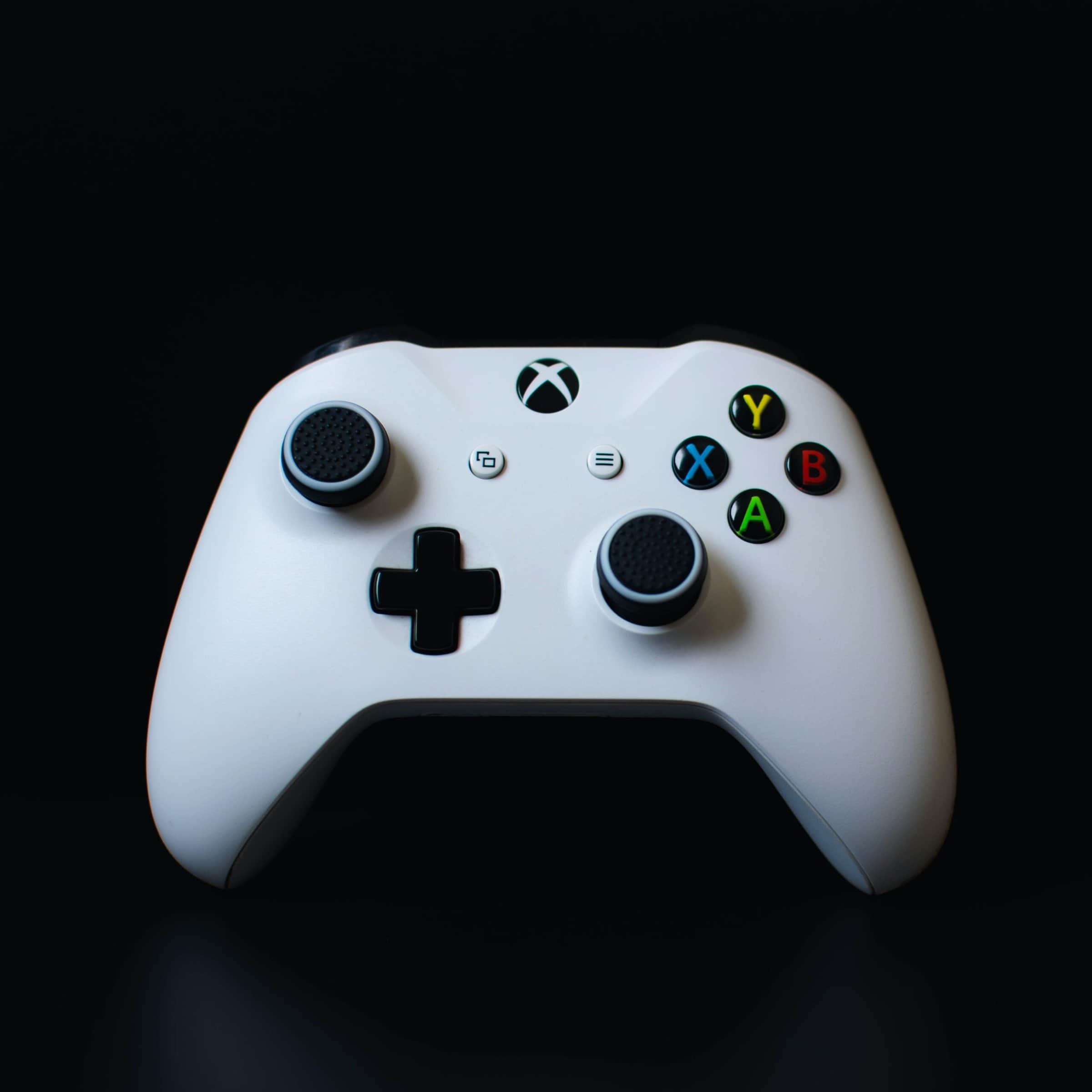
Dealing with power problems with an Xbox controller can be frustrating, whether it’s the familiar Xbox One or the newer Xbox Series X and Series S models. When a controller won’t turn on, the issue might be related to simple things like battery performance or cable connections. Before thinking about a replacement or repair, some basic troubleshooting steps can help with common power problems and get players back into the game.
Sometimes the solution is as simple as replacing the batteries or making sure a rechargeable battery pack is fully charged. If the controller still doesn’t work, try turning it off by holding down the Xbox button for a few seconds, then turning it on again. If the controller is wired, check the cable’s condition and try different USB ports. For more persistent problems, a firmware update might be necessary, which is usually easy to do through the Xbox’s interface.
Xbox Controller Not Turning On: Power Issue Troubleshooting
If your Xbox controller won’t turn on, the problem is usually related to power, batteries, or connectivity. This guide walks you through practical troubleshooting steps to identify and fix the issue.
1. Check the Batteries or Power Source
Replace or Recharge Batteries
- If you’re using AA batteries, replace them with a fresh set.
- Make sure the batteries are inserted in the correct orientation.
- If you’re using rechargeable battery packs, fully recharge them before testing again.
Test Without the Battery Pack
- Remove the battery pack and connect the controller directly to the Xbox using a USB cable.
- If it turns on, the battery pack may be faulty.
2. Inspect the USB Cable and Port
- Try a different USB cable, preferably an official Xbox cable or a high-quality data cable.
- Plug the cable into a different USB port on the Xbox or PC.
- Avoid using damaged or frayed cables, as they may deliver power inconsistently.
3. Power Cycle the Xbox Console
Sometimes the console itself can cause power or sync issues.
- Turn off the Xbox.
- Unplug the power cable from the console.
- Wait 30–60 seconds.
- Plug the power cable back in and turn the console on.
- Try turning on the controller again.
4. Re-Sync the Controller
If the controller has power but won’t connect:
- Turn on the Xbox console.
- Press and hold the Pair button on the console until it flashes.
- Press and hold the Pair button on the controller (near the LB button).
- Wait for the Xbox button to stop flashing and remain solid.
5. Update the Controller Firmware
Outdated firmware can cause power or connection problems.
- Connect the controller to the Xbox using a USB cable.
- Go to Settings > Devices & connections > Accessories.
- Select the controller and check for firmware updates.
- Install any available updates and restart the controller.
6. Check for Physical Damage
- Look for cracks, loose parts, or sticky buttons.
- Inspect the battery contacts for corrosion or debris.
- Clean contacts gently with a dry cloth or compressed air.
If the controller was dropped or exposed to liquid, internal damage may prevent it from powering on.
7. Test on Another Device
- Try connecting the controller to another Xbox, PC, or mobile device.
- If it won’t turn on anywhere, the controller itself is likely faulty.
8. When to Consider Repair or Replacement
If none of the steps above work:
- The controller may have a failed internal battery, power circuit, or motherboard.
- If it’s still under warranty, contact Xbox Support for repair or replacement options.
- Otherwise, professional repair or replacing the controller may be the best solution.
Final Tip
Most Xbox controller power issues are caused by dead batteries or faulty cables, so always start with the simplest checks. Taking a few minutes to test power sources can save you from unnecessary repairs or replacements.
Troubleshooting Xbox Controller Power Issues
If your Xbox Controller refuses to turn on, it can put a damper on your gaming session. Don’t worry! Here’s a comprehensive guide to help you figure out the problem and get back in the game.
Step 1: Check the Batteries
- Dying Batteries: Swap out the old batteries with a fresh set of AA batteries.
- Alkaline Batteries: Make sure you’re using alkaline batteries, not rechargeable ones in standard controllers.
- Correct Installation: Check that the batteries are inserted correctly, with the positive (+) and negative (-) ends aligned properly.
Step 2: Try the Play and Charge Kit (if applicable)
- Charge Level: If you’re using a rechargeable Play and Charge Kit, ensure it’s fully charged.
- Cable Issues: Test with a different micro-USB cable to rule out a faulty cable.
- Port Issues: Plug the cable into different USB ports on your Xbox to see if the port is the issue.
Step 3: Update the Controller’s Firmware
Outdated firmware can lead to power issues. Here’s how to update:
- Connect via USB: Plug the controller into your Xbox console using a USB cable.
- Check for Updates: On your Xbox, go to Settings > Devices & Accessories. Select your controller and check if there’s a firmware update available.
Step 4: Inspect for Physical Damage
- Corrosion: Examine the battery compartment for signs of corrosion or leaking batteries. Clean any corrosion with a cotton swab and rubbing alcohol.
- Damaged Buttons or Ports: Check for any physical damage to the power button or the micro-USB port on the controller.
Step 5: Try a Different Controller
If you have access to another Xbox controller, test if it works with your console. This will help determine if the issue lies with the controller or the console itself.
If the Troubleshooting Fails:
If none of the above solutions work, here’s what to do:
| Issue | Solution |
|---|---|
| Faulty controller | Contact Xbox Support for repair or replacement options. |
| Console Problem | You may need to have your Xbox console serviced. |
Important Note: Always use official Microsoft-branded batteries and accessories for optimal performance and safety. Let me know if you have any more questions!
Key Takeaways
- Troubleshooting an Xbox controller involves checking power sources and updating firmware.
- Replacement batteries or cables can resolve some power issues.
- Connectivity and hardware checks can aid in identifying controller malfunctions.
Identifying and Resolving Power Issues
When an Xbox controller fails to turn on, it’s usually because of power-related problems. This section will guide readers through step-by-step solutions to fix such issues.
Battery and Charging Troubleshooting
The controller’s power source is the first thing to check. For wireless controllers, ensure the AA batteries are fresh, or if using a rechargeable battery pack, it should be fully charged. Inspect the battery compartment for any signs of corrosion or rust. If corrosion is found, gently clean the contacts with a cotton swab. New batteries should fit snugly without wiggling.
- Checking Battery Levels:
- Use new or fully charged batteries even if current ones appear to have power.
- Look for any damage to battery contacts or compartment.
- Rechargeable Solutions:
- For rechargeable battery packs, verify the pack is seated correctly in the compartment.
- Ensure the charging cable is functioning and properly connected.
Firmware and Connectivity Solutions
Outdated firmware can lead to power and connection problems. Check for firmware updates regularly. For connectivity issues, attempt to resync the controller by pressing the sync button. If using a wired controller, ensure that the USB cable is not frayed and is securely connected. Also, attempt connecting to a different USB port on the gaming console or PC.
Firmware Instructions:
- Navigate to the Xbox settings menu to check for firmware updates.
- Keep the controller connected to the console during the update process.
Connectivity Steps:
- Press and hold the Xbox button to attempt a power cycle.
- Hold the pairing button to sync the controller for wireless operation.
Hardware and Internal Complications
If your controller is still unresponsive, there may be internal issues that require professional attention. The warranty may cover repairs, so contacting Xbox Support is recommended. Do not attempt to open or fix hardware yourself as this can void the warranty.
- Troubleshooting Hardware:
- If the controller has power but does not function, a hardware issue may be present.
- Certain problems, like stick drift, can be resolved by replacing internal components.
Comprehensive Troubleshooting Guide
For a controller that won’t power on, a reset might also fix the issue. Press and hold the Xbox button for 10 seconds, then release and press again to restart it. Otherwise, reviewing a complete guide provided by Xbox Support can offer additional solutions.
Step-by-Step Process:
- A full power cycle of the console and controller may resolve power issues.
- Check if any accessories, like a headset adapter, are causing power interference.
Further Assistance:
- Detailed guides and support are available on the official Xbox website.
- Service or replacement options are discussed with Xbox customer service if needed.
Frequently Asked Questions
When your Xbox controller isn’t responding, these common questions and solutions may help you get back to gaming quickly.
How can I fix an Xbox Series X controller that won’t turn on, even with new batteries?
First, ensure that the batteries are inserted correctly, matching the positive (+) and negative (-) ends to the controller’s battery compartment symbols. If it still doesn’t power on, a full power cycle of the controller may be necessary by pressing and holding the Xbox button for 5 to 10 seconds to turn it off.
What steps can I take if my Xbox One controller is connected but still not responding?
Ensure the controller is plugged in securely. If problems persist, disconnect the Play & Charge cable and try a different micro USB cable. Making sure the controller’s firmware is up to date is also a good idea.
What could cause my Xbox controller to not receive any power or turn on?
A controller may not turn on if the power source is inadequate or the connections are loose. Checking the batteries or USB cables for damage and ensuring a secure fit is important. A hardware malfunction could also be the cause, necessitating a repair or replacement.
Why is my Xbox controller powering off unexpectedly despite having fresh batteries?
This can happen if the batteries are loosely connected. After reinserting them firmly, reset the controller by holding the Xbox button. If the problem continues, your controller might be in need of repair.
How do I troubleshoot an Xbox Elite Controller that stopped working or won’t turn on?
Similar to any other Xbox controller, checking the battery orientation and charge is the first step. A hard reset may also solve the issue. For persistent issues, contacting Xbox support for potential repairs might be necessary.
What should I do if my Xbox controller keeps disconnecting or dying quickly?
Re-sync the controller to the console by using the pair button. If the controller continues to disconnect or the batteries drain quickly, try a different set of batteries or inspect the battery contacts for any damage or dirt that could affect performance.