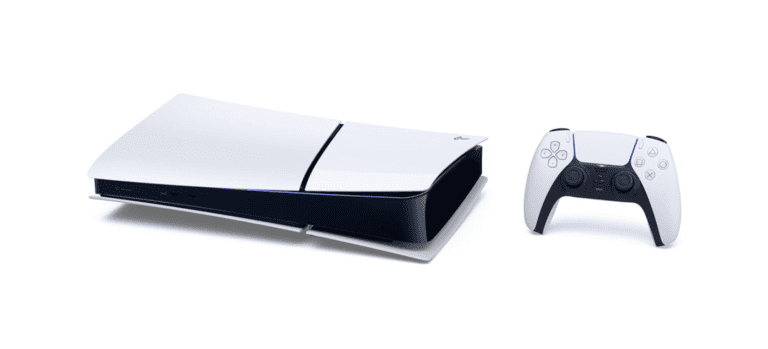
Nothing ruins a gaming session faster than lag. Whether you’re dealing with stuttering gameplay, delayed inputs, or sudden frame drops, PS5 lag can be frustrating—especially during online matches. The good news is that most lag issues can be fixed with a few practical steps. Here’s a complete guide to help you get your PlayStation 5 running smoothly again.
1. Check Your Internet Connection
Lag in online games is often caused by network issues.
What to do:
- Run a connection test on your PS5:
Settings → Network → Network Settings → Test Internet Connection - Aim for:
- Download speed: 15 Mbps or higher
- Upload speed: 5 Mbps or higher
- Low latency (ping)
Tips:
- Use a wired Ethernet connection instead of Wi‑Fi whenever possible.
- Restart your router and modem.
- Avoid downloading large files or streaming on other devices while gaming.
2. Reduce Network Congestion
Too many devices on the same network can cause lag.
Solutions:
- Pause downloads on other devices.
- Disconnect unused smart TVs, phones, or tablets.
- Enable Quality of Service (QoS) on your router and prioritize your PS5.
3. Update Your PS5 System Software
Outdated software can cause performance and stability issues.
How to update:
- Go to Settings → System → System Software → System Software Update and Settings
- Install any available updates.
System updates often include performance improvements and bug fixes.
4. Update Your Games
Game updates frequently fix bugs, optimize performance, and improve online stability.
Steps:
- Highlight the game on the home screen
- Press the Options button
- Select Check for Update
5. Free Up Storage Space
A nearly full SSD can slow down performance.
Recommendations:
- Keep at least 10–15% free storage.
- Delete games or media you no longer use.
- Move games to an external SSD or HDD if supported.
6. Close Background Apps and Rest Mode Issues
Running apps in the background or using Rest Mode for long periods can cause issues.
Try this:
- Fully restart your PS5 instead of using Rest Mode.
- Close streaming apps like YouTube or Spotify before gaming.
7. Adjust In-Game Settings
Some games push the PS5 hardware hard, especially at higher resolutions.
Optimize performance by:
- Switching to Performance Mode:
Settings → Saved Data and Game/App Settings → Game Presets → Performance Mode - Lowering graphical options like ray tracing, motion blur, or resolution (if available).
8. Prevent Overheating
Overheating can cause throttling, which feels like lag.
Keep your PS5 cool:
- Place it in a well-ventilated area
- Avoid enclosed spaces or stacking items around it
- Clean dust from vents regularly
9. Check PlayStation Network (PSN) Status
Sometimes lag isn’t your fault.
- Visit the official PlayStation Network Service Status page
- Look for outages or maintenance affecting online services
10. Rebuild the PS5 Database (Advanced)
If lag persists, rebuilding the database can help.
How to do it:
- Turn off your PS5 completely
- Hold the power button until you hear a second beep
- Connect a controller with a USB cable
- Select Rebuild Database
This won’t delete your data but may improve performance.
Final Thoughts
PS5 lag is usually caused by internet issues, software problems, or system strain—but most of the time, it’s fixable. Start with your network connection, keep everything updated, and make sure your console is clean and well-ventilated. With these steps, you should be able to enjoy smoother gameplay and faster response times.