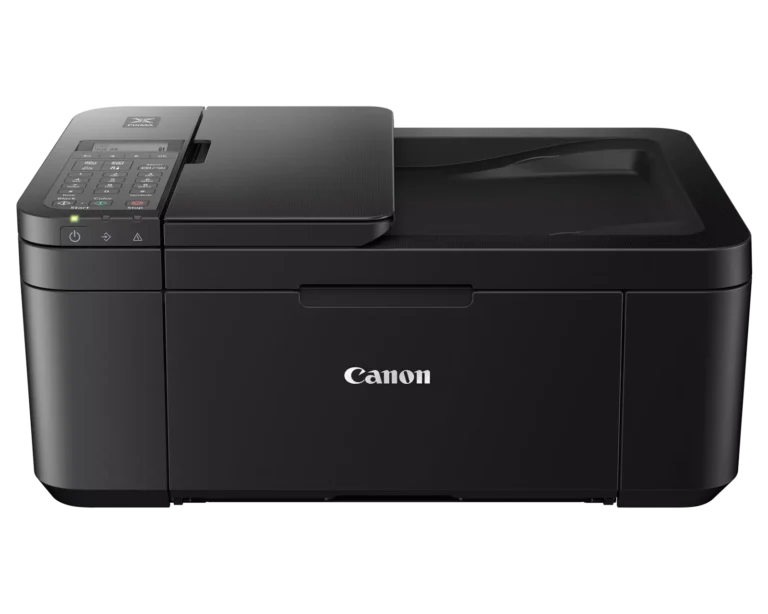
The Canon PIXMA TS3122 is a compact all‑in‑one inkjet printer designed for home use. Setting it up on Wi‑Fi allows you to print wirelessly from your computer, smartphone, or tablet. This guide walks you through the complete Canon PIXMA TS3122 Wi‑Fi setup process for Windows, Mac, Android, and iPhone.
Before You Begin
Make sure you have:
- ✅ A working wireless network (2.4 GHz Wi‑Fi recommended)
- ✅ Your Wi‑Fi network name (SSID) and password
- ✅ Canon PIXMA TS3122 powered on
- ✅ Ink cartridges installed
- ✅ Paper loaded in the tray
Note: The TS3122 does not support 5 GHz networks directly. Ensure your router is broadcasting a 2.4 GHz band.
Method 1: Standard Wi‑Fi Setup Using Canon Setup Software (Recommended)
This is the easiest and most reliable method.
Step 1: Download the Setup Software
- Go to the official Canon support website.
- Search for Canon PIXMA TS3122.
- Download the setup file for your operating system (Windows or macOS).
- Run the downloaded file.
Step 2: Start Wireless Setup Mode on Printer
- Press and hold the Wireless (Wi‑Fi) button on the printer.
- Release it when the Alarm light flashes.
- Press the Color button.
- Press the Wireless button again.
- Make sure the Wi‑Fi light is flashing rapidly.
The printer is now in setup mode.
Step 3: Connect to Your Network
- Follow the on‑screen instructions in the Canon setup software.
- Select your Wi‑Fi network.
- Enter your Wi‑Fi password.
- Wait for confirmation that the printer is connected.
Once complete, the Wi‑Fi light will stay solid.
Method 2: Wireless Setup Using WPS (If Your Router Supports It)
If your router has a WPS button, this method is quicker.
Steps:
- Turn on the printer.
- Press and hold the Wireless button until the Wi‑Fi light flashes.
- Press the Color button.
- Press the Wireless button again.
- Within 2 minutes, press the WPS button on your router.
- Wait for the Wi‑Fi light to stop blinking and remain solid.
Your printer should now be connected.
Setup on Windows Computer
After connecting the printer to Wi‑Fi:
- Open Settings > Devices > Printers & Scanners.
- Click Add a Printer or Scanner.
- Select Canon TS3122 from the list.
- Click Add Device.
If it does not appear, reinstall the Canon driver package.
Setup on Mac
- Go to System Settings (or System Preferences).
- Select Printers & Scanners.
- Click the + (Add Printer) button.
- Choose Canon TS3122 from the list.
- Click Add.
macOS may automatically download the correct driver.
Setup Using Smartphone (Canon PRINT Inkjet/SELPHY App)
You can print directly from your mobile device.
Step 1: Install the App
Download Canon PRINT Inkjet/SELPHY from:
- Apple App Store (iPhone)
- Google Play Store (Android)
Step 2: Add Printer
- Open the app.
- Tap Add Printer.
- Follow the on‑screen instructions.
- Select your Wi‑Fi network and enter the password.
Once added, you can print photos, documents, and scan directly from your phone.
How to Confirm Printer Is Connected to Wi‑Fi
- The Wi‑Fi light should be solid (not blinking).
- Print a Network Configuration Page:
- Hold the Resume/Cancel button until the alarm light flashes 15 times.
- Release the button.
- The printer will print network details.
Check that your network name appears on the page.
Troubleshooting Canon PIXMA TS3122 Wi‑Fi Setup
Printer Not Connecting?
- Restart your router and printer.
- Move the printer closer to the router.
- Ensure you’re using a 2.4 GHz network.
- Re-enter the correct Wi‑Fi password.
- Disable VPN during setup.
Wi‑Fi Light Keeps Blinking
This usually means:
- Incorrect password
- Weak signal
- Router compatibility issue
Reset the printer’s network settings and try again.
How to Reset Network Settings on Canon TS3122
- Turn the printer ON.
- Press and hold the Stop button.
- Release it when the alarm lamp flashes 21 times.
- The printer will reset network settings.
You can now restart the Wi‑Fi setup process.
Final Thoughts
The Canon PIXMA TS3122 Wi‑Fi setup process is simple once you follow the correct steps. Using the Canon setup software is the most reliable method, especially for first‑time installation.
After setup, you can enjoy:
- Wireless printing
- Mobile printing
- Cloud printing
- Scanning to devices
If issues persist, updating your printer drivers or resetting your router often resolves connectivity problems.